Guide on prevent User Box Documents from Being Deleted After Printing
For the Older Machine series / Non I-Series Machine
STEP 1 – On the Konica Minolta machine, we need to login to admin mode, Select [Utility].
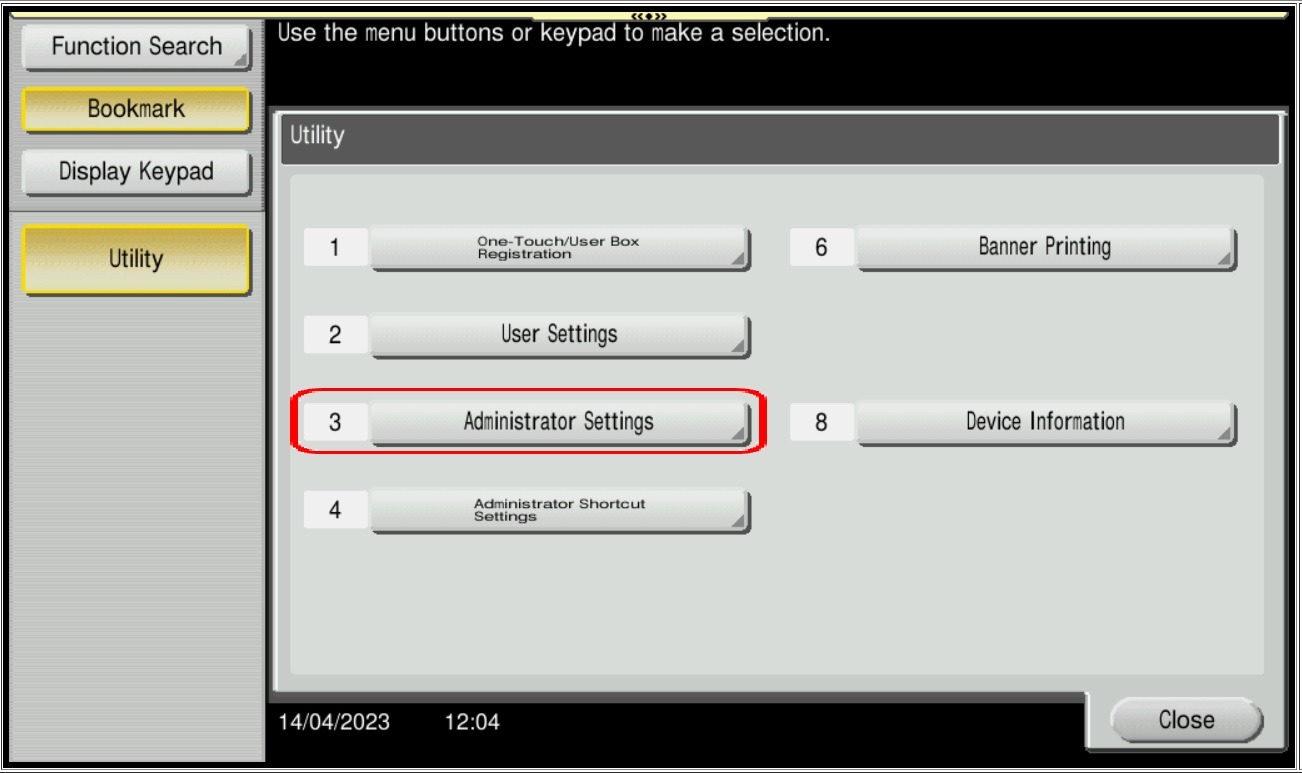
STEP 2 – Select [Administrator Settings].
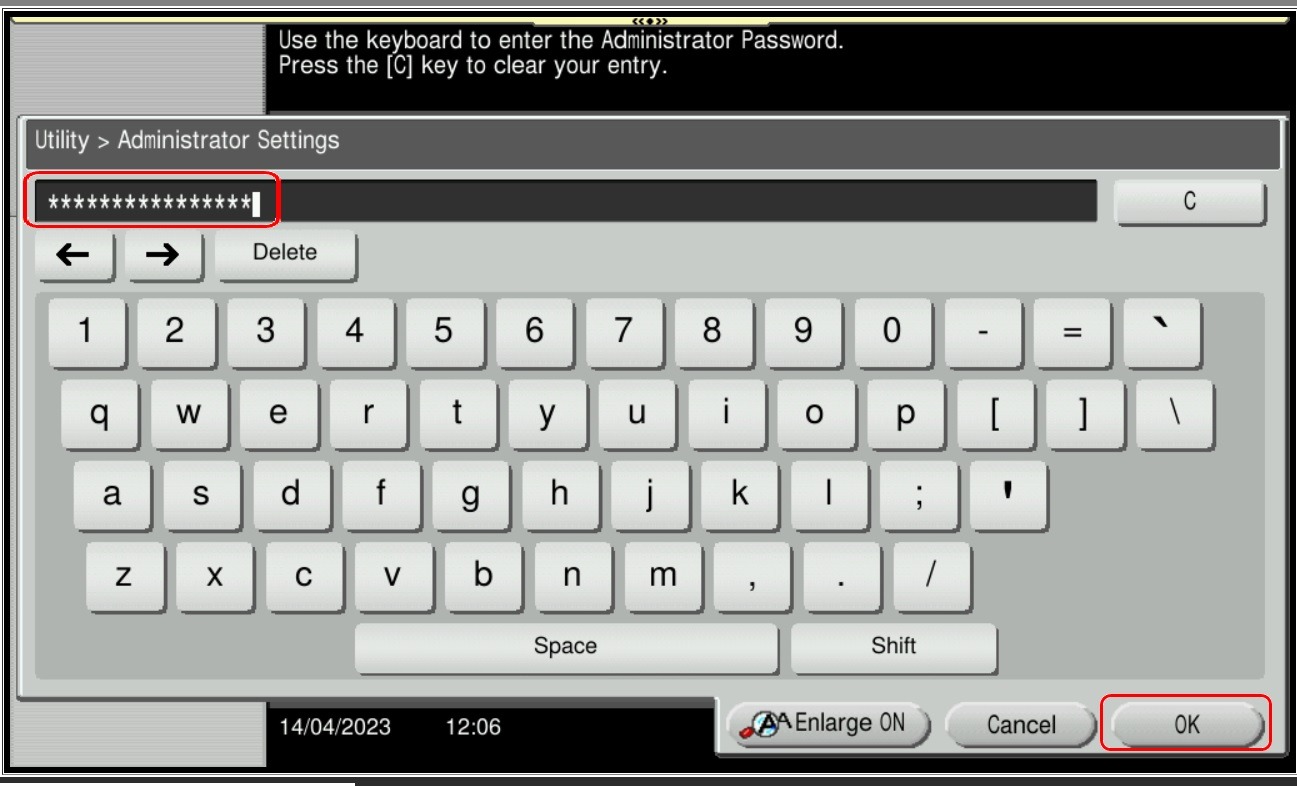
STEP 3 – Key in admin password for the machine, then select [OK] to continue.
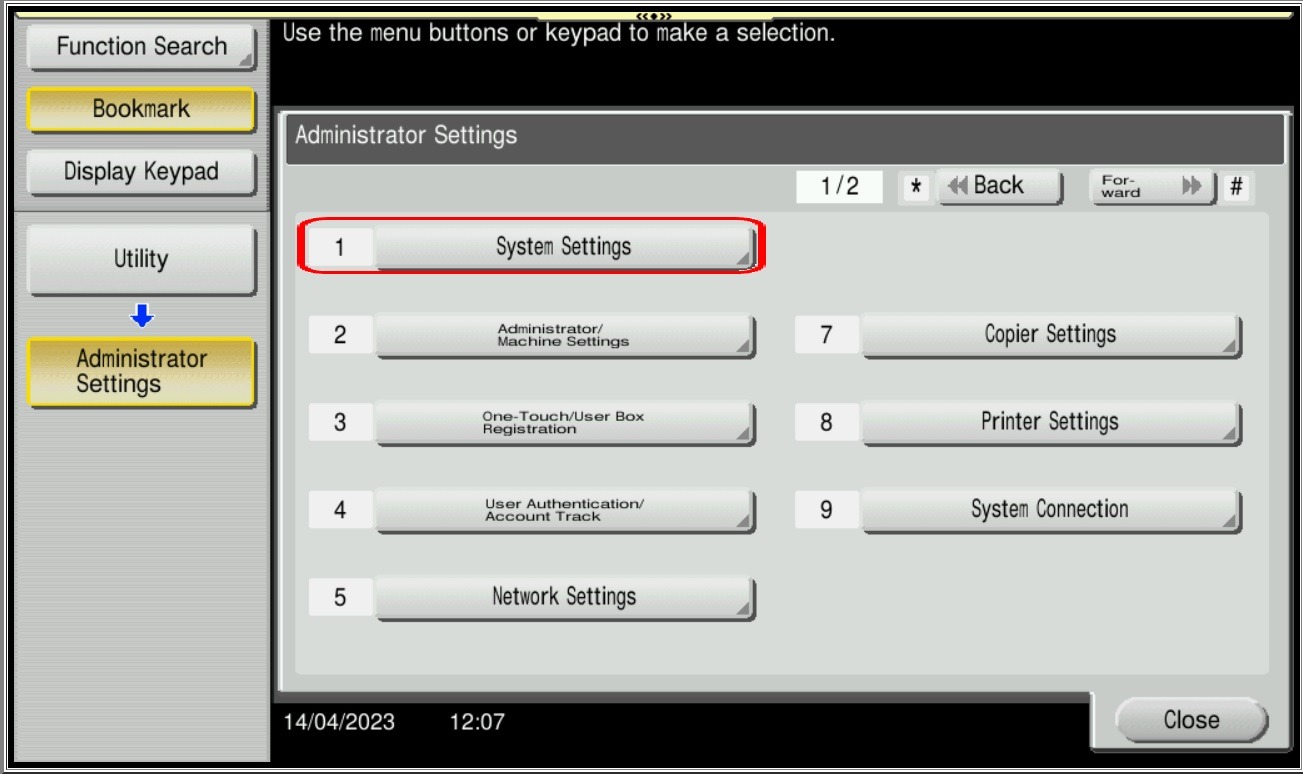
STEP 4 – Select [System Settings].
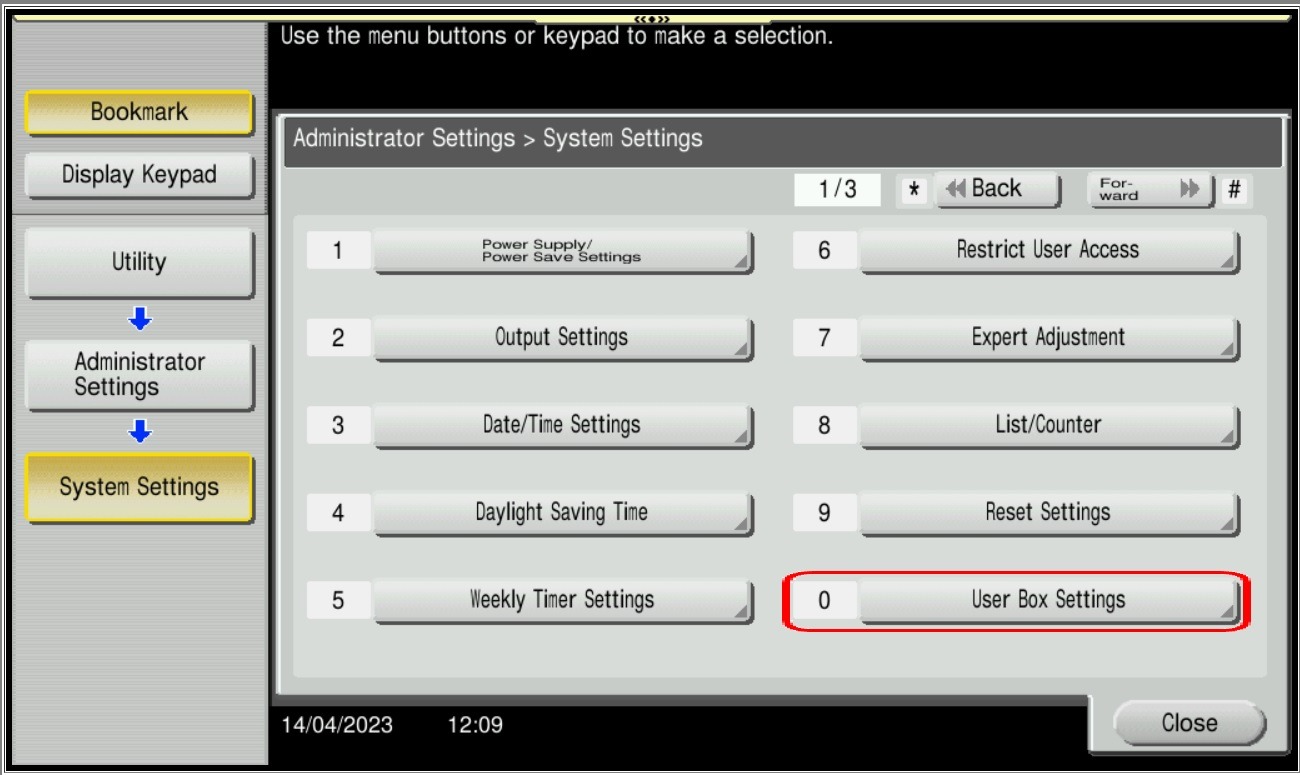
STEP 5 – Select [User Box Settings].
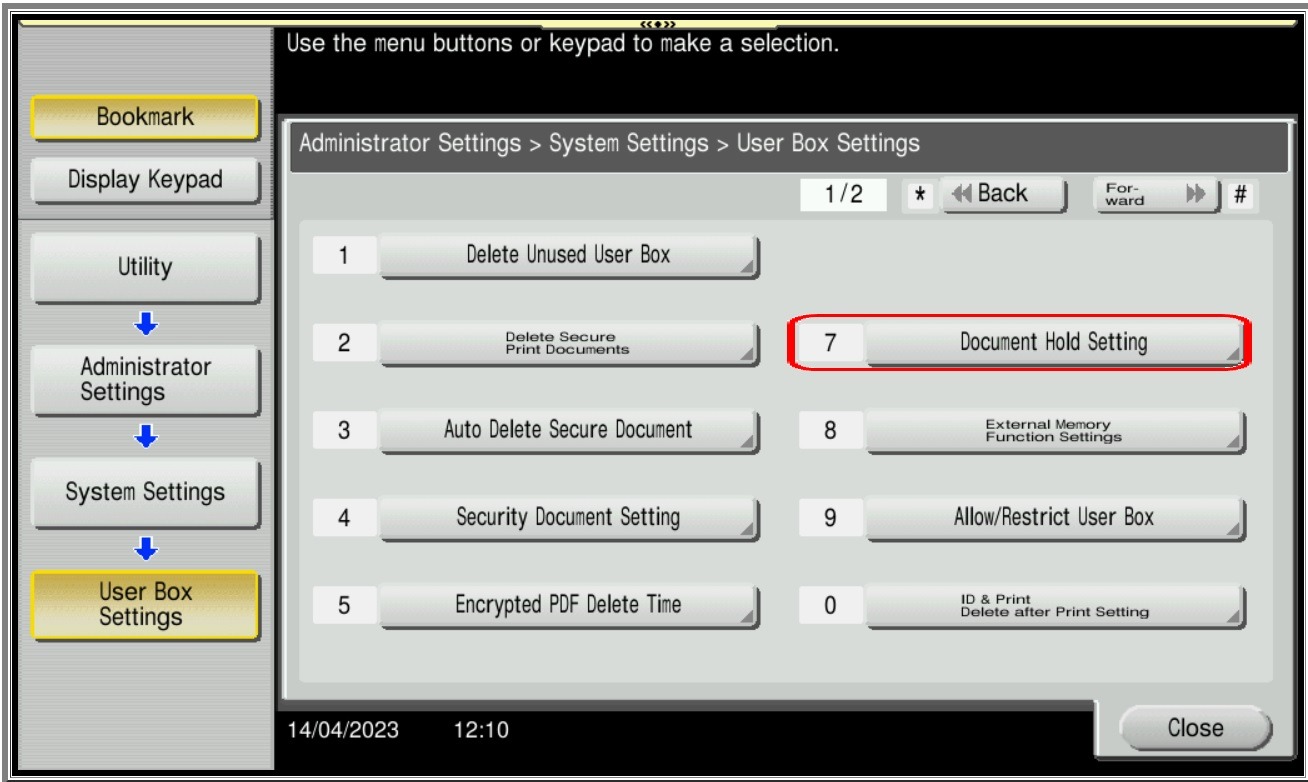
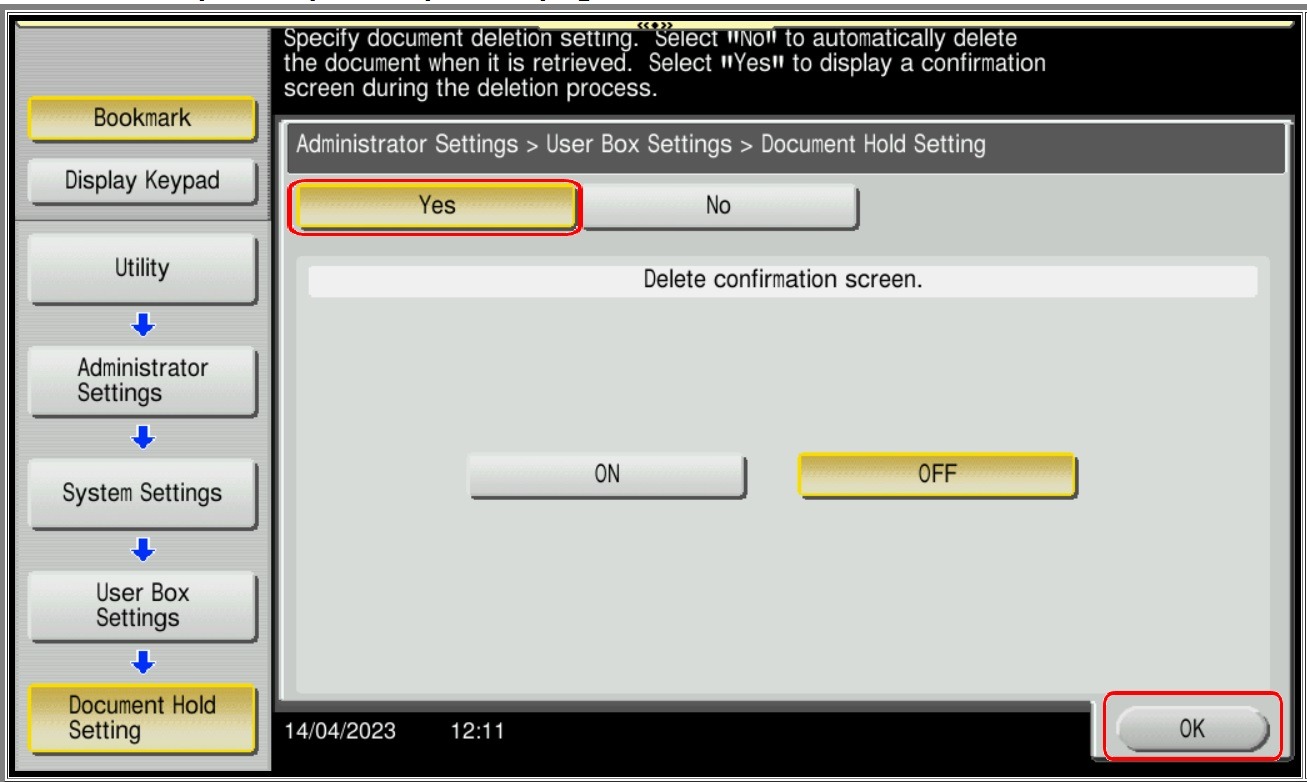
STEP 6 – Select [Document Hold Setting], choose [Yes] and click [OK] to save the setting.
For the Newer Machine series / I-Series Machine
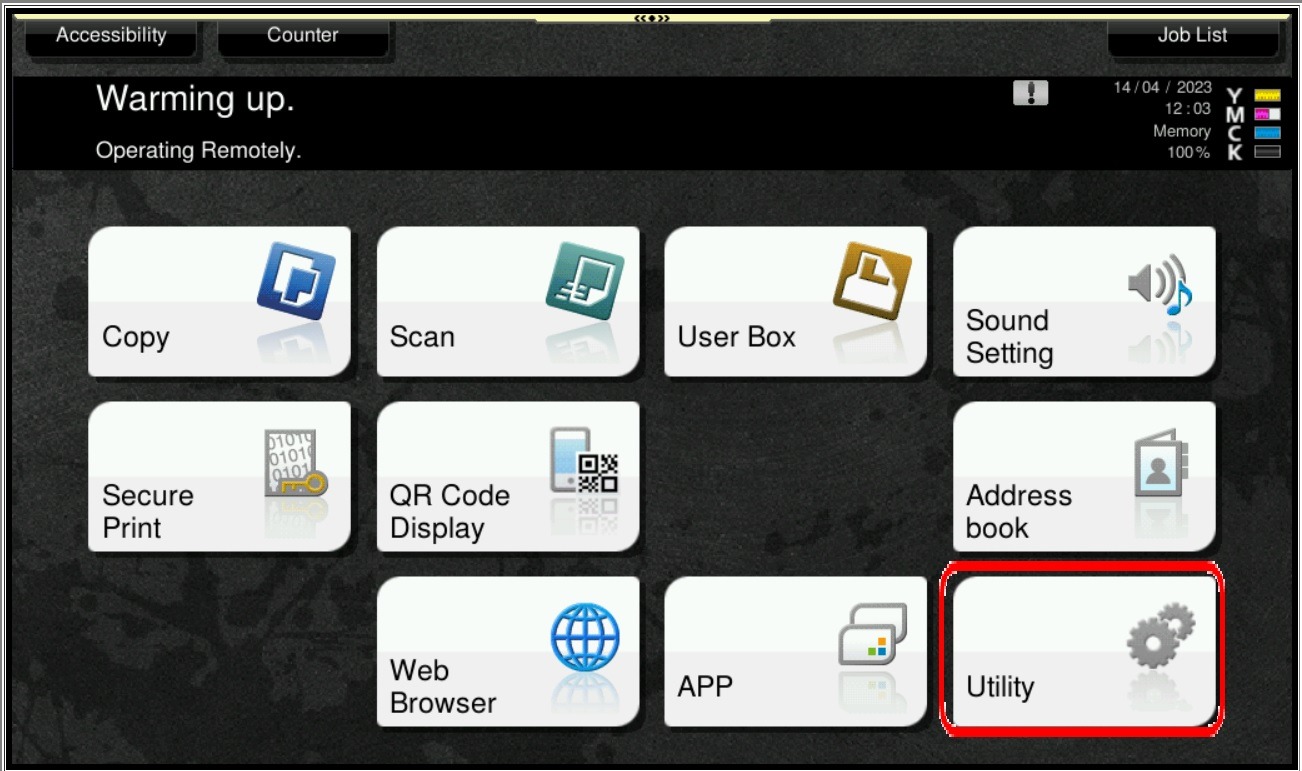
STEP 1 – On the Konica Minolta machine, we need to login to admin mode, Select [Utility].
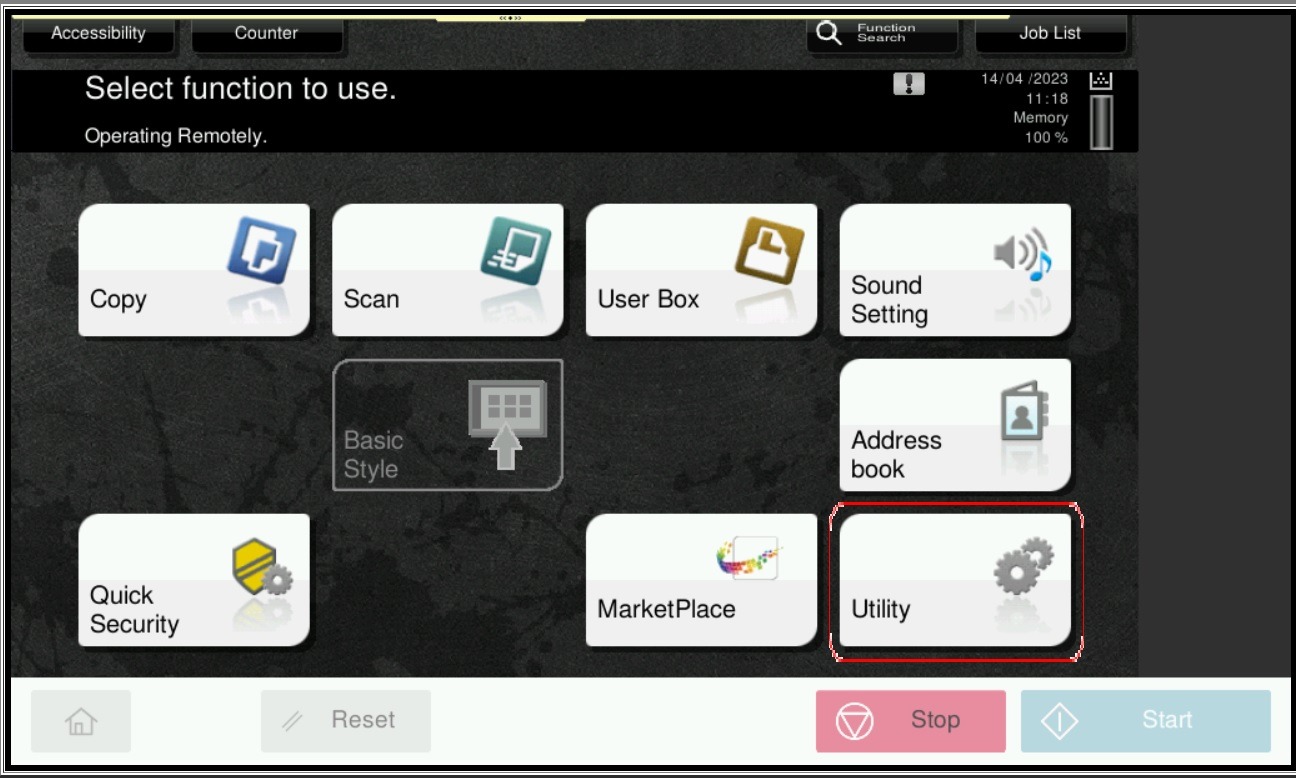
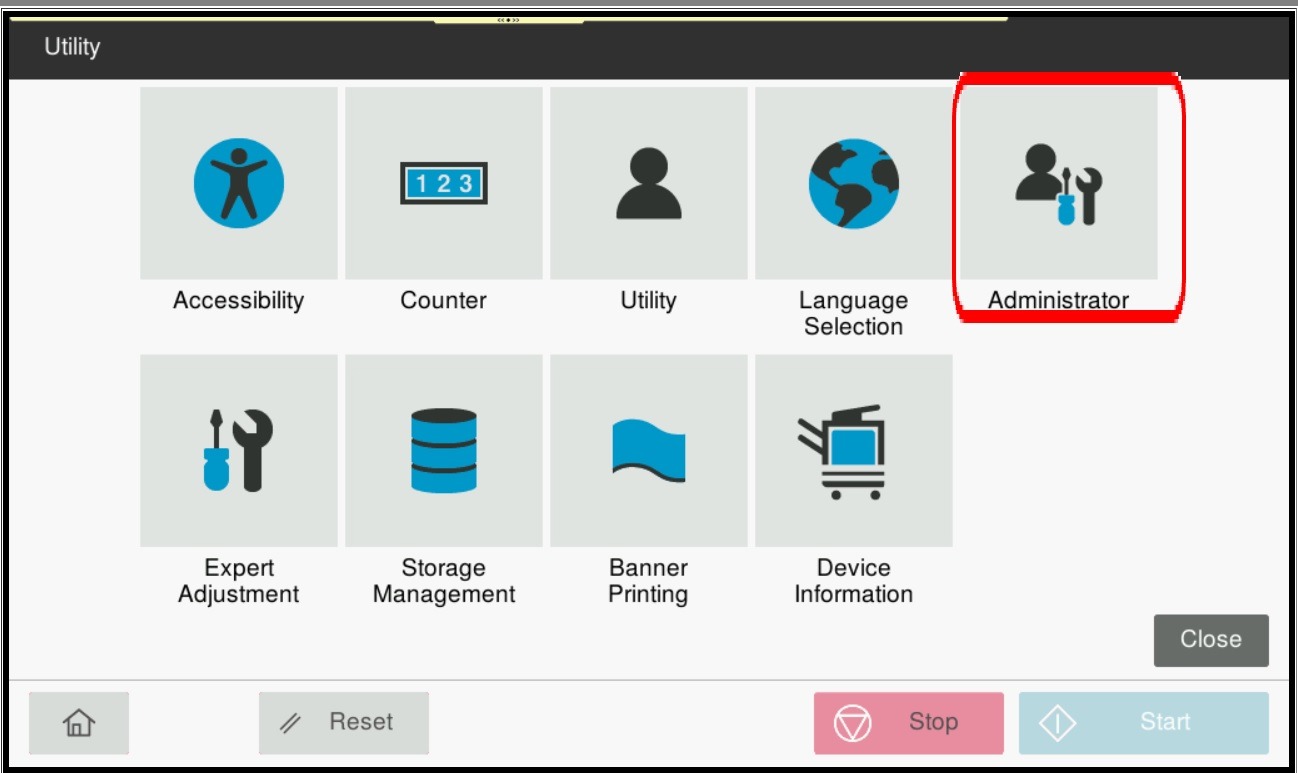
STEP 2 – Select [Administrator].
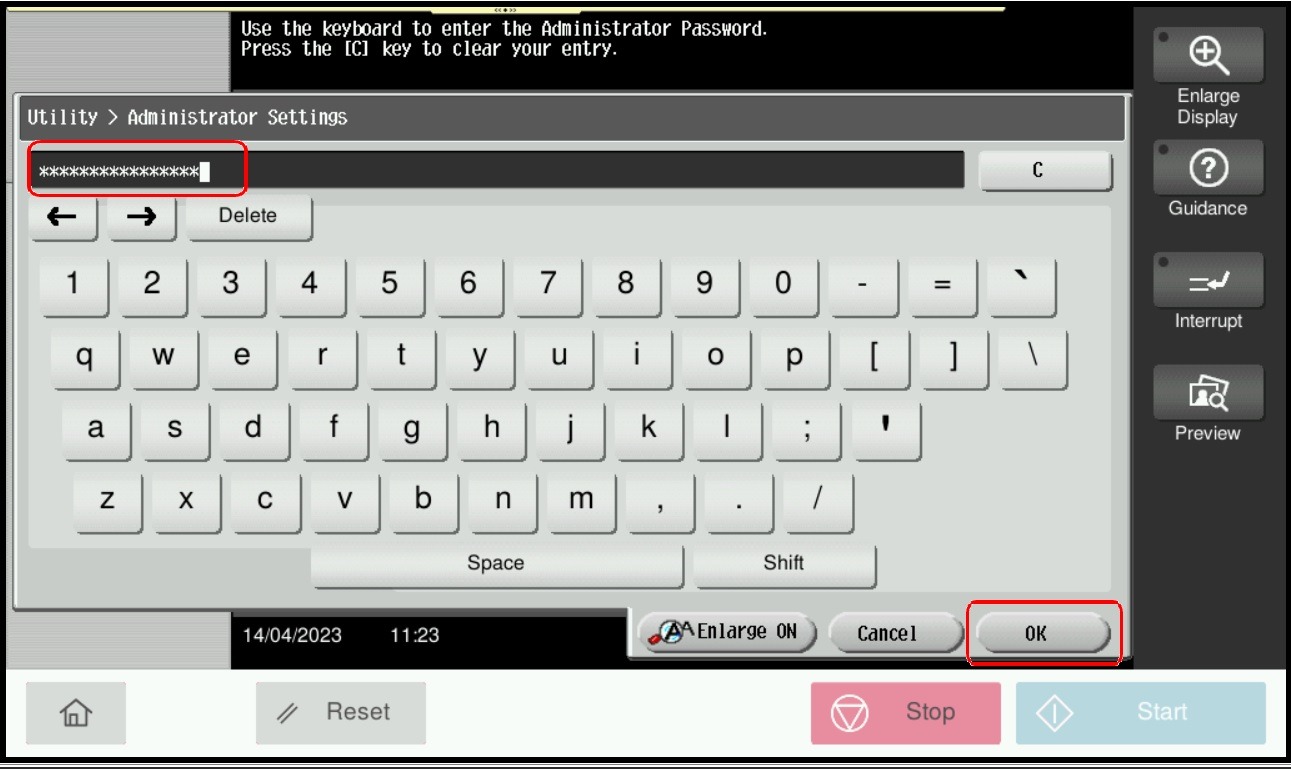
STEP 3 – Key in admin password for the machine, then select [OK] to continue.
STEP 4 – Select [System Settings].
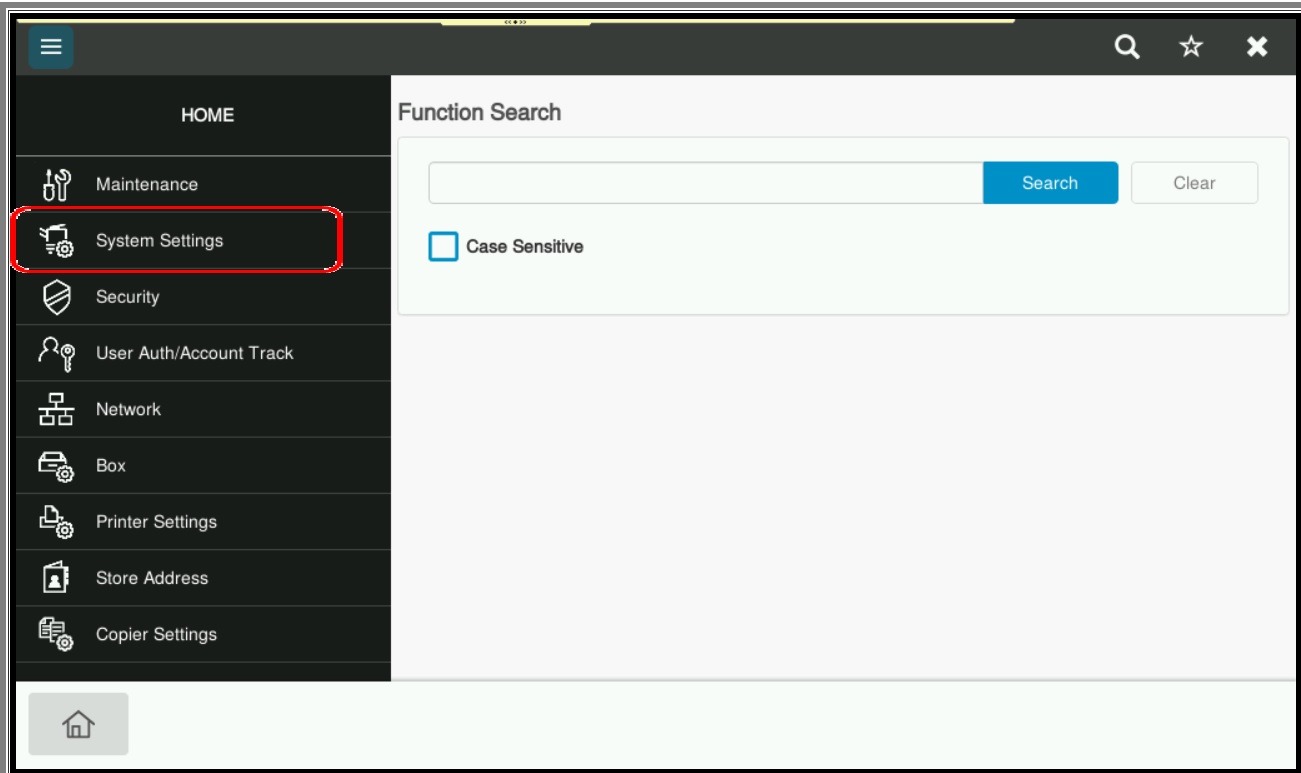
STEP 5 – Select [User Box Setting].
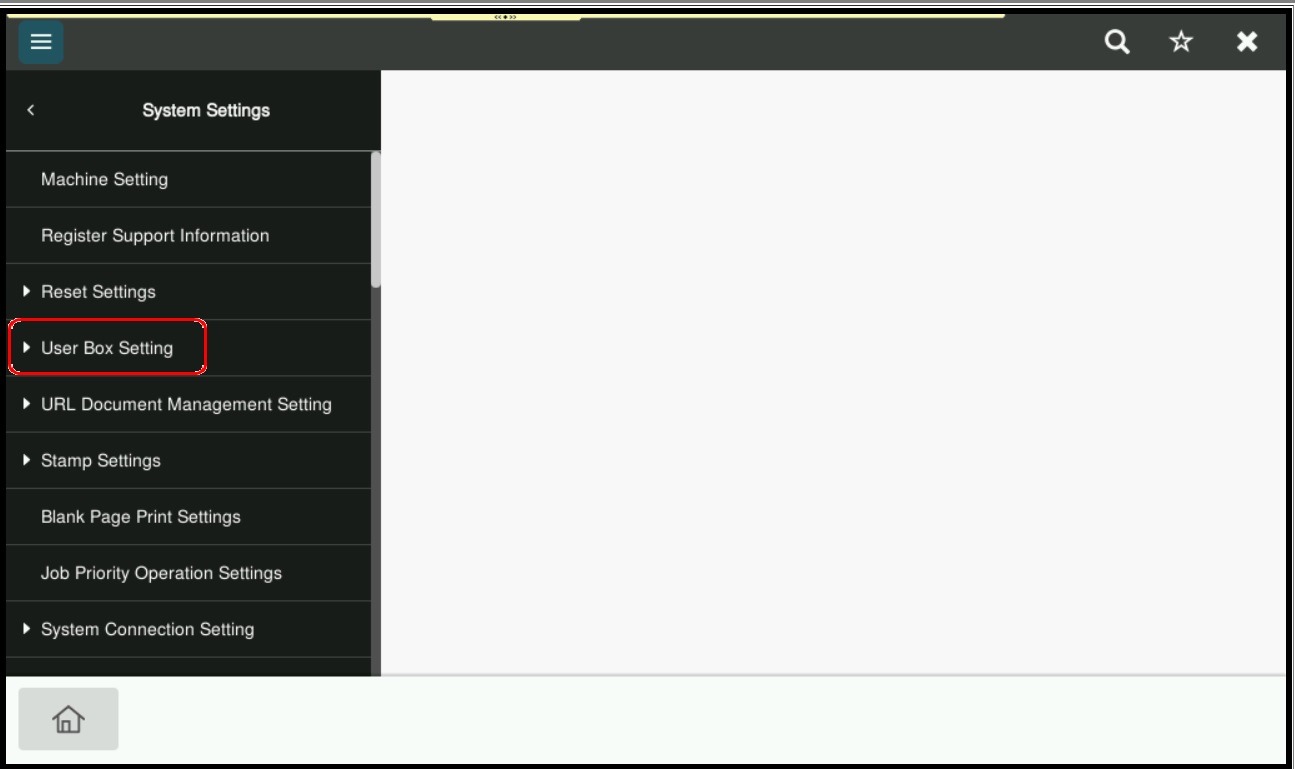
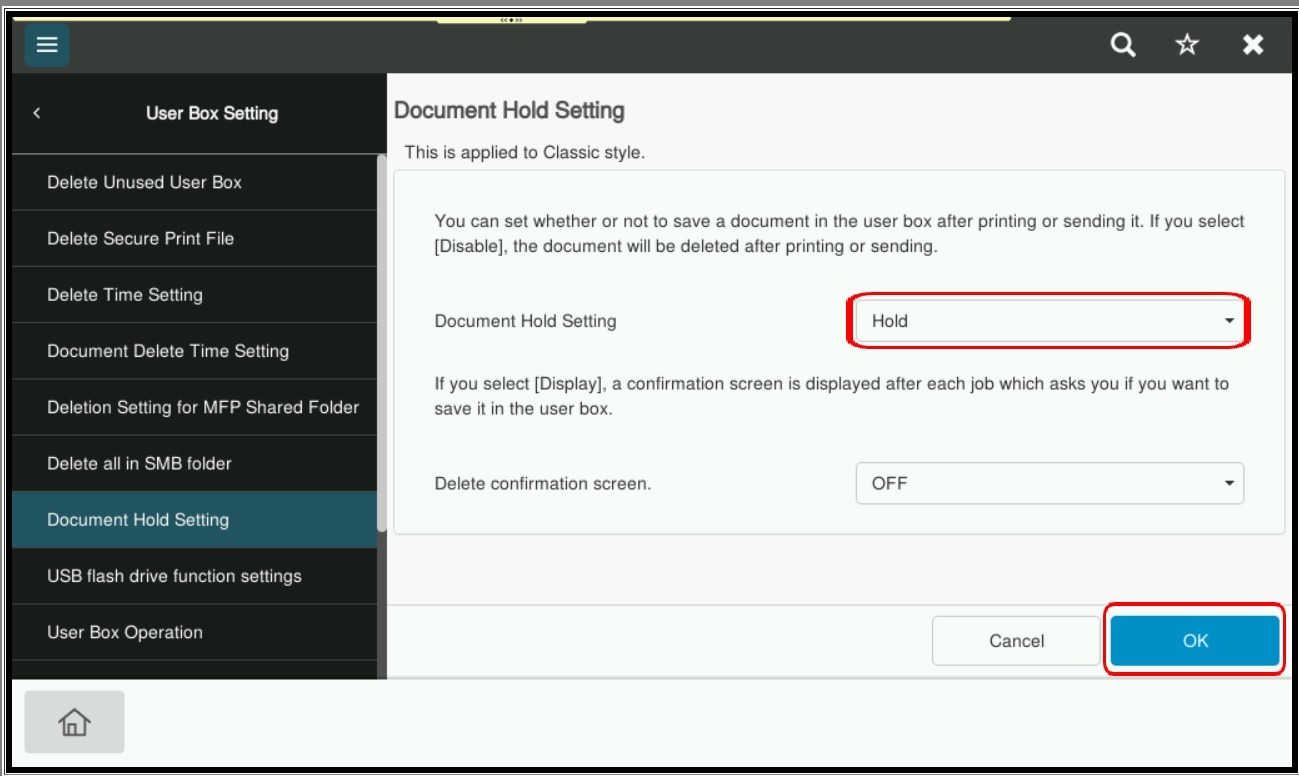
STEP 6 – Select [Document Hold Setting], choose [Hold] and click [OK] to save the setting.