Guide On How To Register A Card On The Card Reader Of The Machine
Access the machine Web Connection. Click this LINK to check on how to get the IP Address from the Konica Minolta machine.
For the Older Machine series / Non I-Series Machine
STEP 1 – On the Konica Minolta machine control panel, click on [Menu] button and select [Utility].
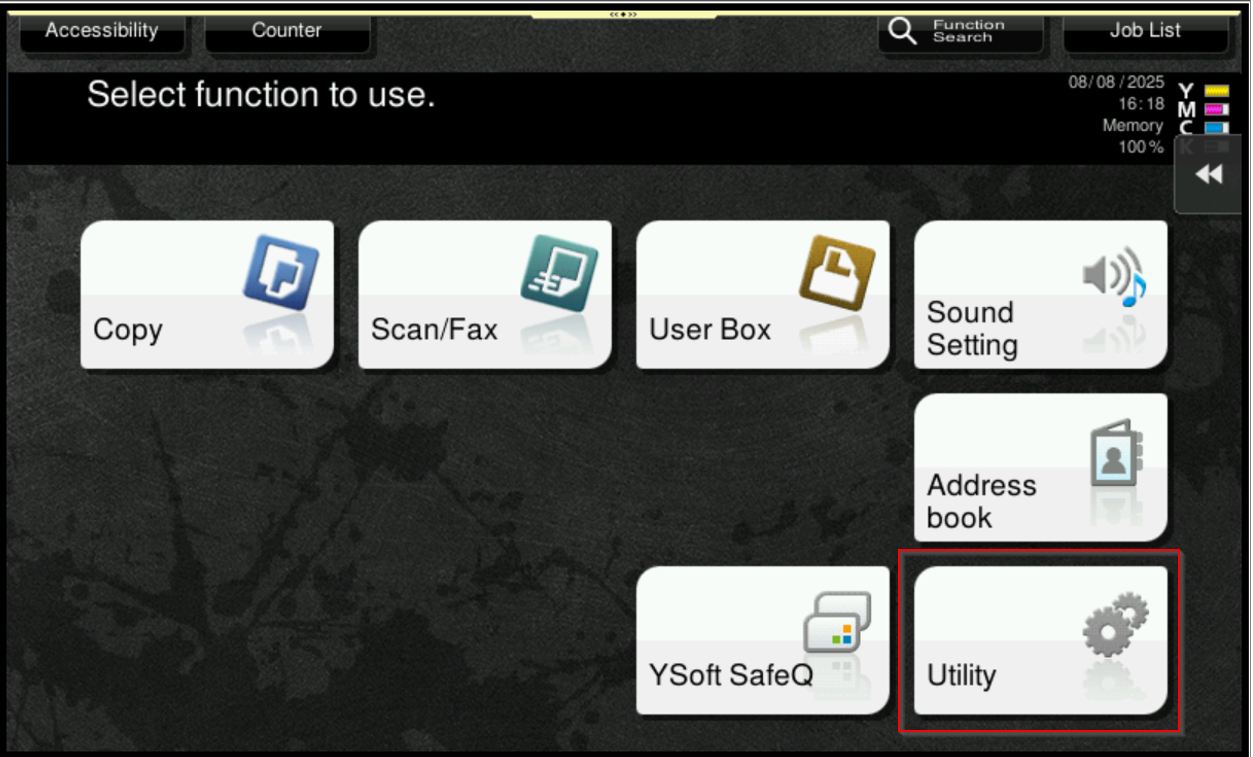
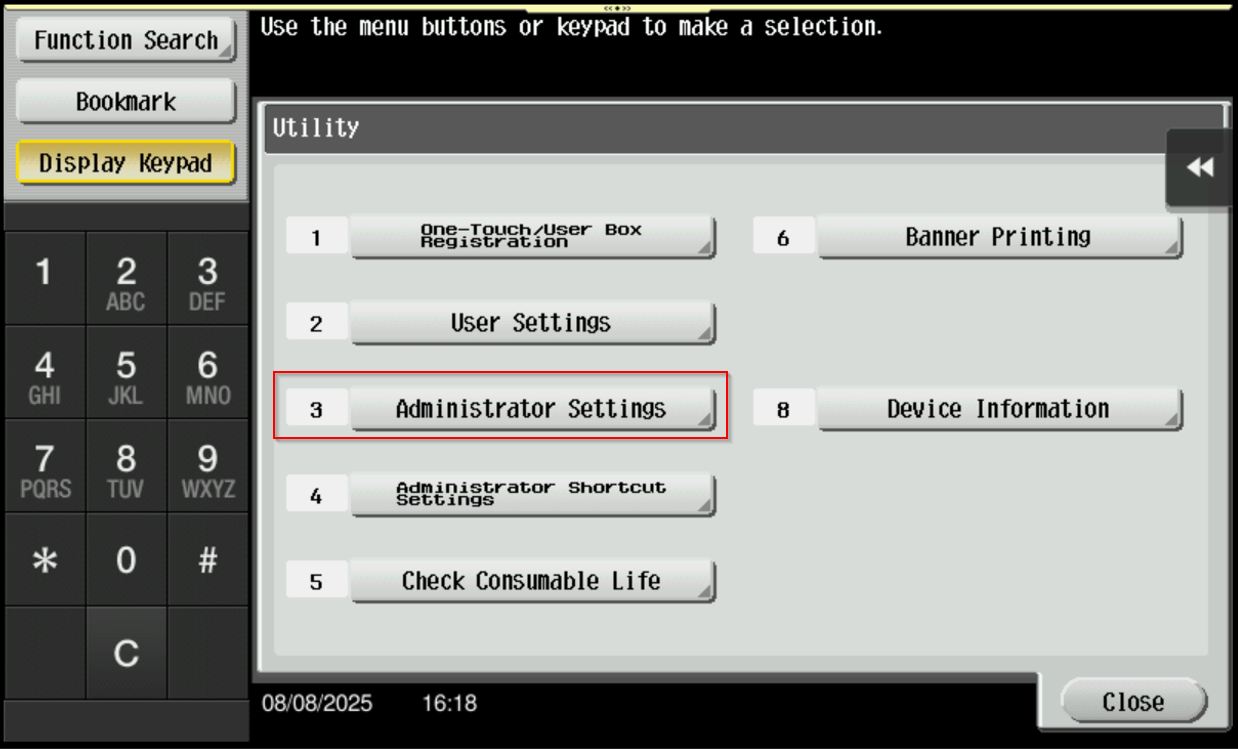
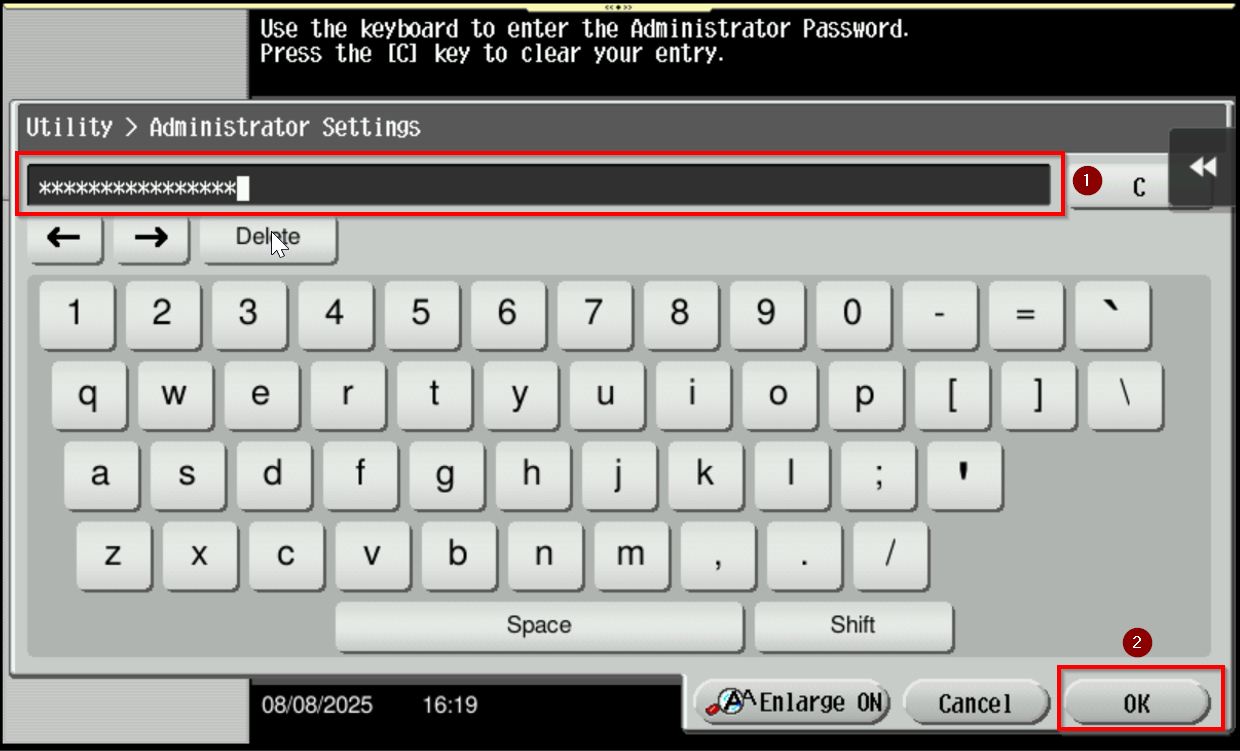
STEP 2 – Select [Administrator Settings] then enter the machine Admin Password.
Default administrator password will be either [7801261178012611] or [1234567812345678] or [12345678] or [12341234].
STEP 3 – Select [User Authentication/Account Track].

STEP 4 – Choose [User Authentication Settings].
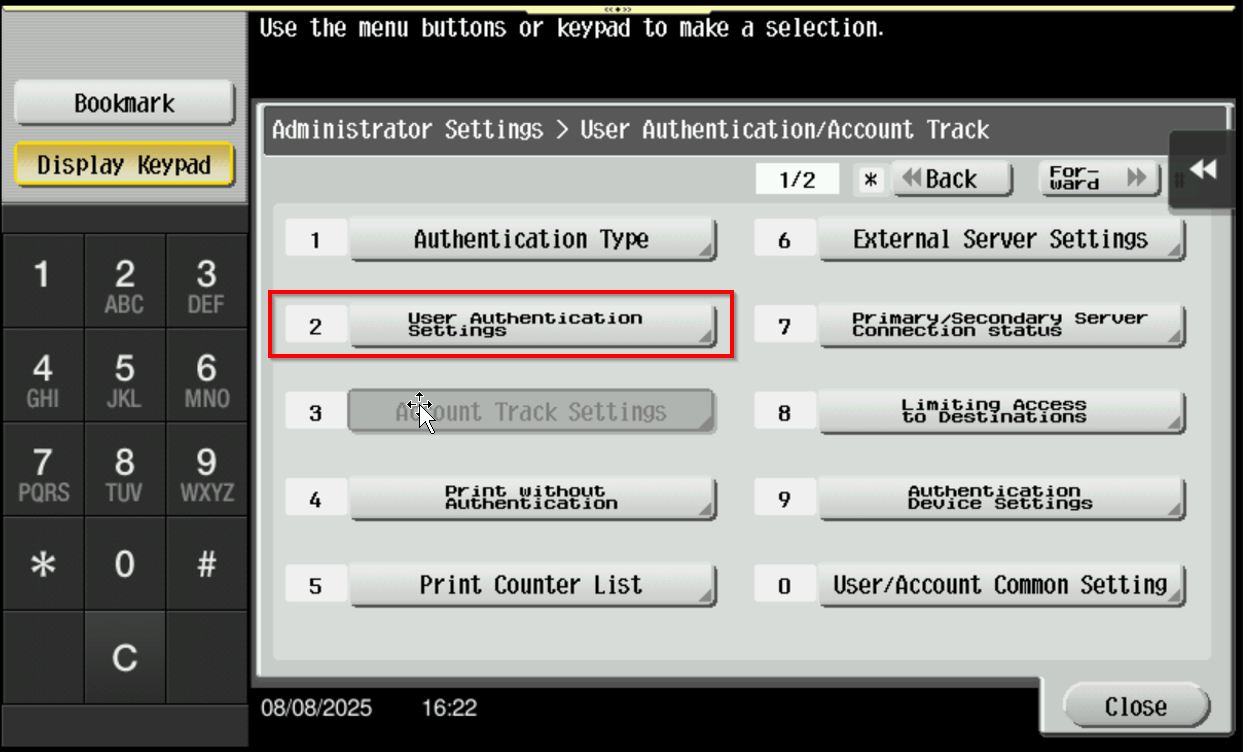
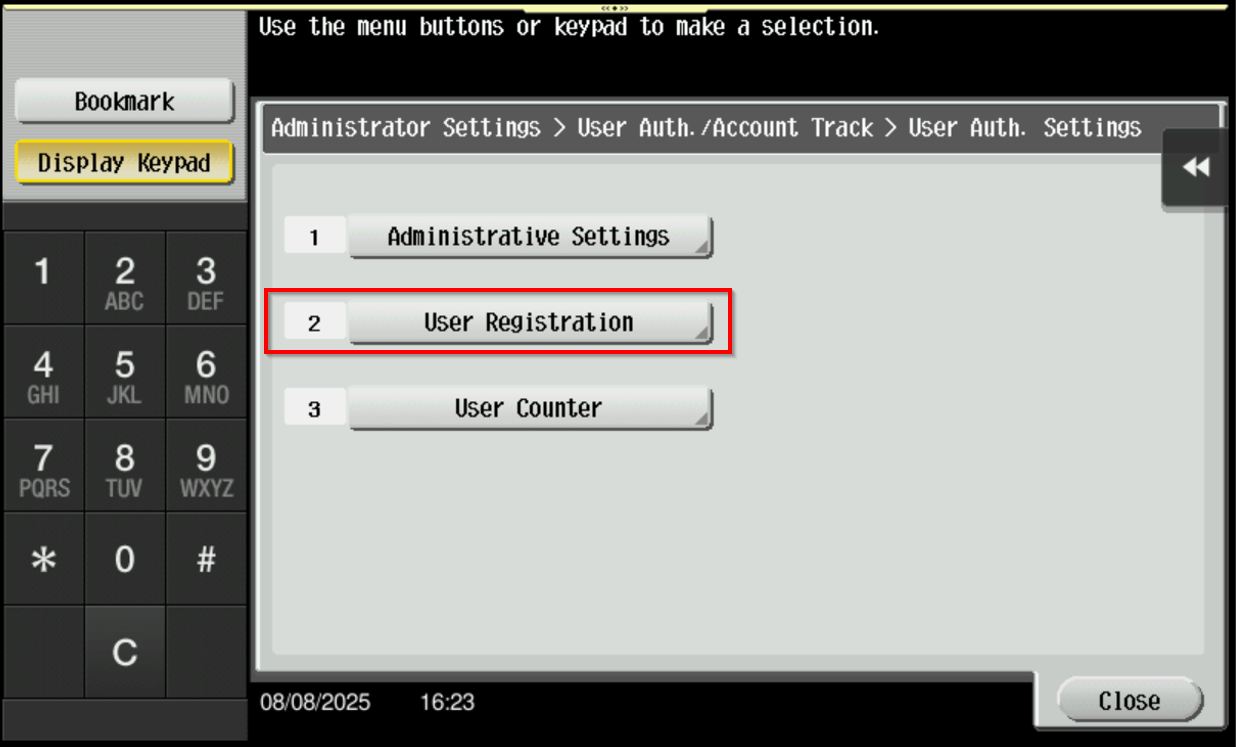
STEP 5 – Select [User Registration].
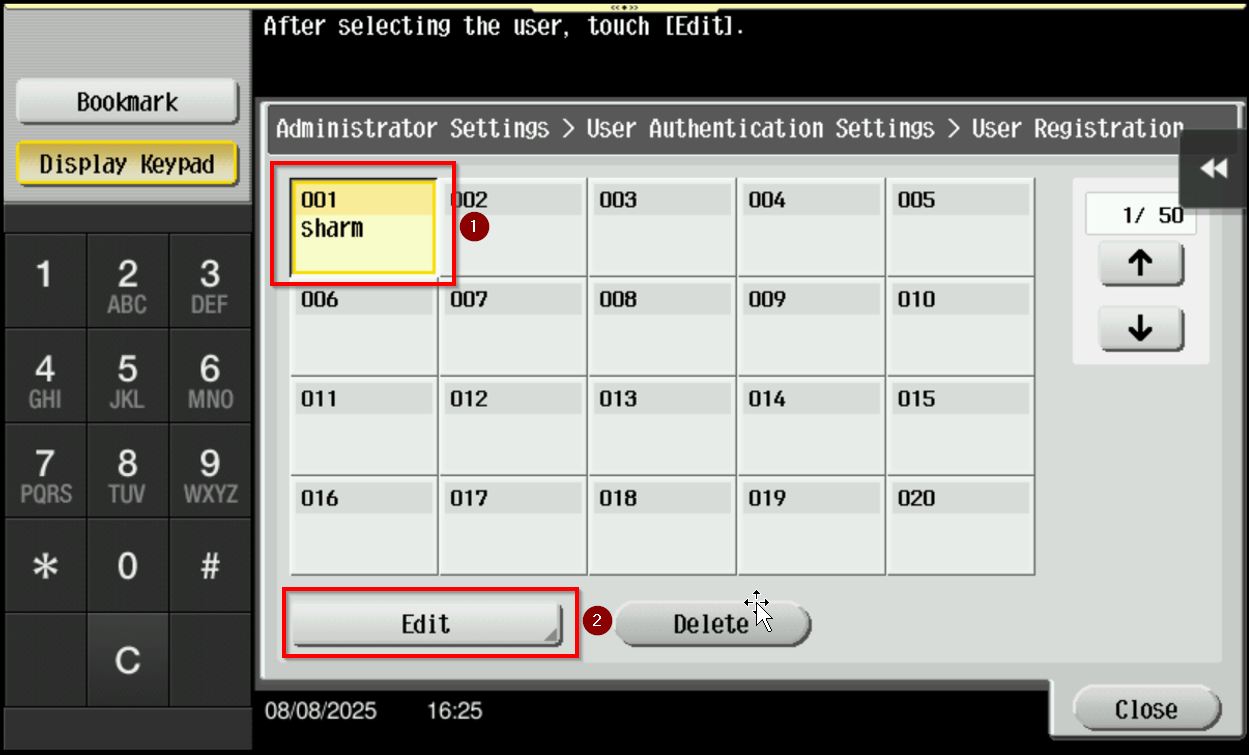
STEP 6 – Select the name that want to register a card, click on [Edit] – [Register Auth. Info].
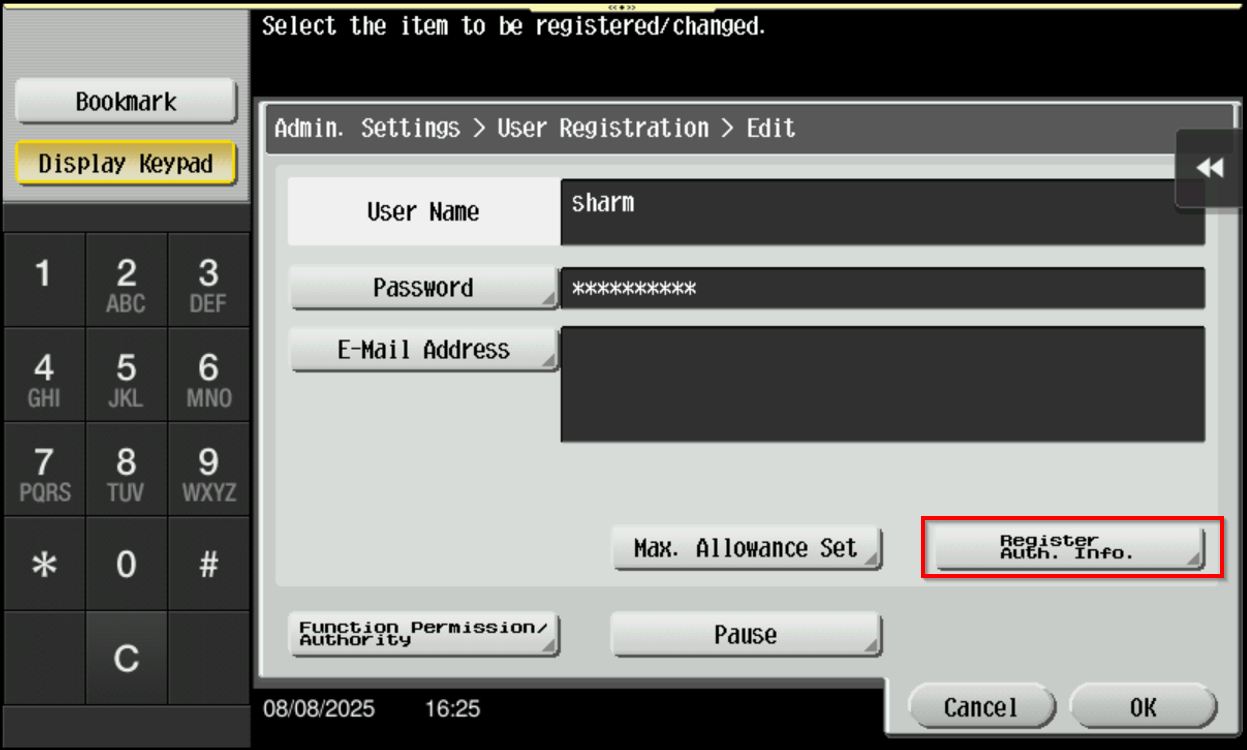
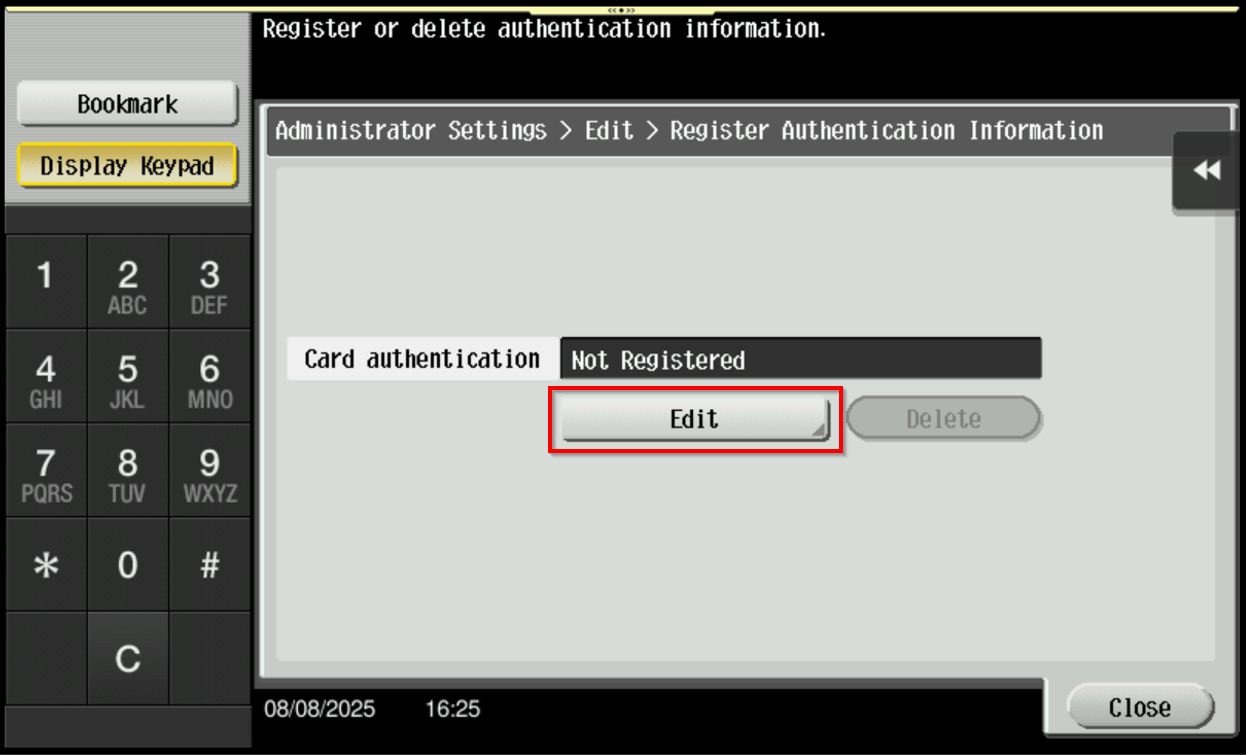
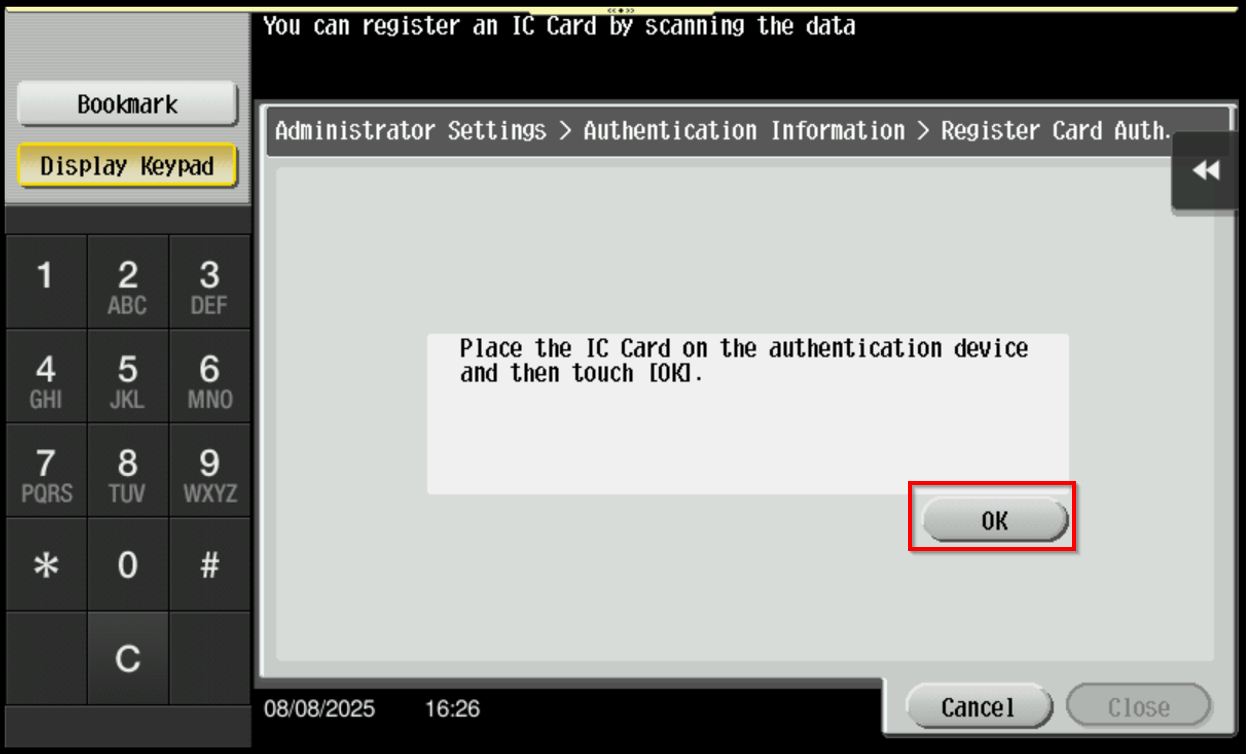
STEP 7 – Click on [Edit], place a card on the card reader, proceed to select [OK] to confirm registration.
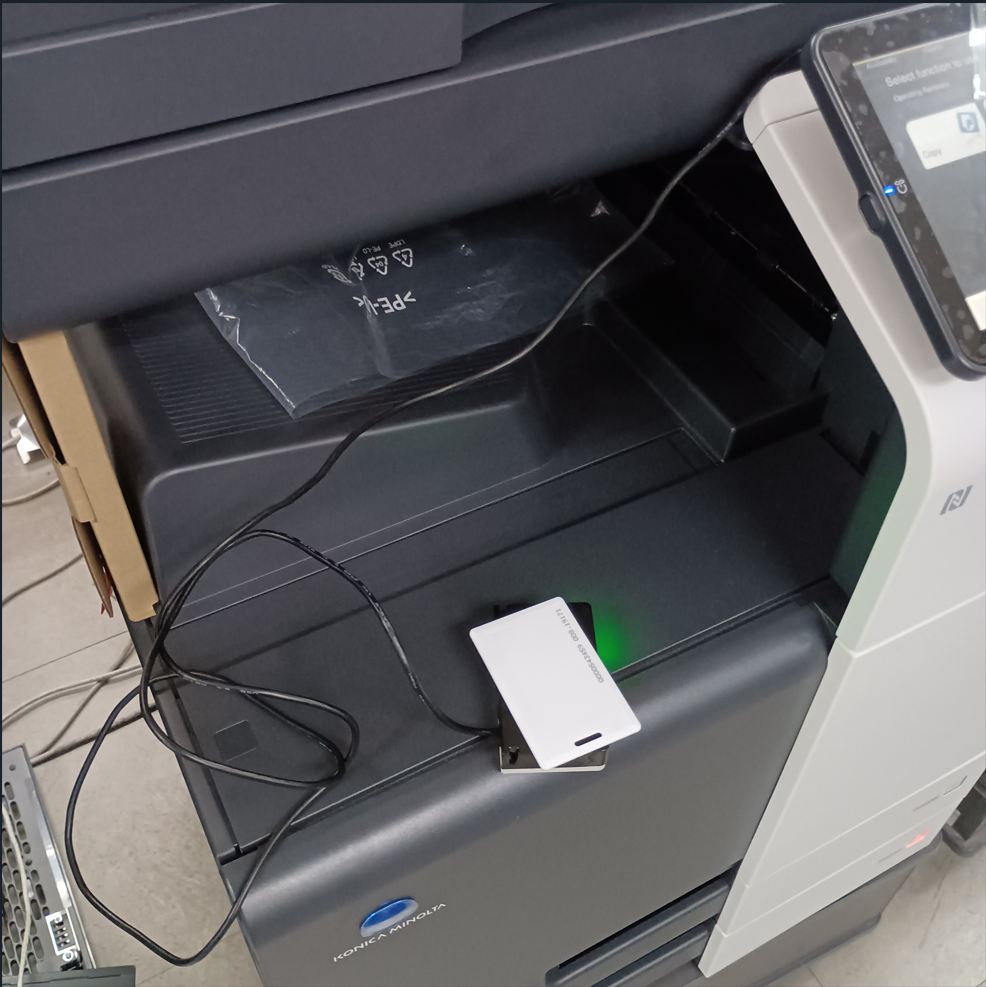
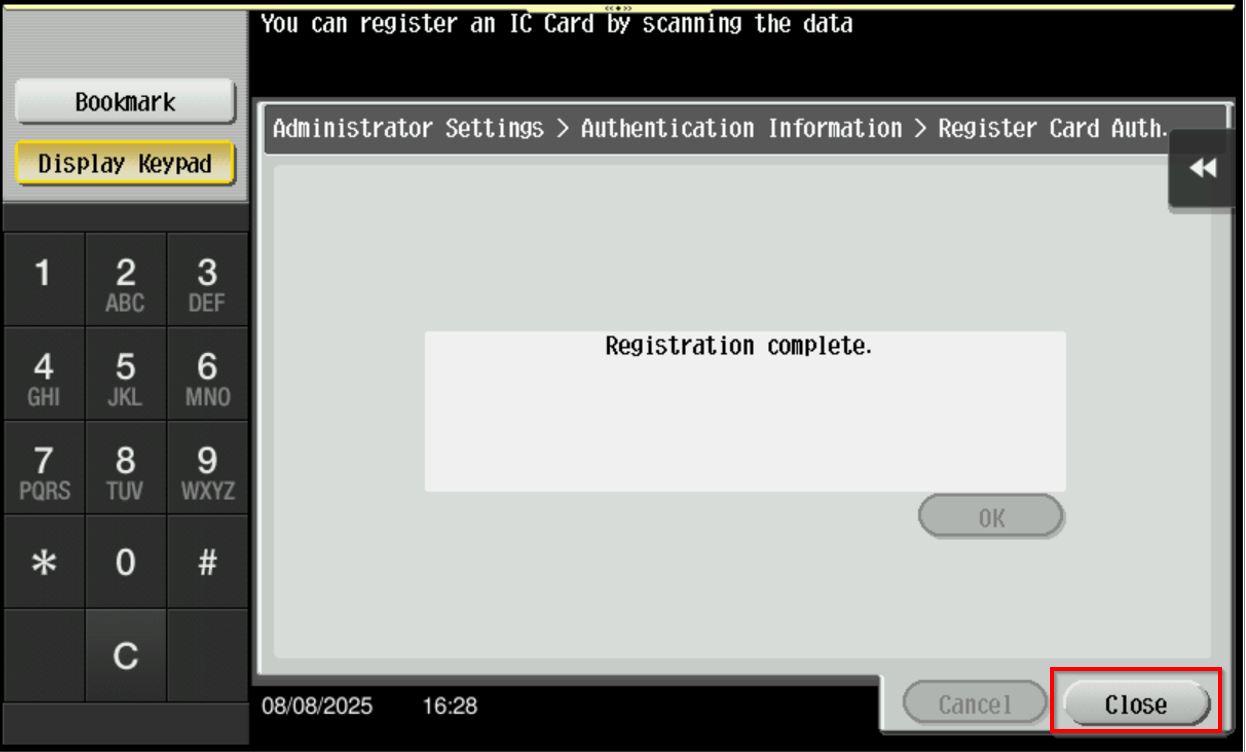
STEP 8 – Once the message shows “Registration complete“, click on [Close] until home screen to save the setting.
For the Newer Machine series / I-Series Machine
STEP 1 – On the Konica Minolta machine control panel, click on [Home] button and select [Utility].
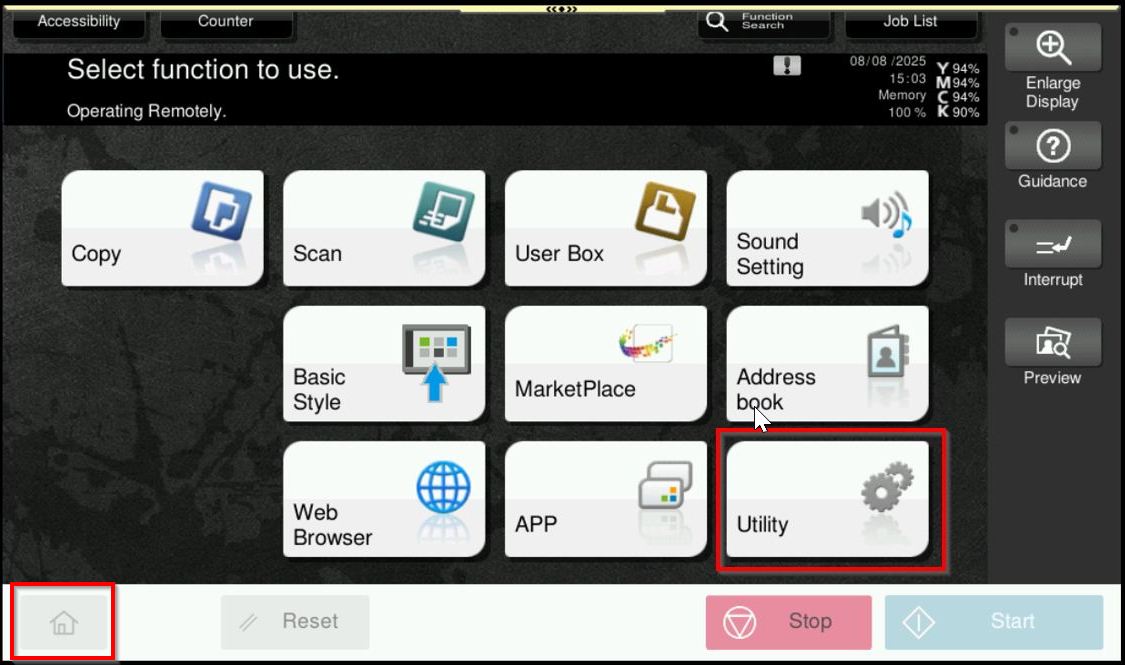
STEP 2 – Select [Administrator] then enter the machine Admin Password.
Default administrator password will be either [7801261178012611] or [1234567812345678] or [12345678] or [12341234].
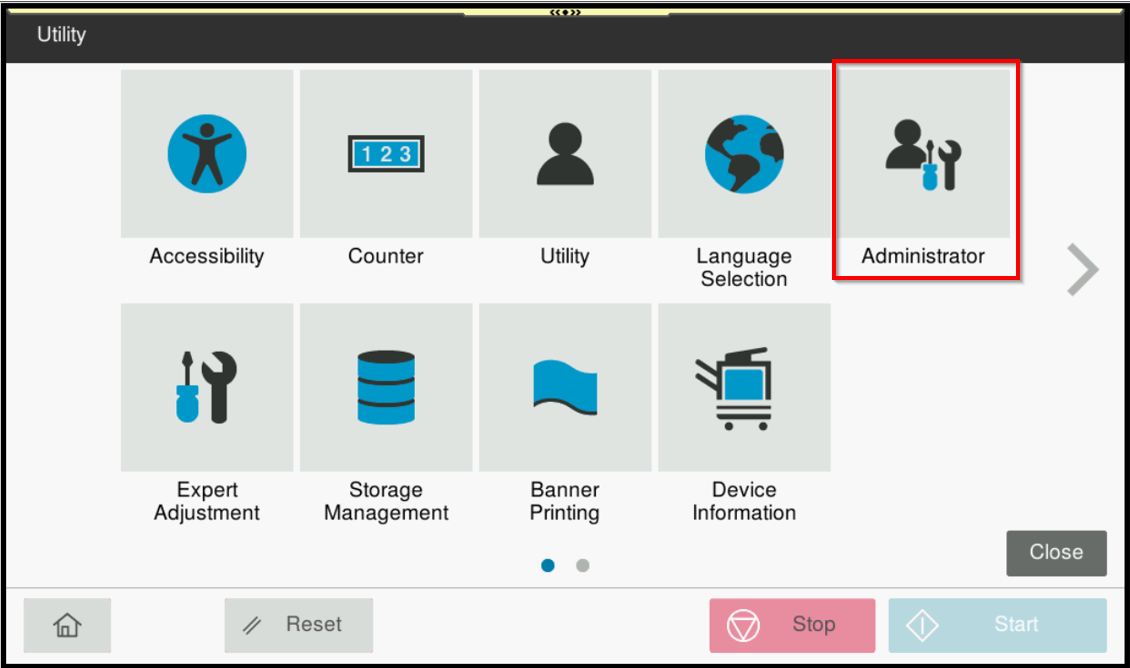
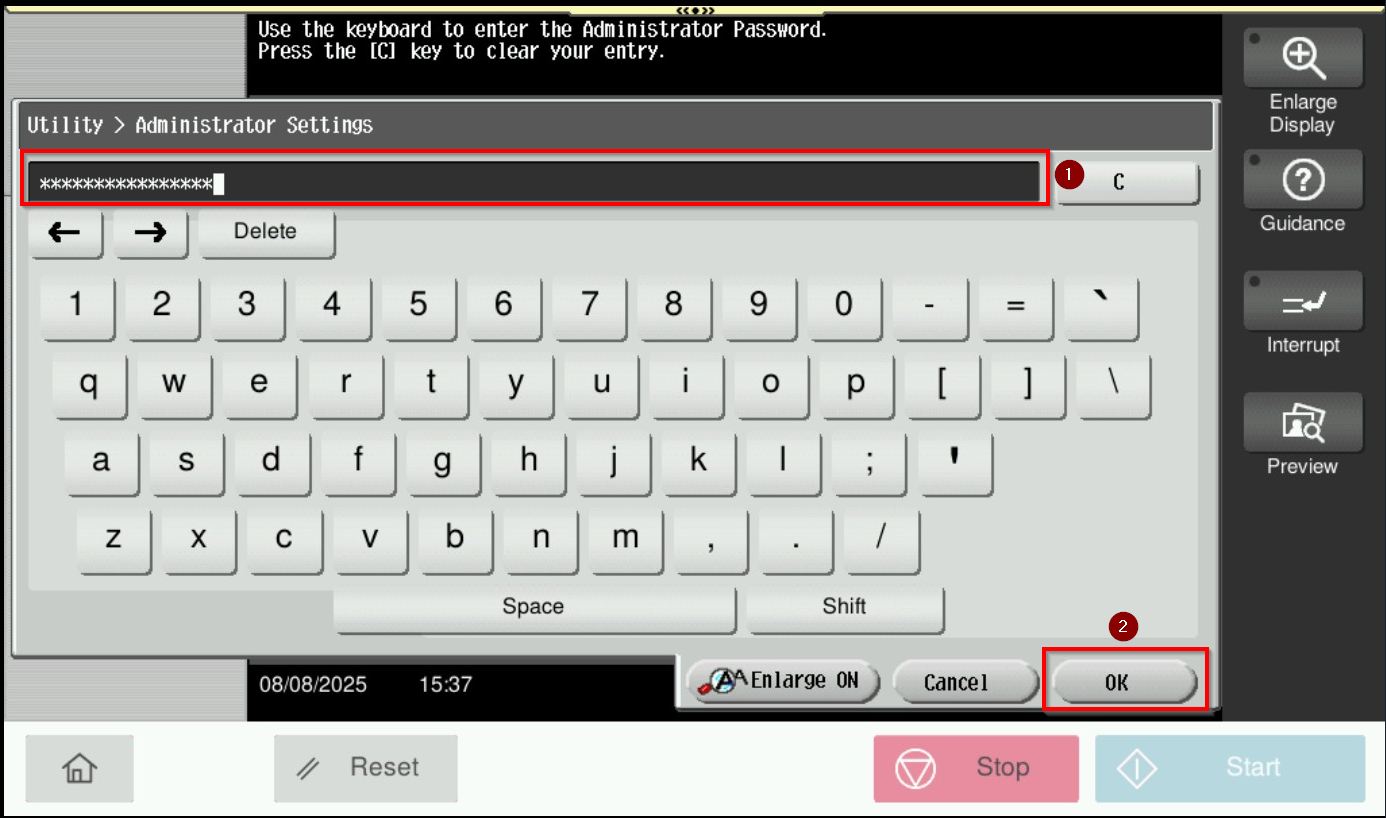
STEP 3 – Select [User Auth/Account Track].
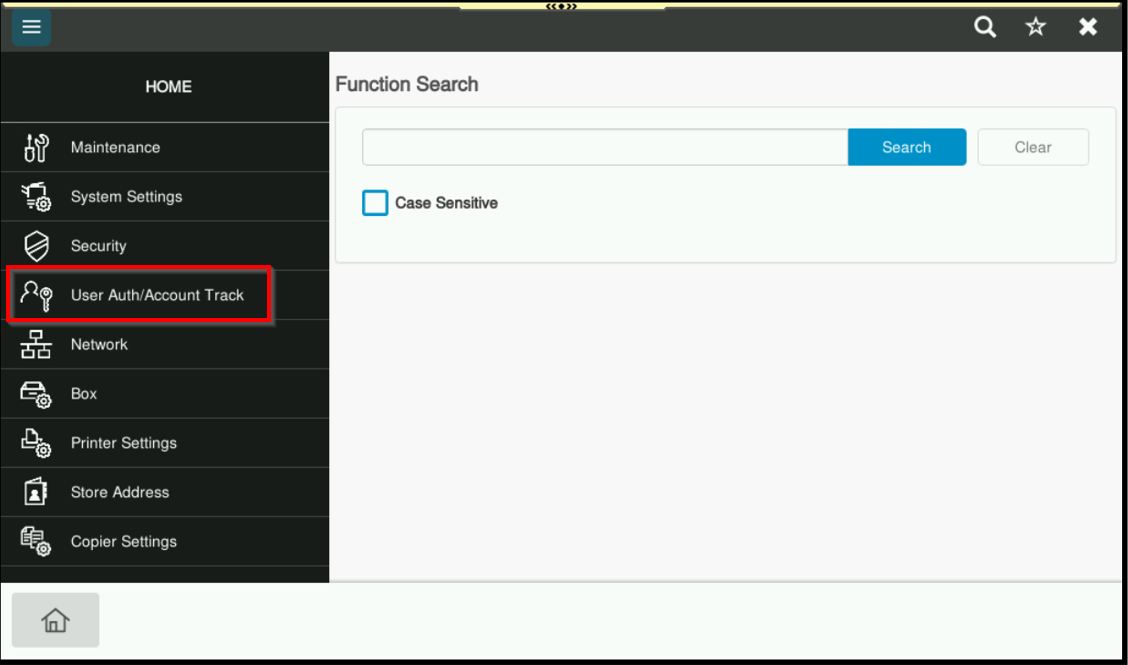
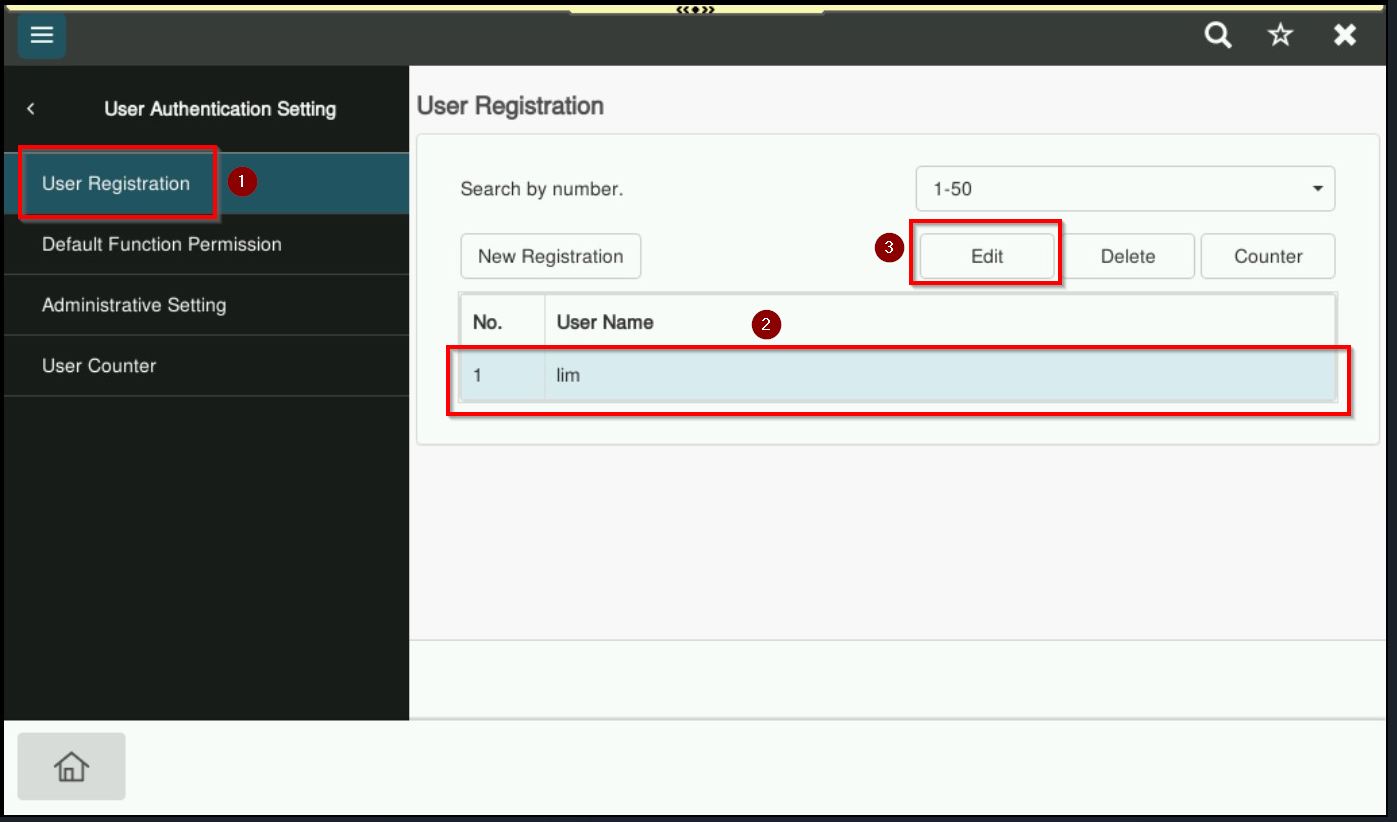
STEP 4 – Choose [User Registration], highlight the name, then proceed to click on [Edit].
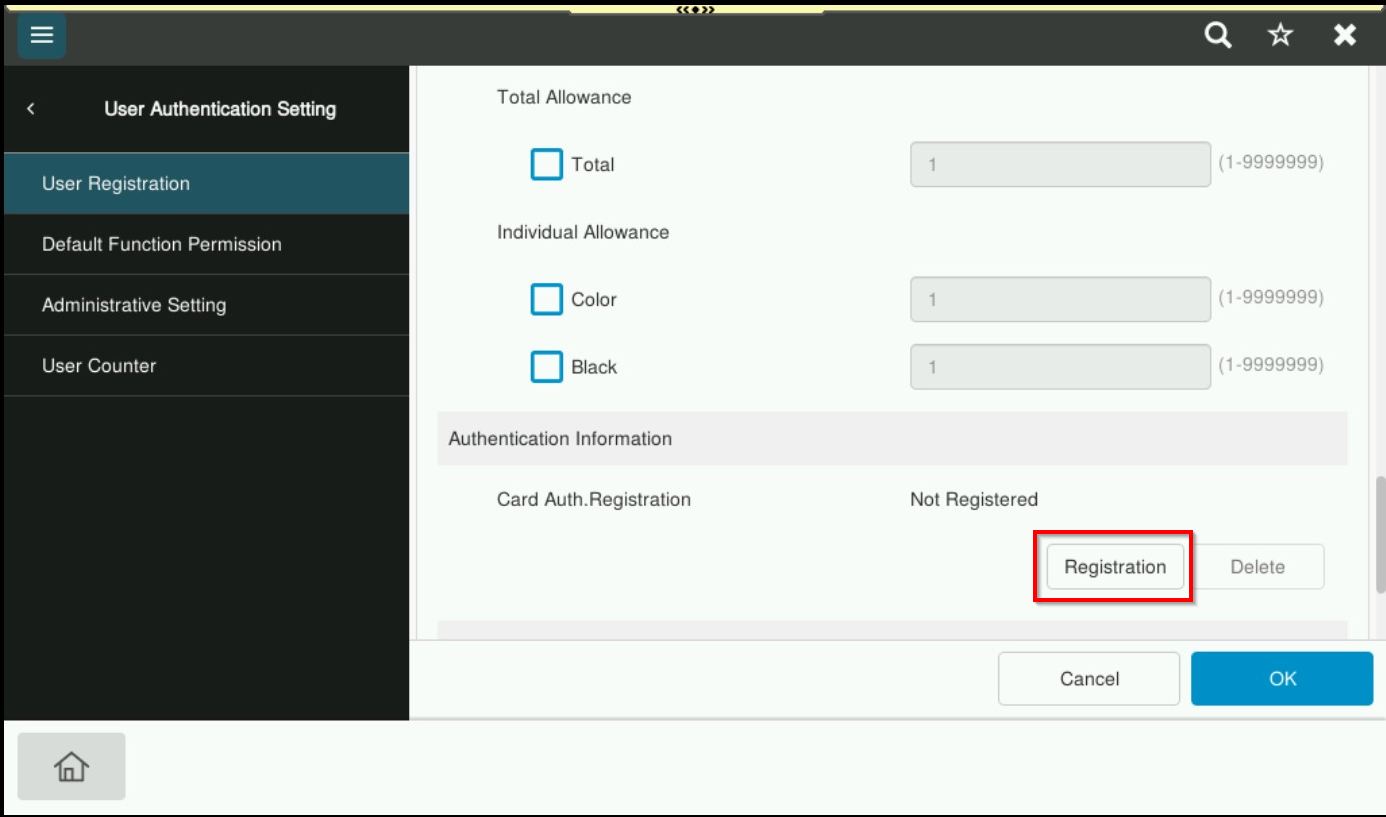
STEP 5 – Scroll to bottom, select on [Registration] under section Card Auth.Registration.
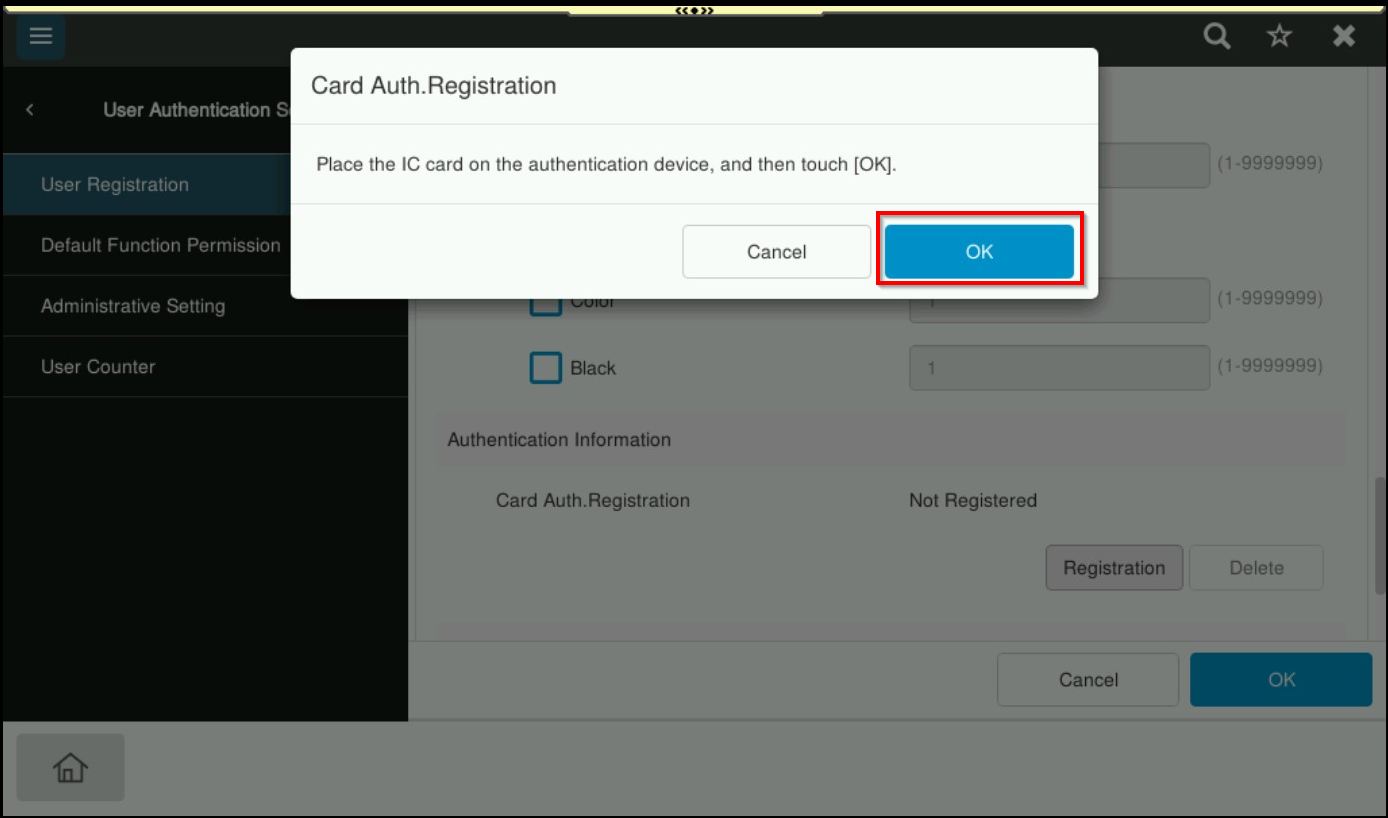
STEP 6 – Place a card on the card reader, proceed to select [OK] to confirm registration.
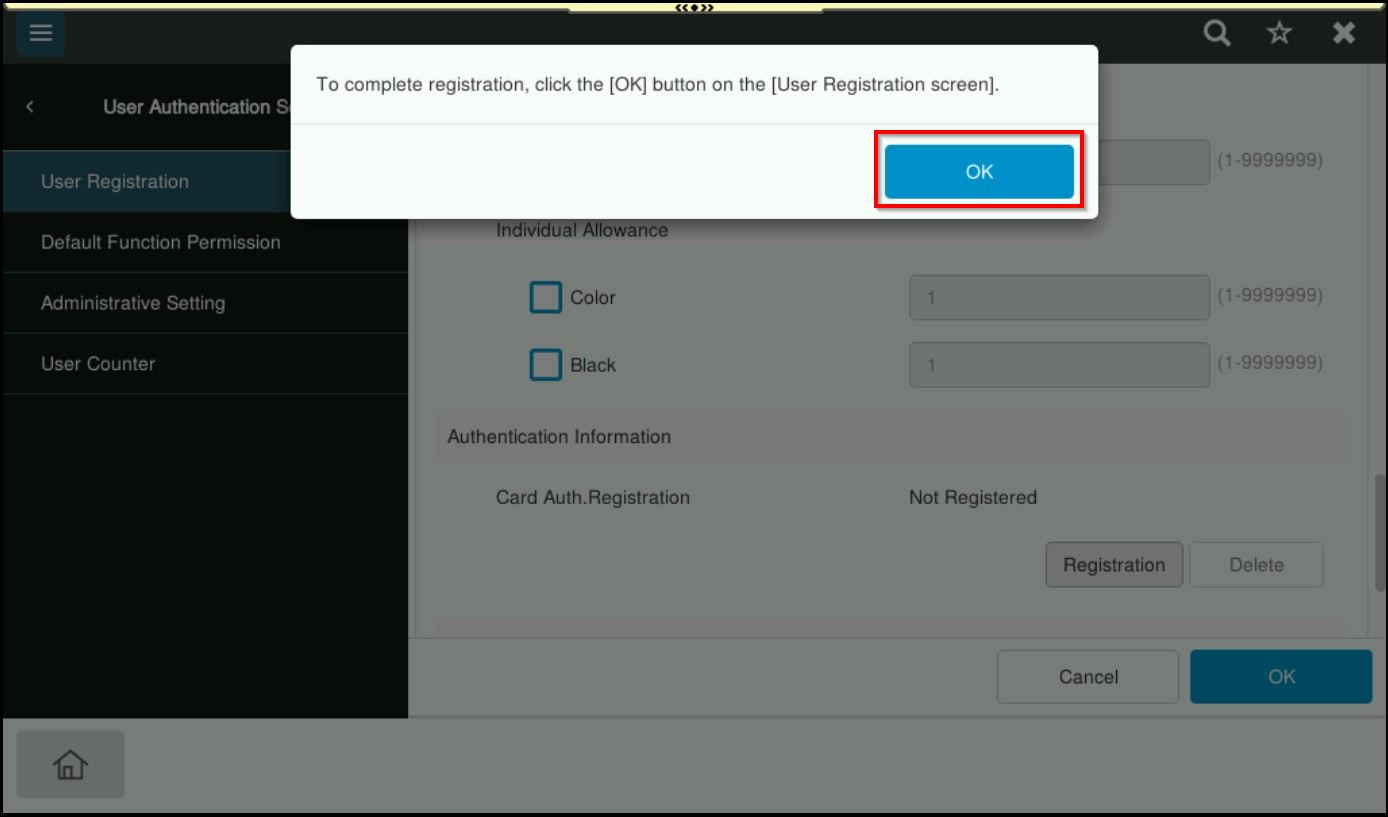
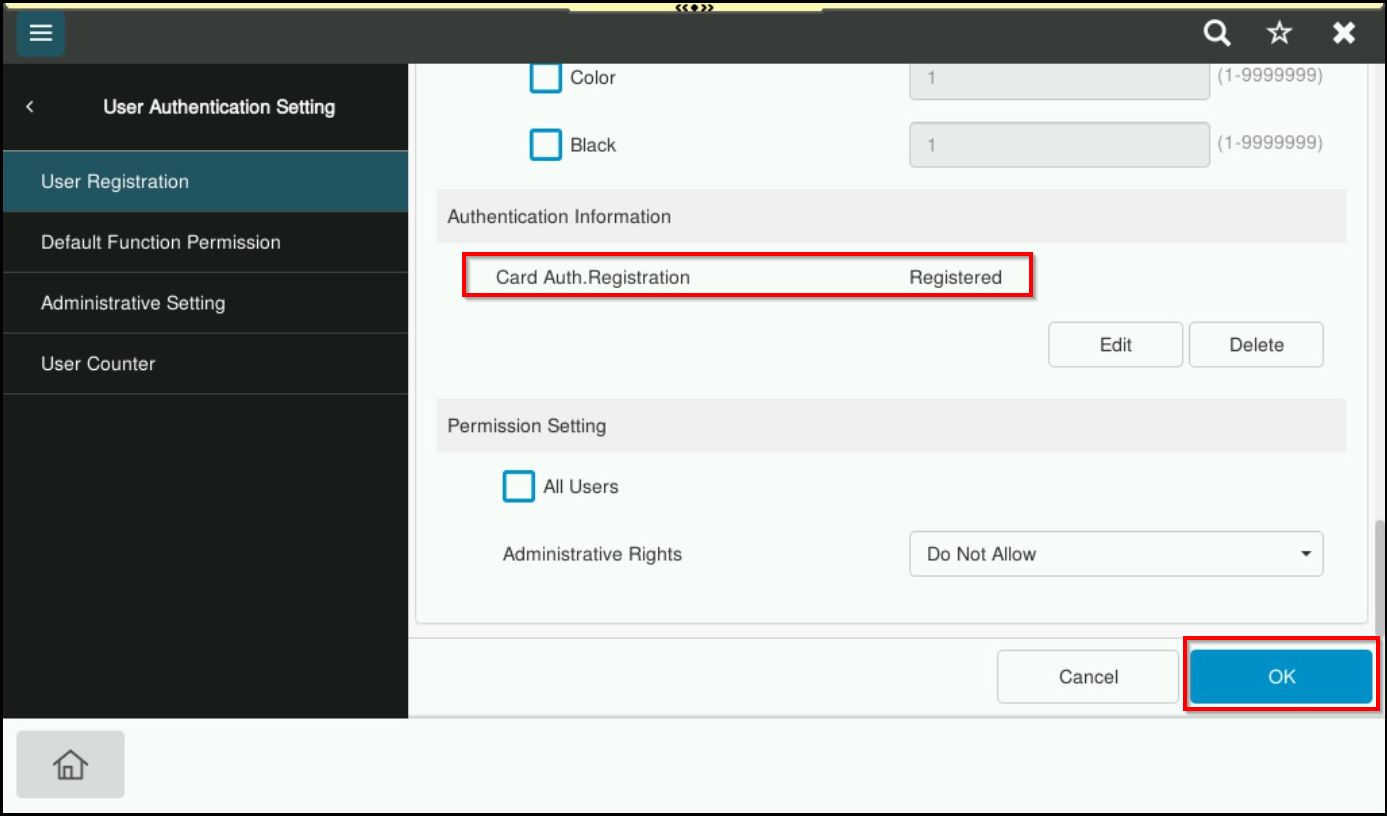
STEP 7 – Status for Card Auth.Registration will be under status Registered, click [OK] to proceed save the card information on this user.