Guide on how to copy sentences directly from PDF after scan to Word without losing sentences
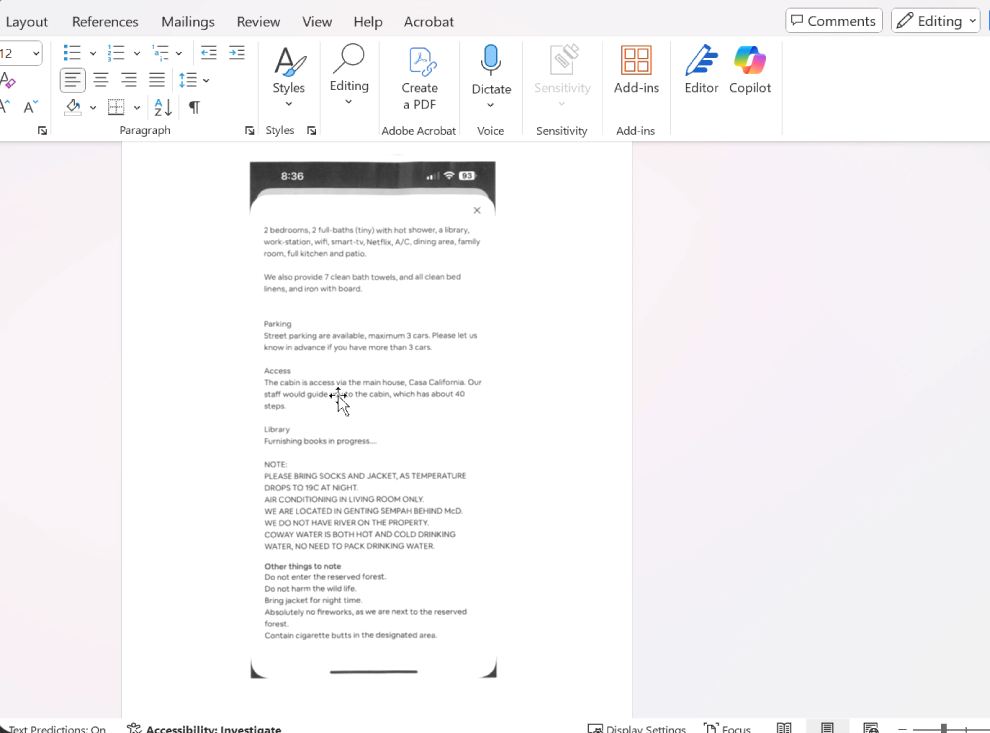
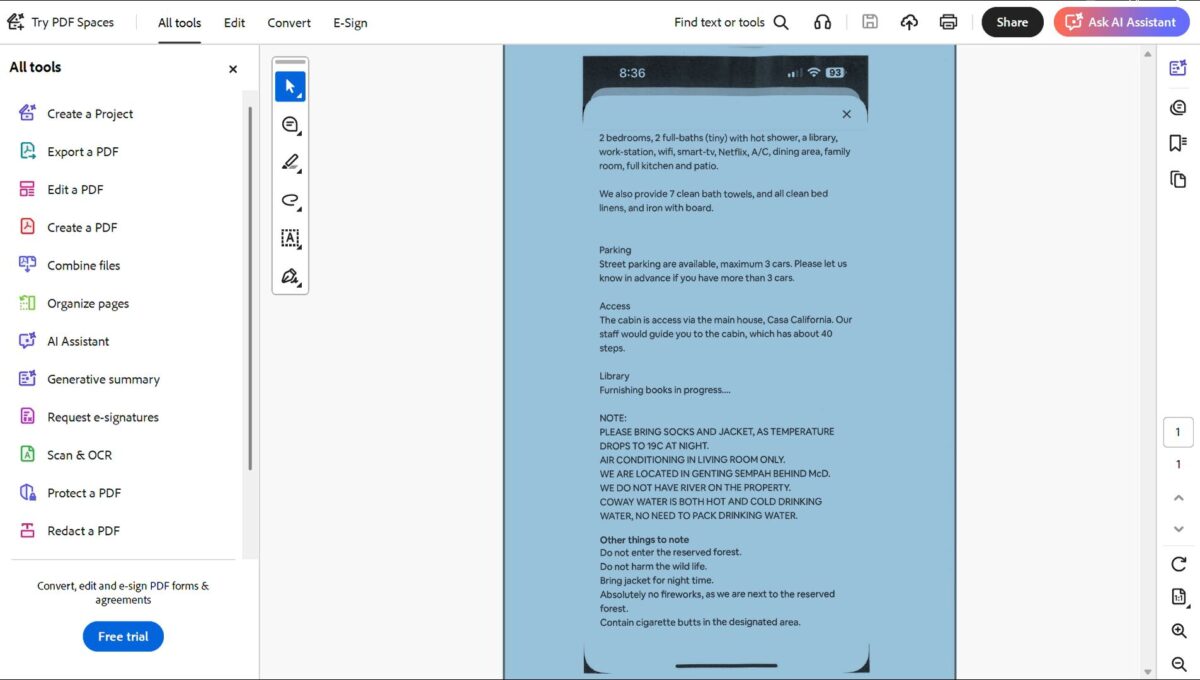
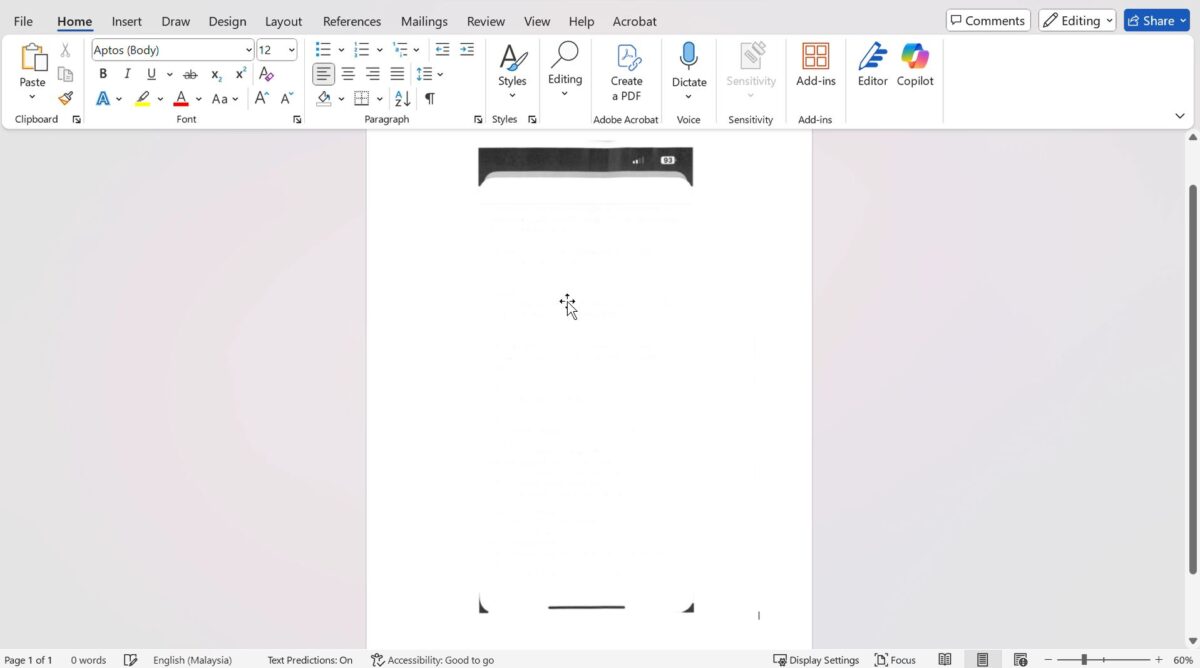
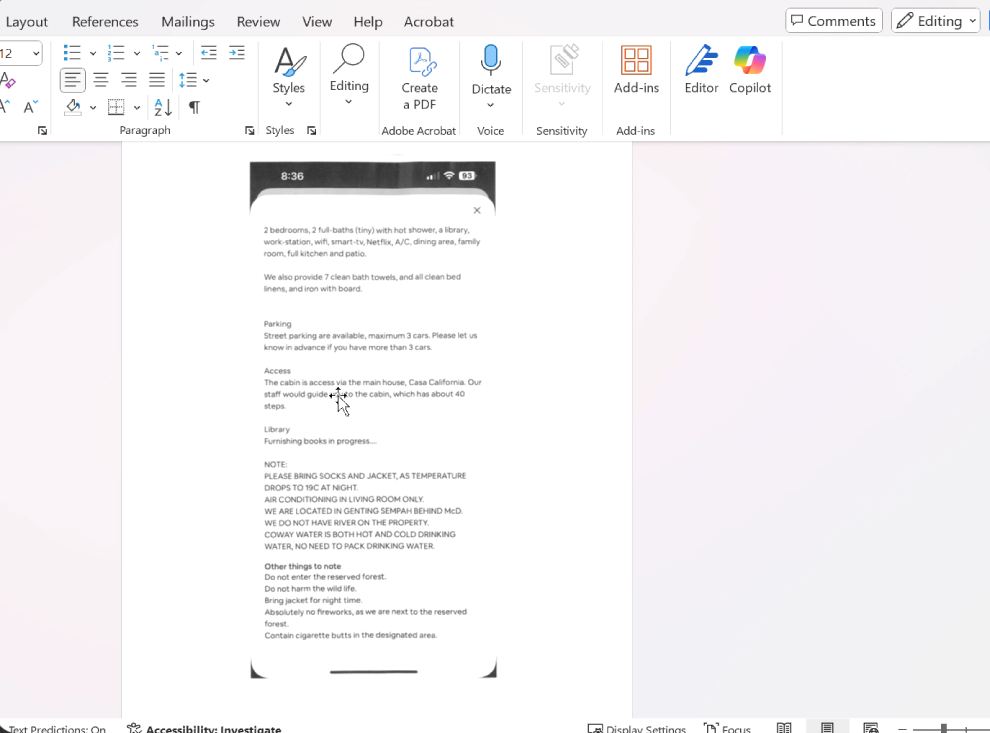
Below is a sample showing text that was directly copied from a scanned PDF into a Word document. The text is missing after the document was received as a scanned file from the machine
For The Older Machine Series / Non I-Series Machine
STEP 1 – On the Konica Minolta machine control panel, click on the [Menu] button then select [Scan].
STEP 2 – Select the name before scanning then proceed to [File Type].
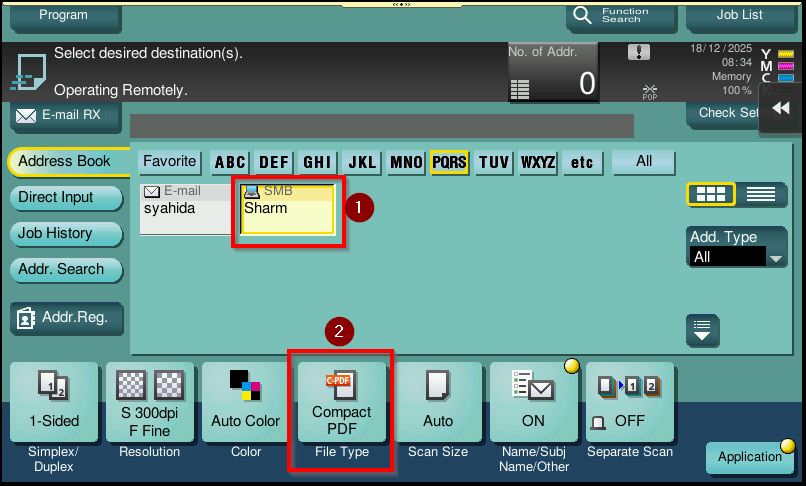
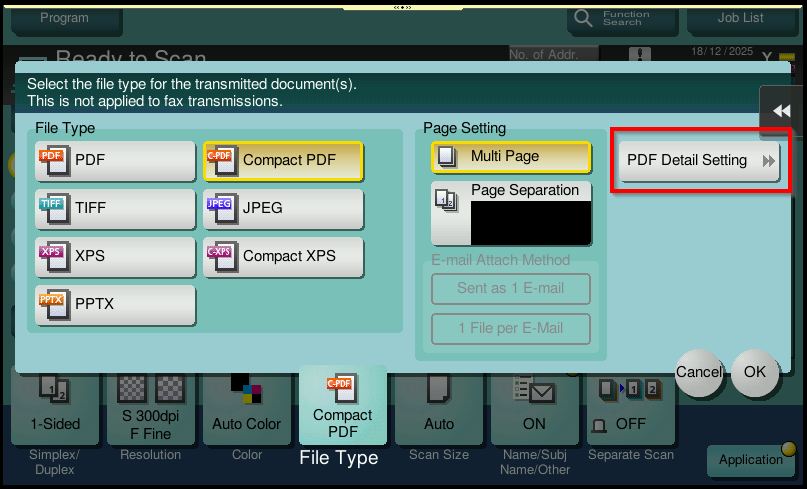
STEP 3 – Select [PDF Detail Setting] – [Stamp Composition], change from [Image] to [Text], and then click [OK].
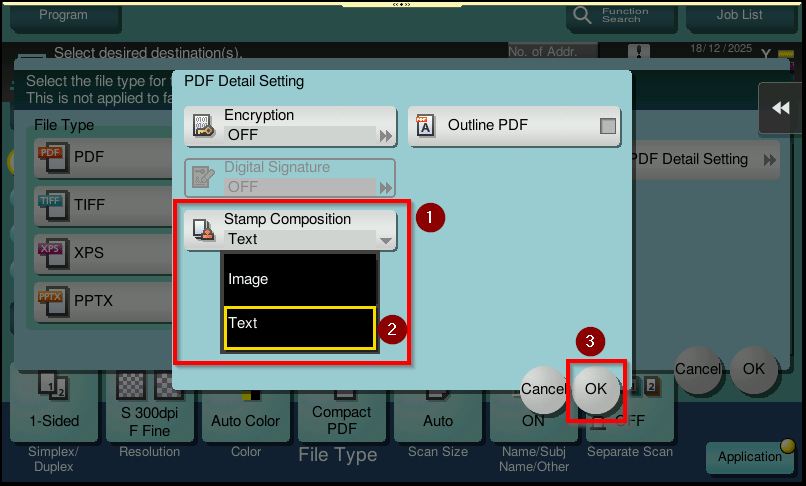
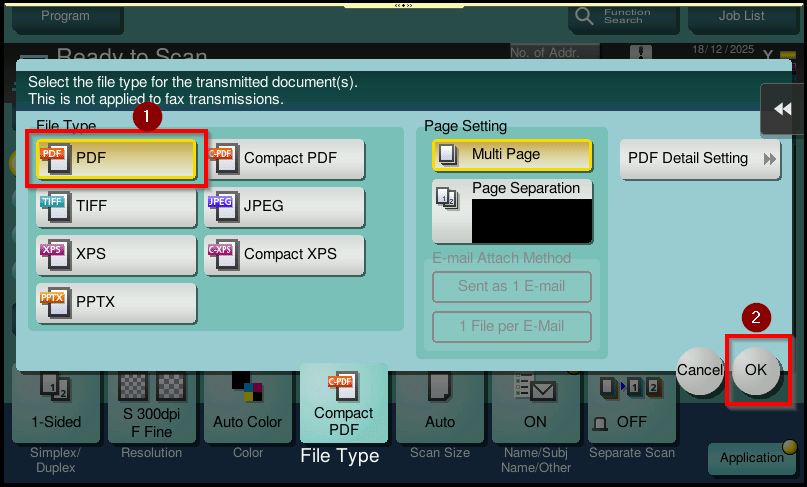
STEP 4 – Ensure that the [File Type] is set to PDF, then click [OK] to save the setting. After that, continue with the scanning process as usual.
STEP 5 – After performing the scan on the machine, copying the scanned PDF document into Word will allow the entire sentences to be copied correctly, as shown in the screenshot below.
For The Newer Machine Series / I-Series Machine
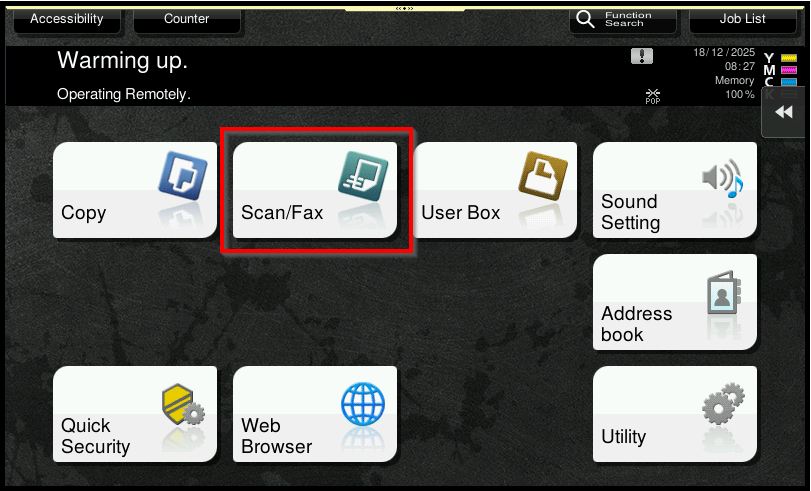
STEP 1 – On the Konica Minolta machine control panel, click on the [Home] button then select [Scan].
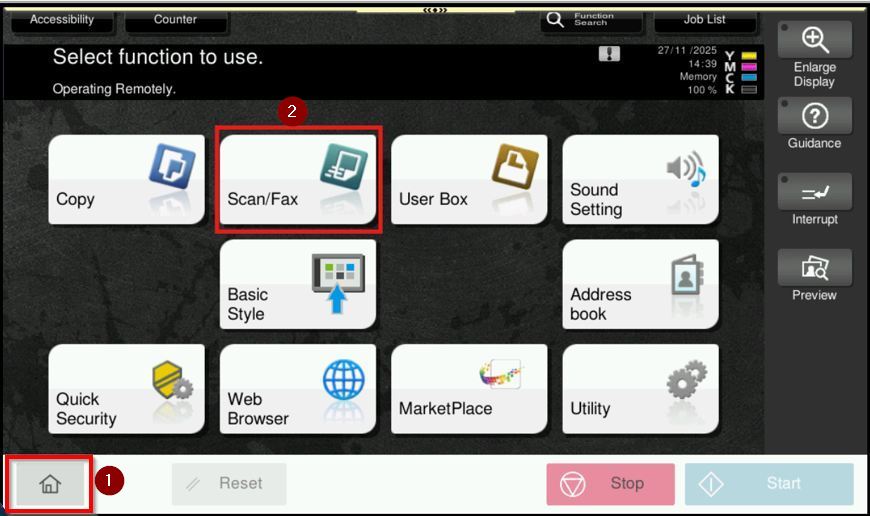
STEP 2 – Select the name before scanning then proceed to [File Type].
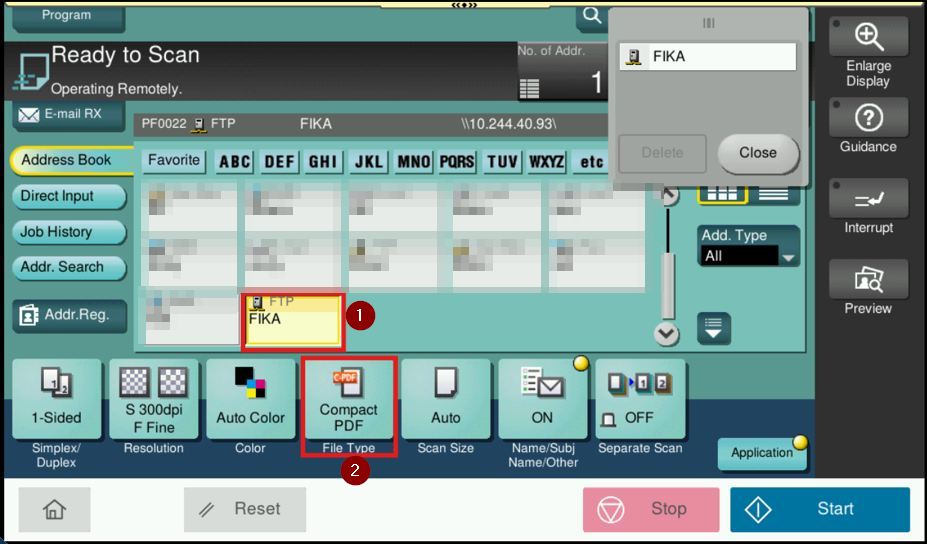
STEP 3 – Select [PDF Detail Setting] – [Stamp Composition], change from [Image] to [Text], and then click [OK].
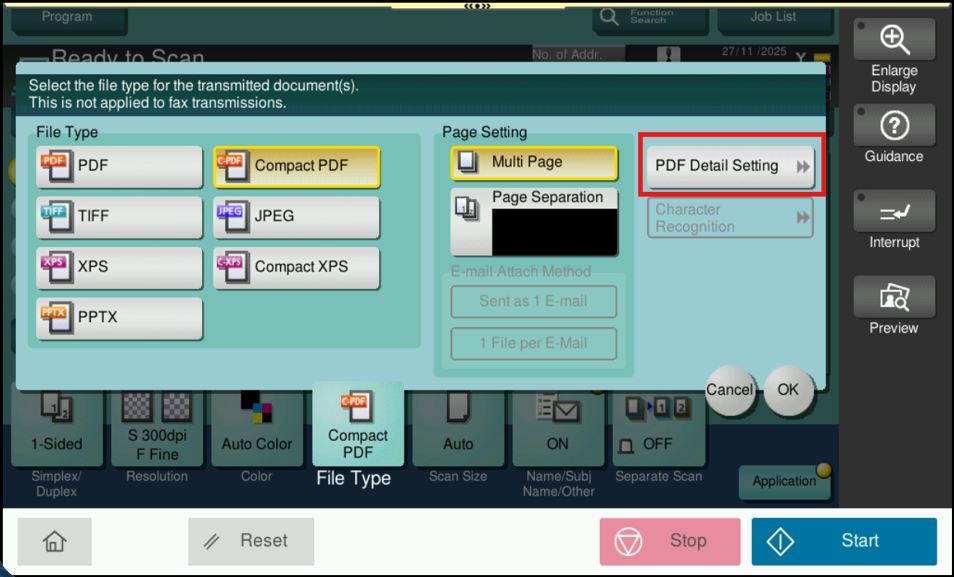
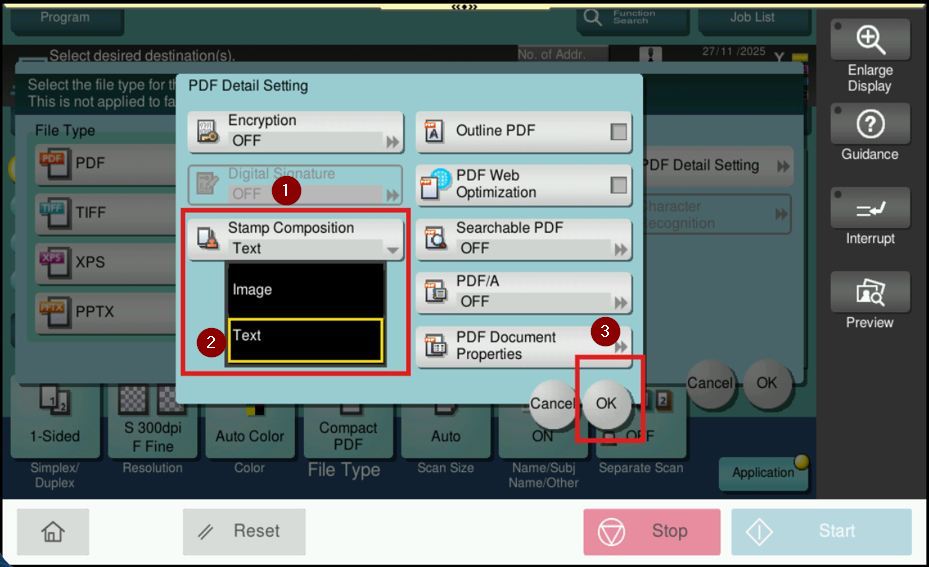
STEP 4 – Ensure that the [File Type] is set to PDF, then click [OK] to save the setting. After that, continue with the scanning process as usual.
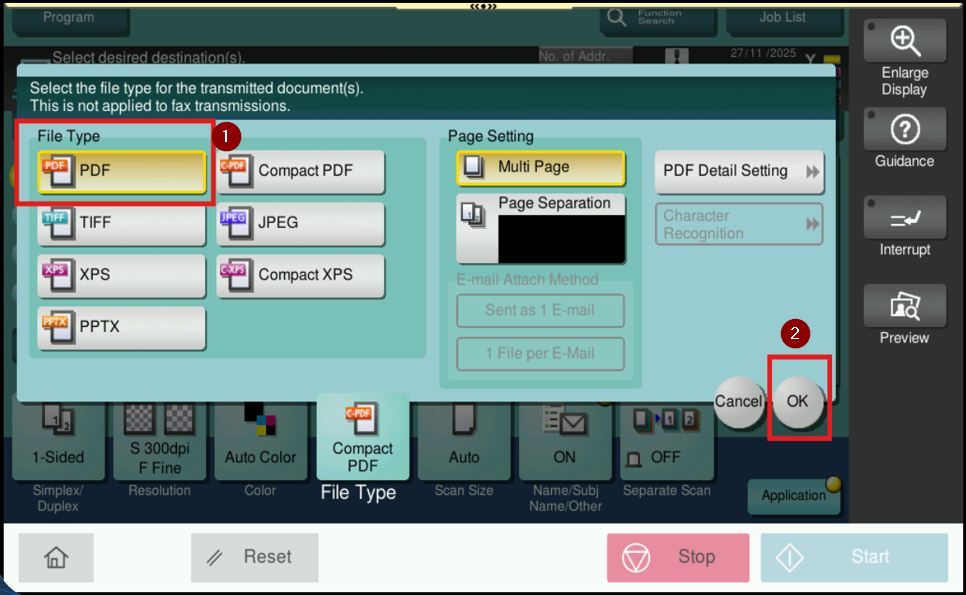
STEP 5 – After performing the scan on the machine, copying the scanned PDF document into Word will allow the entire sentences to be copied correctly, as shown in the screenshot below.