Guide to fix User Box Shared Folder Connection Due to Windows Credentials
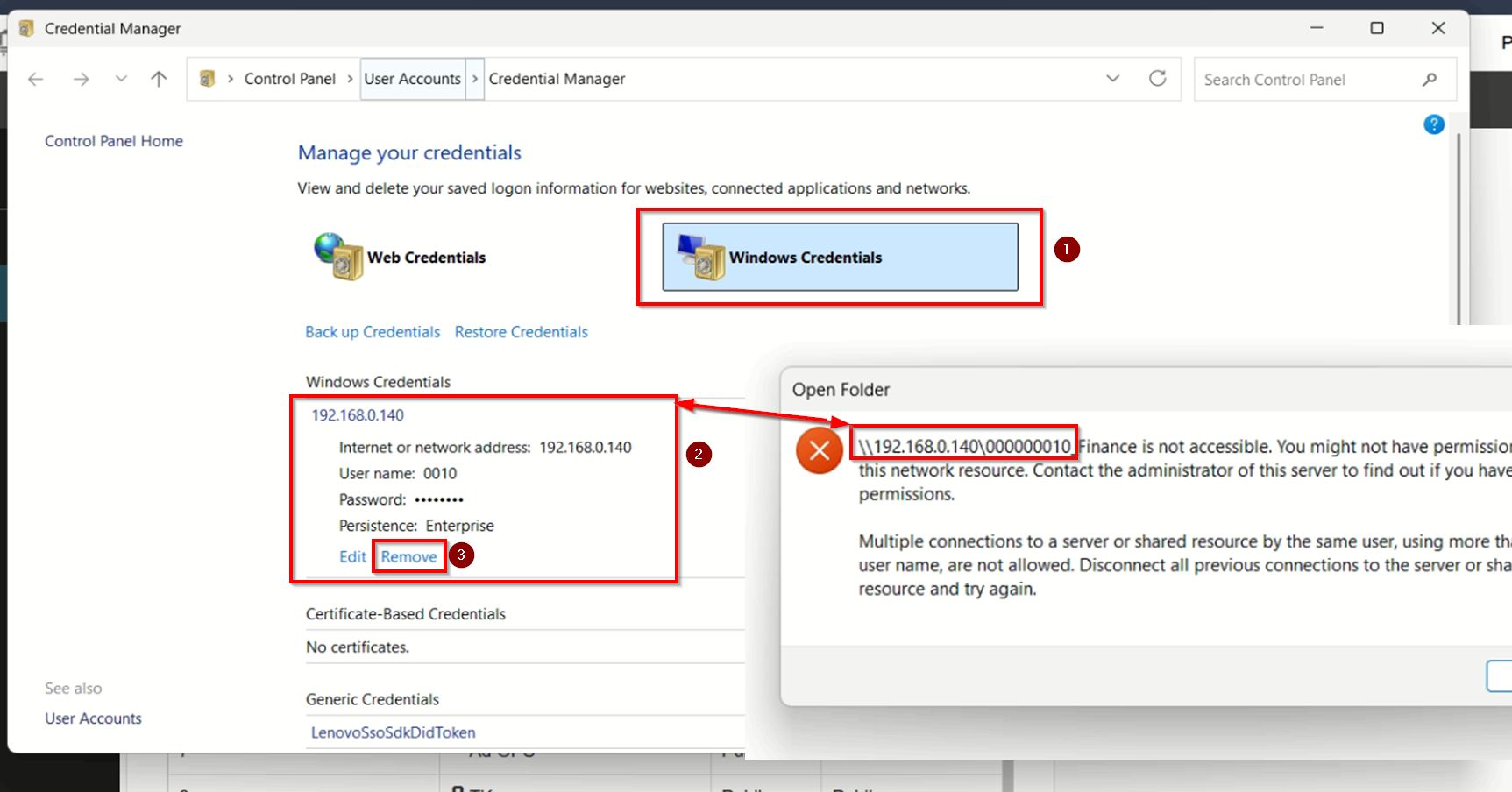
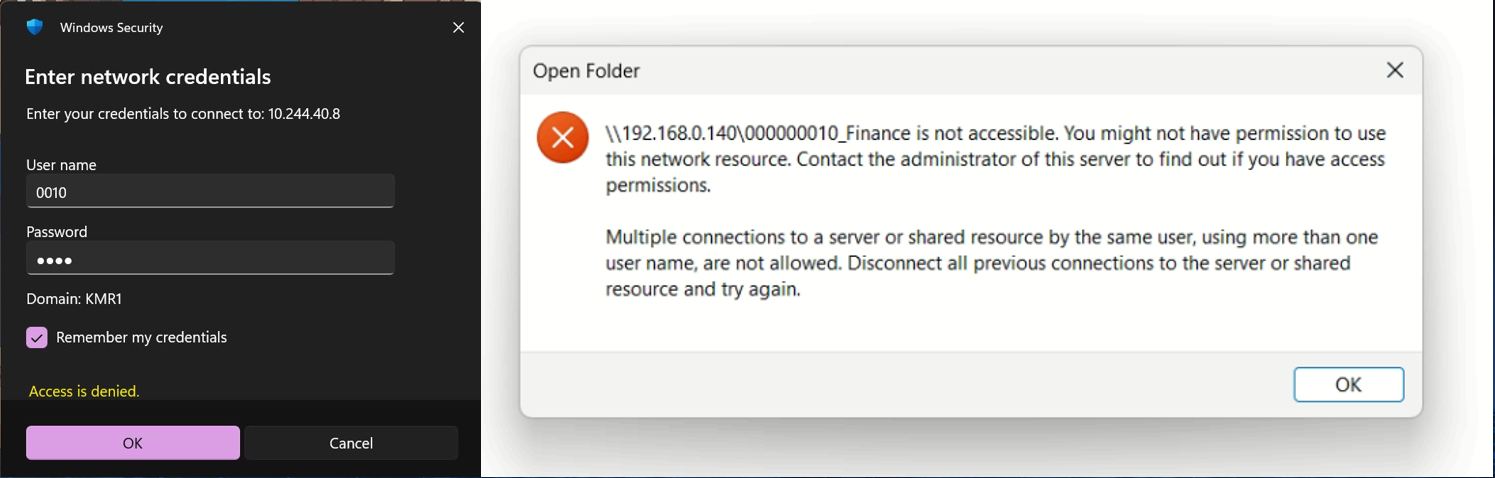
This issue occurs when you are unable to access the machine’s User Box shared folder due to the error message:
“Multiple connections to a server or shared resources by the same user, using more than one username, are not allowed.”
This error is triggered by Windows limitations on concurrent SMB sessions or when different credentials are used simultaneously to access the same sharing folder, resulting in a credential conflict.
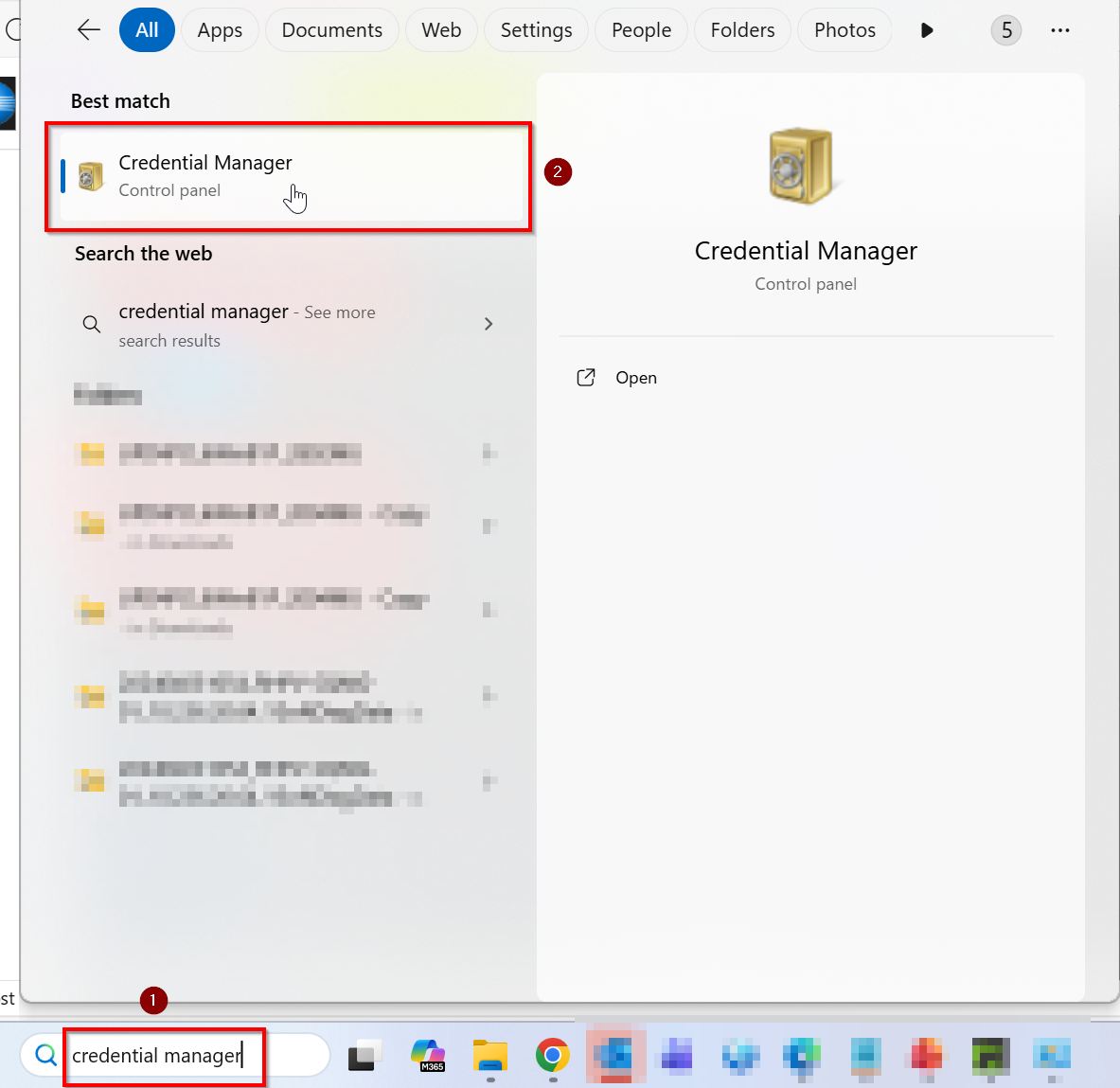
STEP 1 – To fix this issue, clear the stored credentials in Credential Manager and then use the correct credentials to access the User Box shared folder. Open [Credential Manager] by searching for it in the Windows search bar.
STEP 2 – Under Credential Manager, select [Windows Credentials], locate the stored username and password for User Box shared folder that correspond to the error shown earlier, and then select [Remove] to delete the existing credentials. After removing them, restart the PC and reconnect to the User Box shared folder using correct username and password.