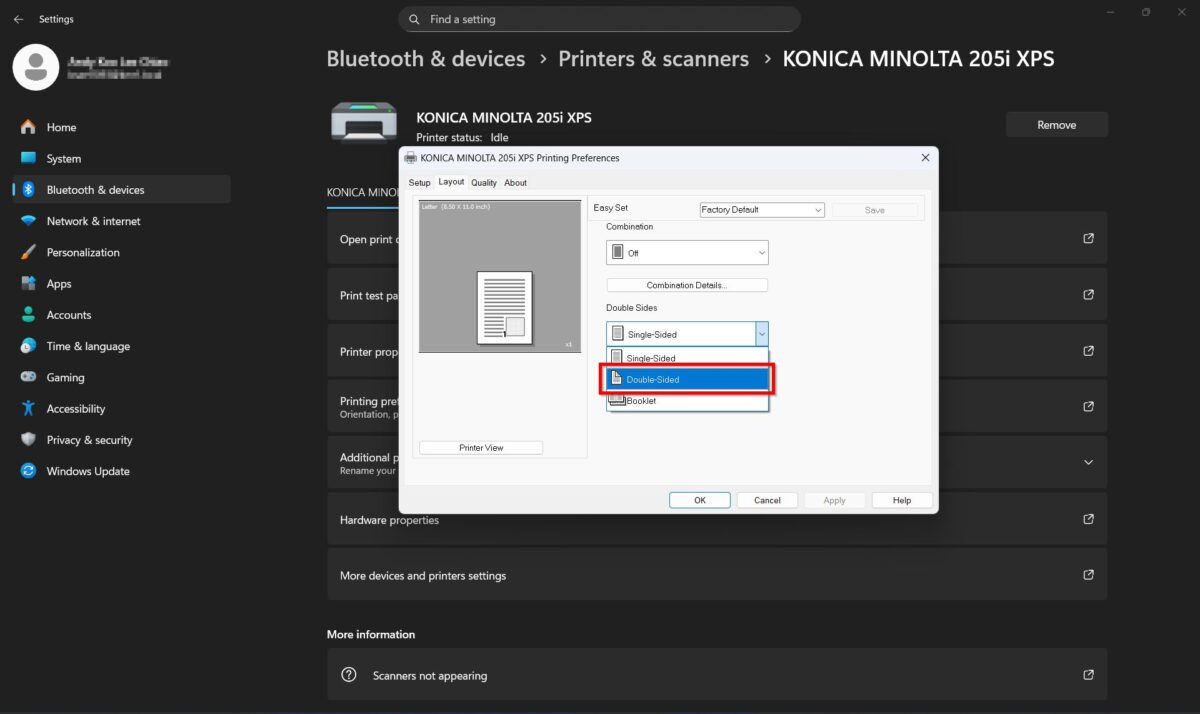
Guide On enable Double-Sided Printing in Printer Driver Settings
This function allows users to print on both sides of the paper by enabling the double-sided (duplex) option in the printer driver.
Note: This feature is only applicable for the Konica Minolta 195 / 205 / 205i / 225i models.
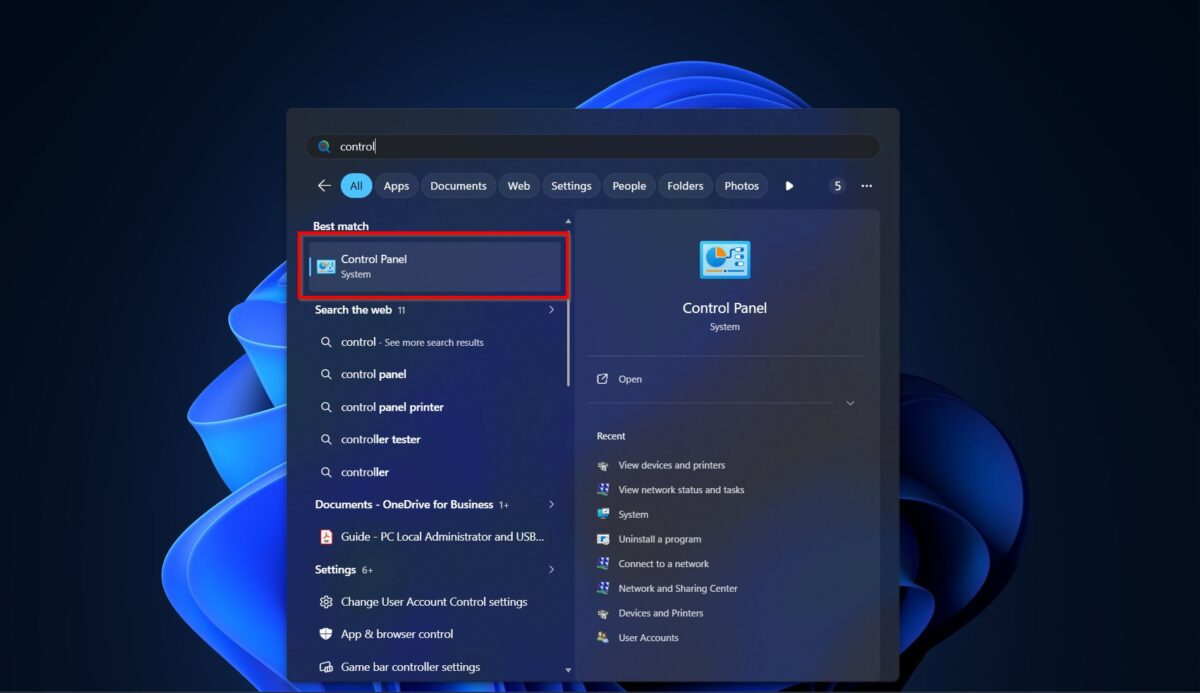
STEP 1 – Search for [Control Panel].
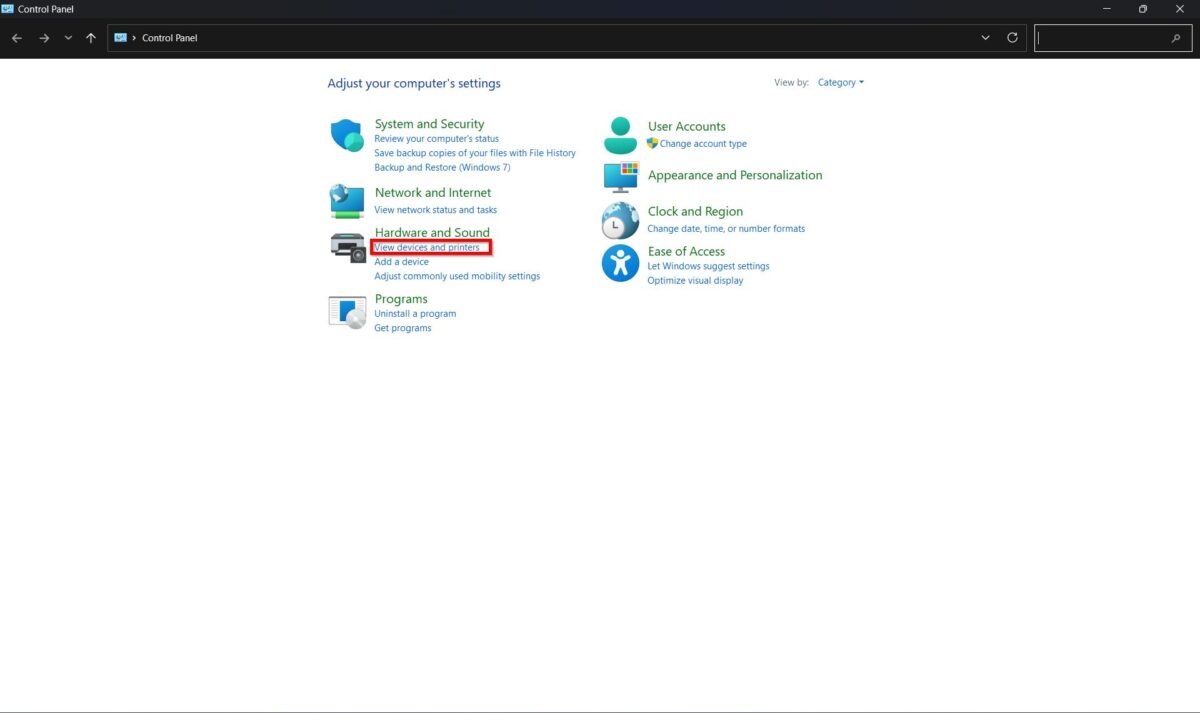
STEP 2 – Select [View Devices And Printers].
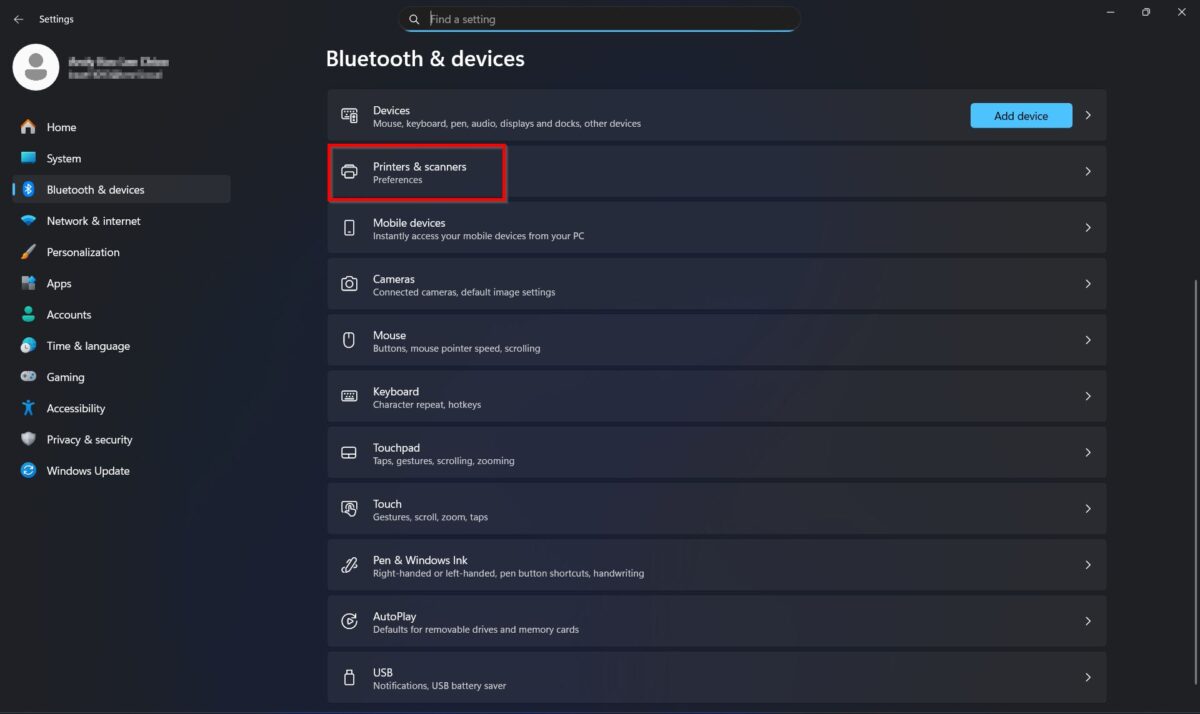
STEP 3 – Select [Printers & Scanners].
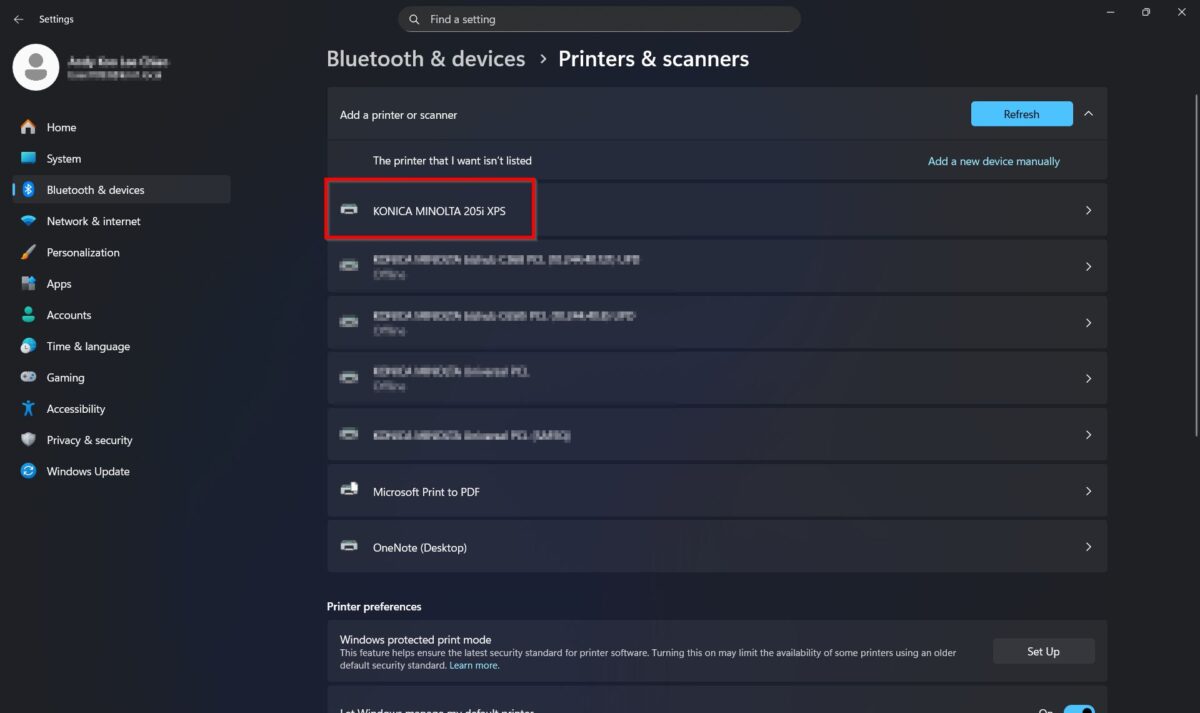
STEP 4 – Select the [Printer] and click on the [Printer Properties].
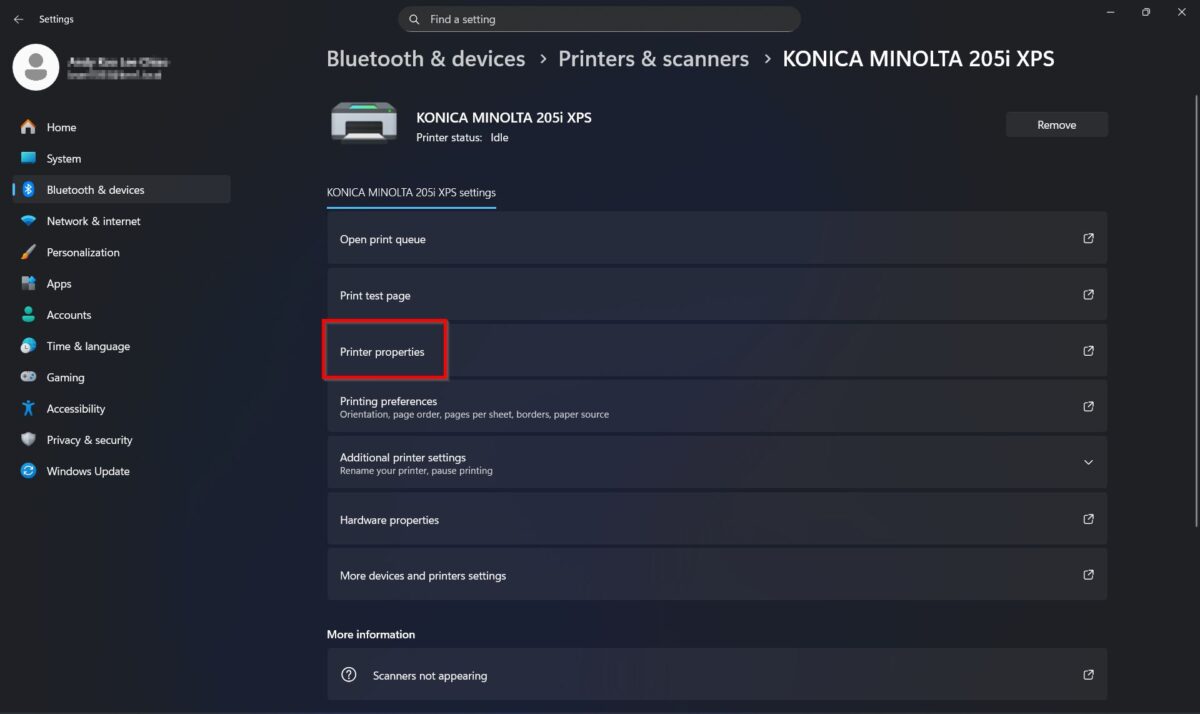
STEP 5 – Click [Device Options] then select the [Duplex] and set it to [Installed]. Click [Apply] and [OK] to save the settings.
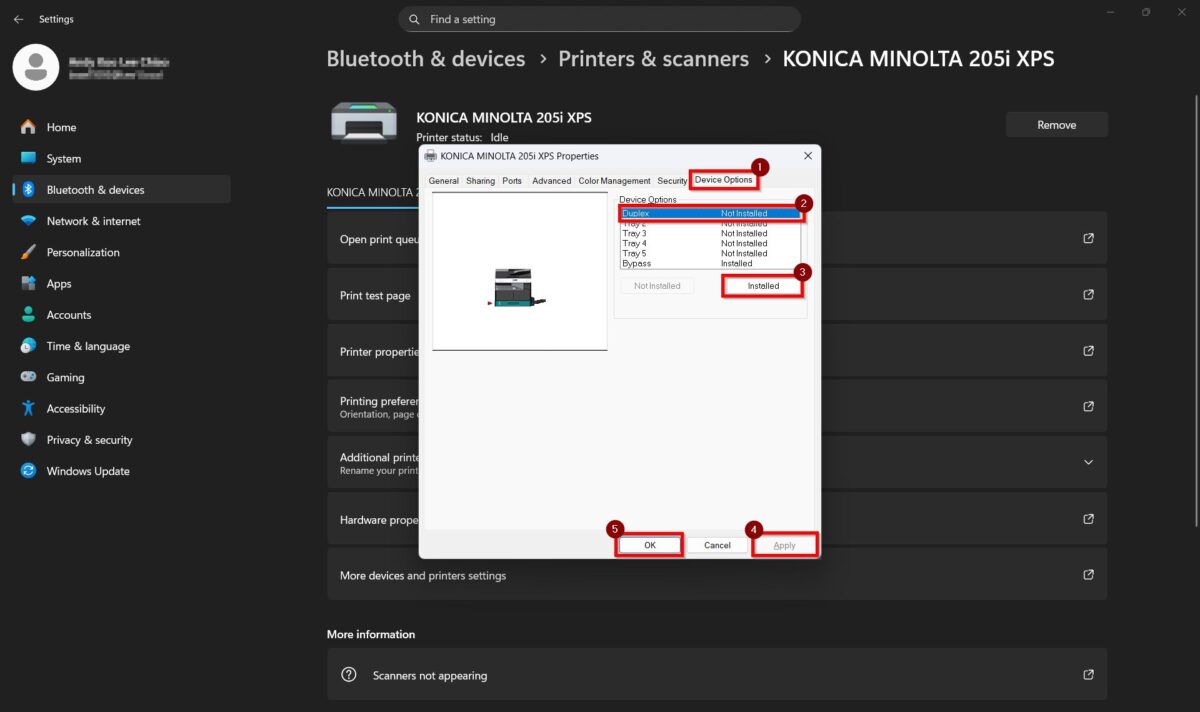
After completing the steps above, the double-sided (duplex) option will be available in the printer driver for printing.