
Guide On Fix Double-Sided Scan to Email Not Working Due to Email Size Limit
For the Older Machine series / Non I-Series Machine Via Remote Panel Machine
STEP 1 – Select [Utility].
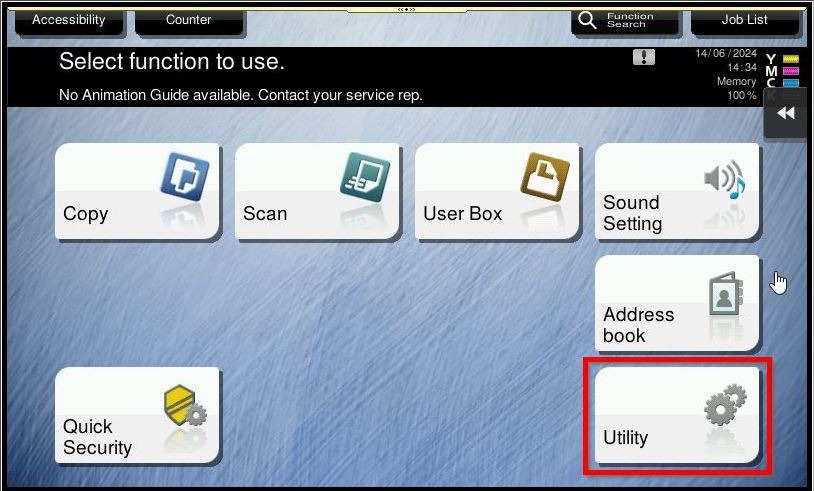
STEP 2 – Select [Administrator Settings].
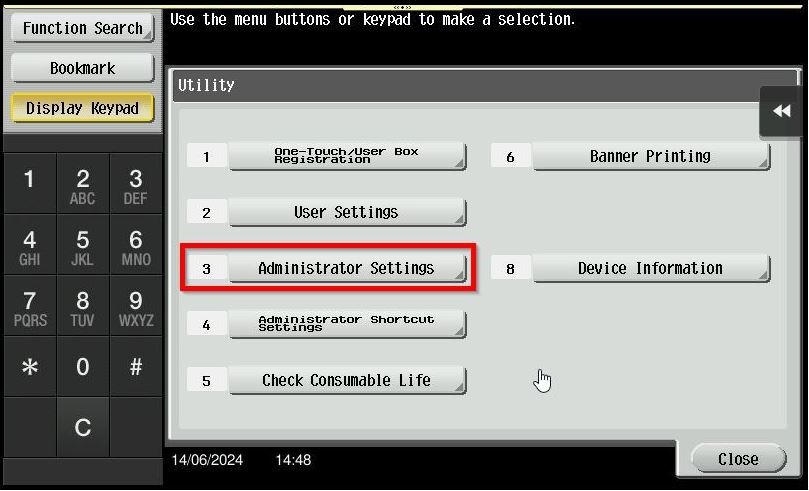
STEP 3 – Key in the default administrator password and click [OK] button.
Default administrator password: [7801261178012611] or [1234567812345678] or [12345678] or [12341234].
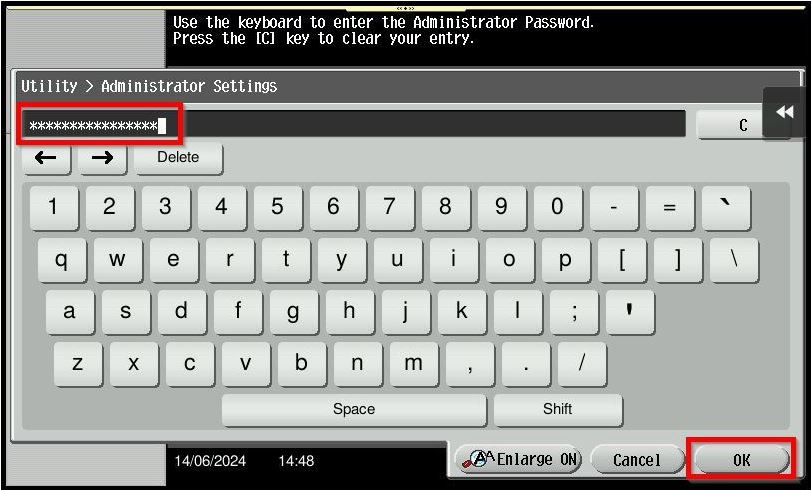
STEP 4 – Select [Network Settings].
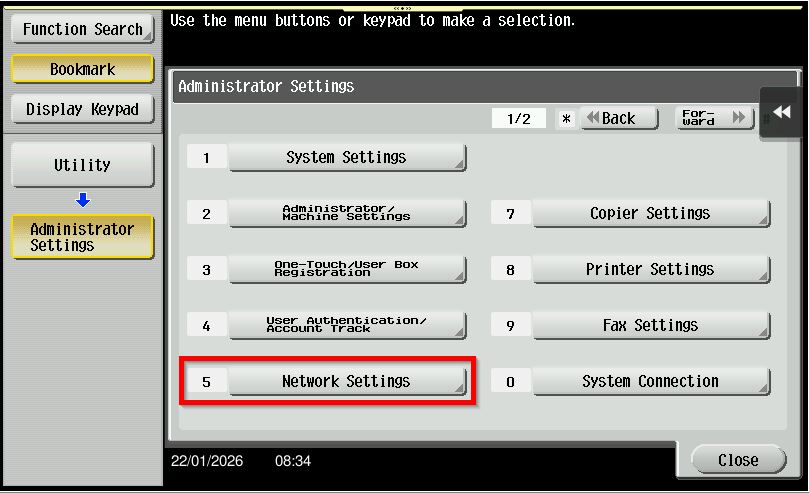
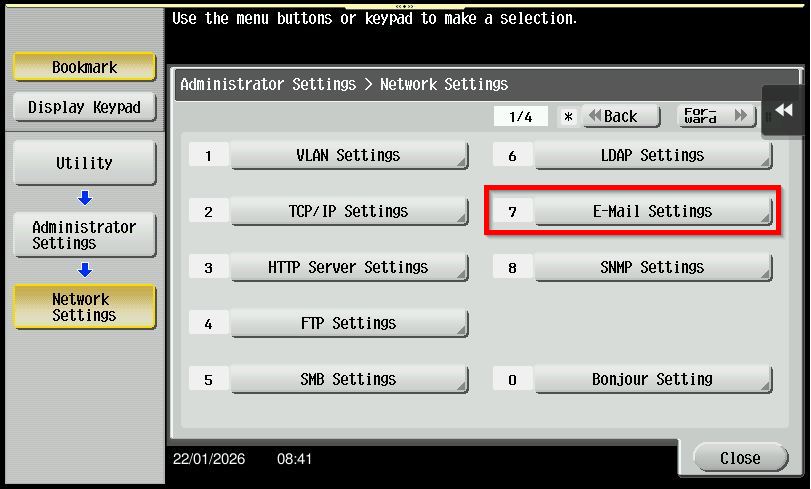
STEP 5 – Select [E-Mail Settings]
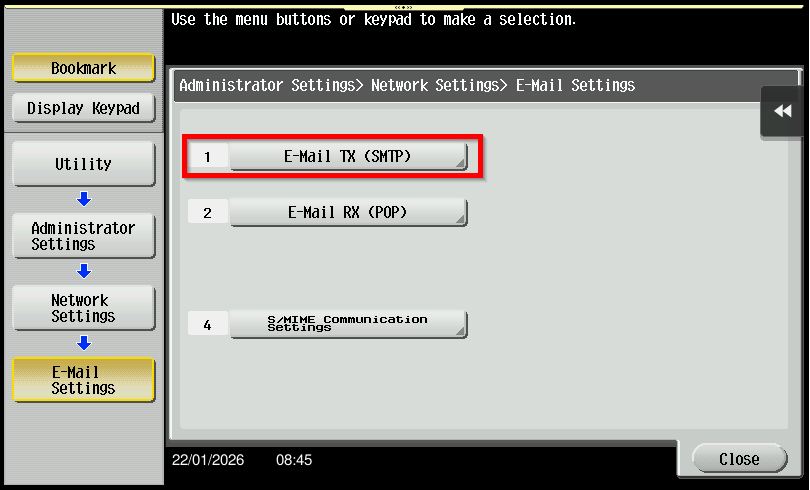
STEP 6 – Select [Email TX (SMTP)].
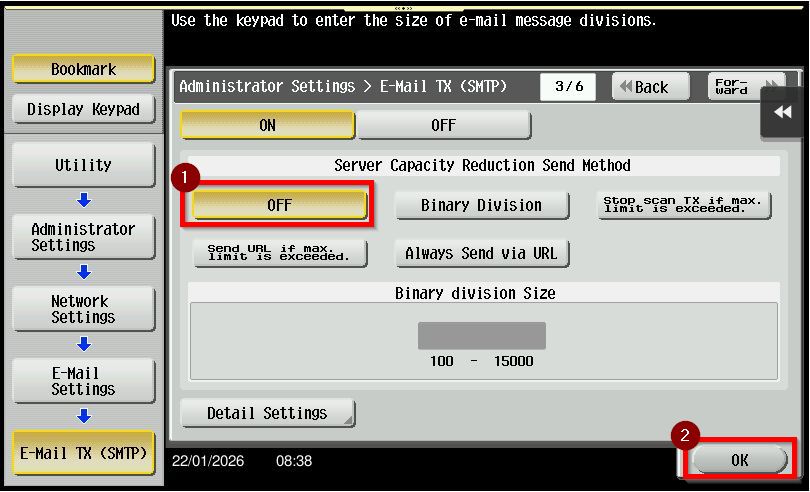
STEP 7 – Set Server Capacity Reduction Send Transmission Method to [OFF] then click [OK] to save the settings.
After completing step above, proceed to the printer and perform the scan again. This ensures the new configuration is applied and helps confirm whether the scanning issue has been resolved.
For the Older Machine series / Non I-Series Machine Via Web Connection
STEP 1 – Access the machine Web Connection from the PC browser. Click this LINK on how to access Web Connection from the browser.
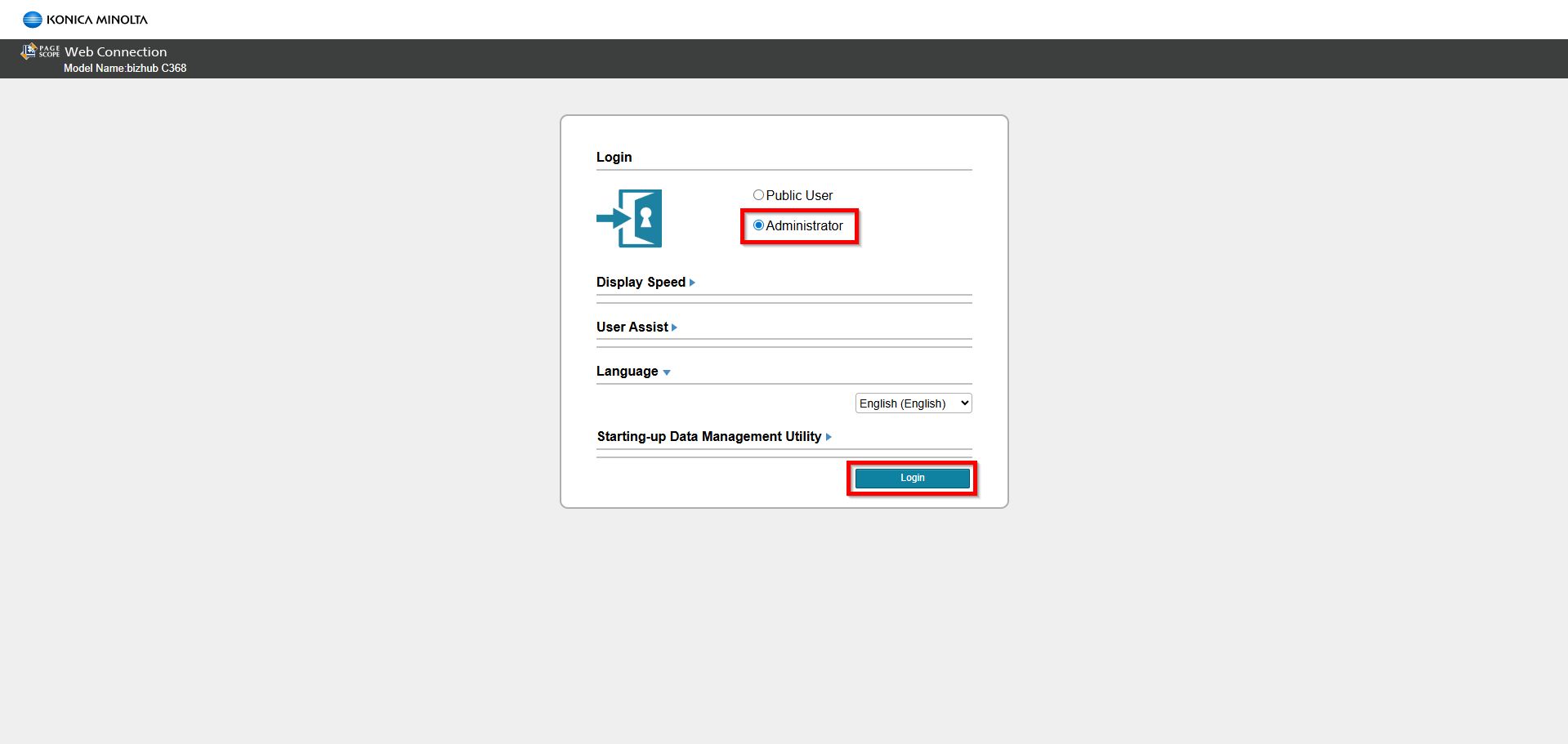
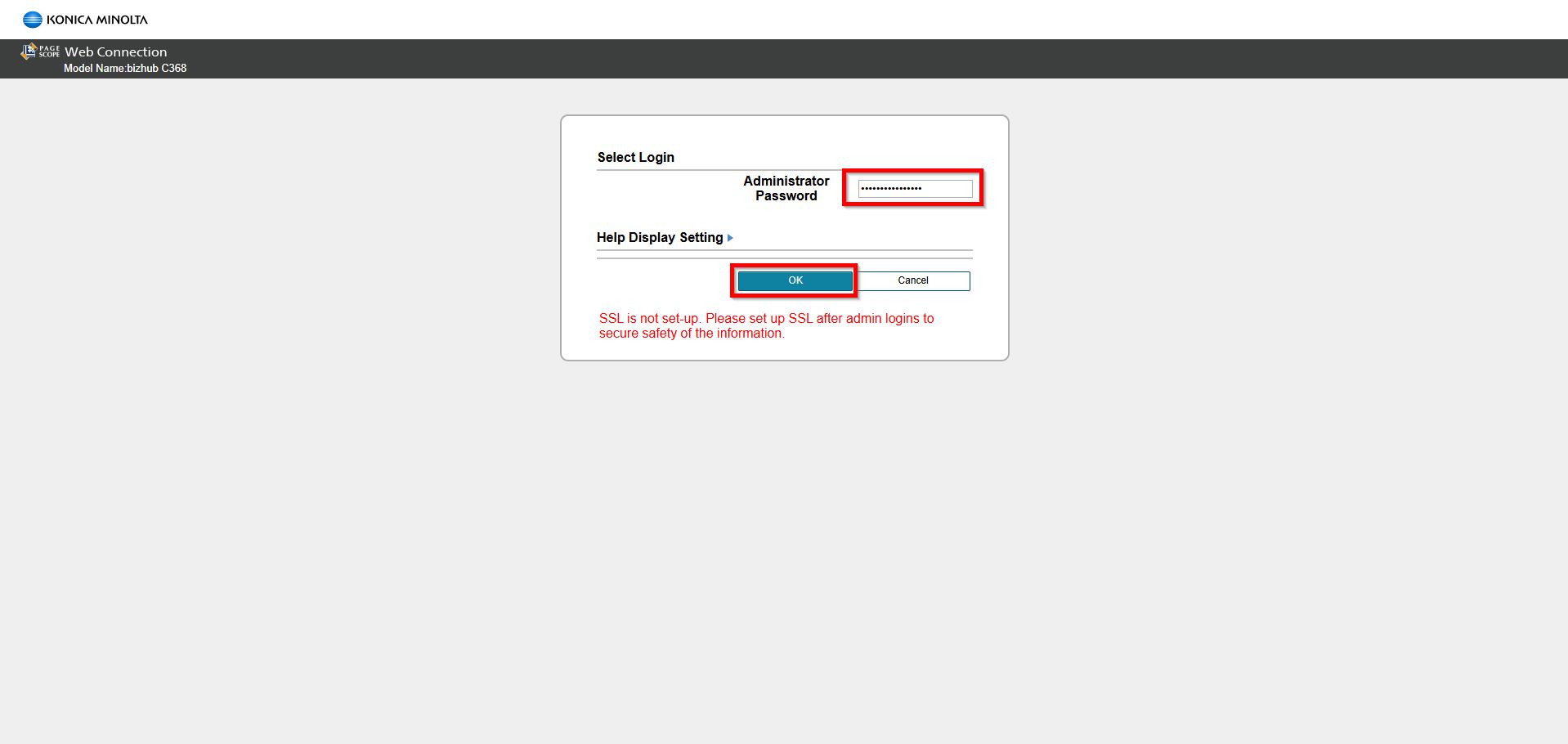
STEP 2 – Select [Administrator] and select [Login]. Key in the [Administrator Password] and click [OK] to login. Default administrator password will be either [7801261178012611] or [1234567812345678] or [12345678] or [12341234].
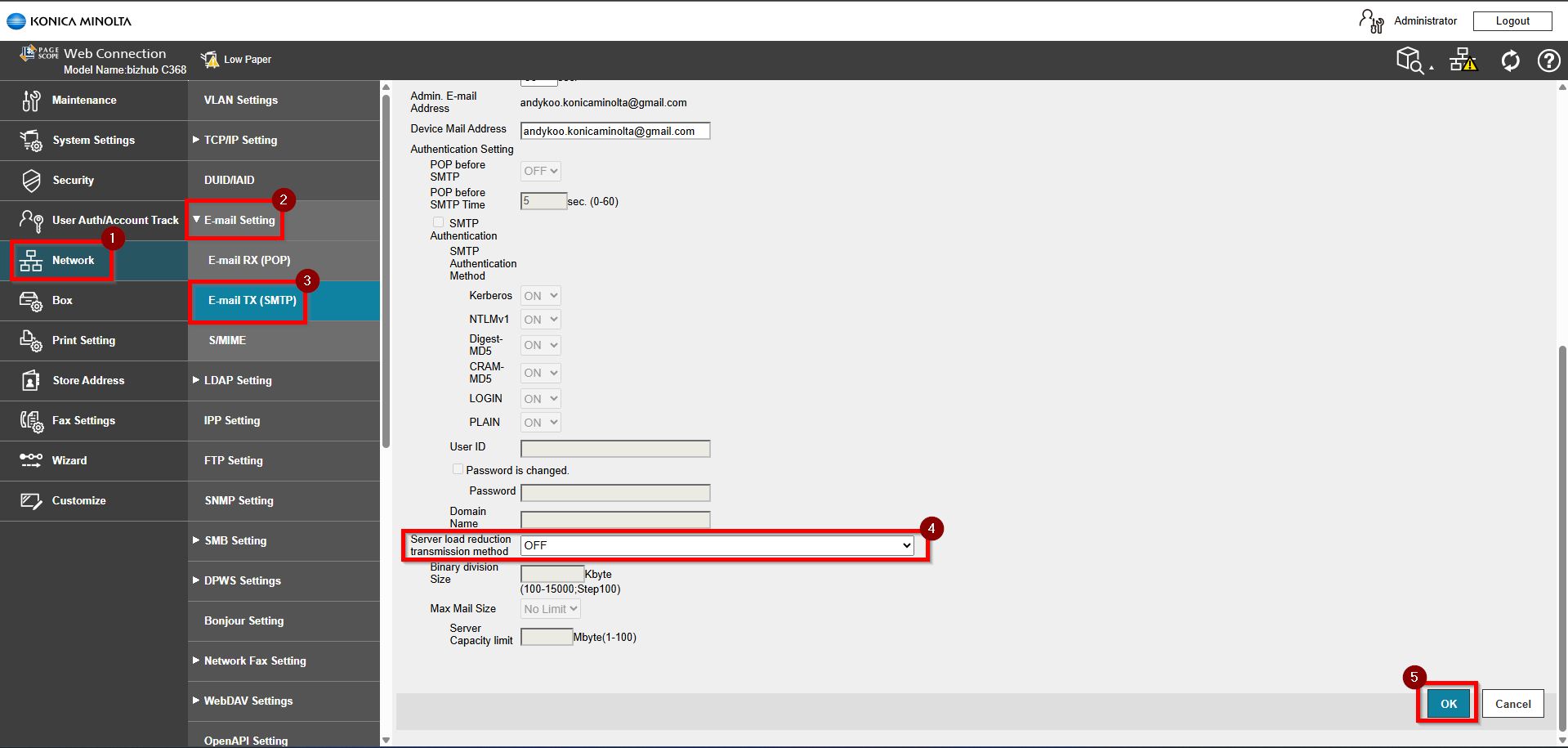
STEP 3 – Select [Network] – [Email Setting] – [Email TX (SMTP)]. Scroll down and set Server Load Reduction Transmission Method to [OFF] then click [OK] to save the settings.
After completing step above, proceed to the printer and perform the scan again. This ensures the new configuration is applied and helps confirm whether the scanning issue has been resolved.
For the Newer Machine series / I-Series Machine Via Remote Panel
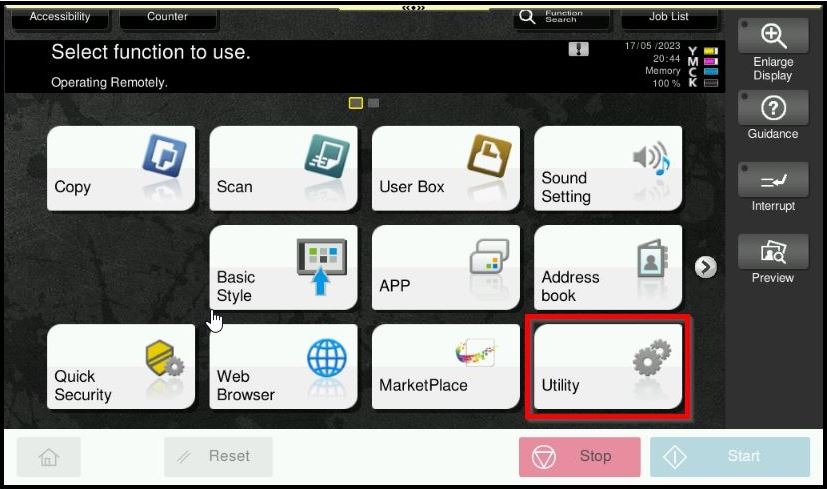
STEP 1 – Select [Utility].
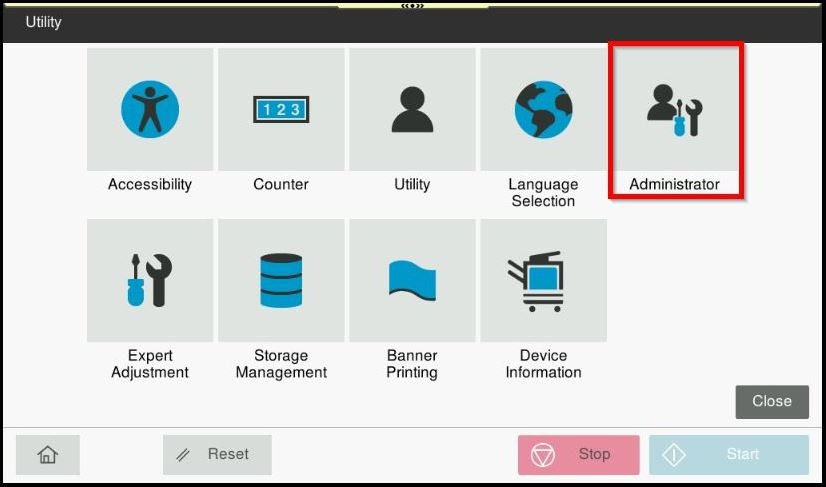
STEP 2 – Select [Administrator].
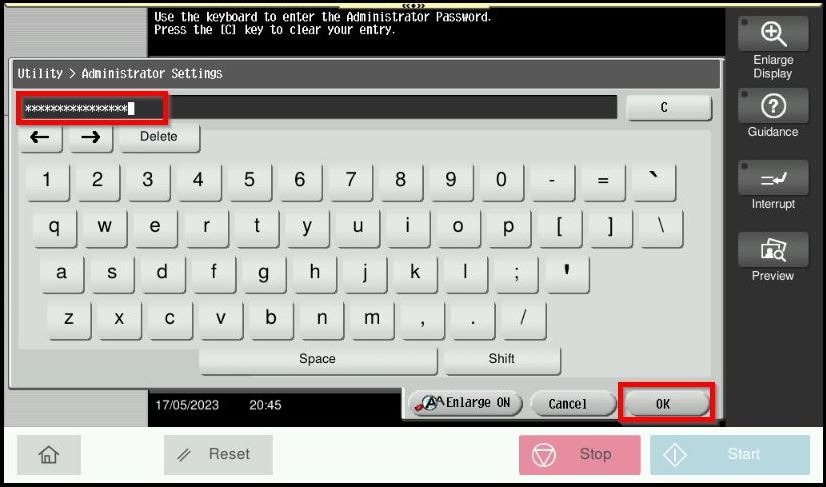
STEP 3 – Key in the default administrator password and click [OK] button.
Default administrator password: [7801261178012611] or [1234567812345678] or [12345678] or [12341234].
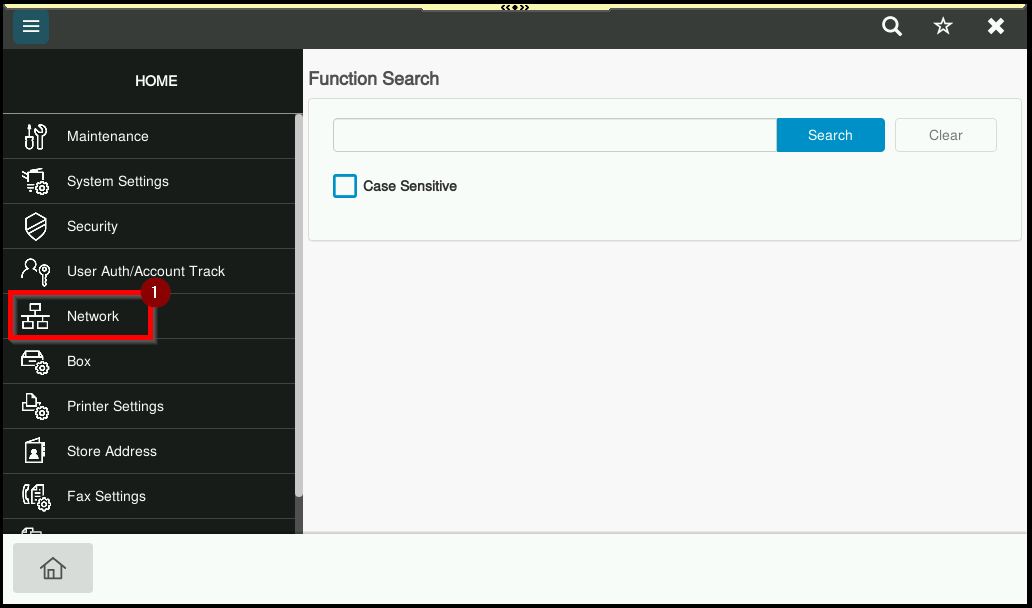
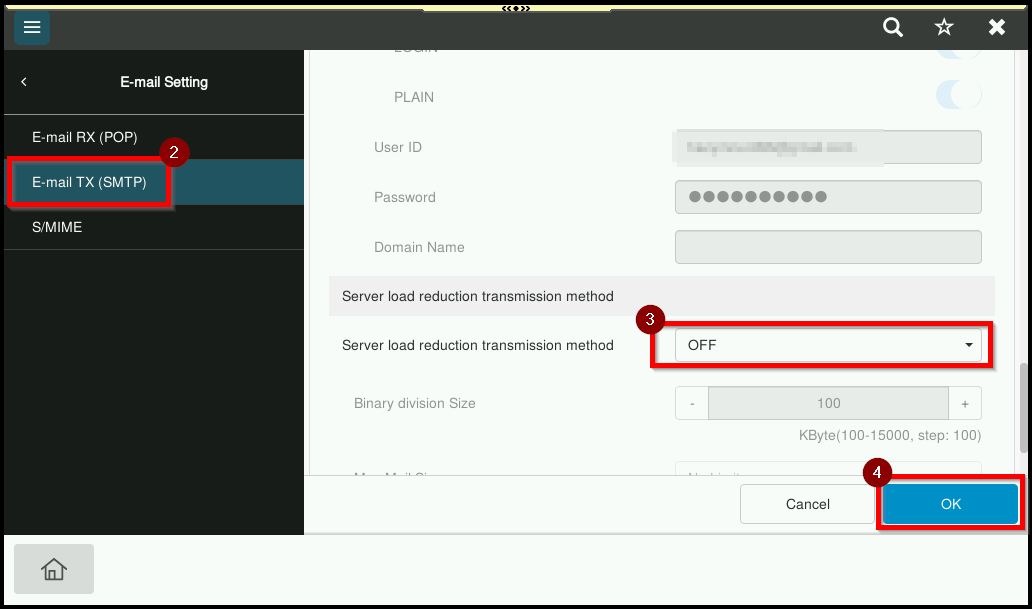
STEP 4 – Select [Network] – [Email Setting] – [Email TX (SMTP)]. Scroll down and set Server Load Reduction Transmission Method to [OFF] then click [OK] to save the settings.
After completing step above, proceed to the printer and perform the scan again. This ensures the new configuration is applied and helps confirm whether the scanning issue has been resolved.
For the Newer Machine series / I-Series Machine Via Web Connection
STEP 1 – Access the machine Web Connection from the PC browser. Click this LINK on how to access Web Connection from the browser.
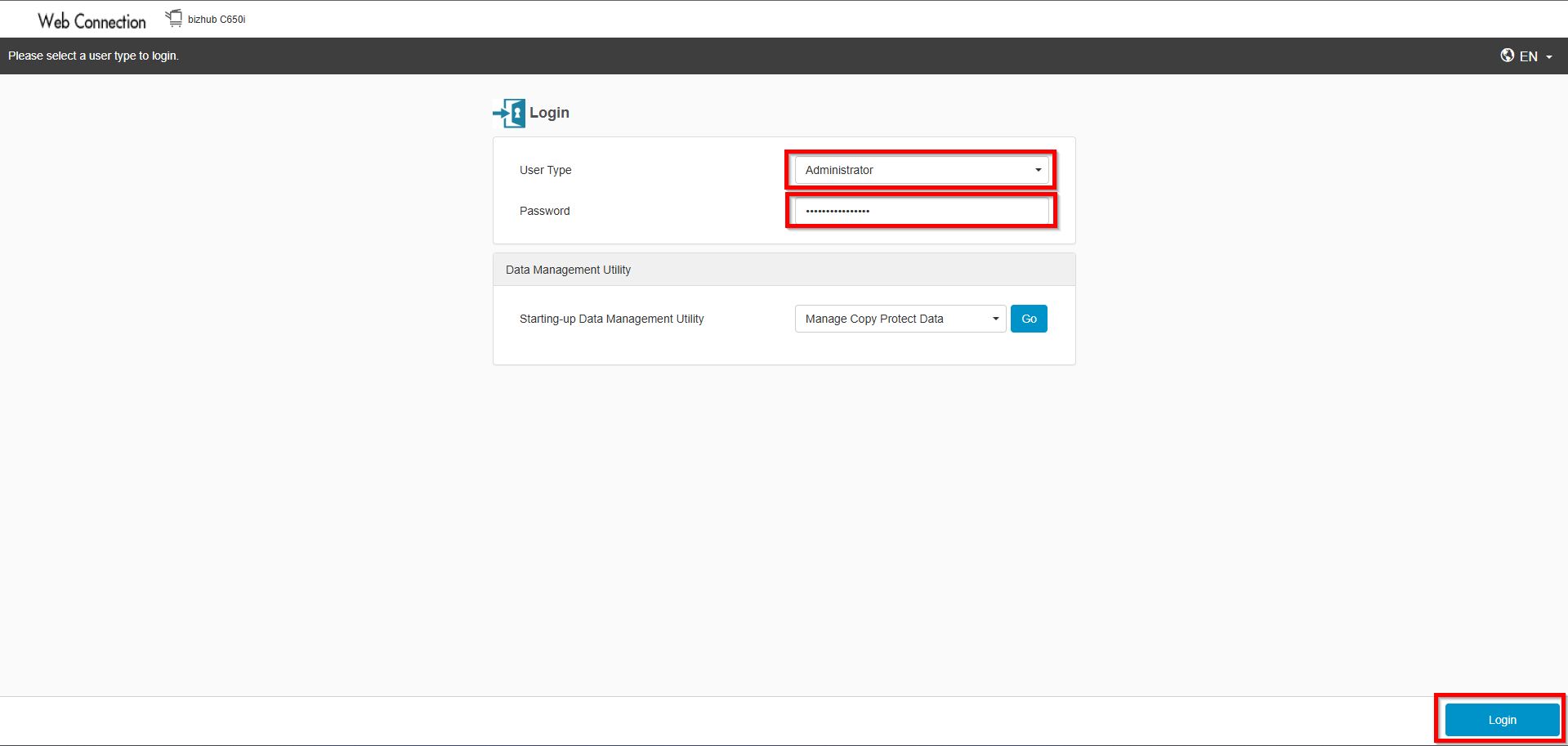
STEP 2 – Select [Administrator] and select [Login]. Default administrator password will be either [7801261178012611] or [1234567812345678] or [12345678] or [12341234].
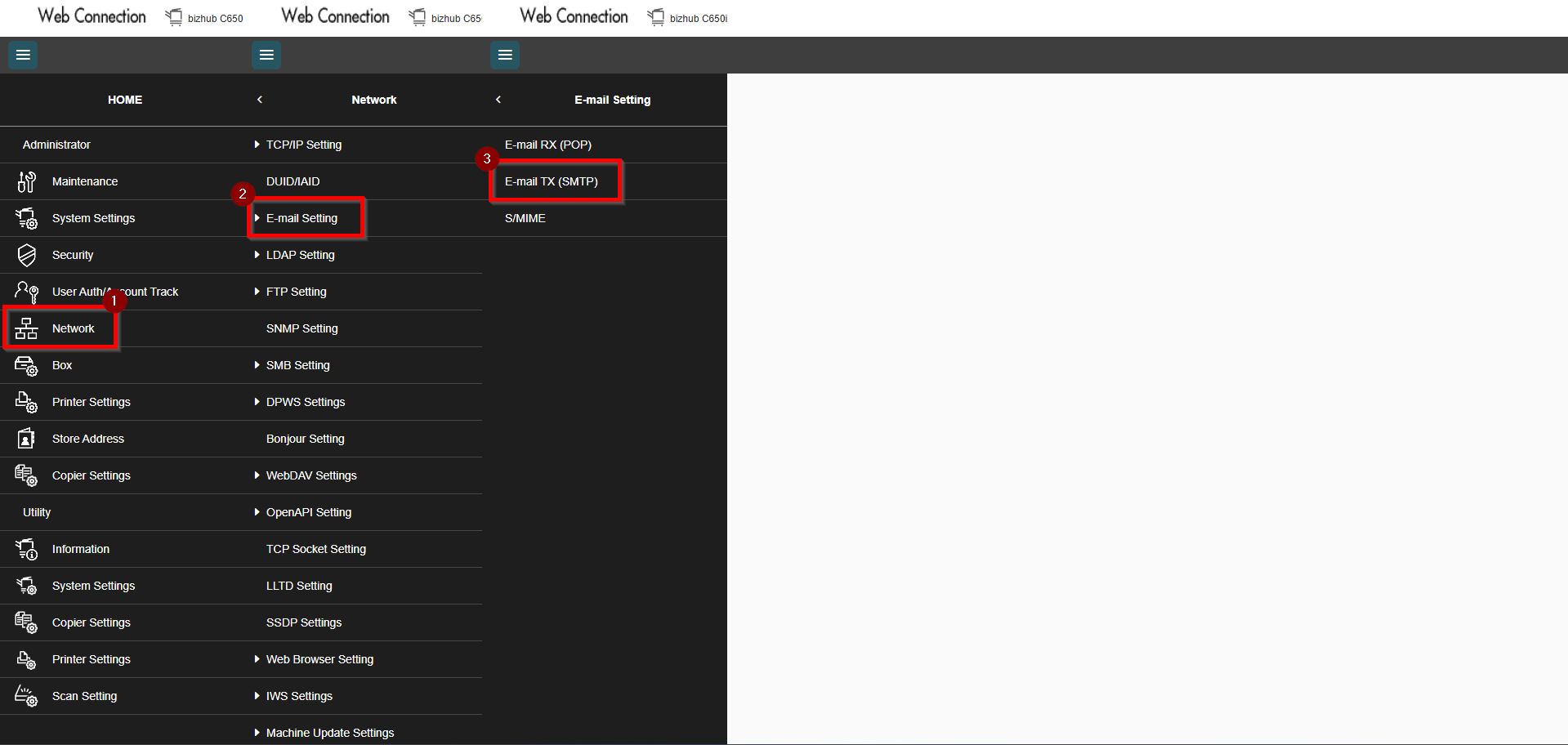
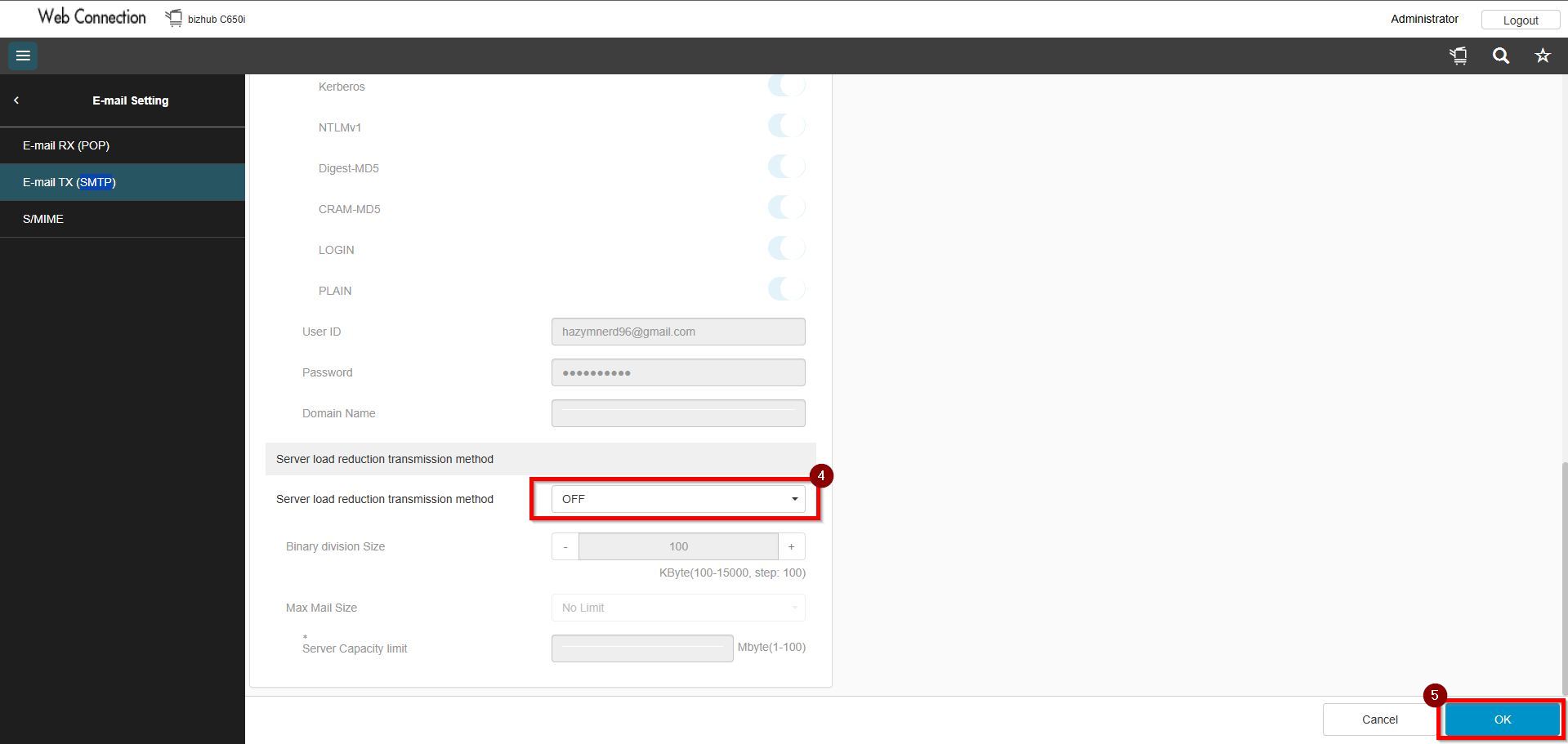
STEP 3 – Select [Network Settings] – [Email Settings] – [Email TX (SMTP)]. Scroll down and set Server Load Reduction Transmission Method to [OFF] then click [OK] to save the settings.
After completing step above, proceed to the printer and perform the scan again. This ensures the new configuration is applied and helps confirm whether the scanning issue has been resolved.