
Guide on how to resolve the issue that unable to perform secure print due to password rules setting
Password rules are enforced on some of the photocopier to maintain system security and protect company data. These rules help prevent unauthorized access to the device, ensure that Secure Print jobs are properly authenticated, and reduce the risk of confidential information being exposed.
When performing Secure Print while User Authentication or Account Track is disabled, the print job may fail if the password entered is fewer than 8 characters. This occurs because the password policy rules are enabled on the machine, which enforce a minimum password length requirement.
Although the printer model and driver settings are correct, the job will still be rejected if it does not meet the configured password rules.
The attachment below shows an example where the User Authentication and Account Track options are greyed out (disabled) in printer driver settings.
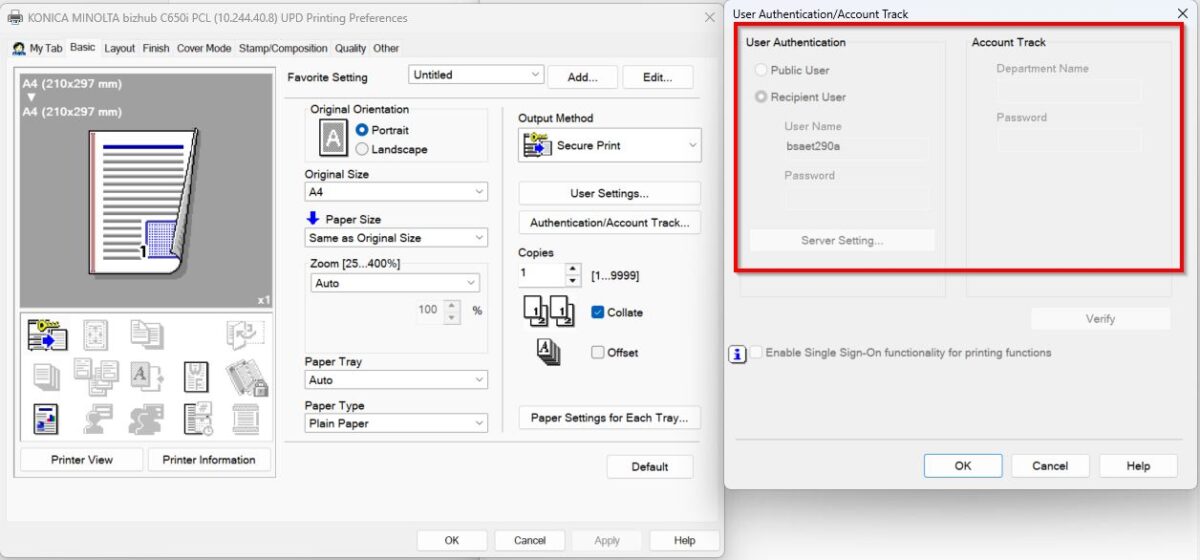
However, when performing Secure Print, if the password entered is fewer than 8 characters.
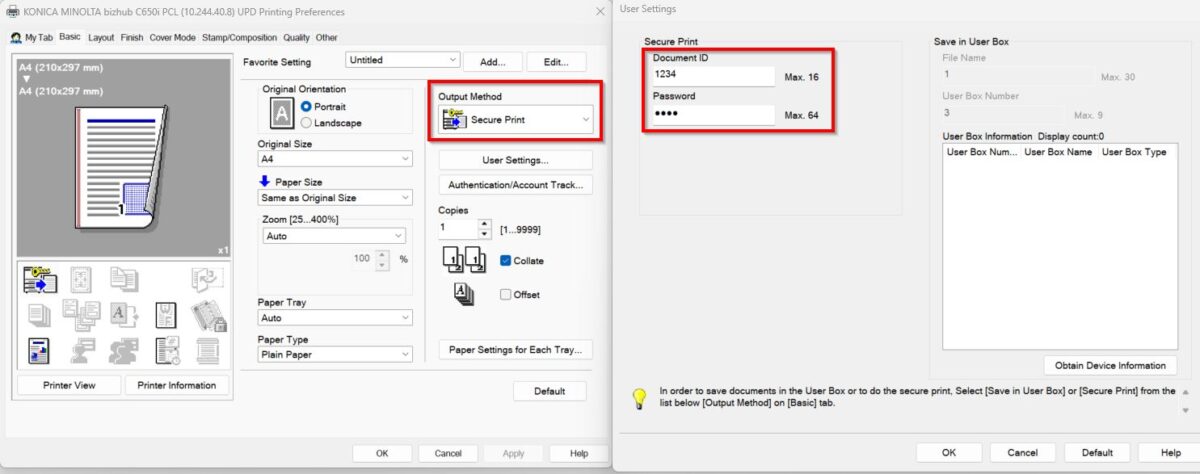
A login error message will be displayed on the photocopier machine.
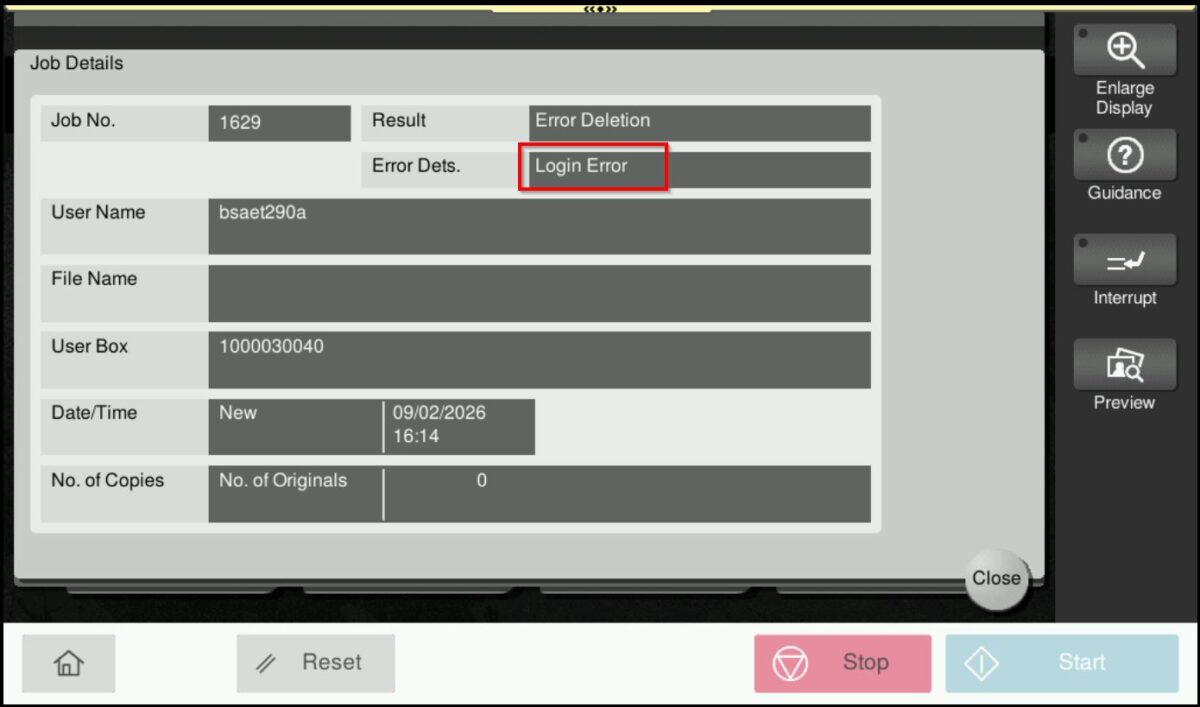
For The Older Machine Series / Non I-Series Machine (Accessible from Screen Panel only)
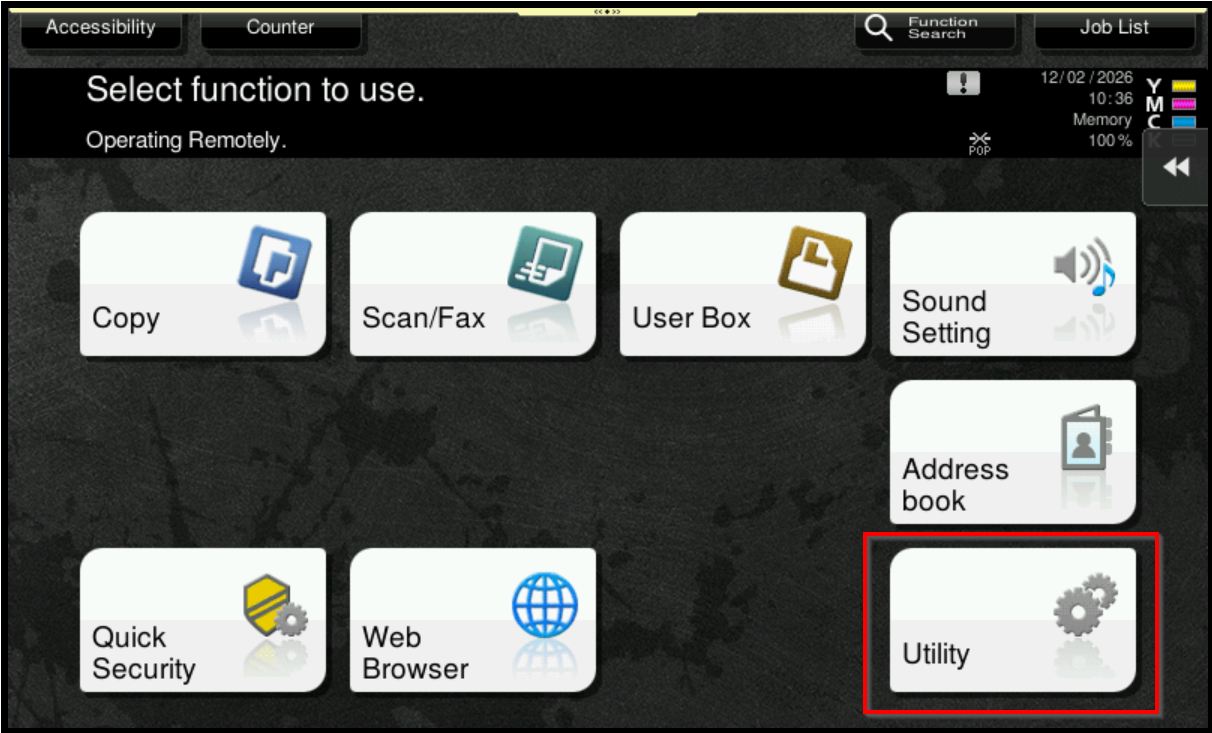
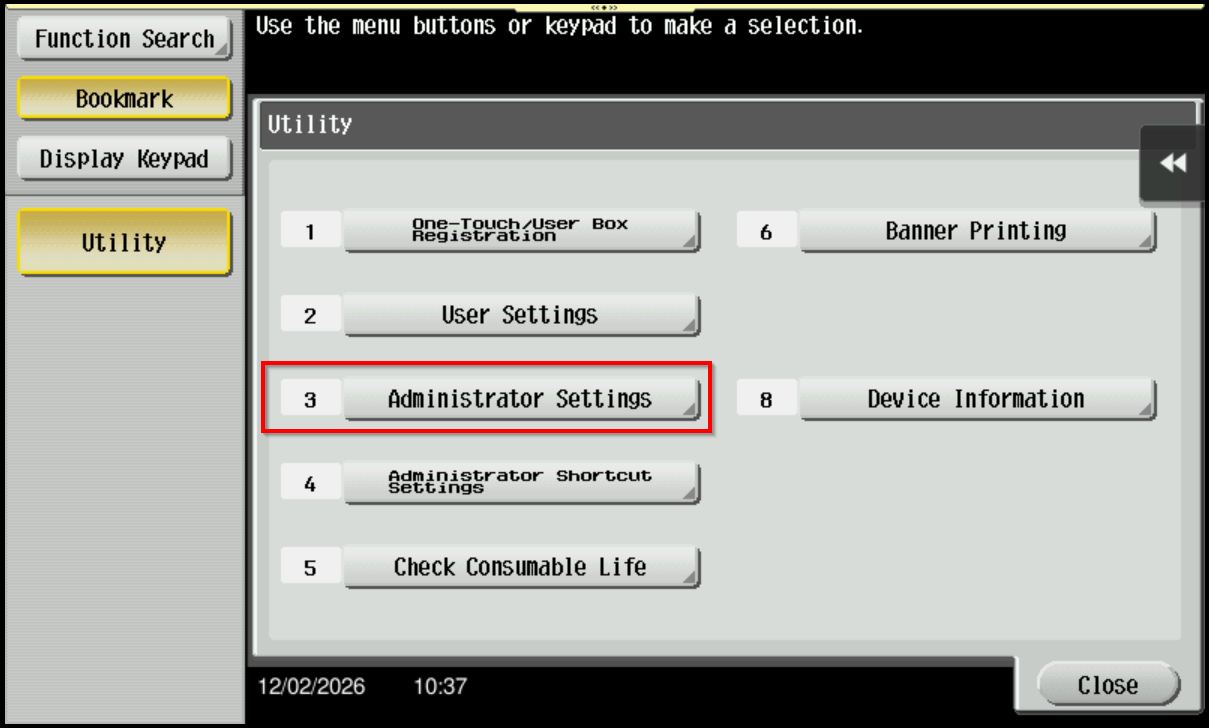
STEP 1 – In order to resolve the issue, kindly follow below step to disable the Password Rules on machine. On the Konica Minolta machine, select [Utility] from Control Panel.
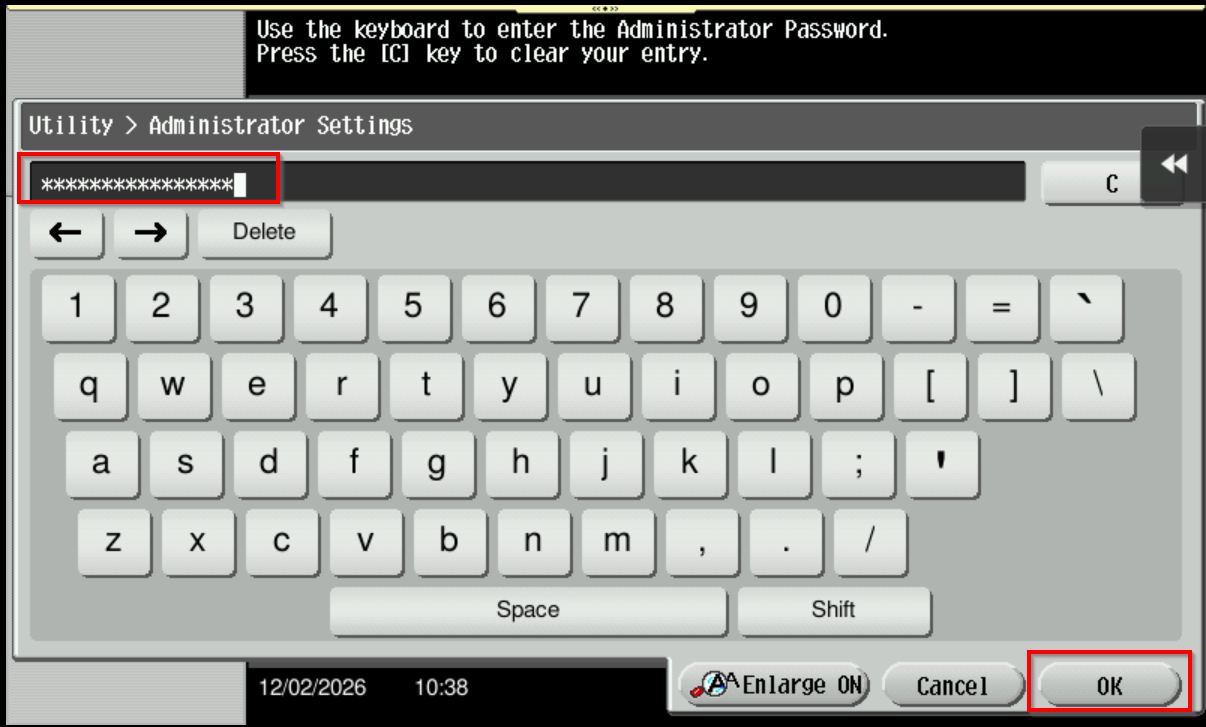
STEP 2 – Select [Administrator Settings] and Key in the default administrator password and click [OK] button to login.
Default administrator password: [7801261178012611] or [1234567812345678] or [12345678] or [12341234].
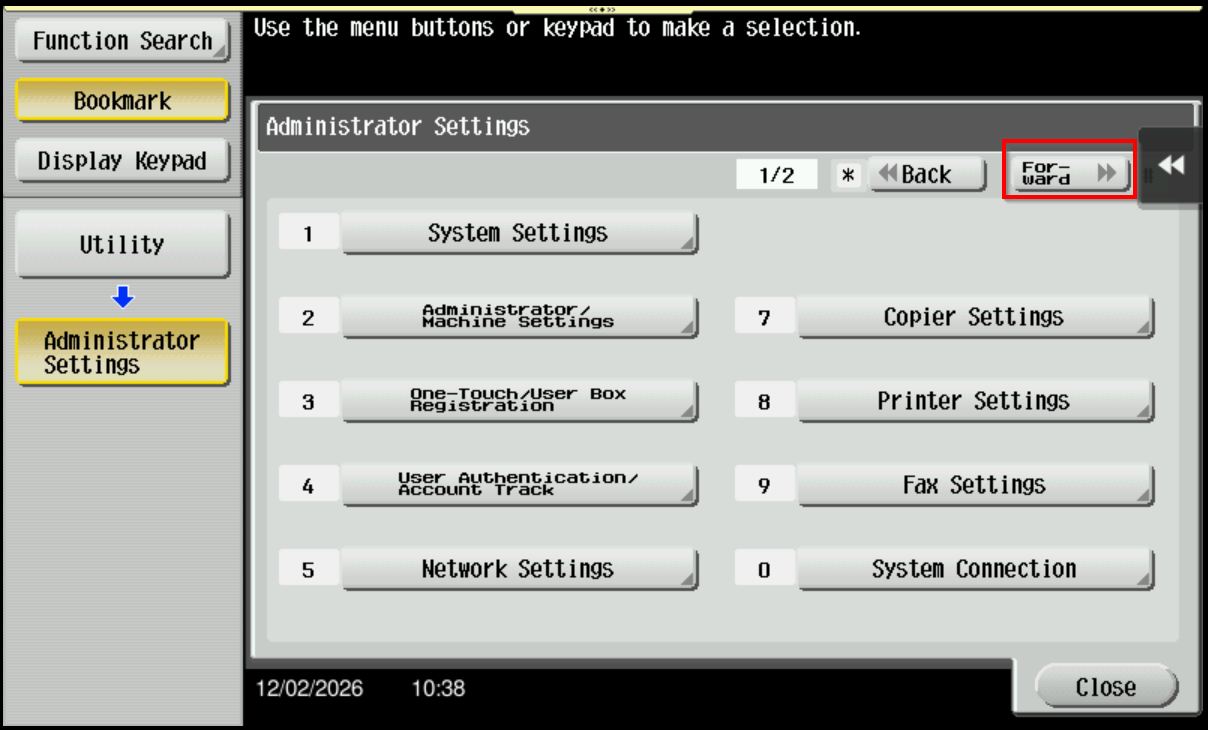
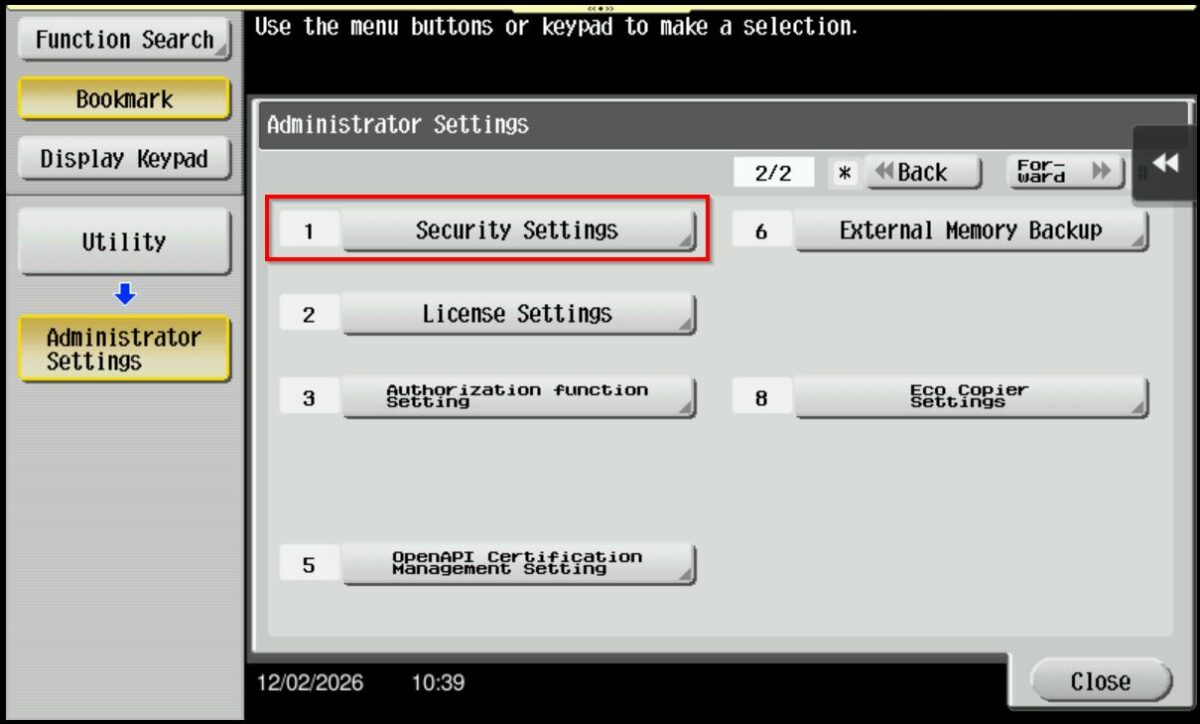
STEP 3 – Click on [Forward] – [Security Settings].
STEP 4 – Select [Security Details] – [Password Rules].
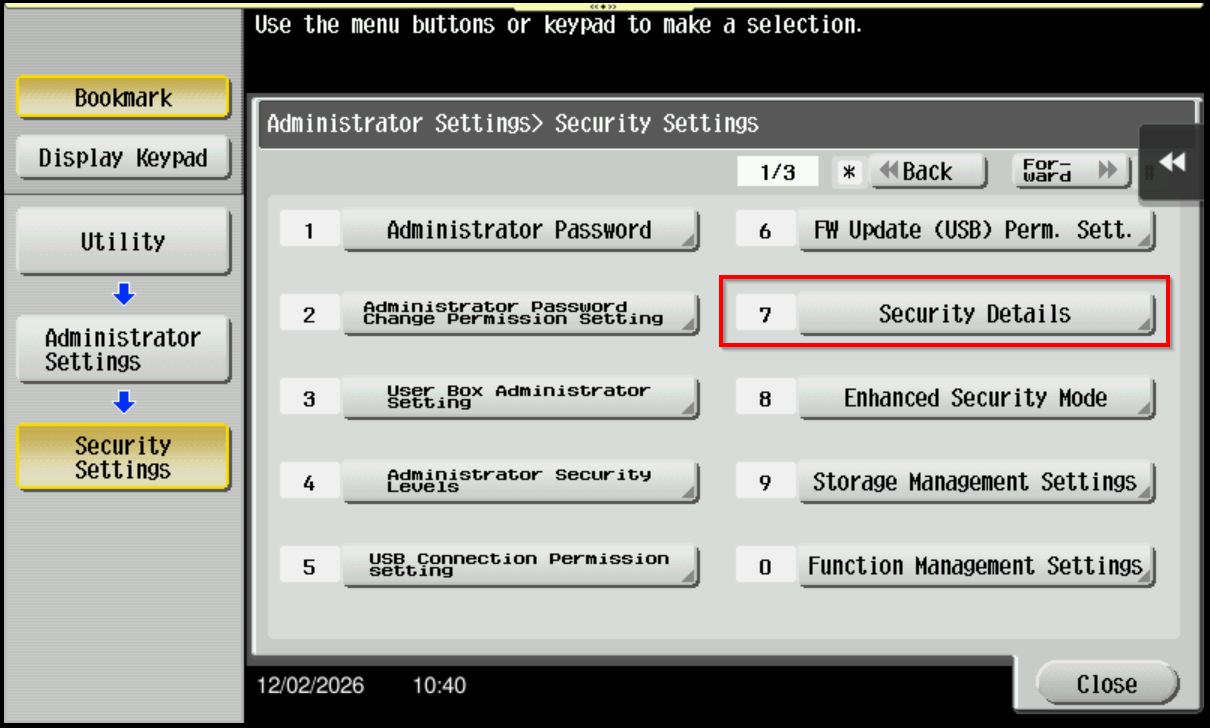
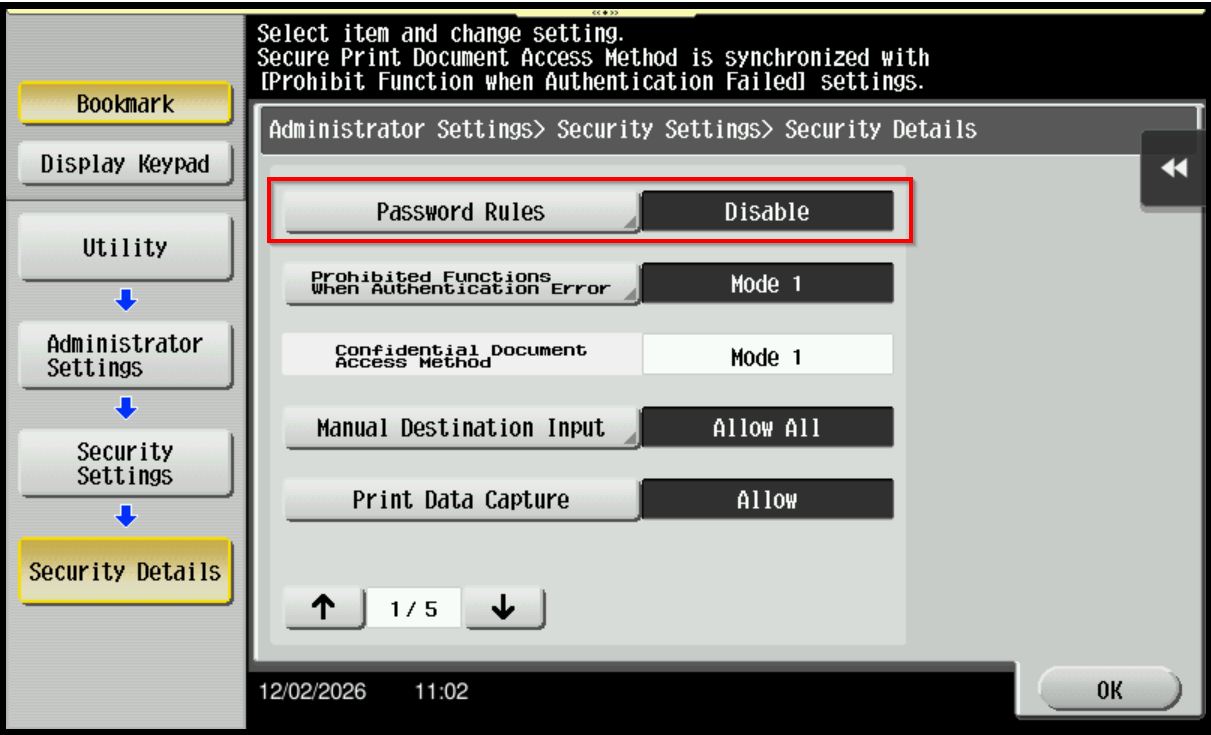
STEP 5 – Set to [Disable] to turn off this function. Click [OK] to save this setting.
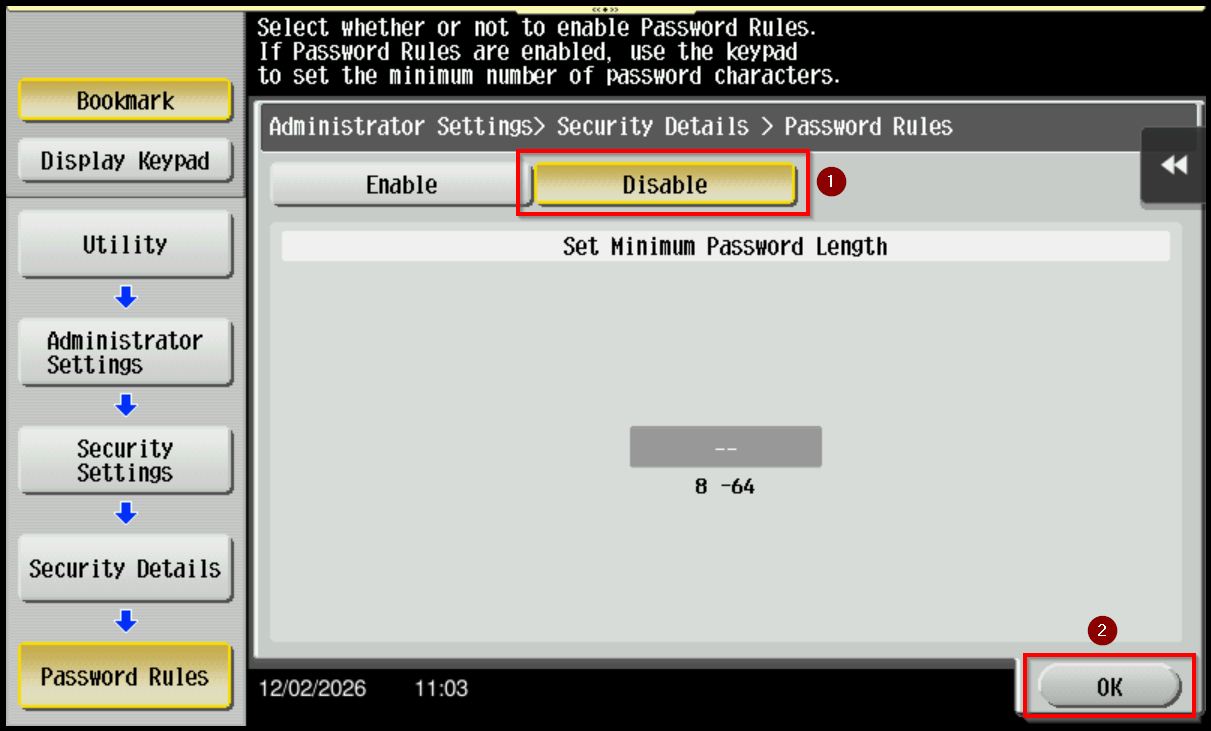
*If the Disable option cannot be selected (greyed out), please contact the Customer Support team for onsite technical assistance.
For the Newer Machine series / I-Series Machine (Accessible from Screen Panel & Web Connection)
STEP 1 – Select [Home] – [Utility].
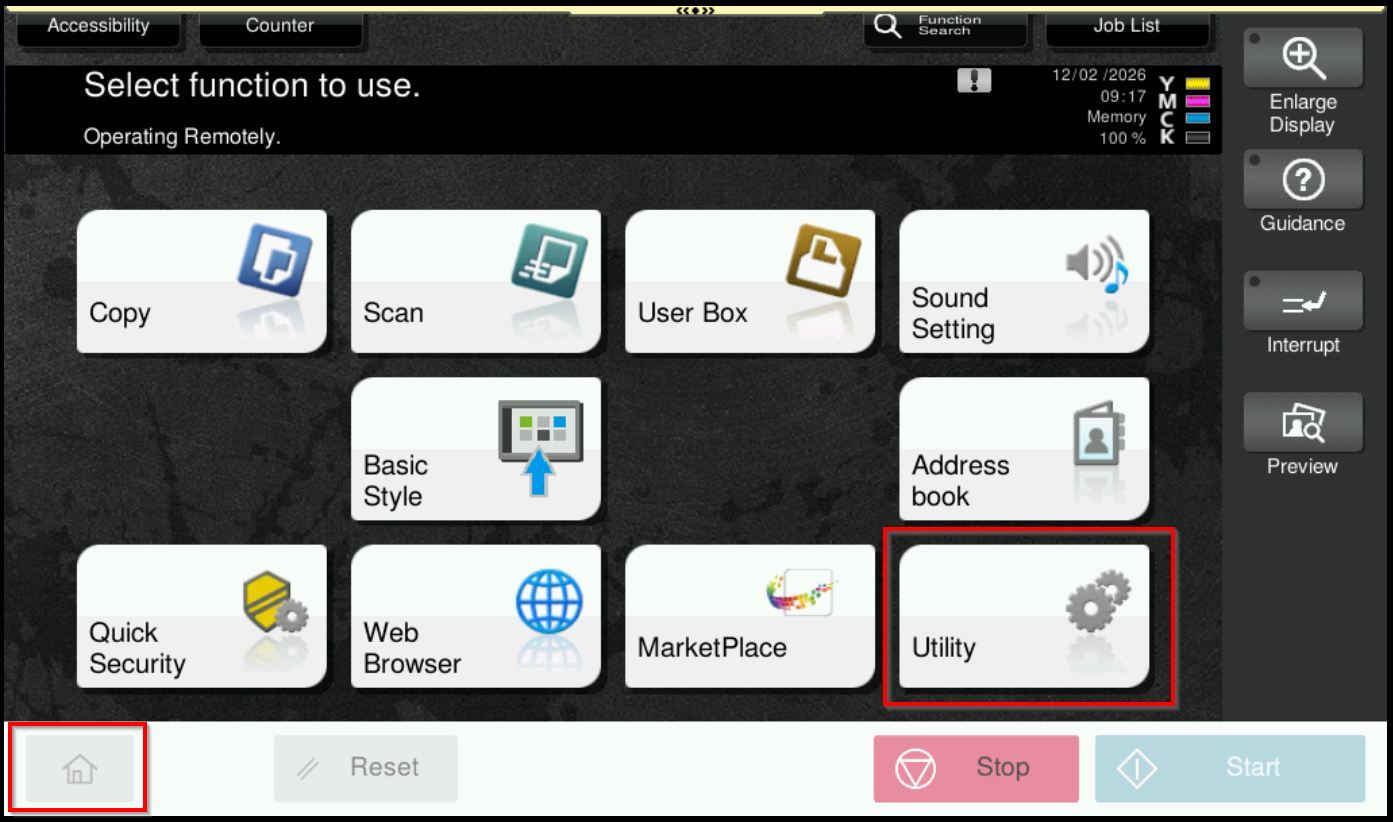
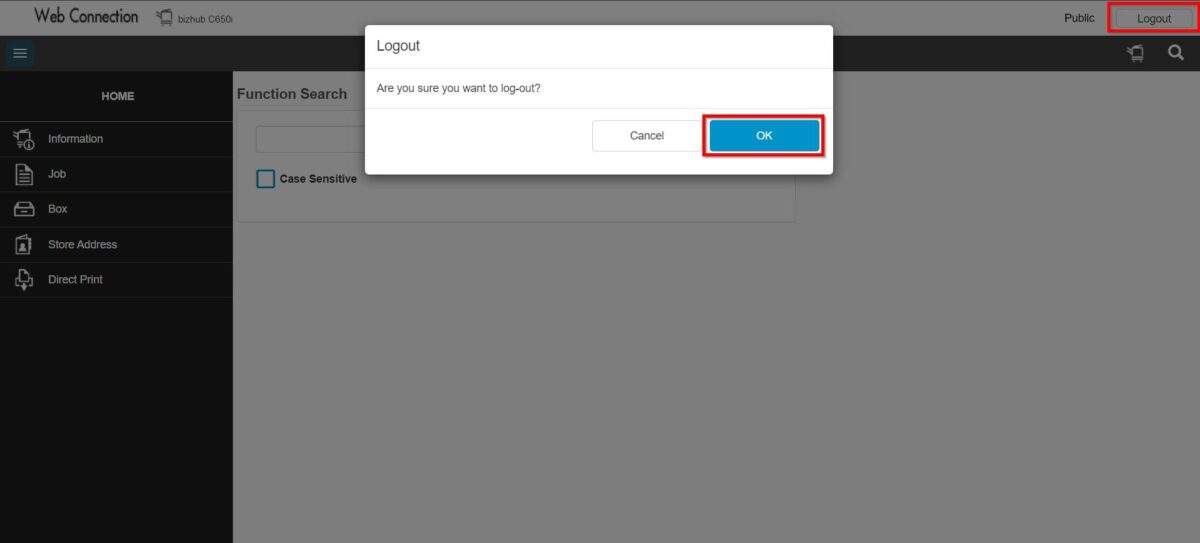
**You may access to web connection via machine IP Address. Click on this to check how to get the IP Address from machine, then key in Konica Minolta Machine IP Address at web browser and log in as admin the Web Connection.
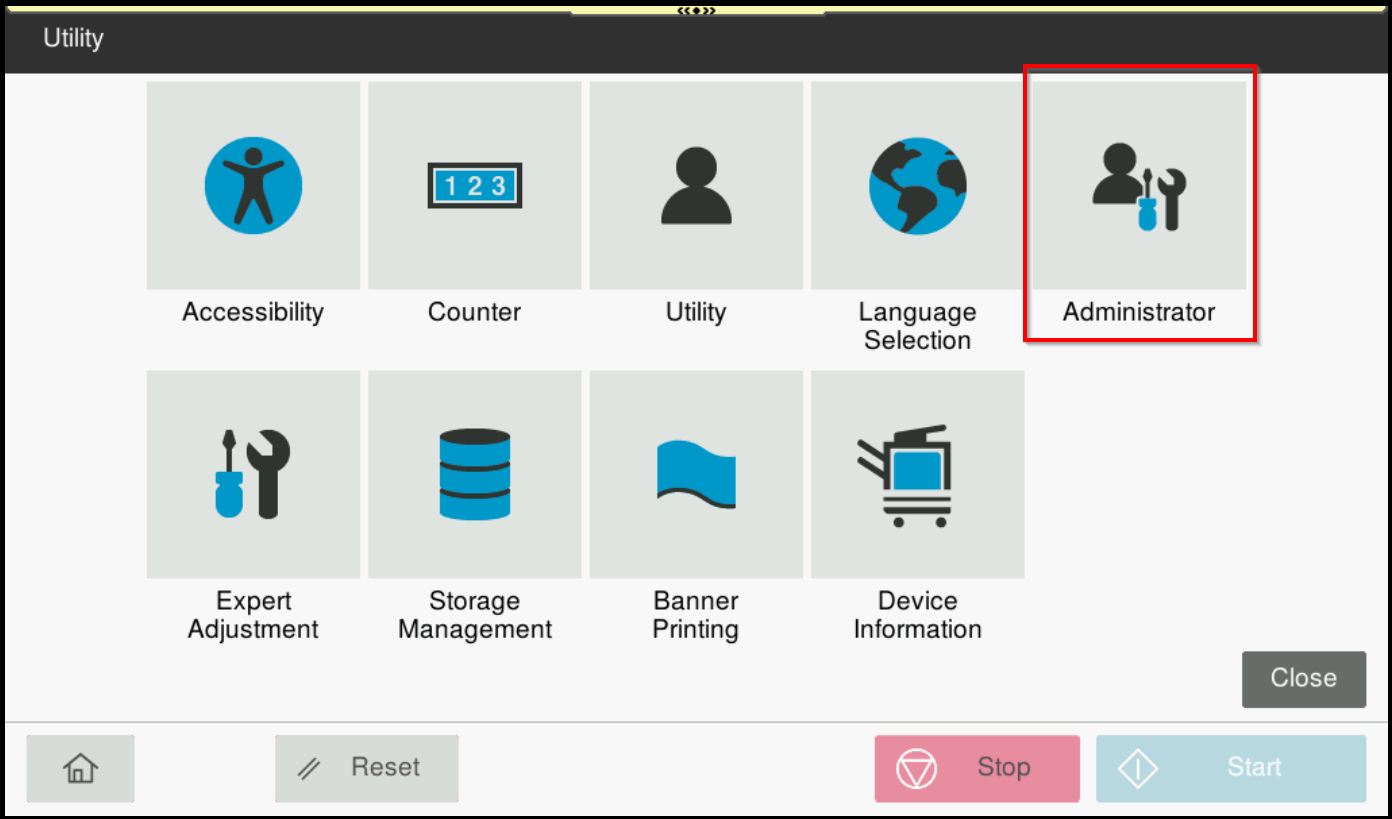
STEP 2 – Select [Administrator].
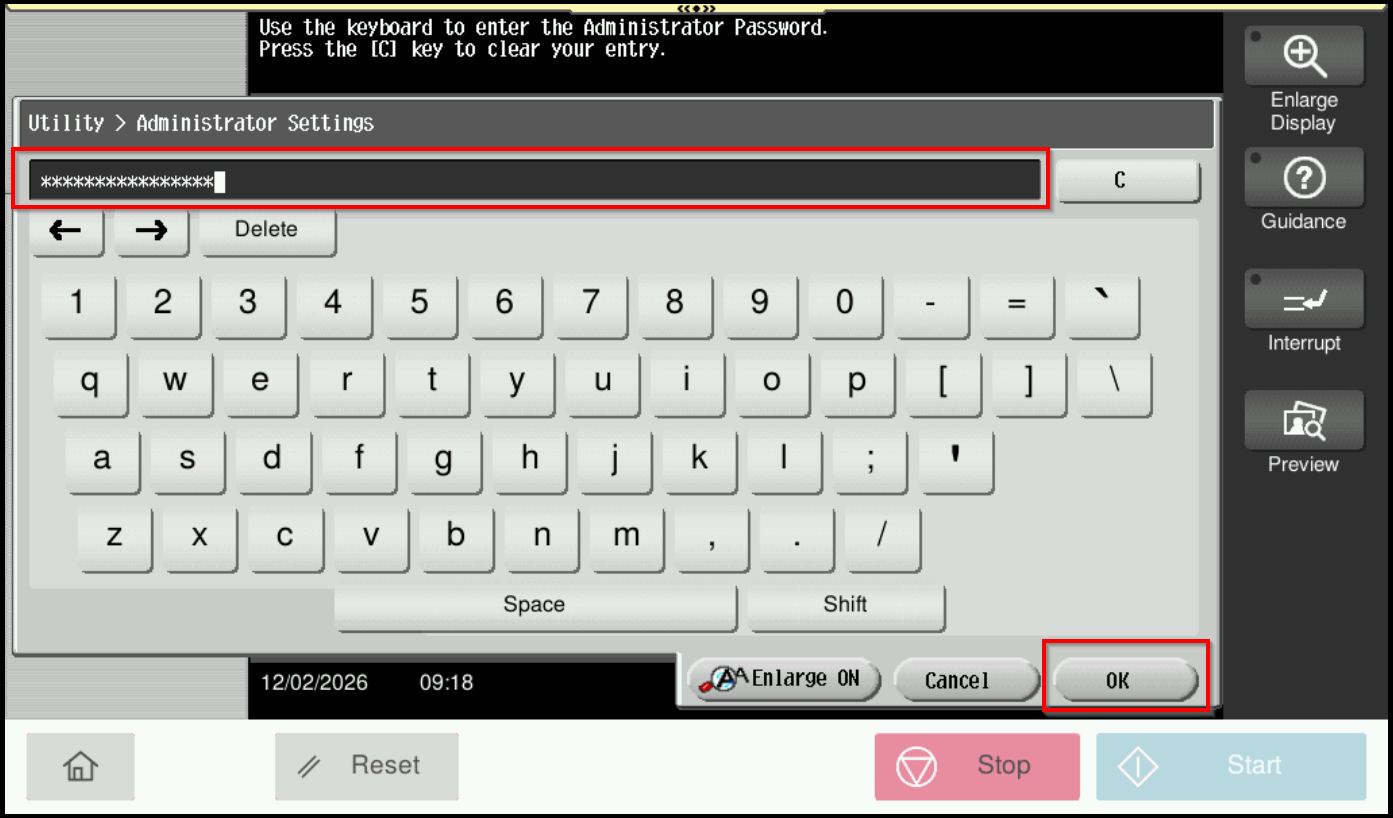
STEP 3 – Key in the default administrator password and click [OK] button.
Default administrator password: [7801261178012611] or [1234567812345678] or [12345678] or [12341234].
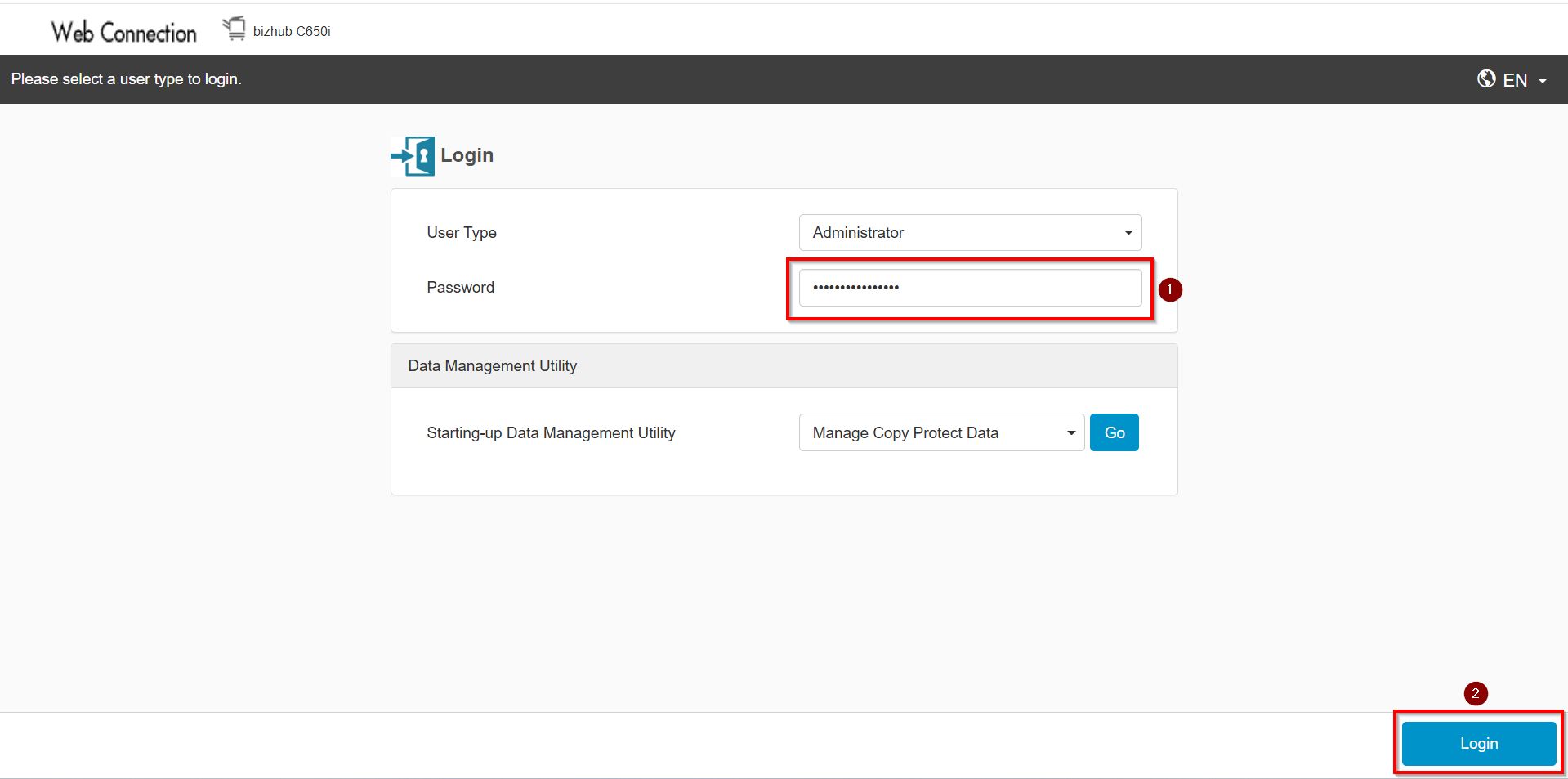
**On Web Connection login as admin mode by key in administrator password accordingly. The next step will be same option on below to change administrator password.
STEP 4 – Go to [Security] – [Security Details].
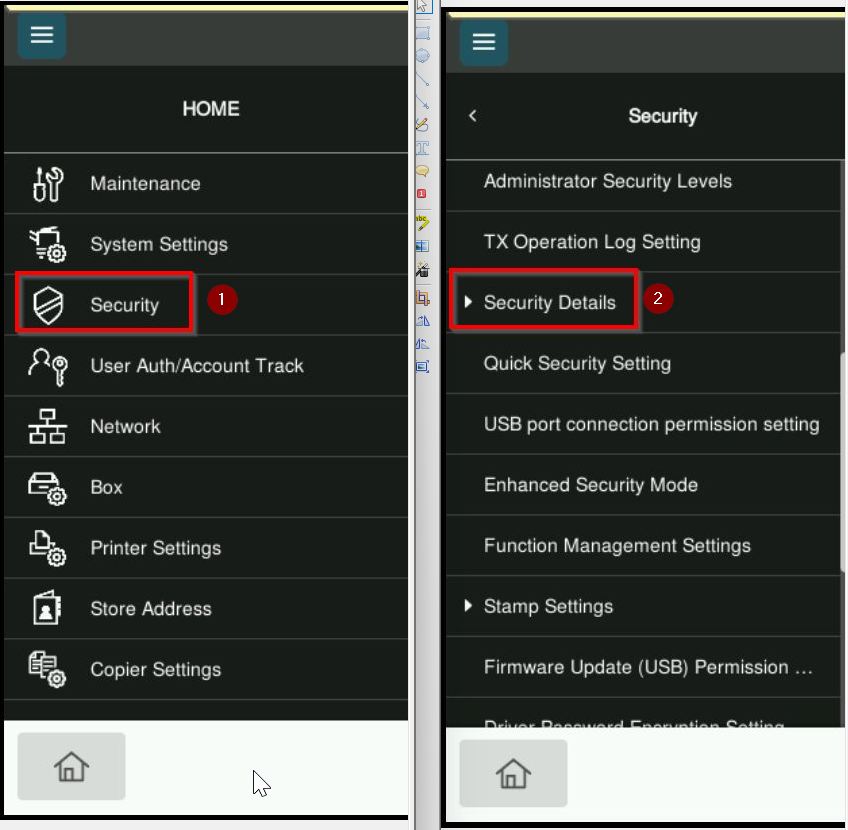
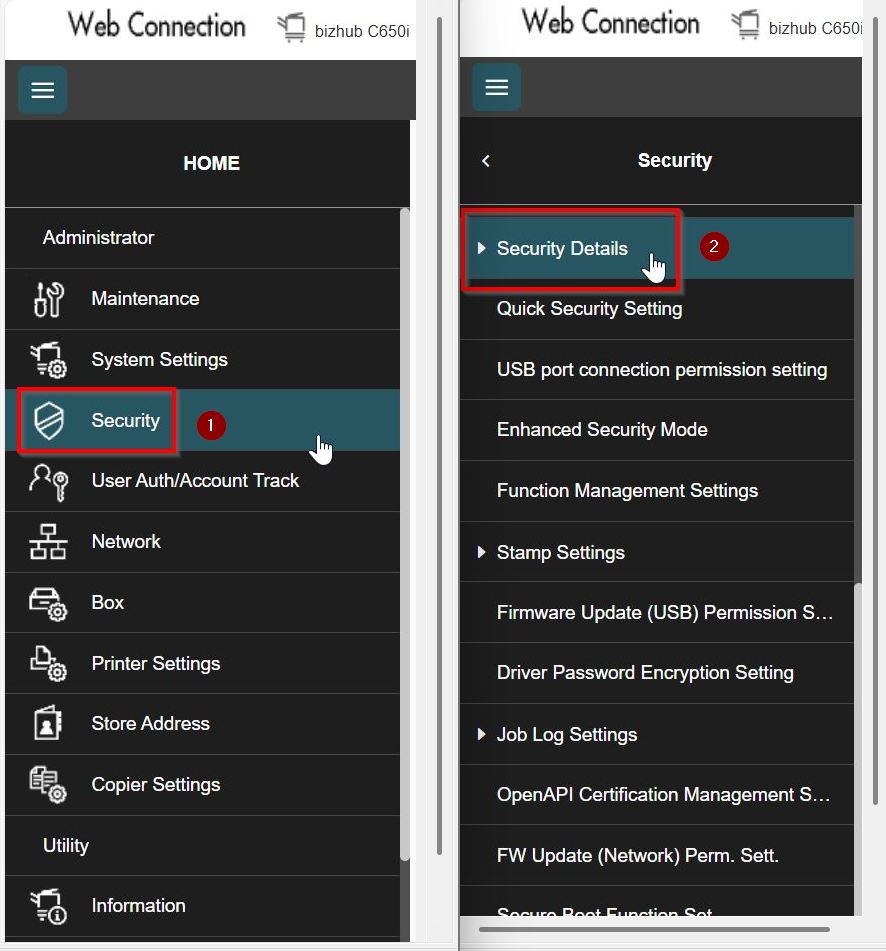
STEP 5 – Select [Password Rules], set [Password Rules] from either [Complexity 1] or [Complexity 2] to [Disable] to turn off password rules, then select [OK] to save the settings.
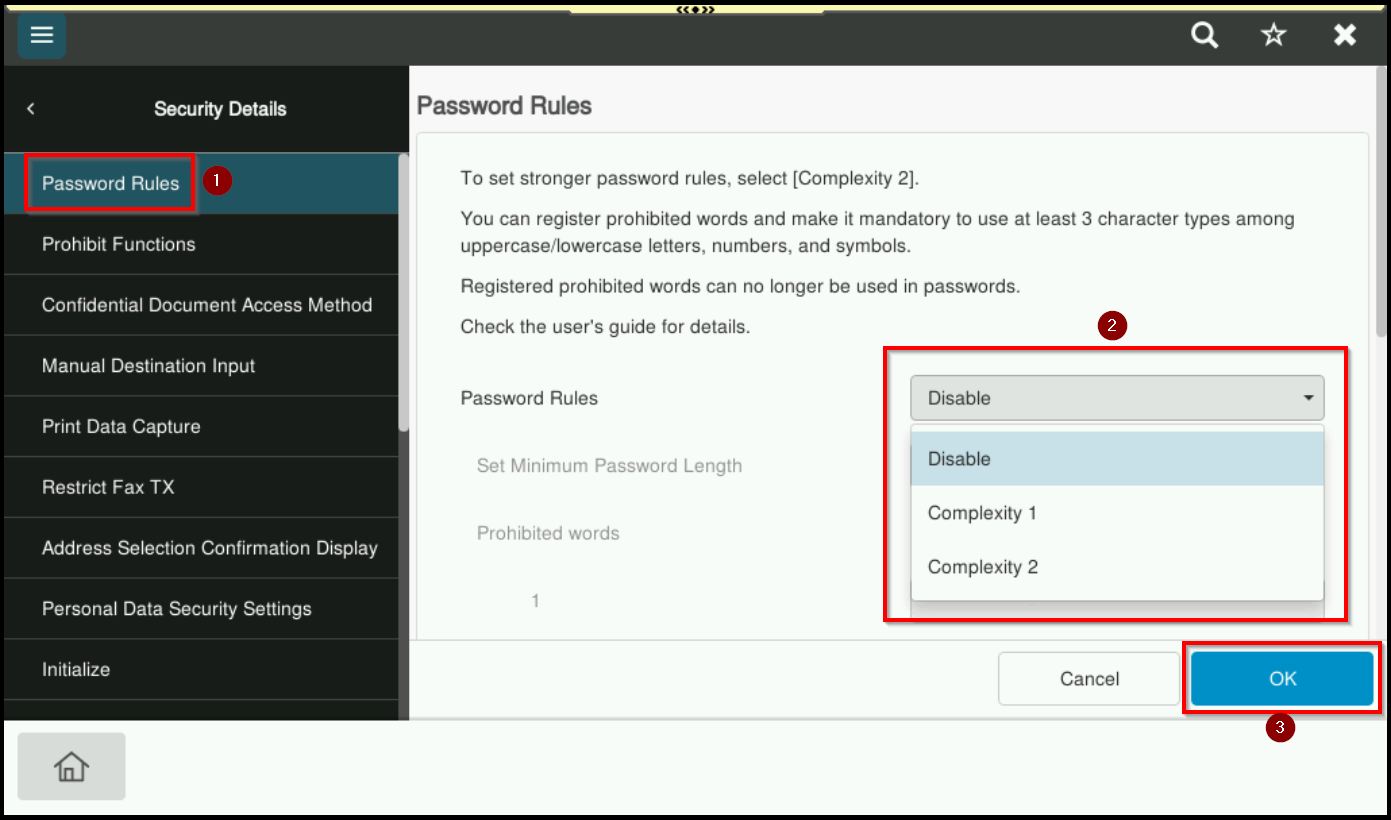
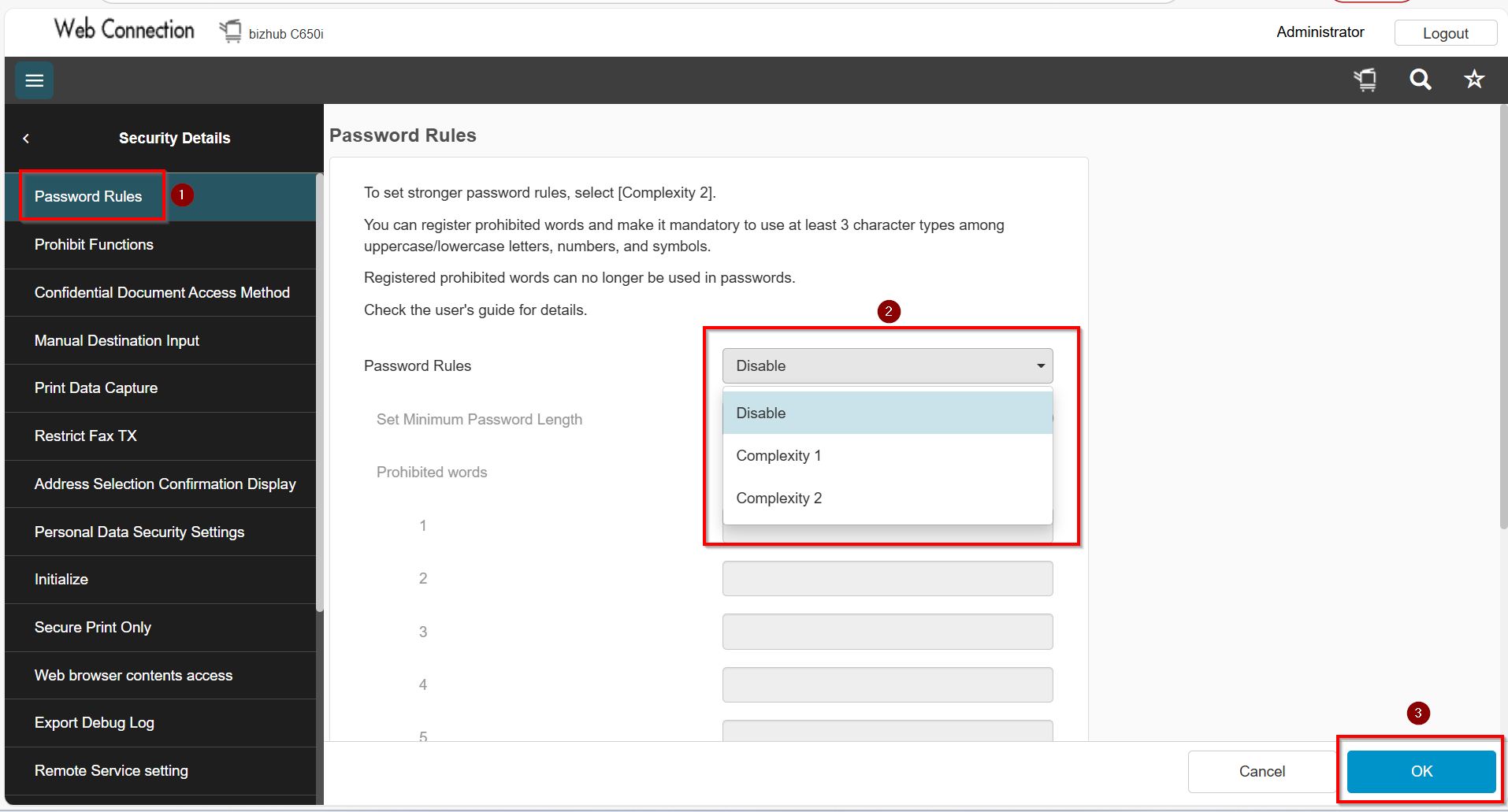
*If the Disable option cannot be selected (greyed out), please contact the Customer Support team for onsite technical assistance..