
Guide on how to setup scan to Personal User Box from the Konica Minolta machine.
Requirements :
- Personal User Box only available if User Authentication has been enabled on Konica Minolta machine.
- SMB Sharing to PC folder will be disable as this function is only for private storage for each user.
- However, Personal User Box still can be access via the Web Browser by logging to specific user on Web Connection.
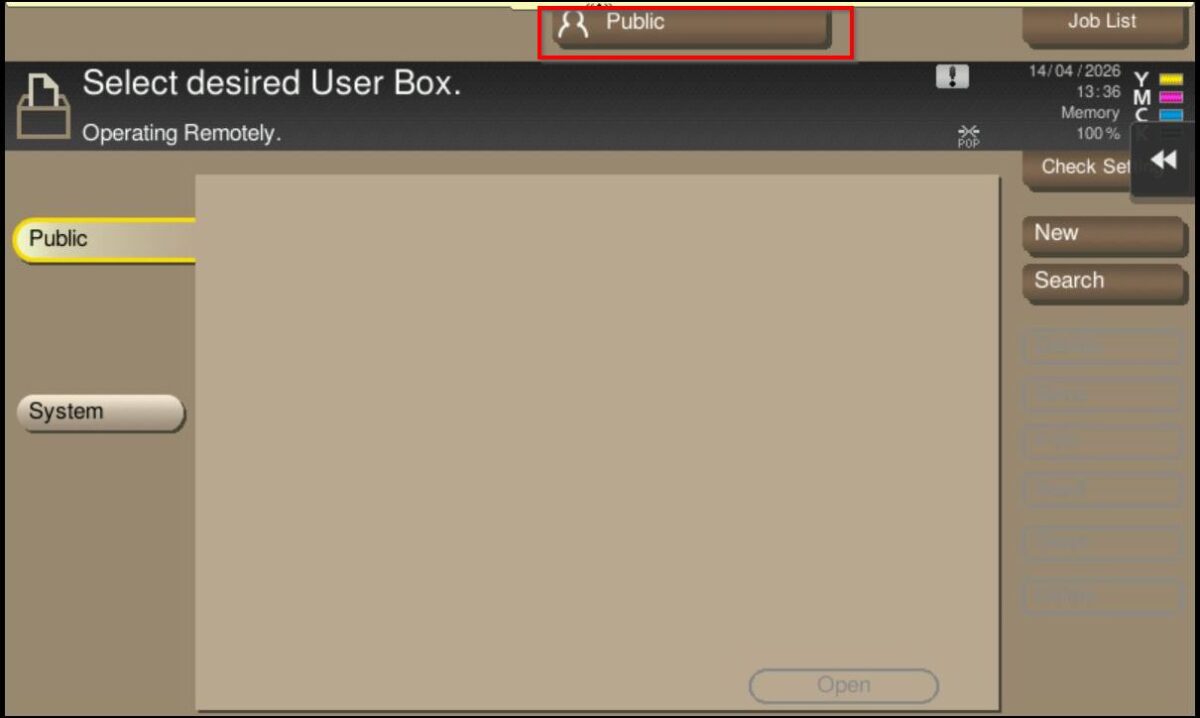
*Normal Public User won’t be able to see Personal User Box
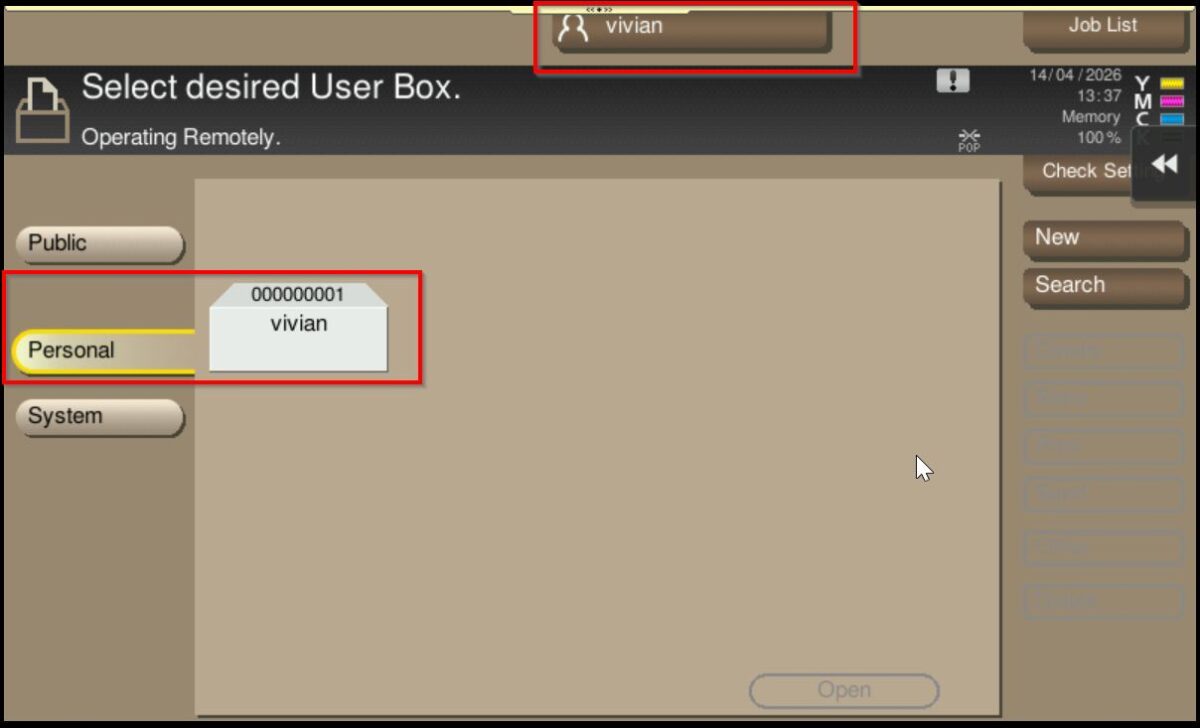
*Login with User Authentication, specific user will able to see their own Personal User Box
For Older Machine series / Non I-Series Machine (From Machine Control Panel)
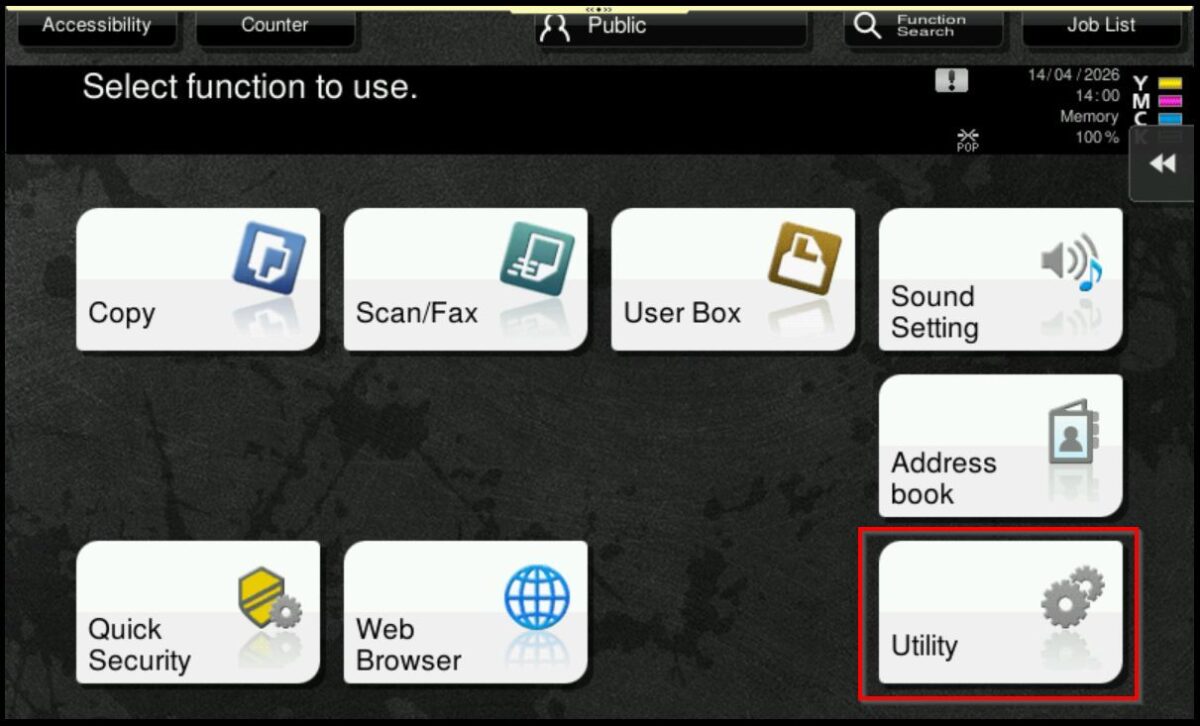
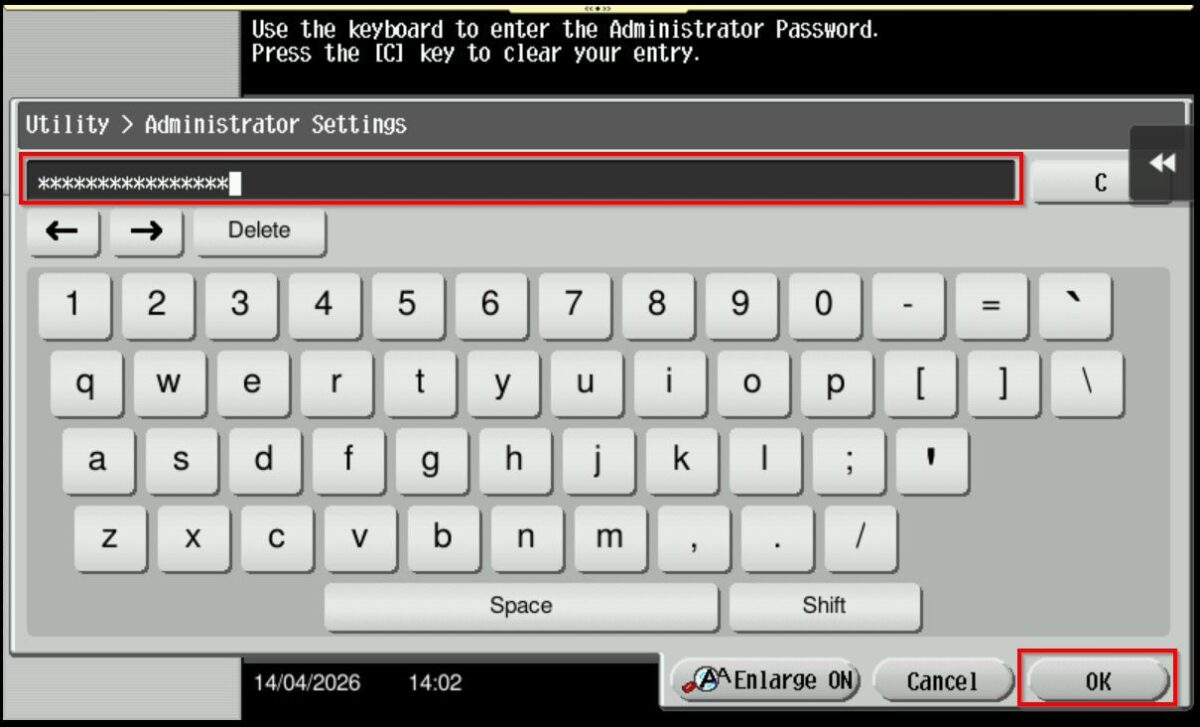
STEP 1 – On the machine Control Panel, click [Menu] button – [Utility] – [Administrator Settings].
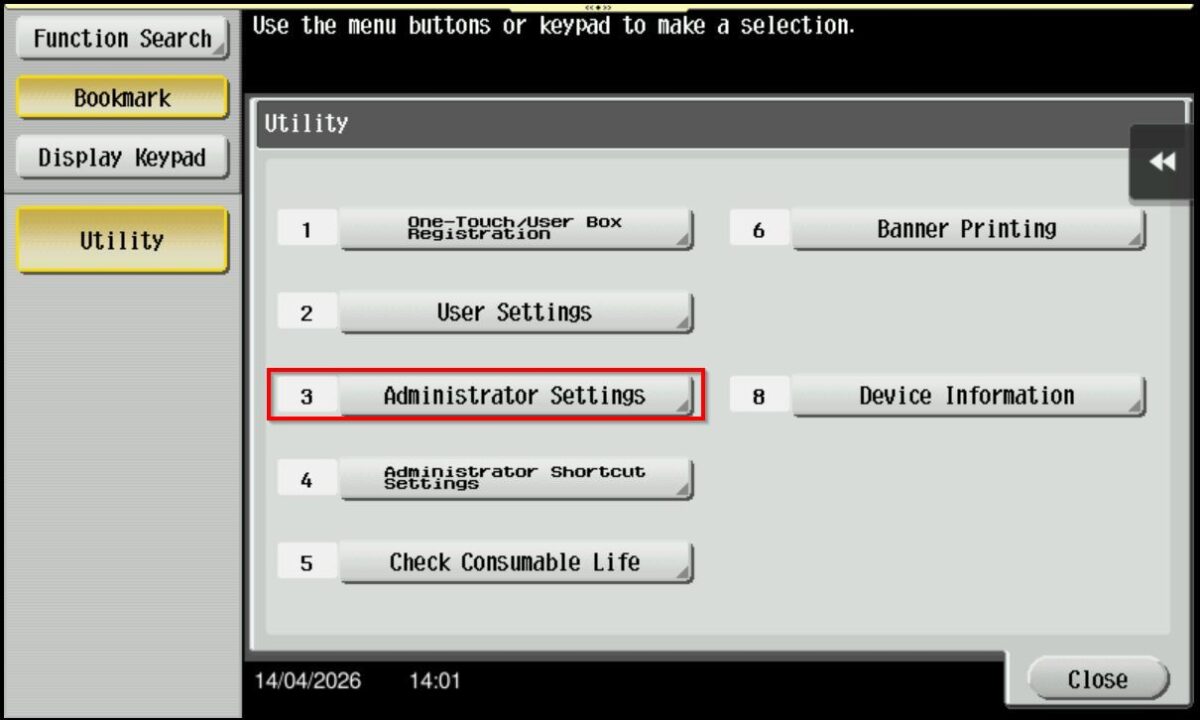
STEP 2 – Key in administrator password then proceed to select [OK], default administrator password: [7801261178012611] or [1234567812345678] or [12345678] or [12341234].
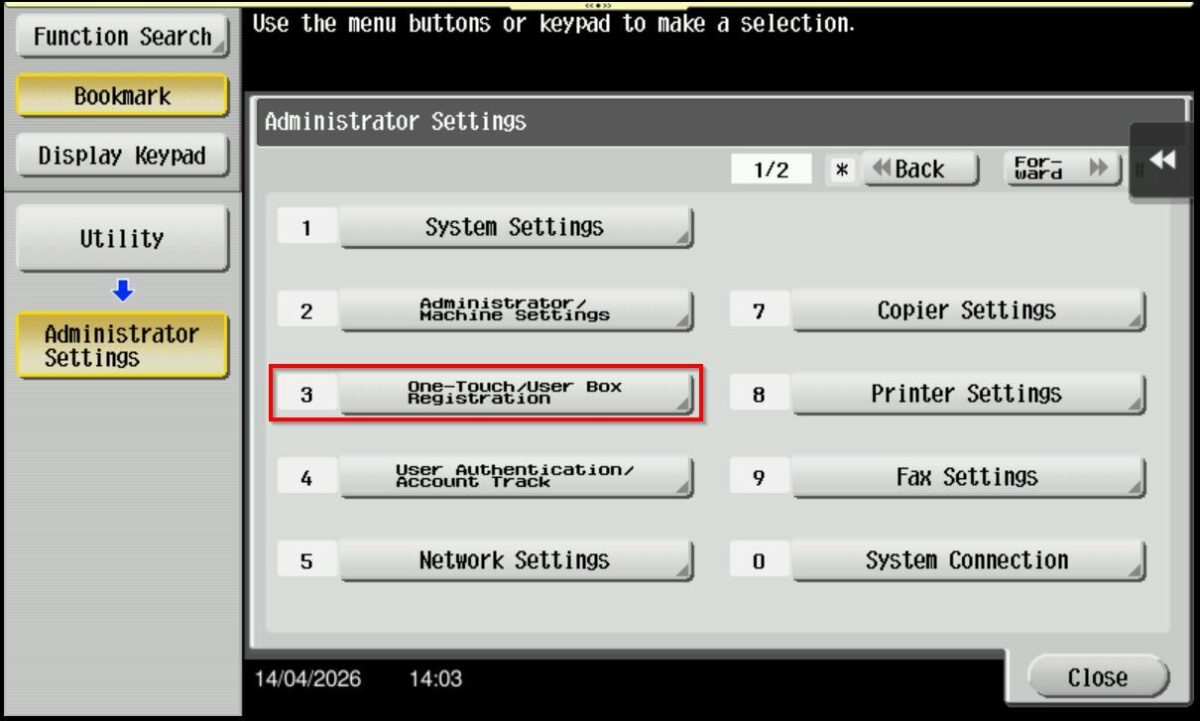
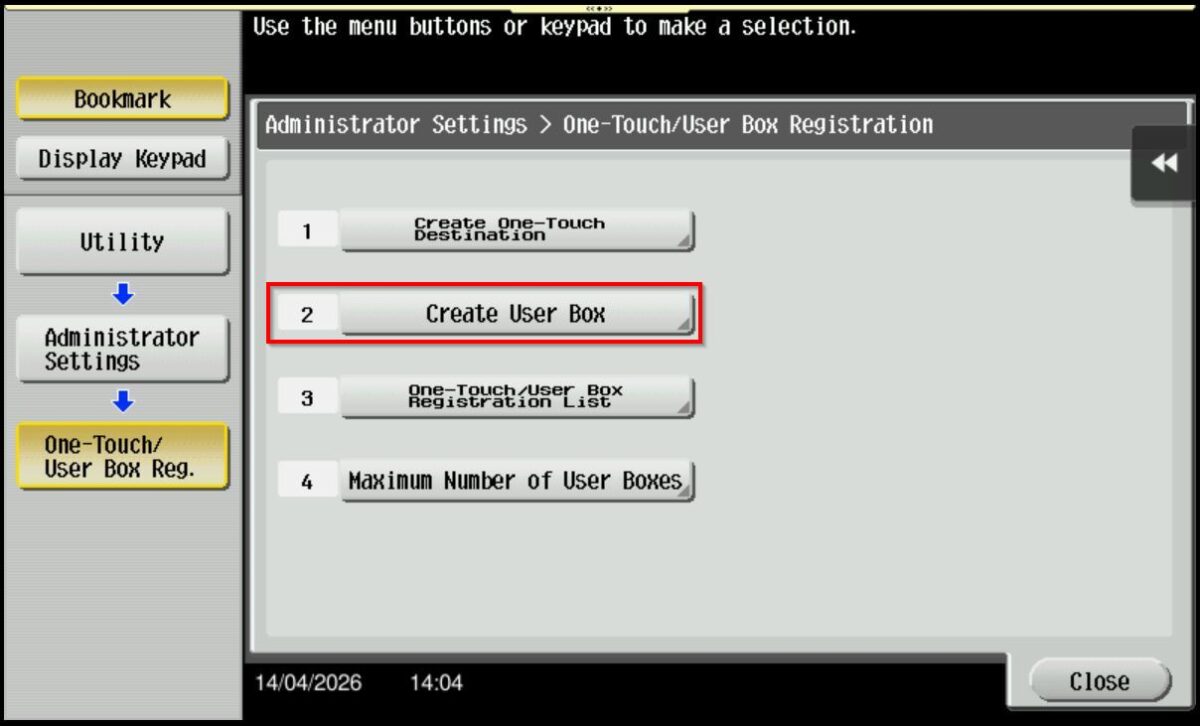
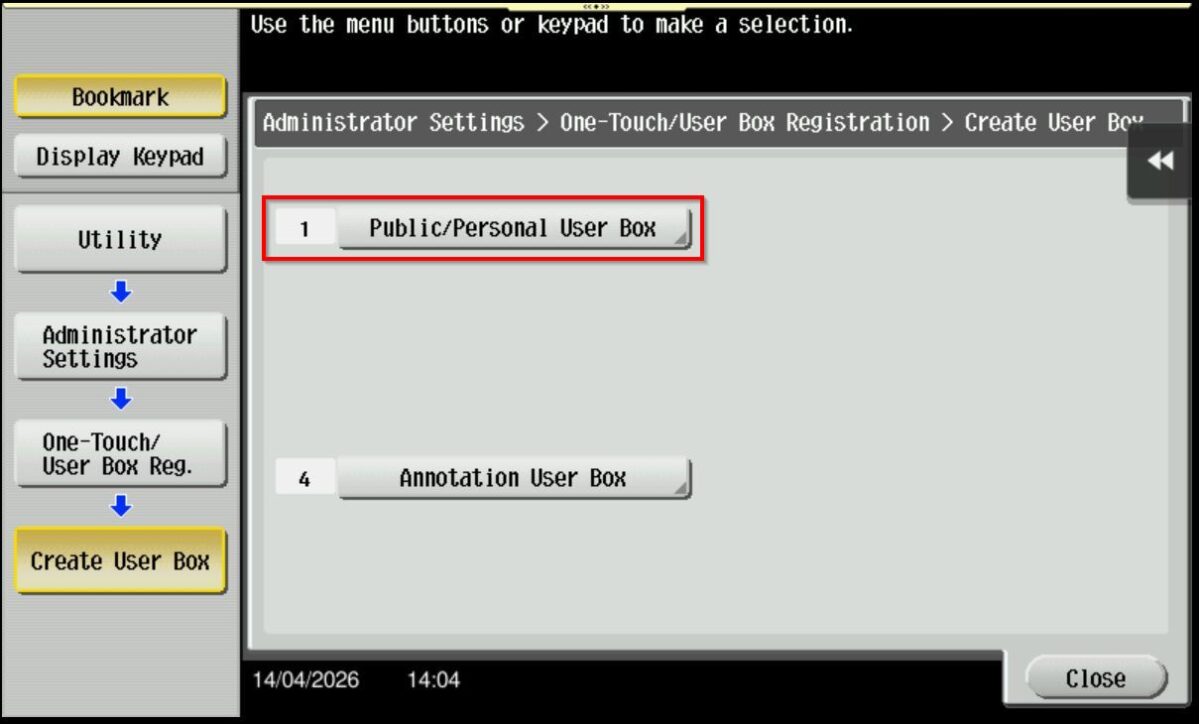
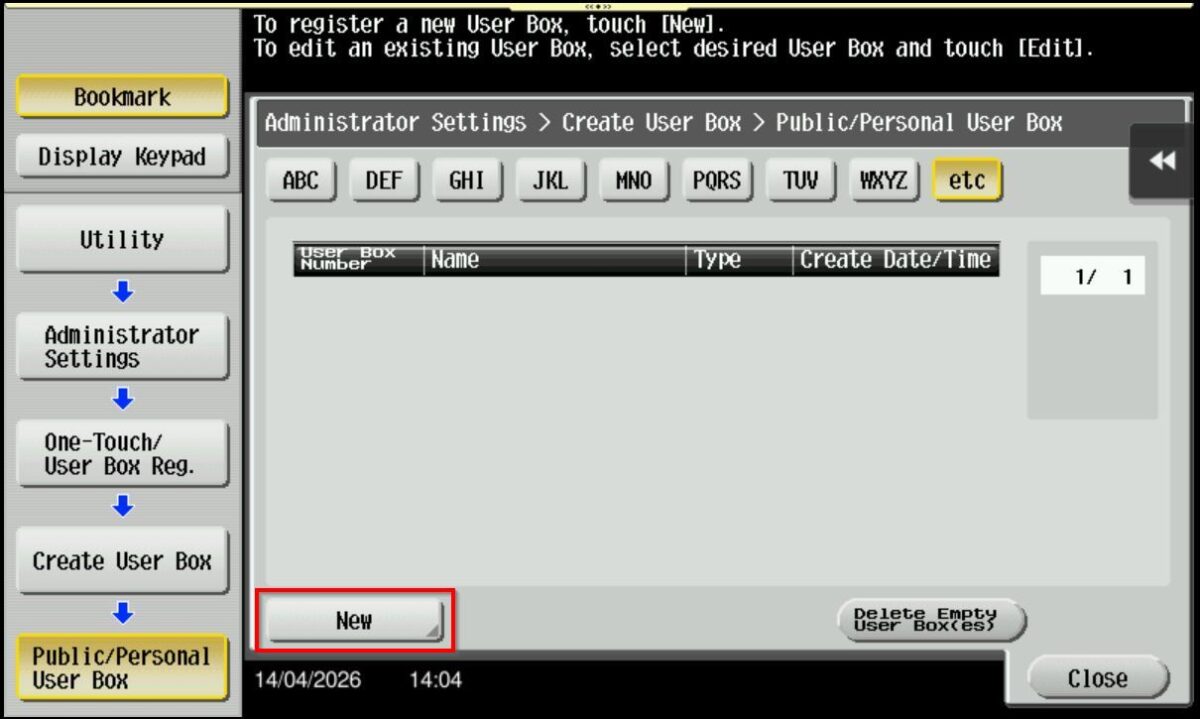
STEP 3 – Select [One-Touch/User Box Registration] – [Create User Box] – [Public/Personal User Box].
STEP 4 – Choose [New] to create a new Personal User box, than key in information based on information below.
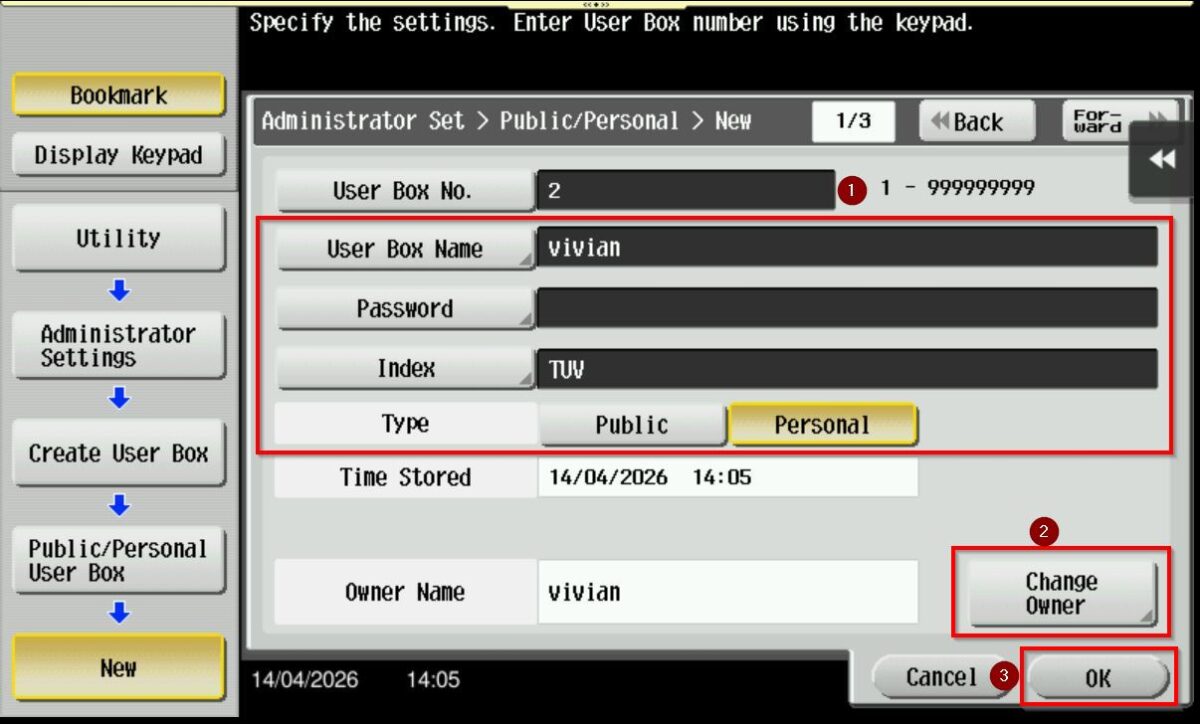
- User Box Name: Name that will be display for Personal User Box.
- Password: By default, leave it blank. If want to key in need to tick Assign User Box Password and assign password in it.
- Index: First choose Character of User Box Name, in this example is “TUV”
- Type: Personal
- Change Owner: Select the User Authentication name that this Personal User Box belongs to.
STEP 5 – Once registered, users should be able to access the Personal User Box by login specific username and password using access button.
For Older Machine series / Non I-Series Machine (From Web Connection)
STEP 1 – Access the machine Web Connection. Click this LINK to check on how to get the IP Address from the Konica Minolta machine.
STEP 2 – Access the machine Web Connection from the PC browser. Click this LINK on how to access Web Connection from the browser.
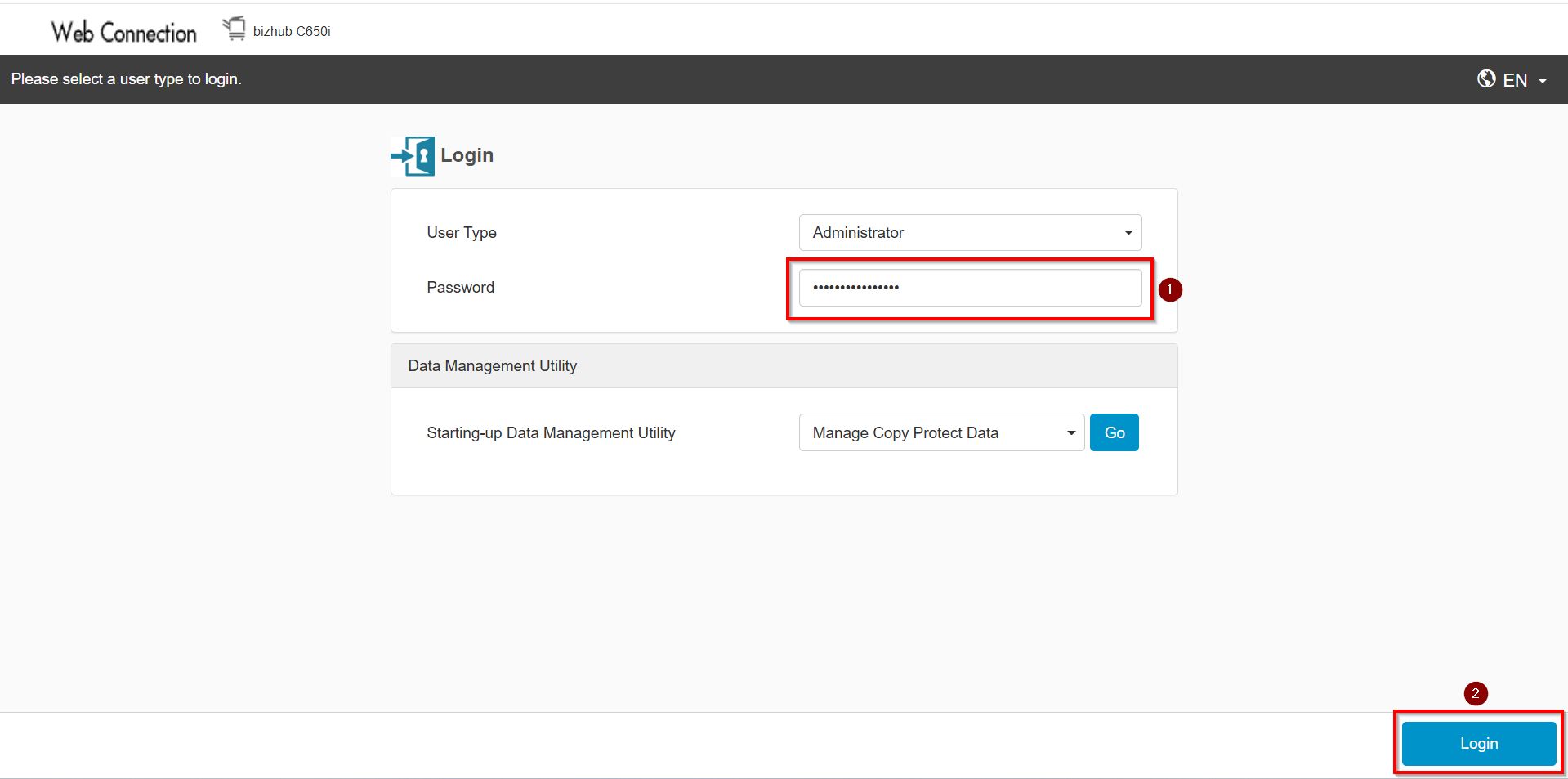
STEP 3 – Logout from public then login as Administrator, default administrator password: [7801261178012611] or [1234567812345678] or [12345678] or [12341234].
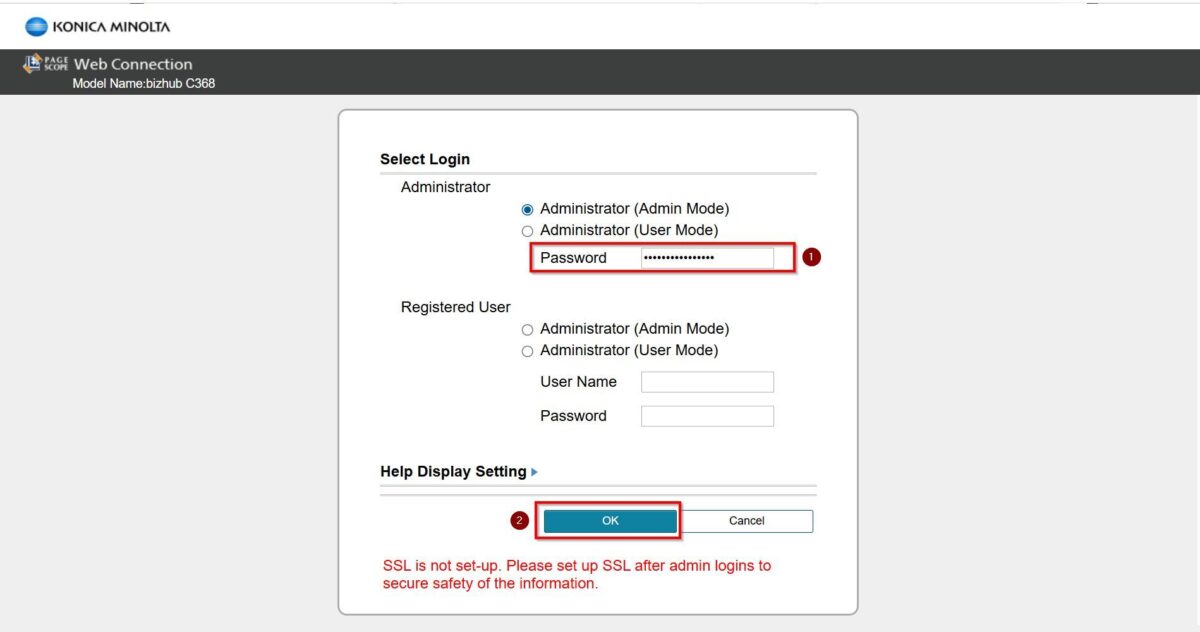
STEP 4 – Go to [Box] – [User Box List] – [New Registration], Key in info accordingly as below info and select [OK] to create a User Box on Konica Minolta Machine.
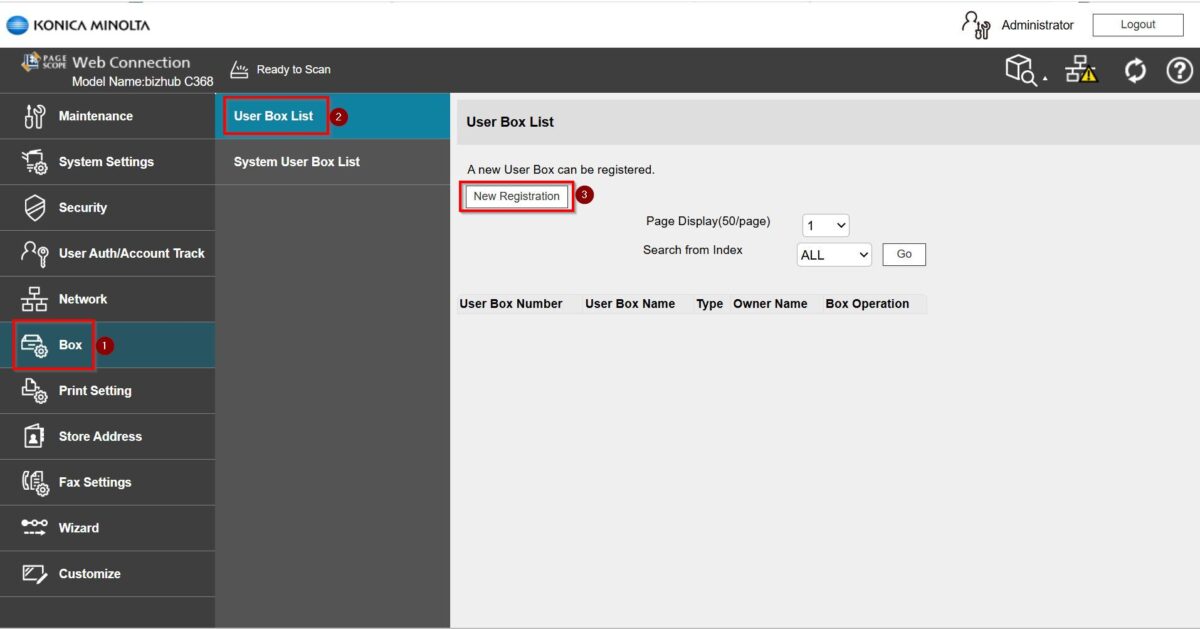
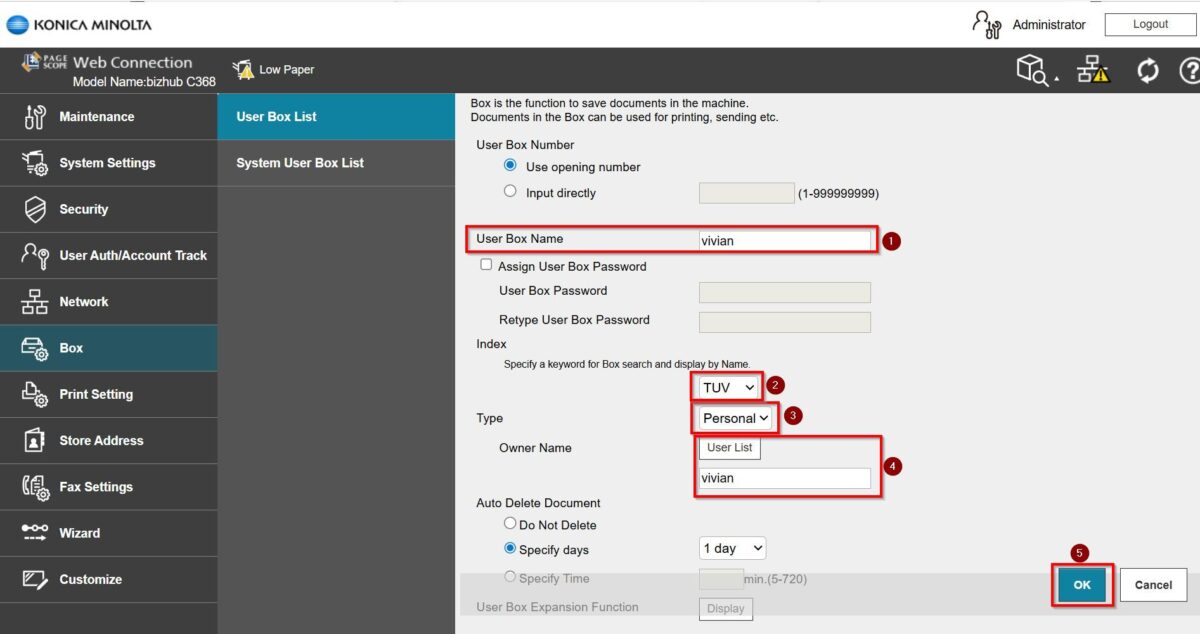
- User Box Name: Name that will be display for Personal User Box.
- Assign User Box Password: By default, leave it blank. If want to key in need to tick Assign User Box Password and assign password in it.
- Index: First chose Character of User Box Name, in this example is “TUV”
- Type: Personal
- Owner Name: Select the User Authentication name that this Personal User Box belongs to.
STEP 5 – Once registered, users should be able to access the Personal User Box by login specific username and password using access button.
For Newer Machine series / I-Series Machine (From Machine Control Panel)
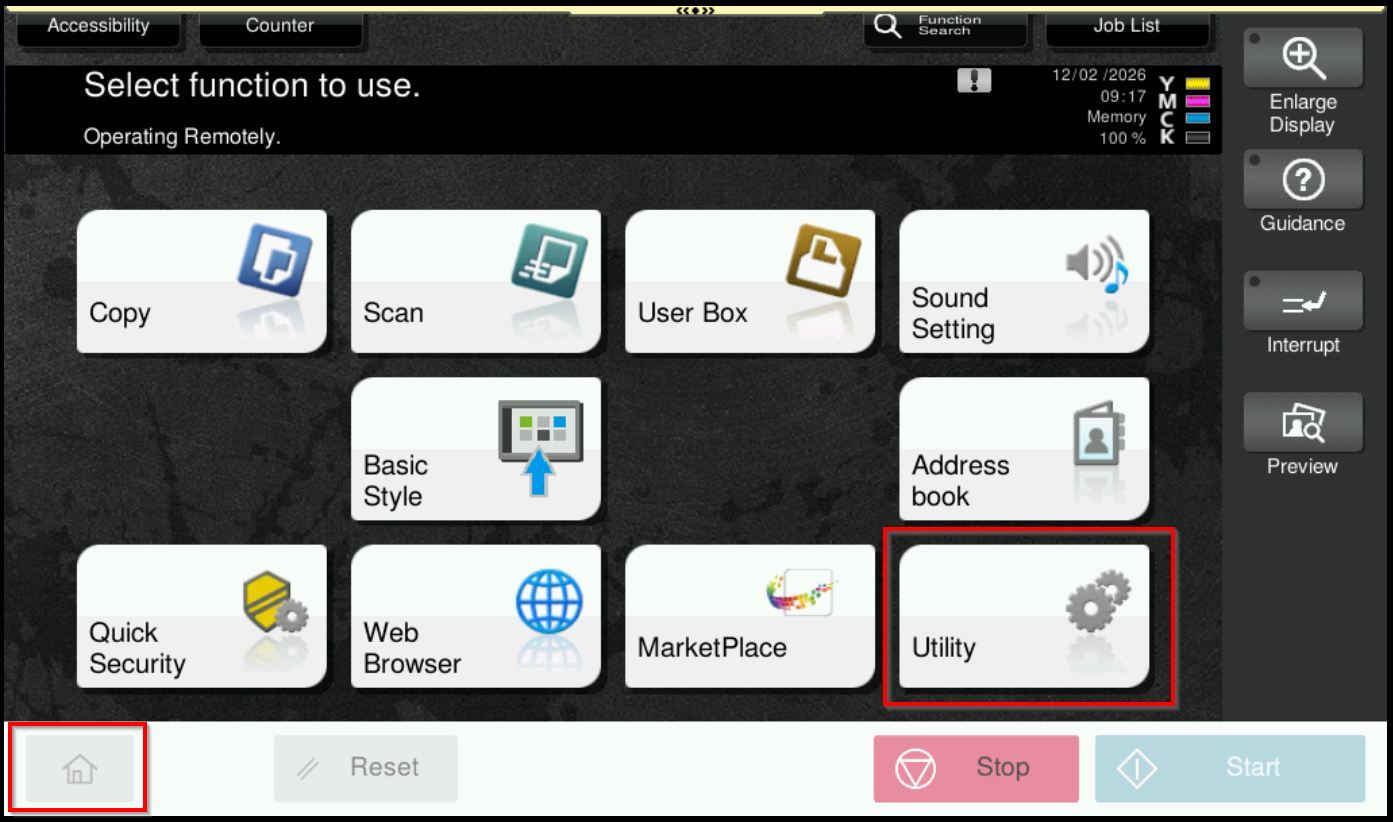
STEP 1 – Select [Home] –[Utility].
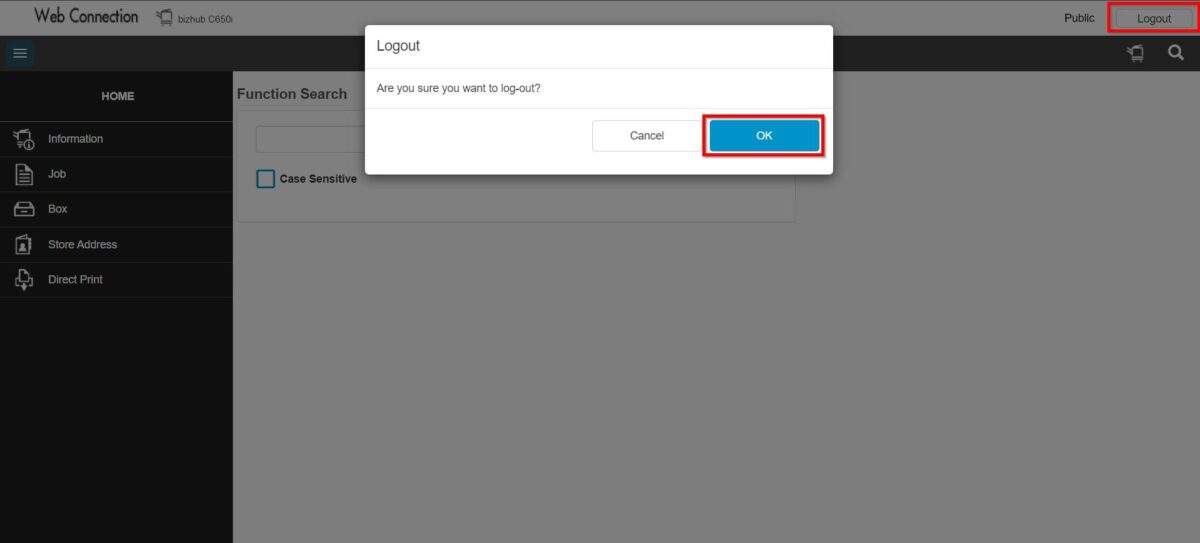
**You may access to web connection via machine IP Address. Click on this to check how to get the IP Address from machine, then key in Konica Minolta Machine IP Address at web browser and log in as admin the Web Connection.
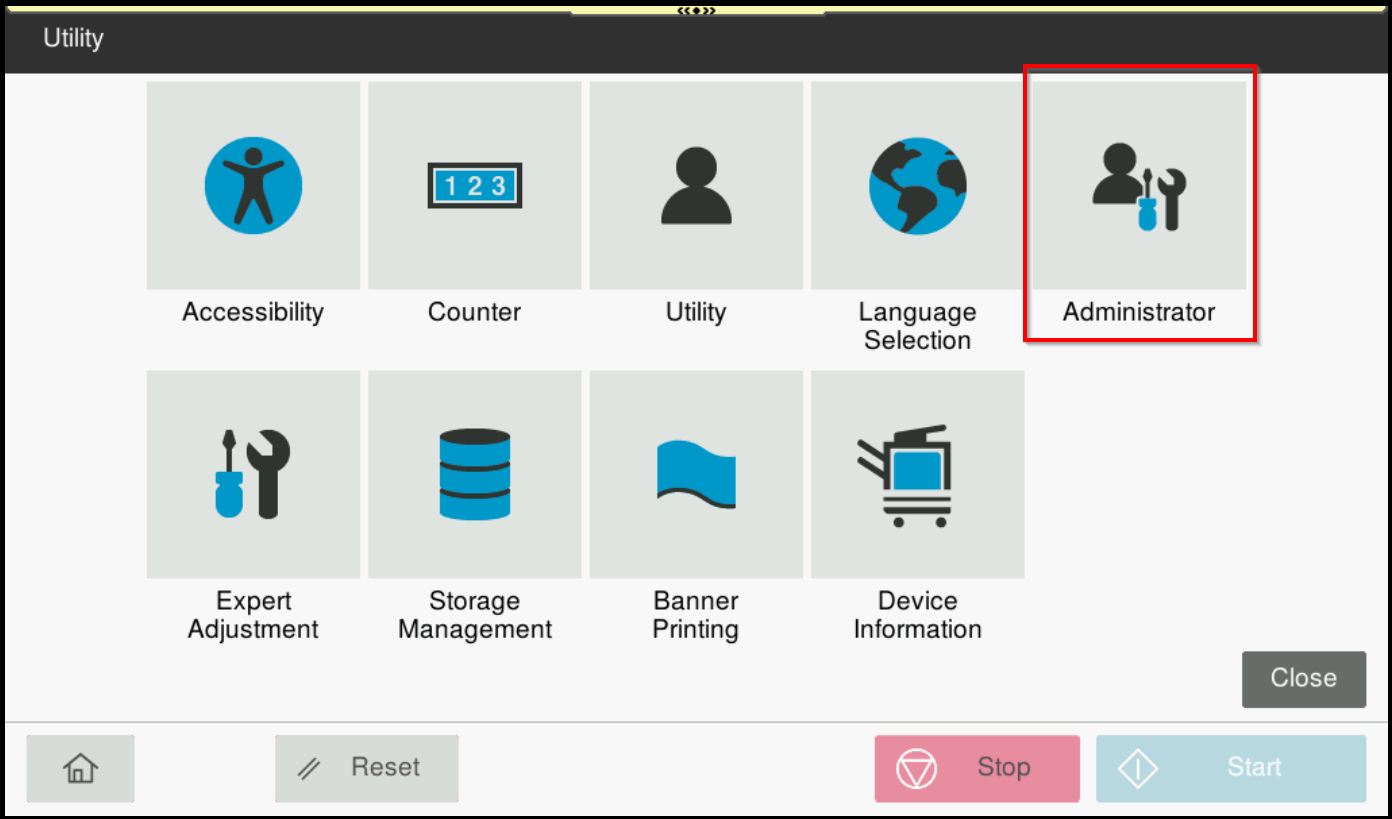
STEP 2 – Select [Administrator].
STEP 3 – Key in the default administrator password and click [OK] button.
Default administrator password: [7801261178012611] or [1234567812345678] or [12345678] or [12341234].
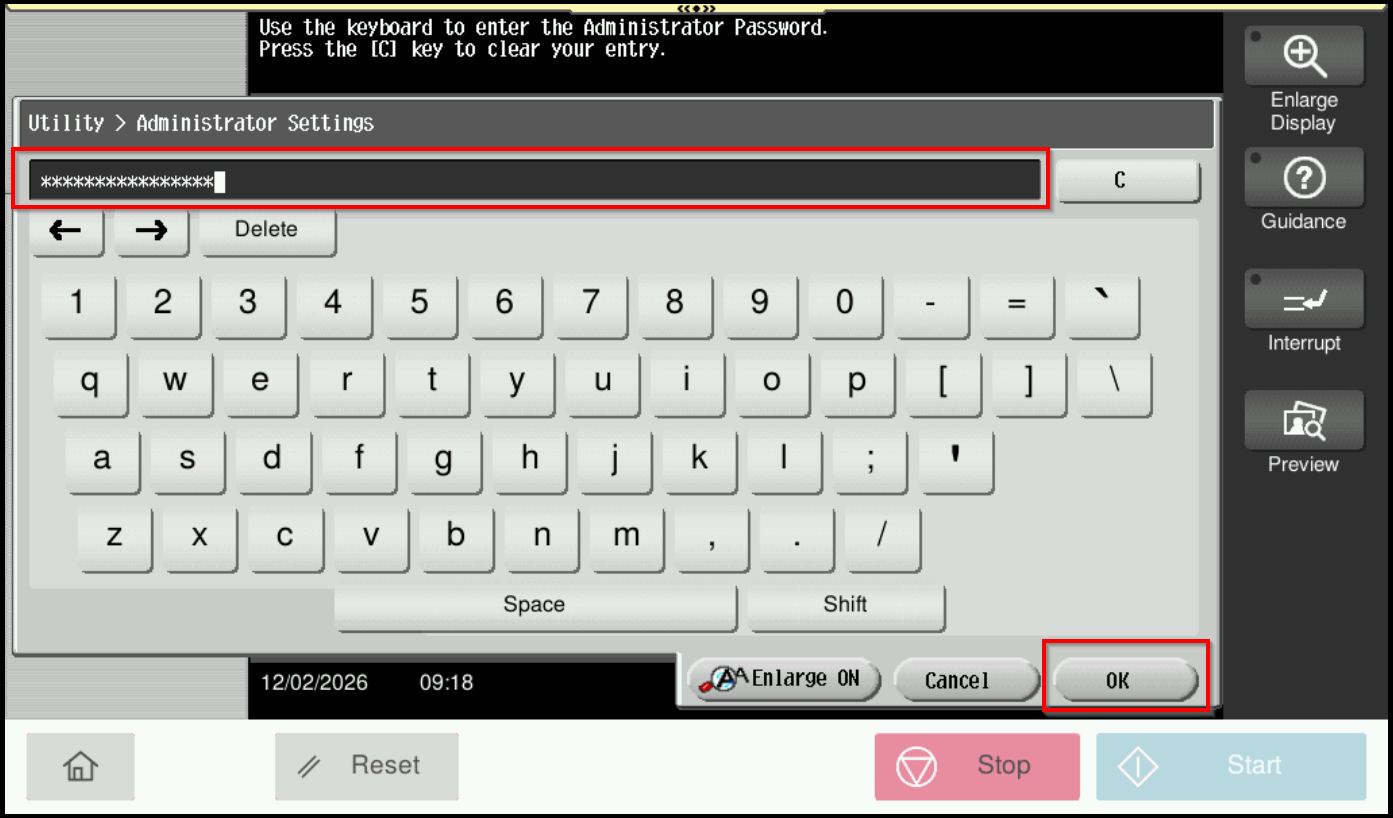
**On Web Connection login as admin mode by key in administrator password accordingly. The next step will be same option on below to change administrator password.
STEP 4 – Go to [Box].
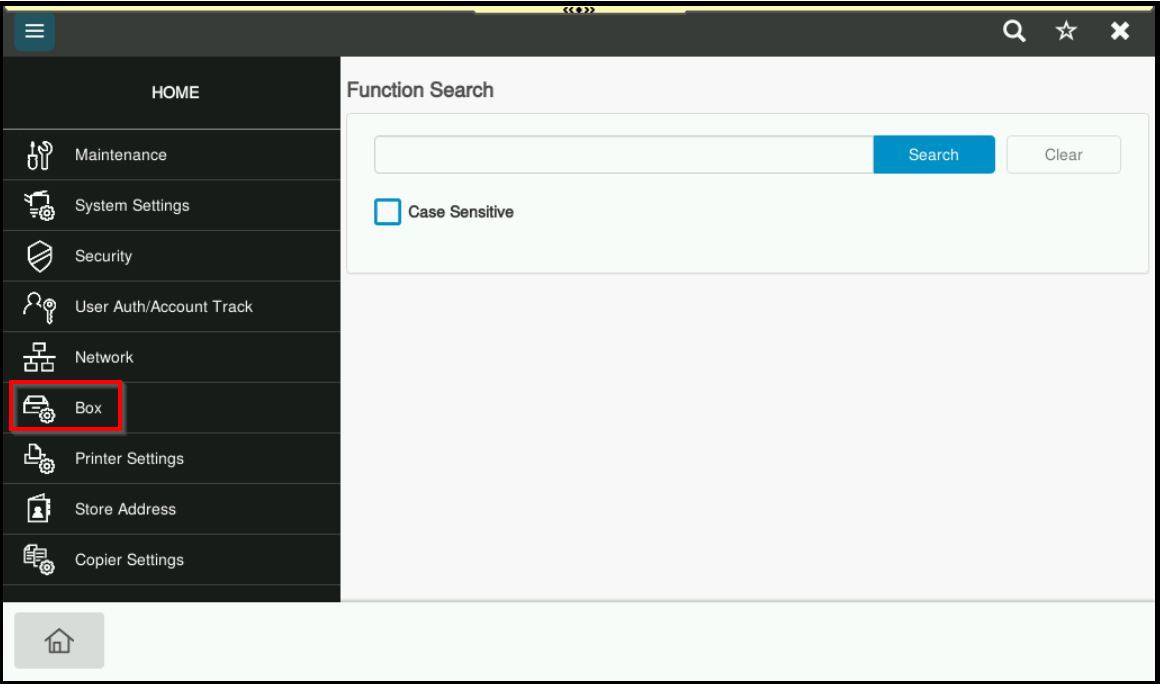
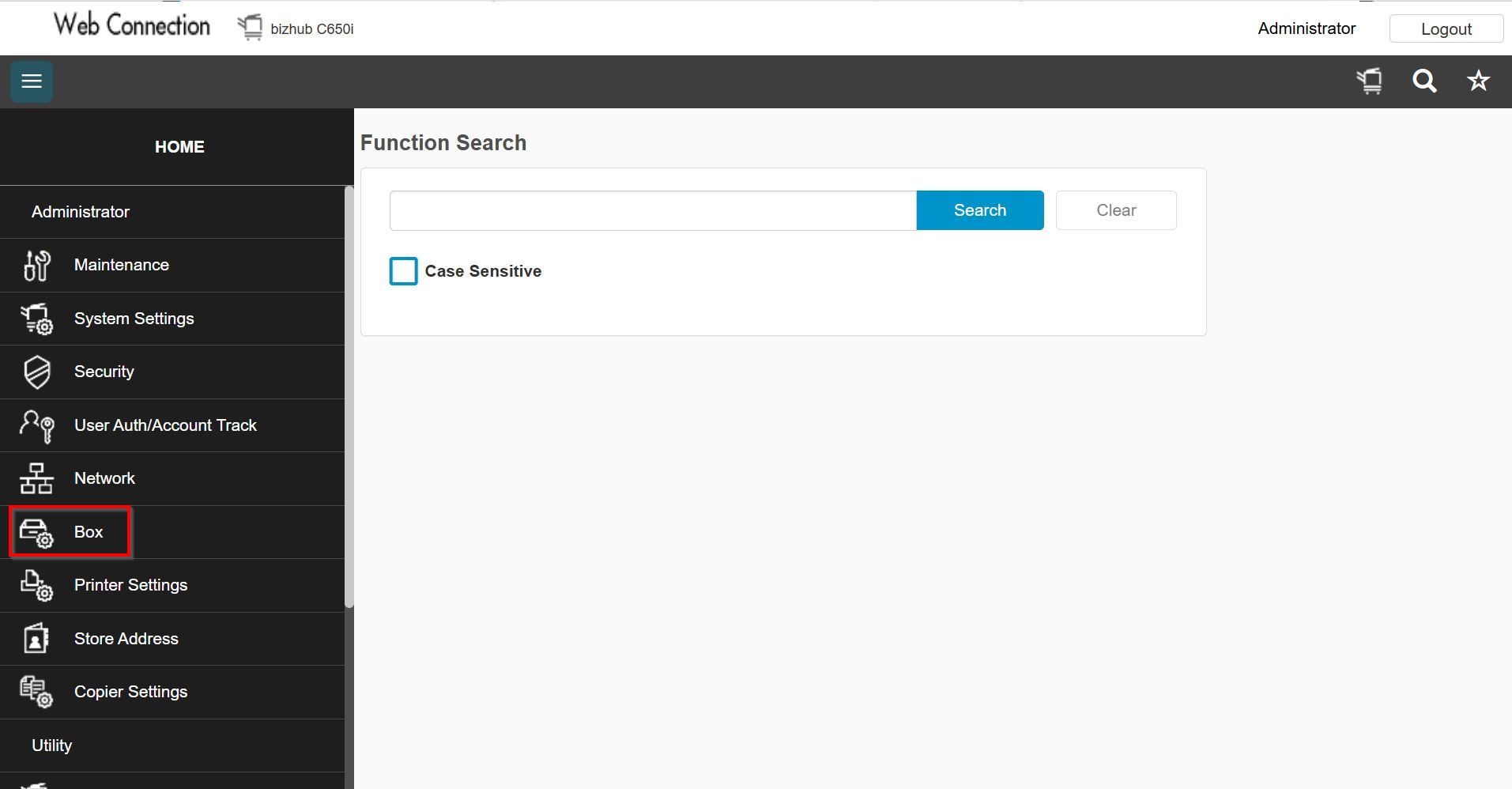
STEP 5 – Select [User Box List] – [New Registration].
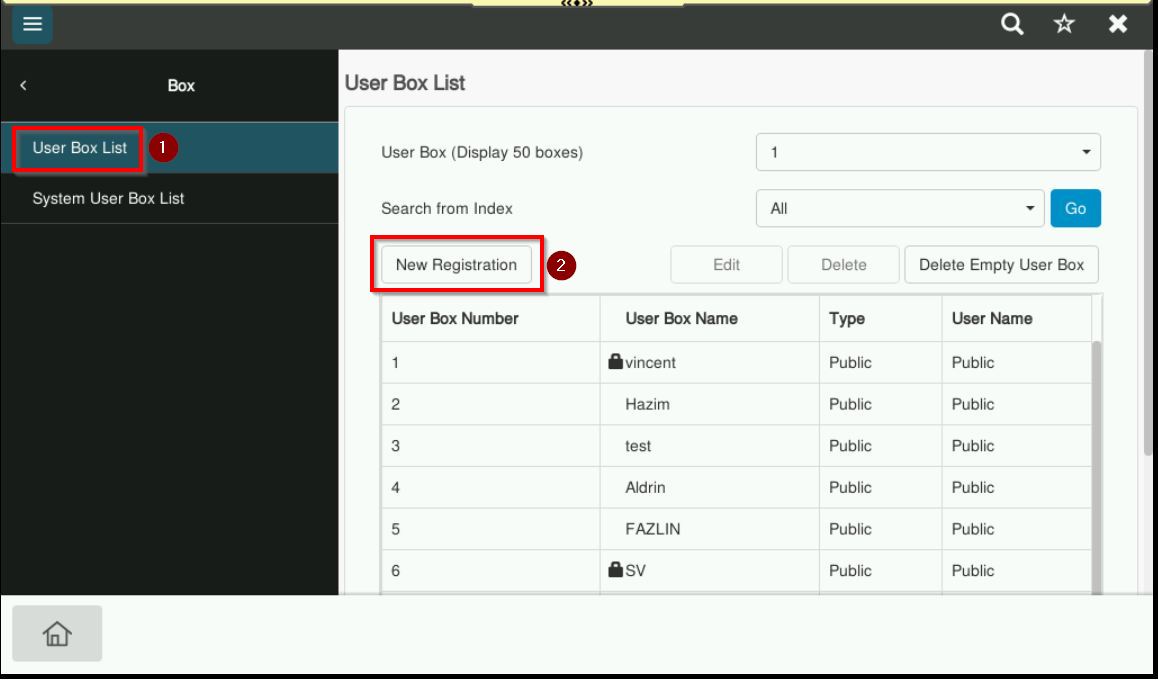
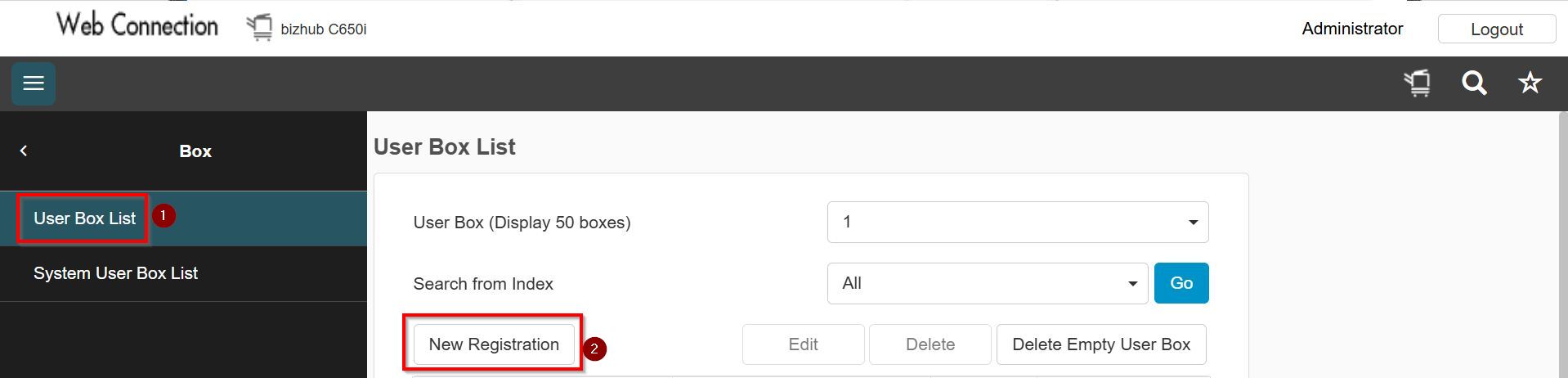
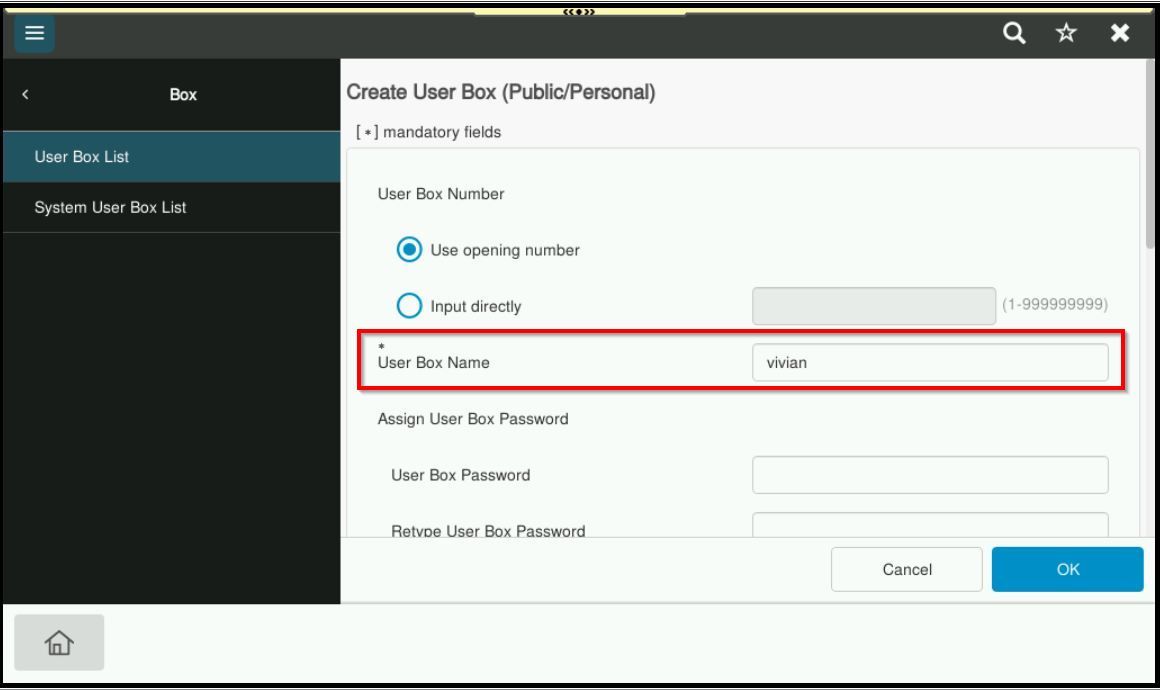
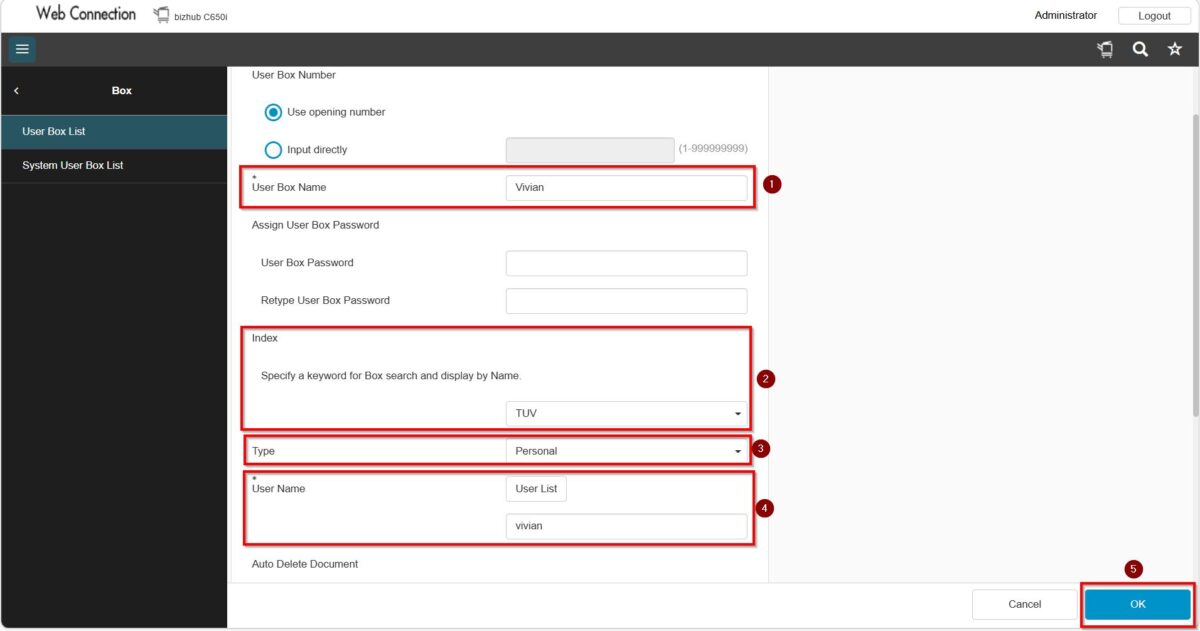
STEP 6 – Key in info accordingly the info below and select [OK] to create a User Box on Konica Minolta Machine.
- User Box Name: Name that will be display for Personal User Box.
- Assign User Box Password: By default, leave it blank. If needed can assign User Box Password and assign password in it.
- Index: First choose Character of User Box Name, in this example is “TUV”
- Type: Personal
- Owner Name: Select the User Authentication name that this Personal User Box belongs to.
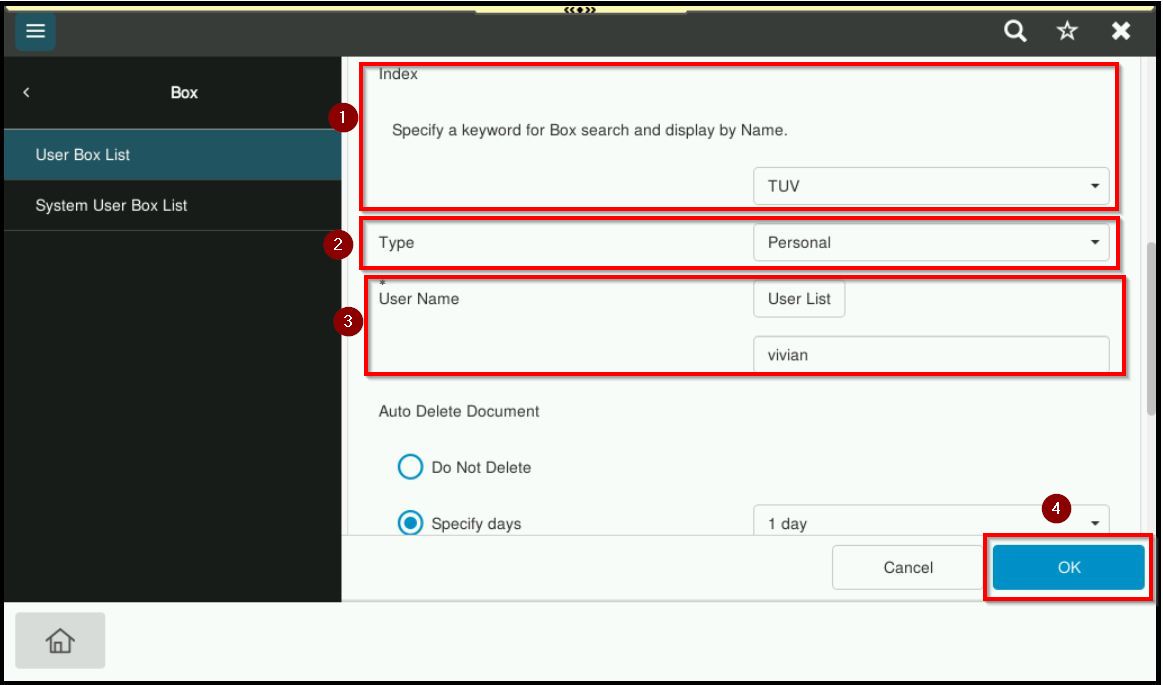
STEP 7 – Once registered, users should be able to access the Personal User Box by login specific username and password using access button.