
Guide to configuring color printing and copying restrictions for a specific user in User Authentication.
When to set color printing and copying restrictions for a specific user
Managing color printing and copying for specific users based on the machine’s usage status helps increase cost awareness and contributes to overall cost reduction.
For Older Machine series / Non I-Series Machine (From Machine Control Panel)
Video Tutorial
The video tutorial below provides detailed instructions and a complete demonstration of the configuration steps.
STEP 1 – On the machine Control Panel, click [Menu] button – [Utility] – [Administrator Settings].
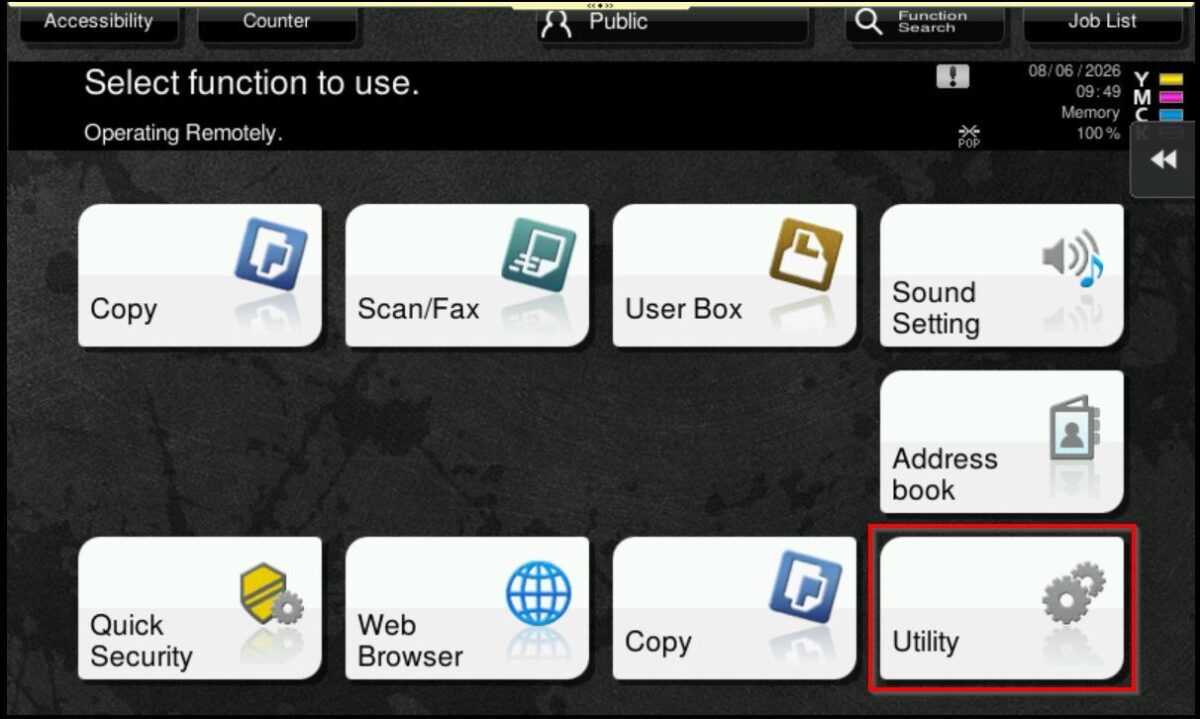
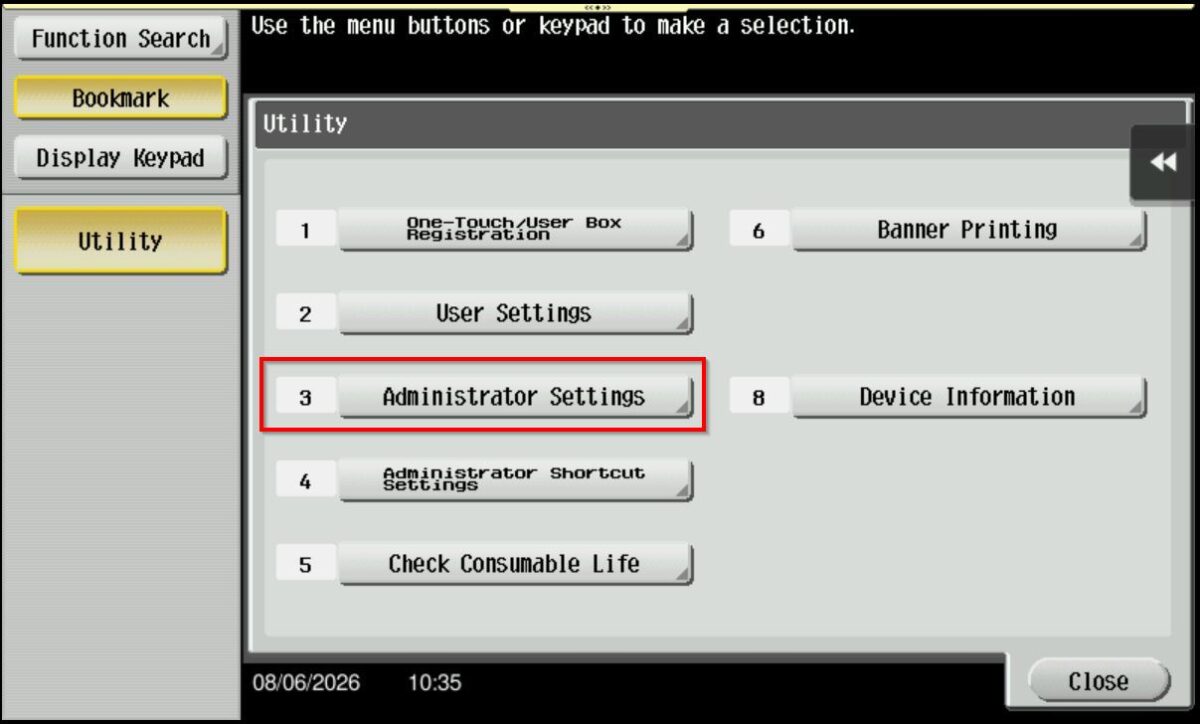
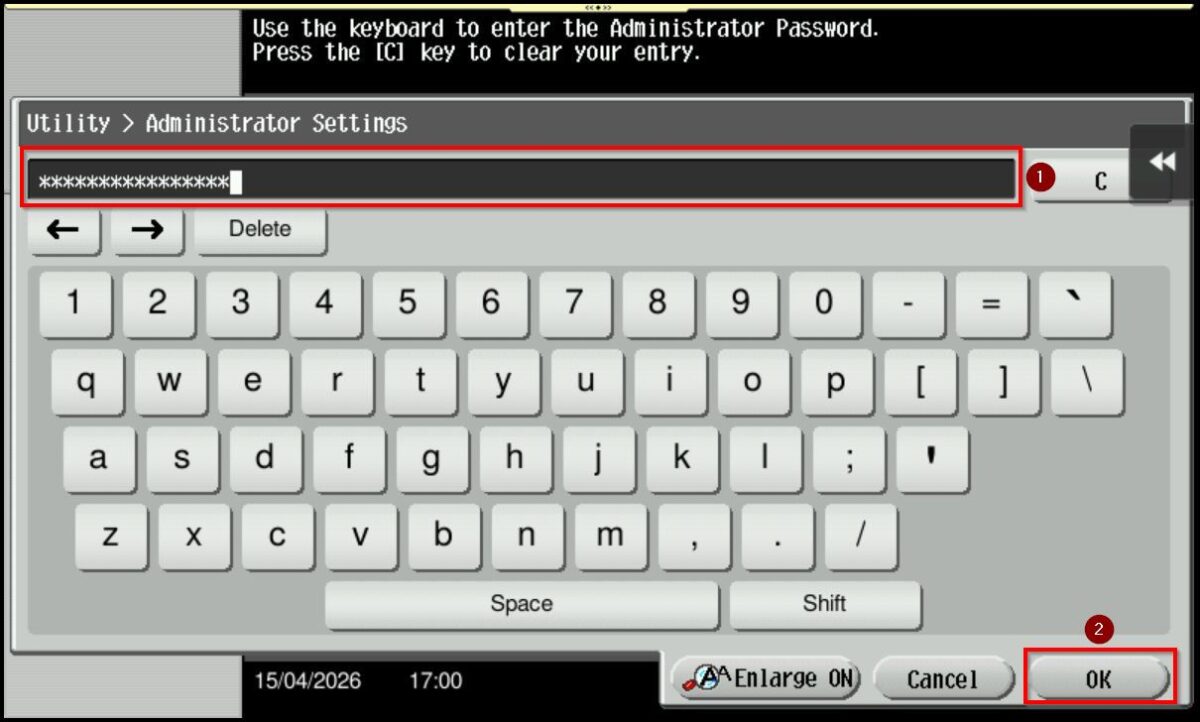
STEP 2 – Key in administrator password then proceed to select [OK], default administrator password: [7801261178012611] or [1234567812345678] or [12345678] or [12341234].
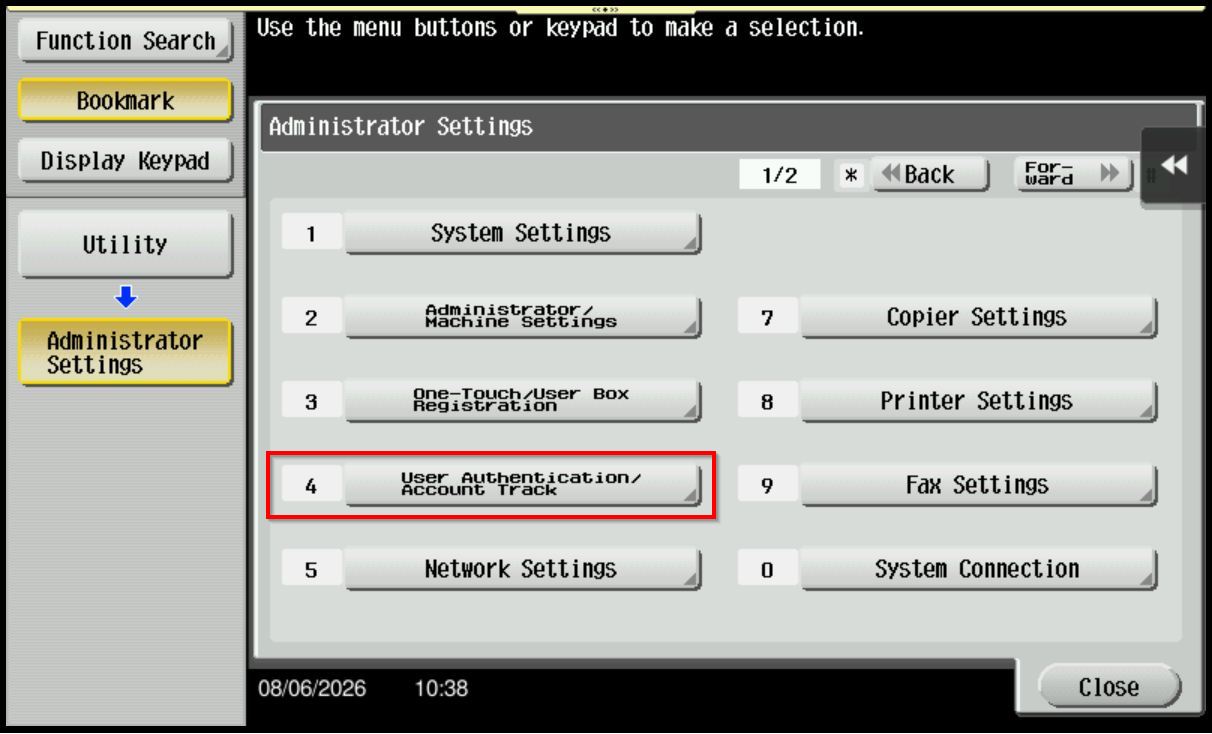
STEP 3 – Select [User Authentication/Account Track] – [User Registration Settings].
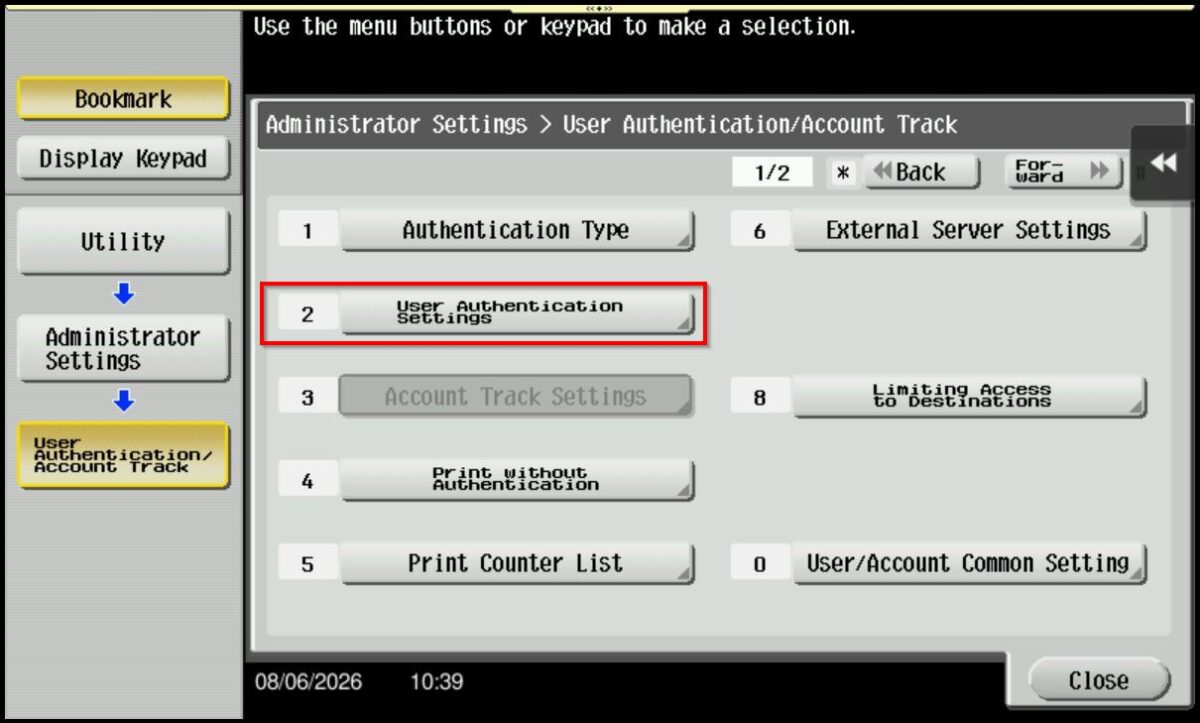
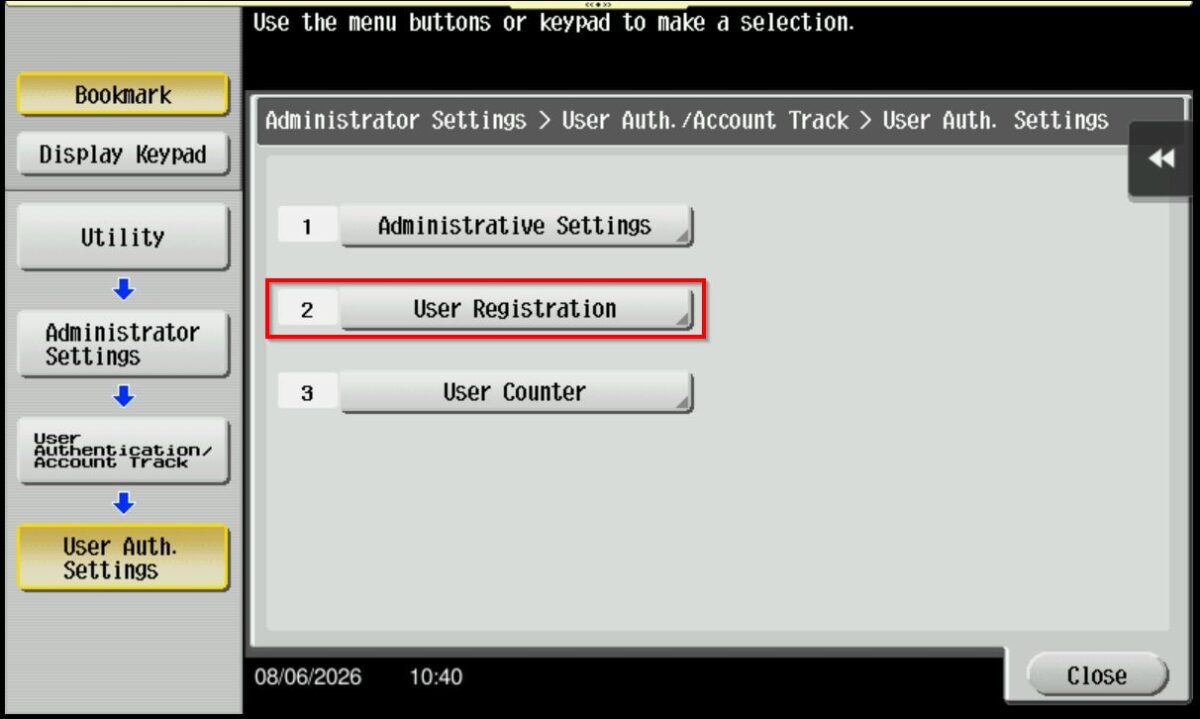
STEP 4 – Select [User Registration], choose the registered user that you want to set color printing and copy restrictions.
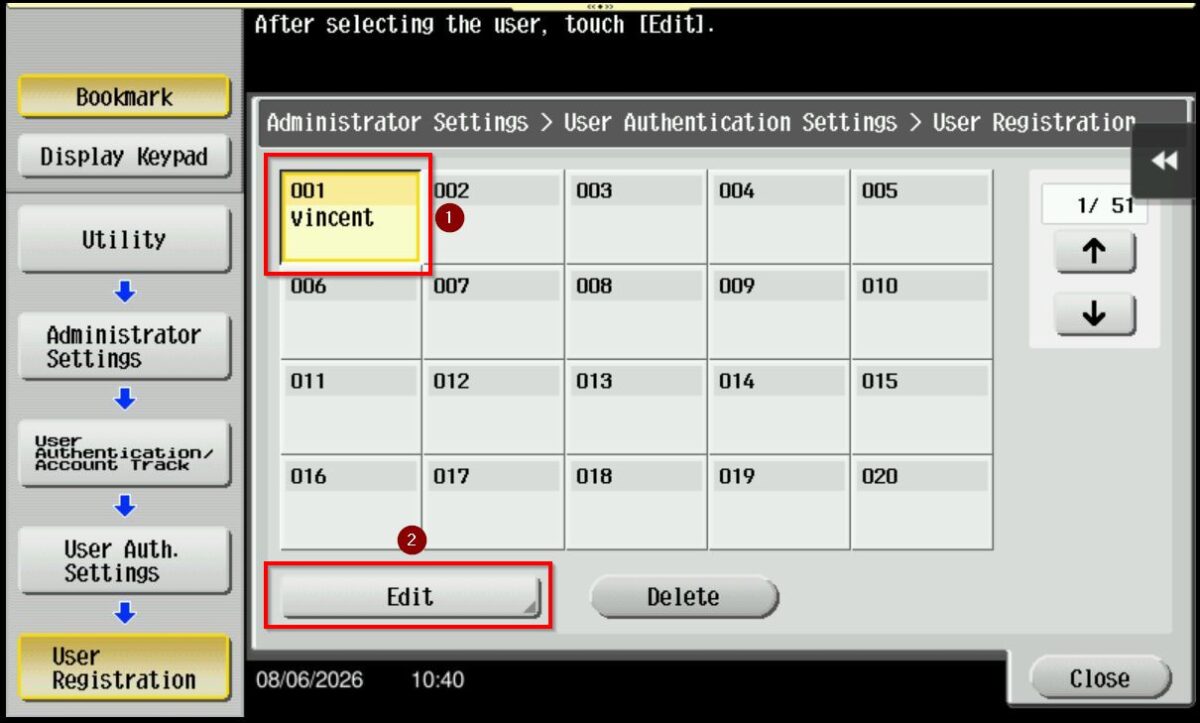
STEP 5 – Click on the [Function Permission/Authority], select the Print and Copy function permission based on either the [Full Color/Black], [Black only] or [Restrict], then select [OK] to save changes.
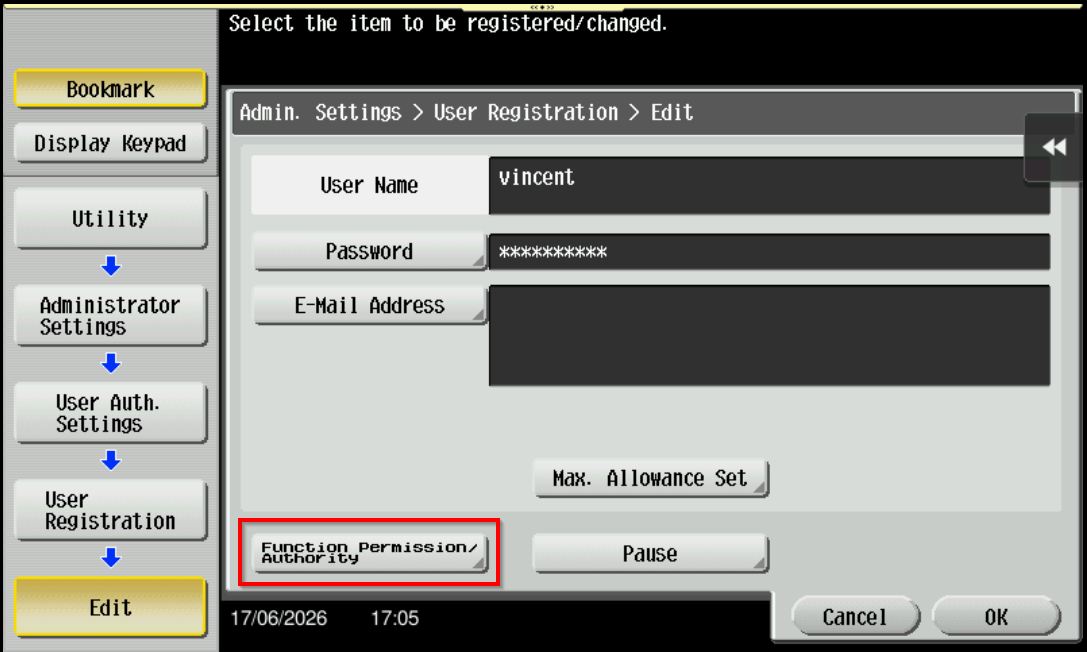
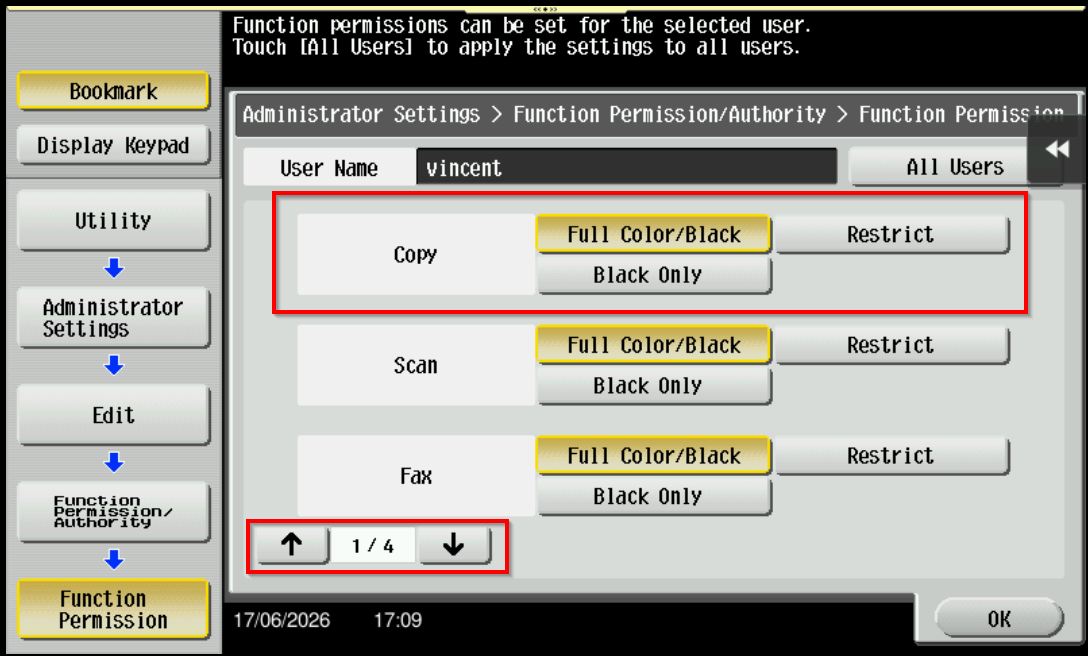
*For Copying, select either [Full Color/Black], [Black only] or [Restrict].
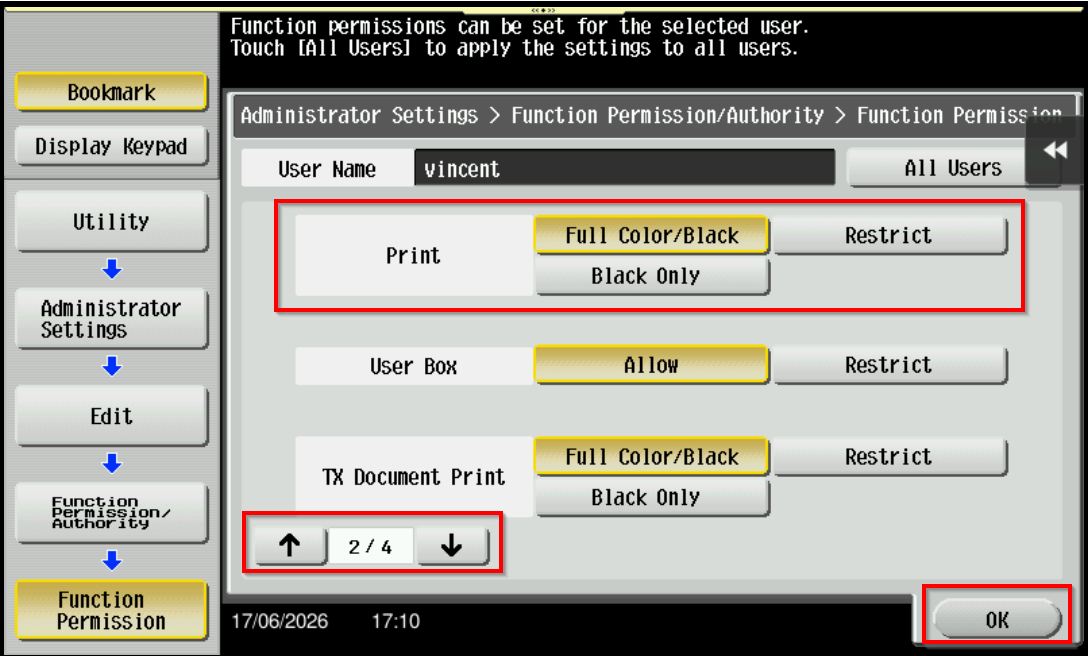
*For Print under second page, select either [Full Color/Black], [Black only] or [Restrict].
STEP 6 – Once a function permission is set, printing or copying will be restricted based on the permissions configured for the specific user.
For Older Machine series / Non I-Series Machine (From Web Connection)
Video Tutorial
The video tutorial below provides detailed instructions and a complete demonstration of the configuration steps.
STEP 1 – Access the machine Web Connection. Click this LINK to check on how to get the IP Address from the Konica Minolta machine.
STEP 2 – Access the machine Web Connection from the PC browser. Click this LINK on how to access Web Connection from the browser.
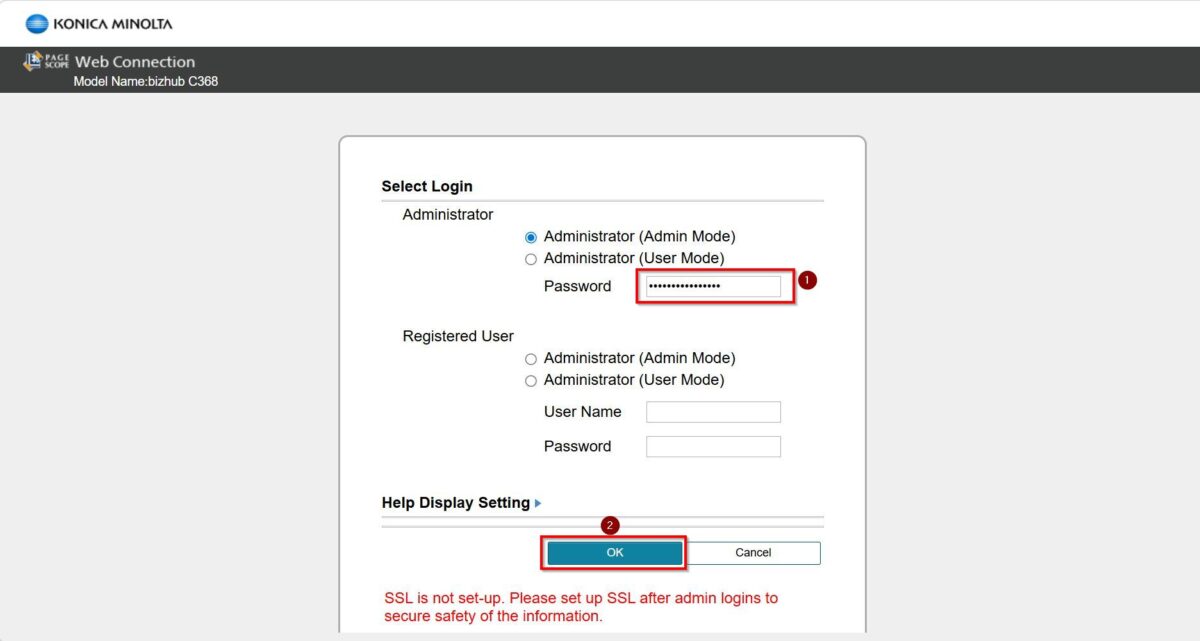
STEP 3 – Logout from public then login as Administrator, default administrator password: [7801261178012611] or [1234567812345678] or [12345678] or [12341234].
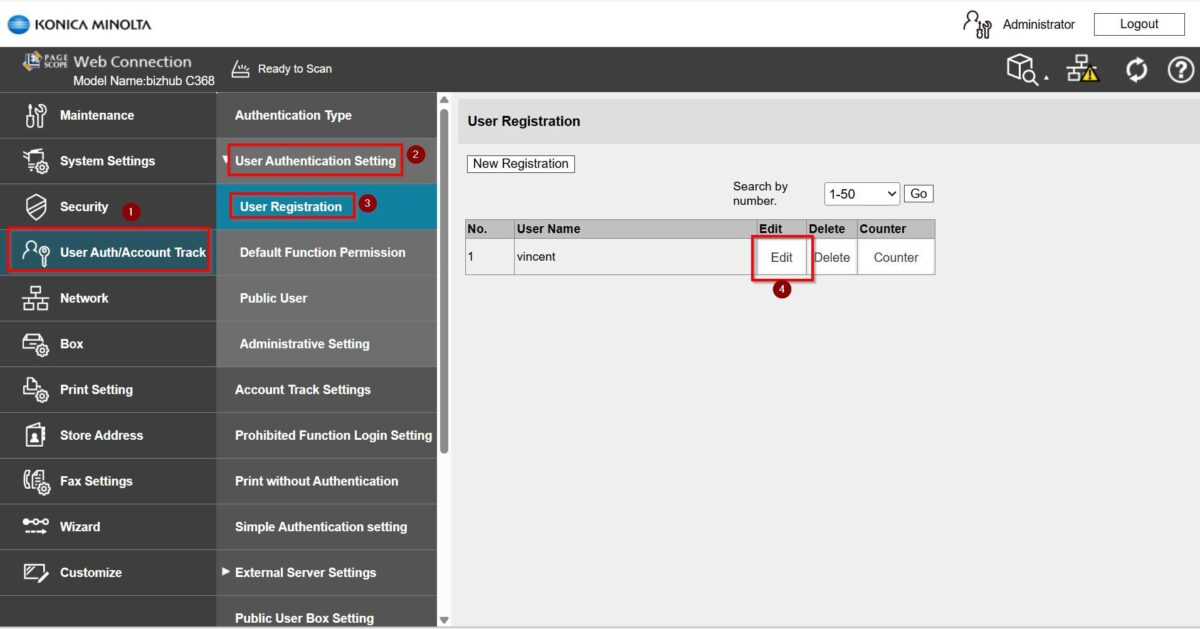
STEP 4 – Go to [User Auth/Account Track] – [User Authentication Setting – [User Registration], choose the registered user that you want to set color printing and copy restrictions by click on [Edit].
STEP 5 – Scroll down and select the Print and Copy function permissions, choosing either [Full Color/Black], [Black Only], or [Restrict], then select [OK] to save changes.
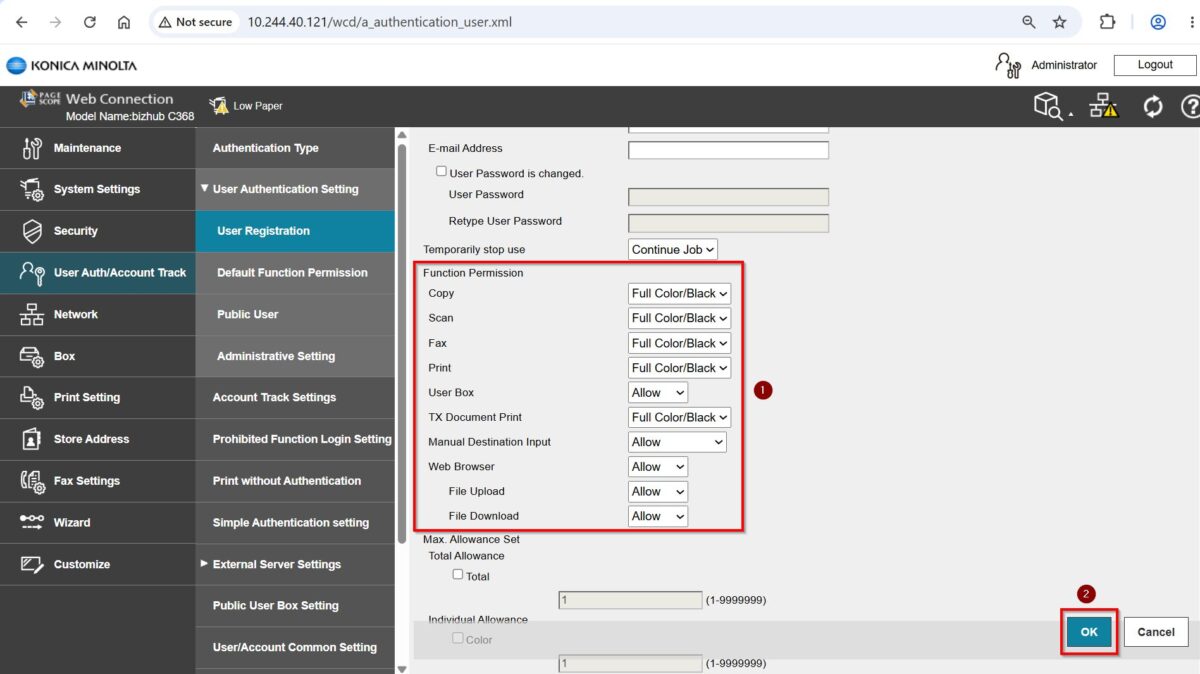
STEP 6 – Once a function permission is set, printing or copying will be restricted based on the permissions configured for the specific user.
For Newer Machine series / I-Series Machine (From Machine Control Panel)
Video Tutorial
The video tutorial below provides detailed instructions and a complete demonstration of the configuration steps.
*From Machine Panel
*From Web Connection
STEP 1 – Select [Home] – [Utility].
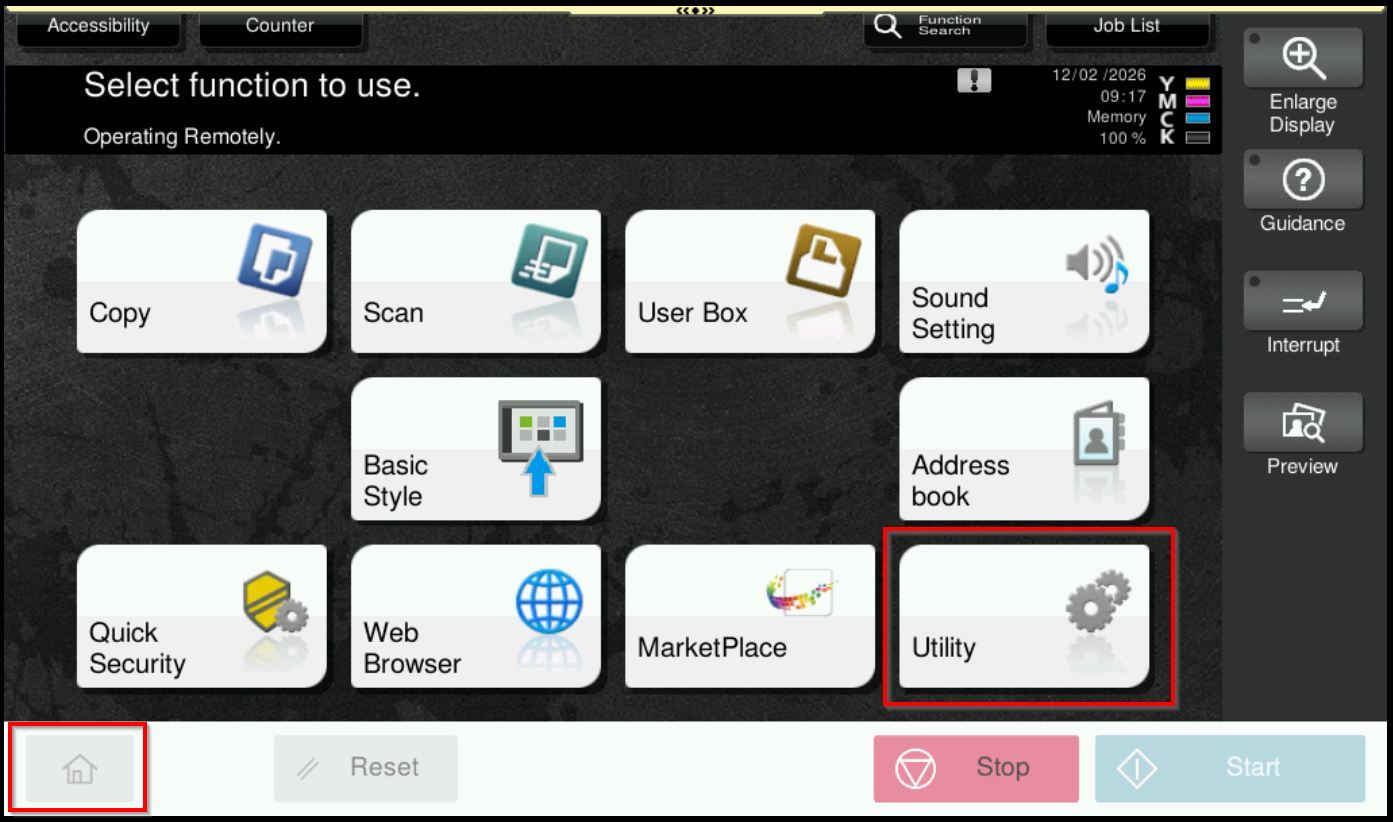
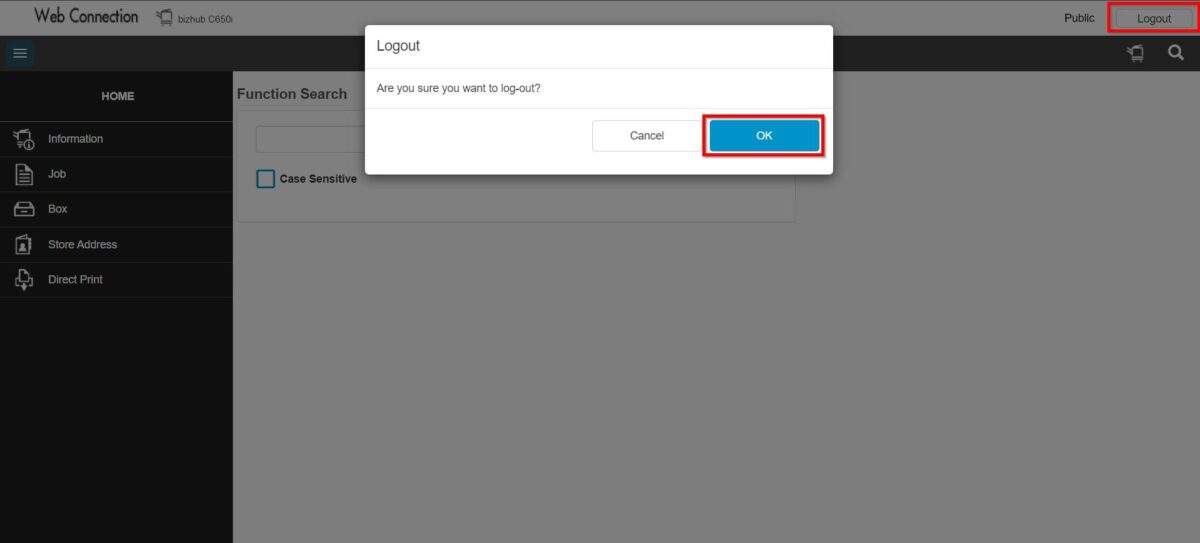
**You may access to web connection via machine IP Address. Click on this to check how to get the IP Address from machine, then key in Konica Minolta Machine IP Address at web browser and log in as admin the Web Connection.
STEP 2 – Select [Administrator].
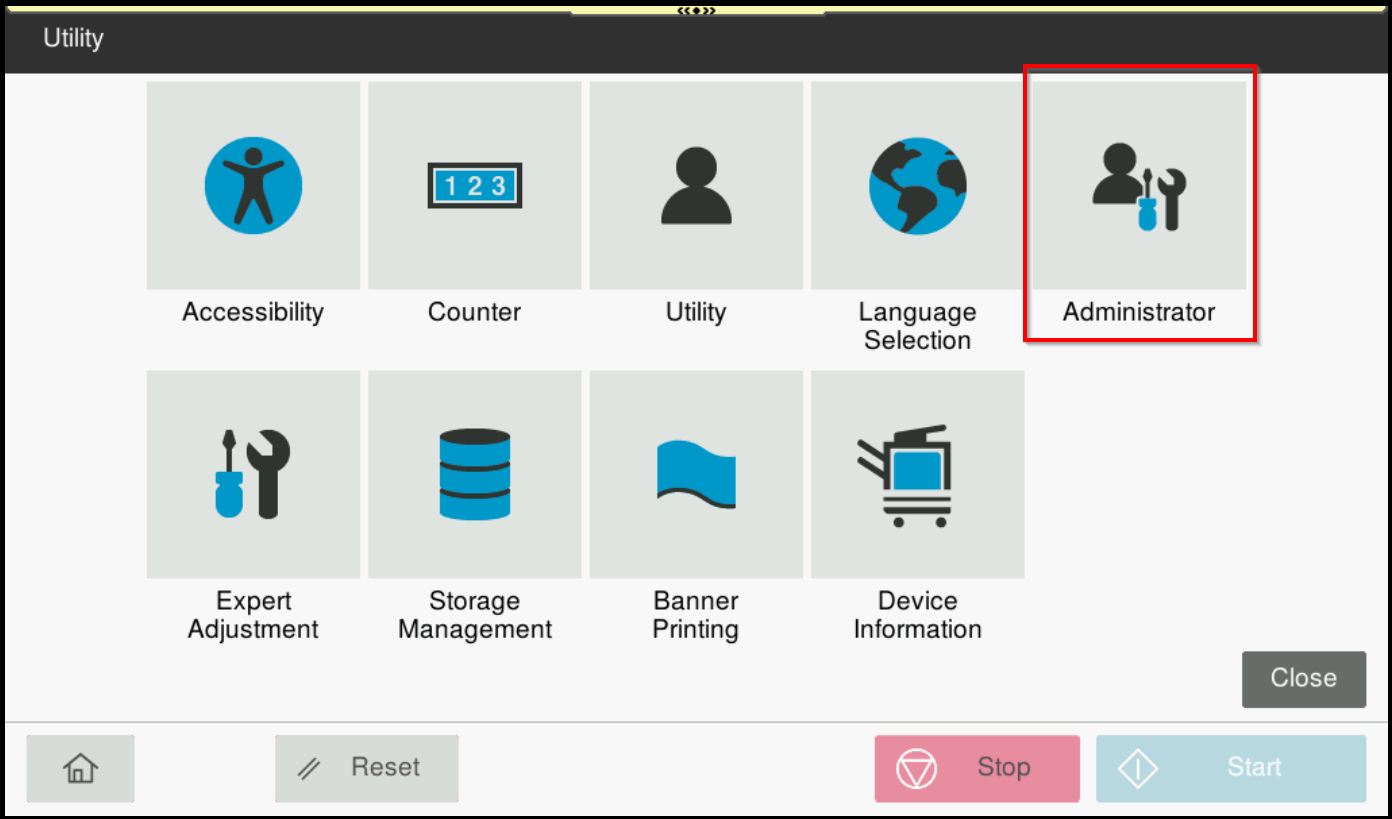
STEP 3 – Key in the default administrator password and click [OK] button.
Default administrator password: [7801261178012611] or [1234567812345678] or [12345678] or [12341234].
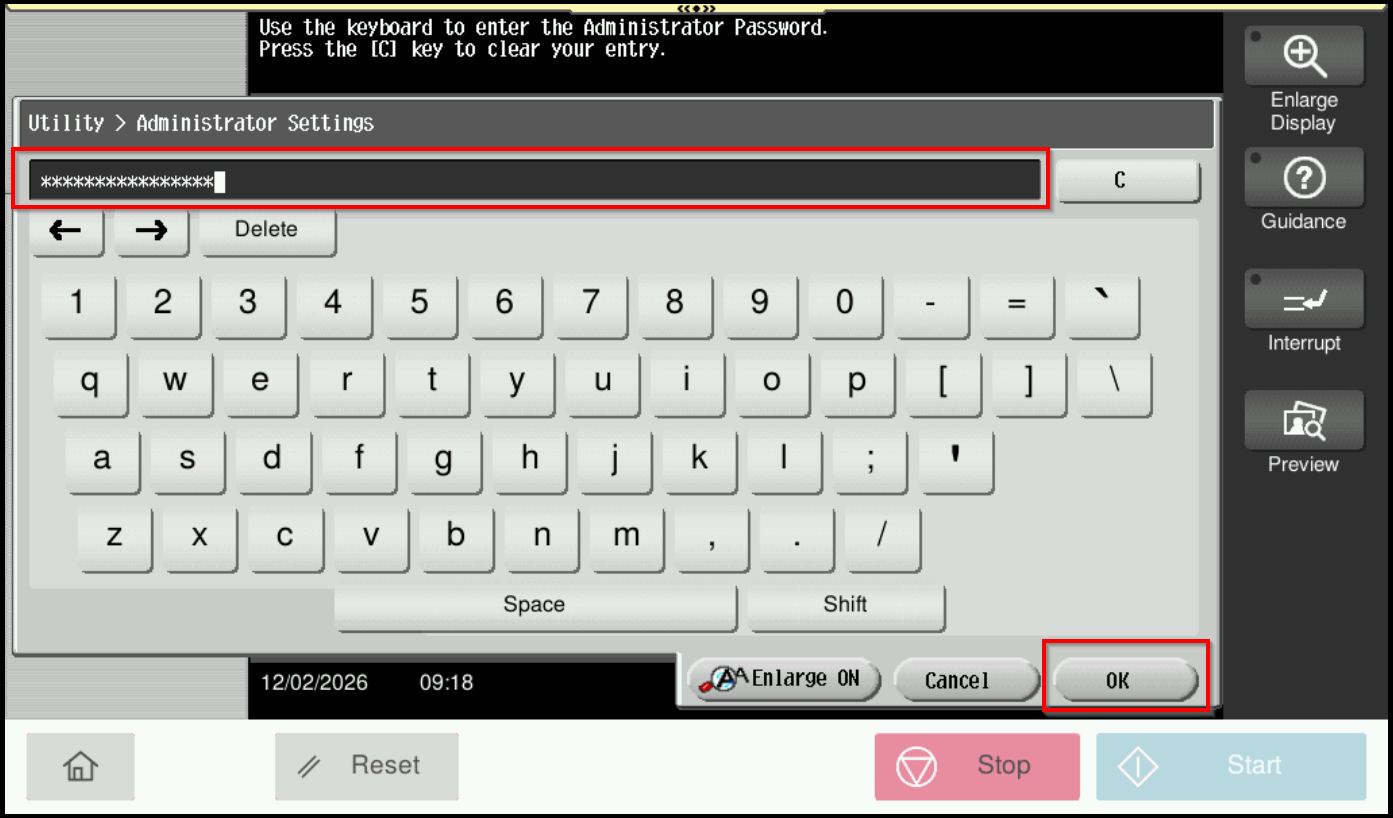
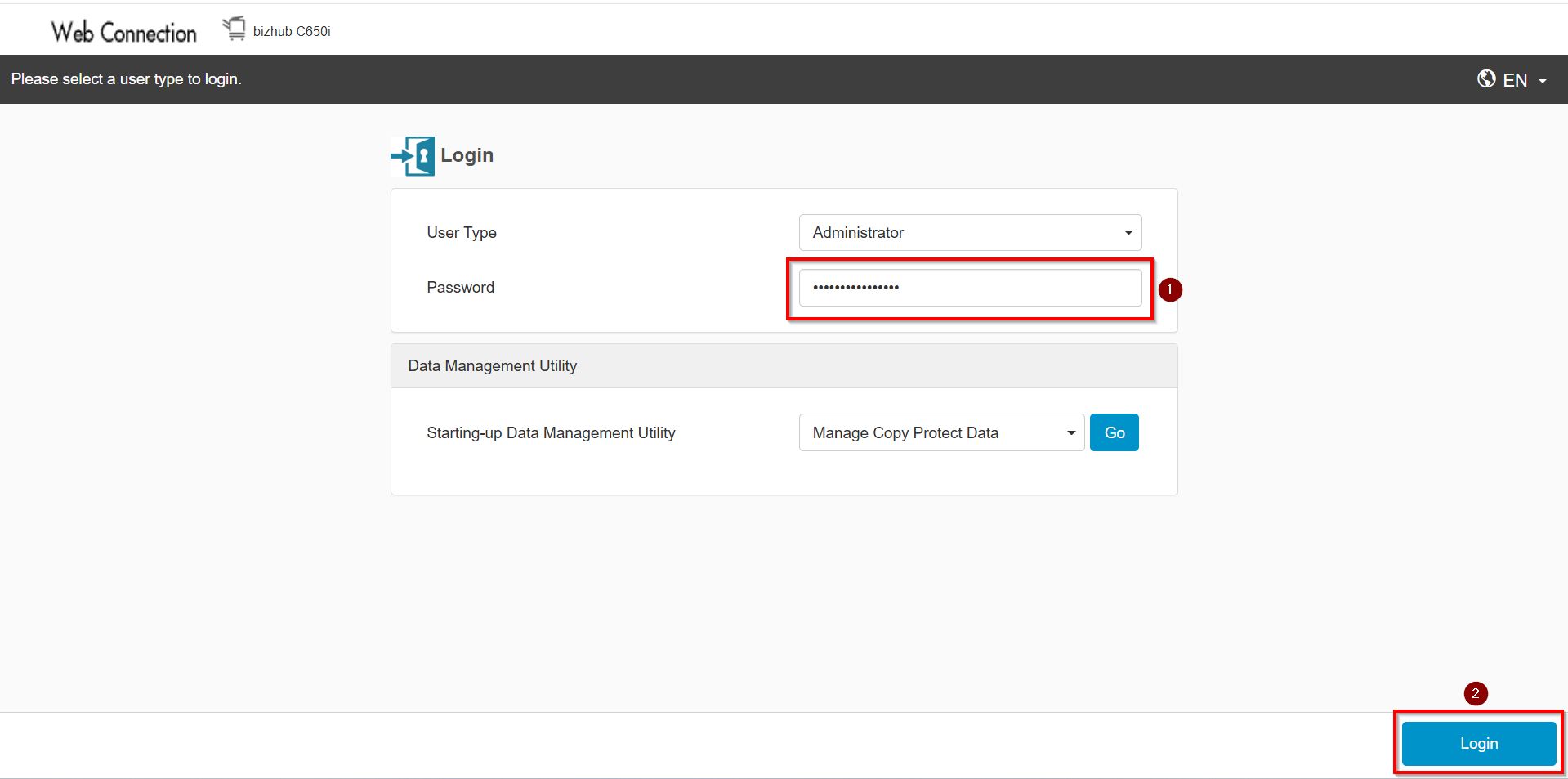
**On Web Connection login as admin mode by key in administrator password accordingly. The next step will be same option on below to change administrator password.
STEP 4 – Go to [User Auth/Account Track] – [User Authentication Setting].
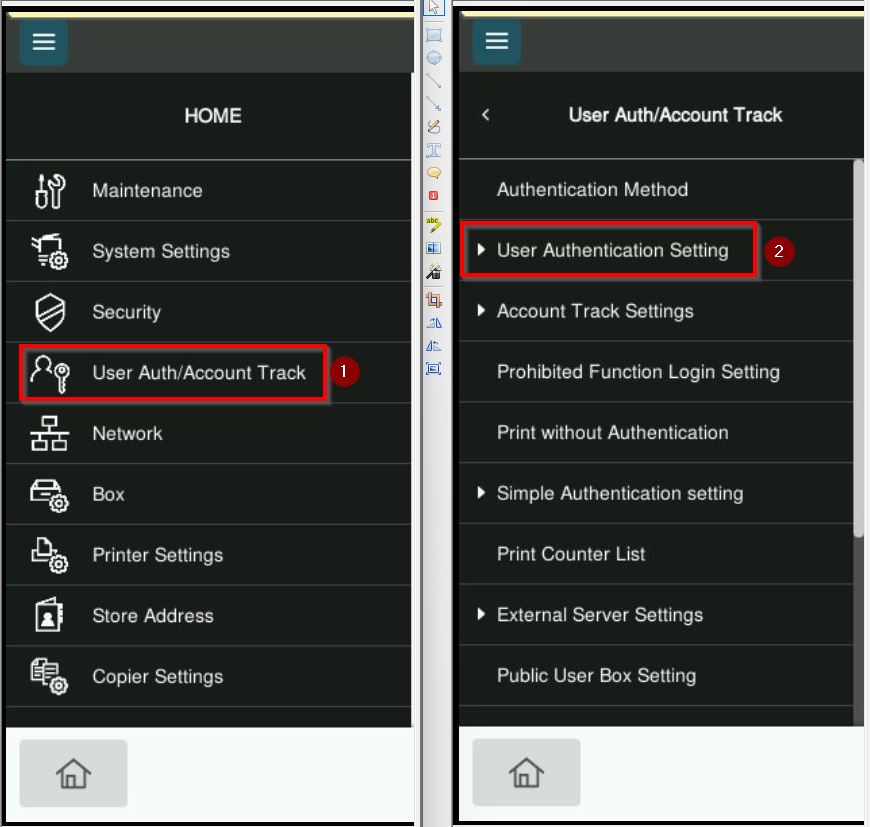
*From Machine Panel
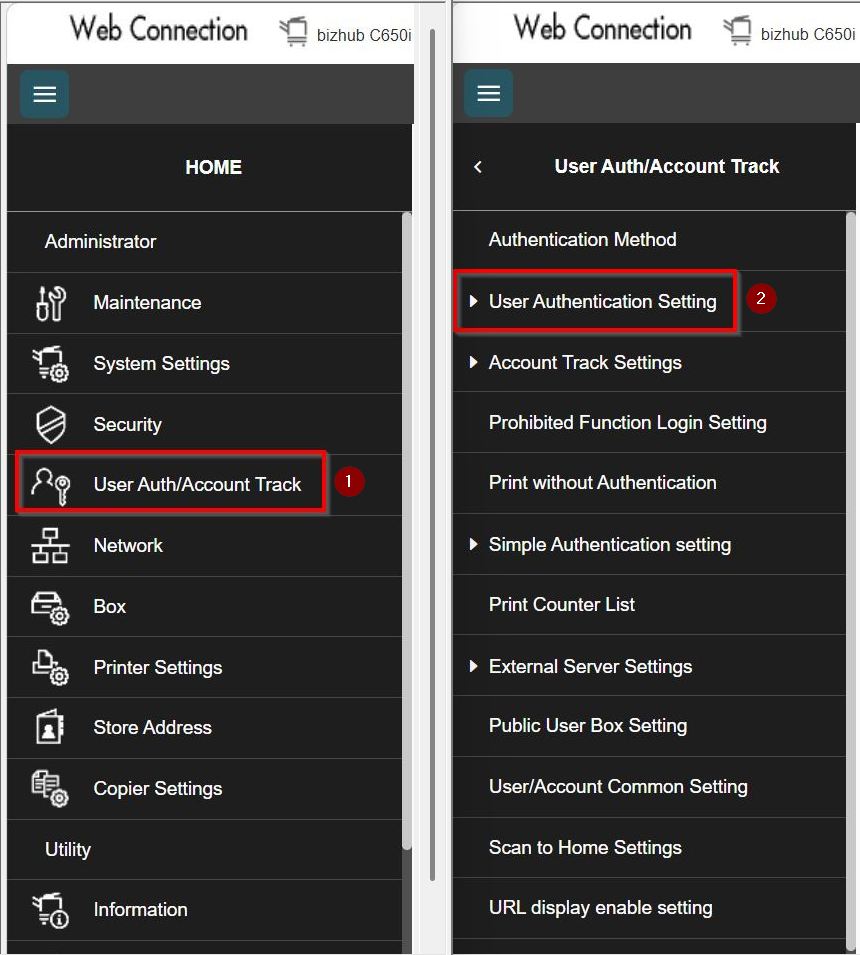
*From Web Connection
STEP 5 – Select [User Authentication Setting] – [User Registration], choose the registered user that you want to set color printing and copy restrictions by click on [Edit].
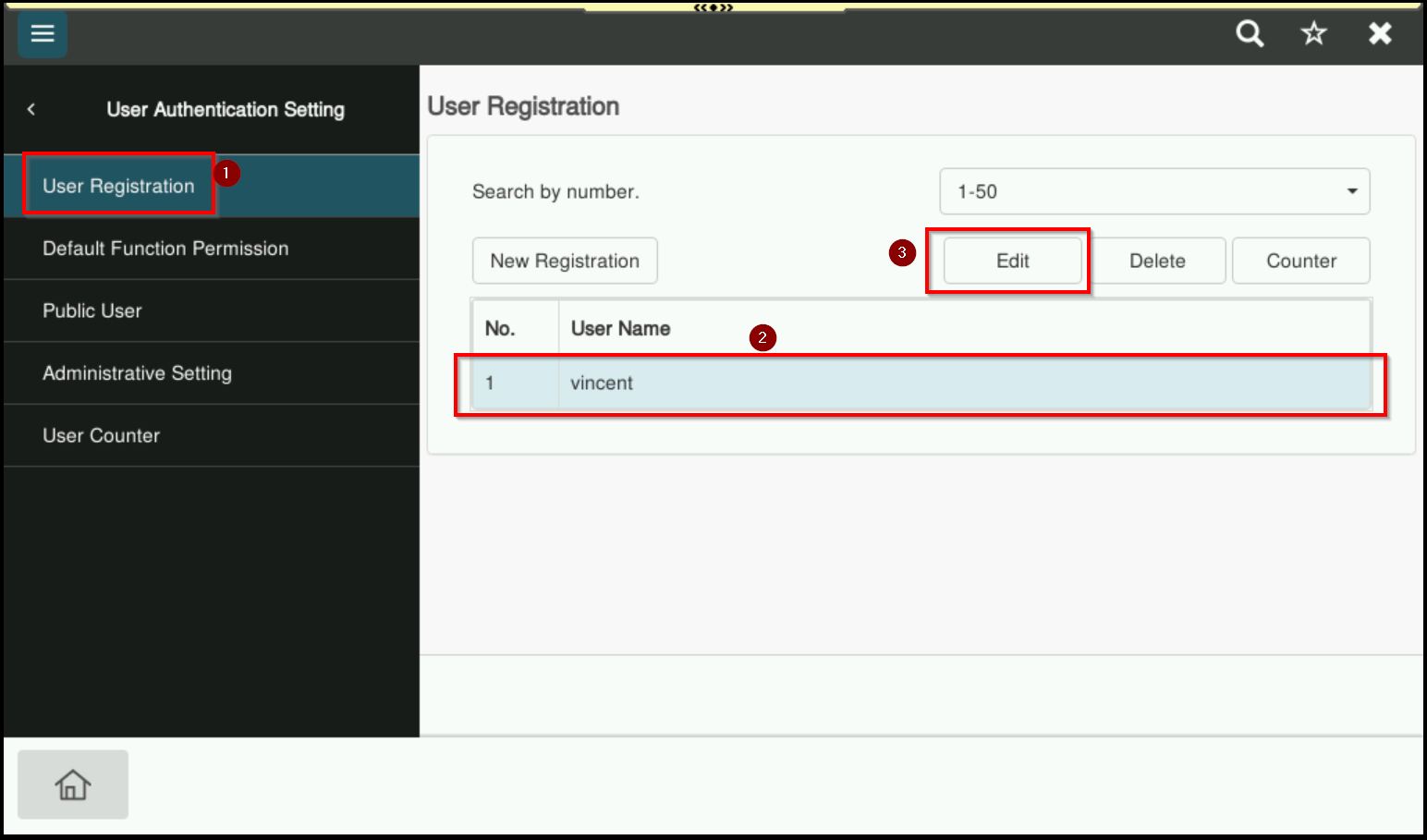
*From Machine Panel
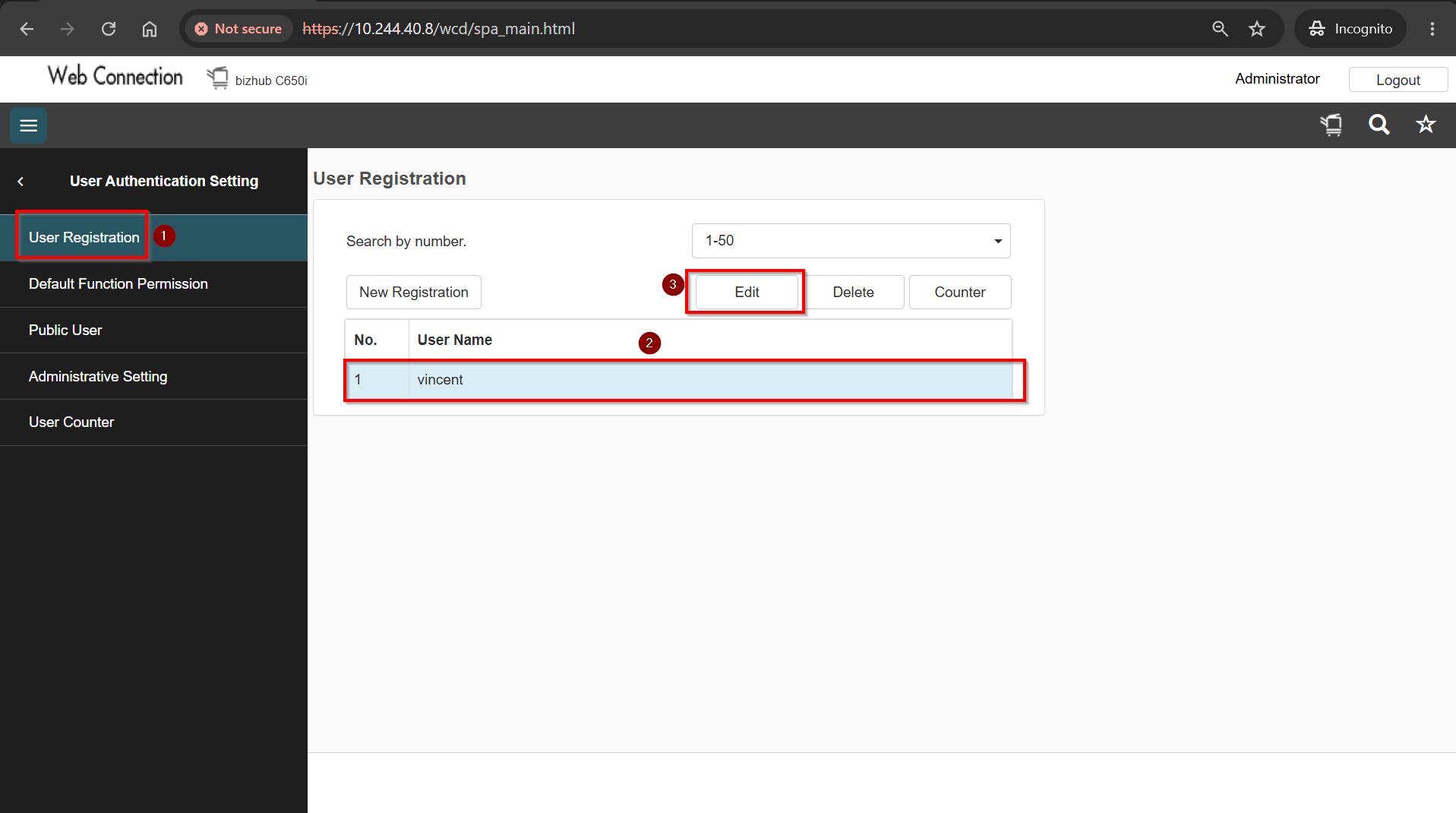
*From Web Connection
STEP 6 – Scroll down and select the Print and Copy function permissions, choosing either [Full Color/Black], [Black Only], or [Restrict], then select [OK] to save changes.
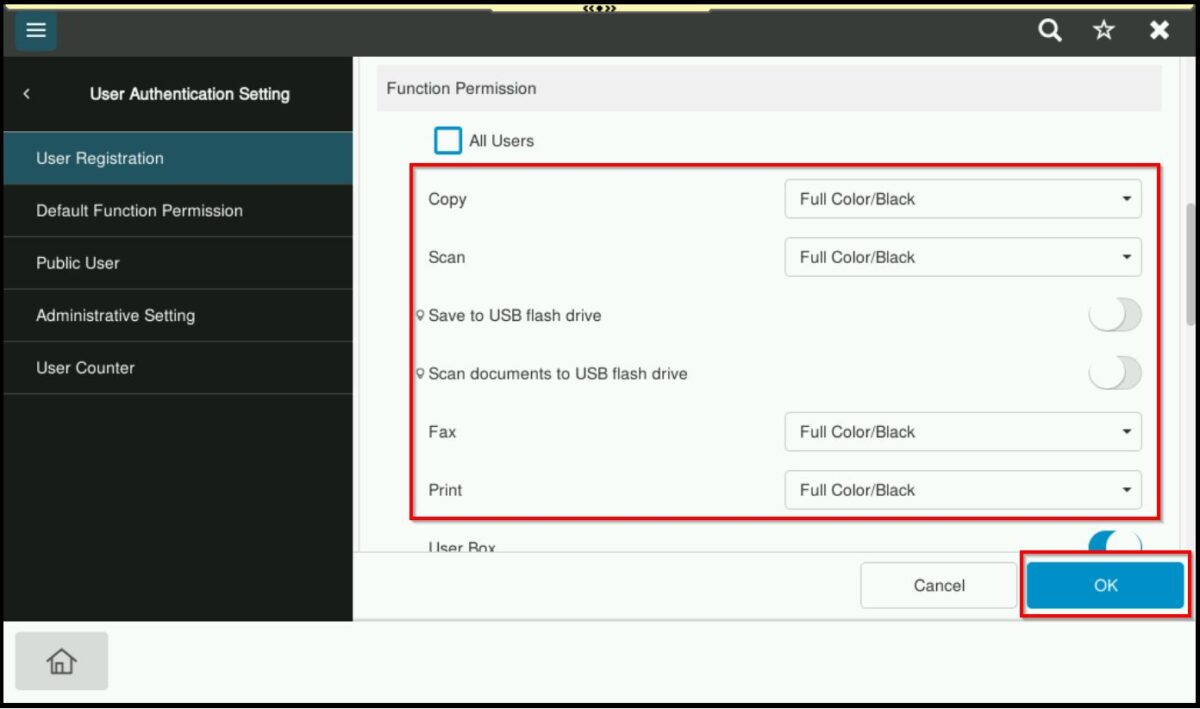
*From Machine Panel
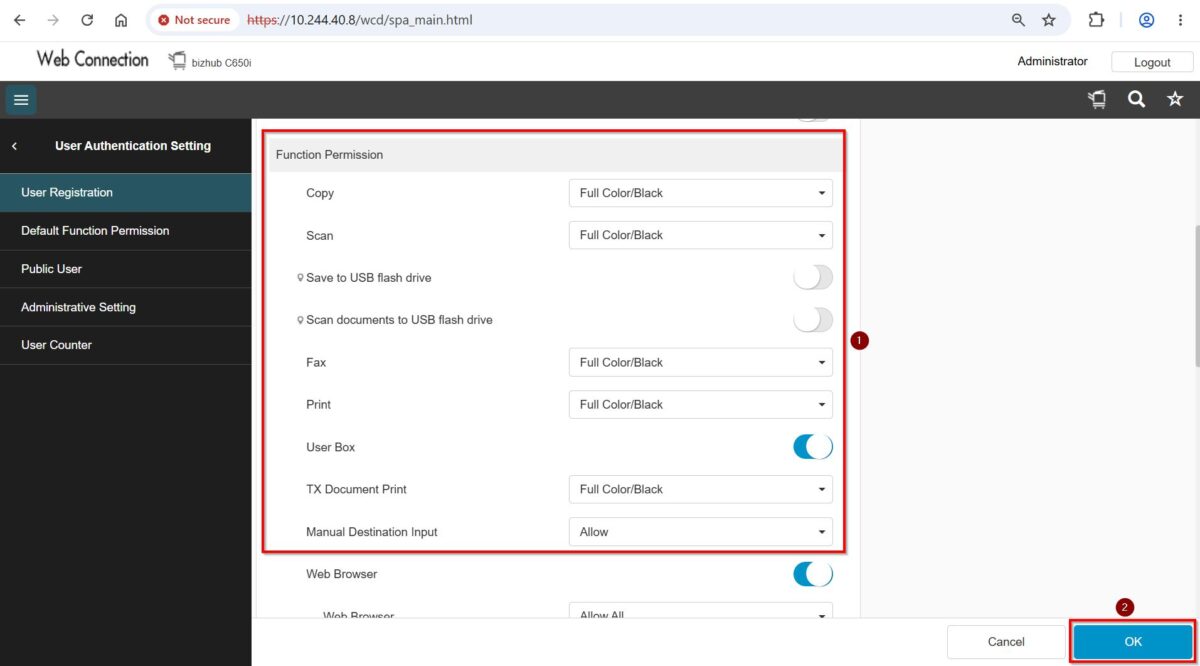
*From Web Connection
STEP 7 – Once a function permission is set, printing or copying will be restricted based on the permissions configured for the specific user.