
Guide on fix printed text that appears too light or too bold
Follow this guide if the text in your printed document appears lighter or bolder than it does on your computer screen.
This guide may help if:
- Text that should be bold prints as light, or light text prints as bold.
- The problem occurs when printing from Microsoft Word, Excel, or PowerPoint.
- Printing the same content as a PDF is not affected.
- The Noto Sans font is installed on the computer.
Window 10
Video Tutorial
The video tutorial below provides detailed instructions and a complete demonstration of the configuration steps.
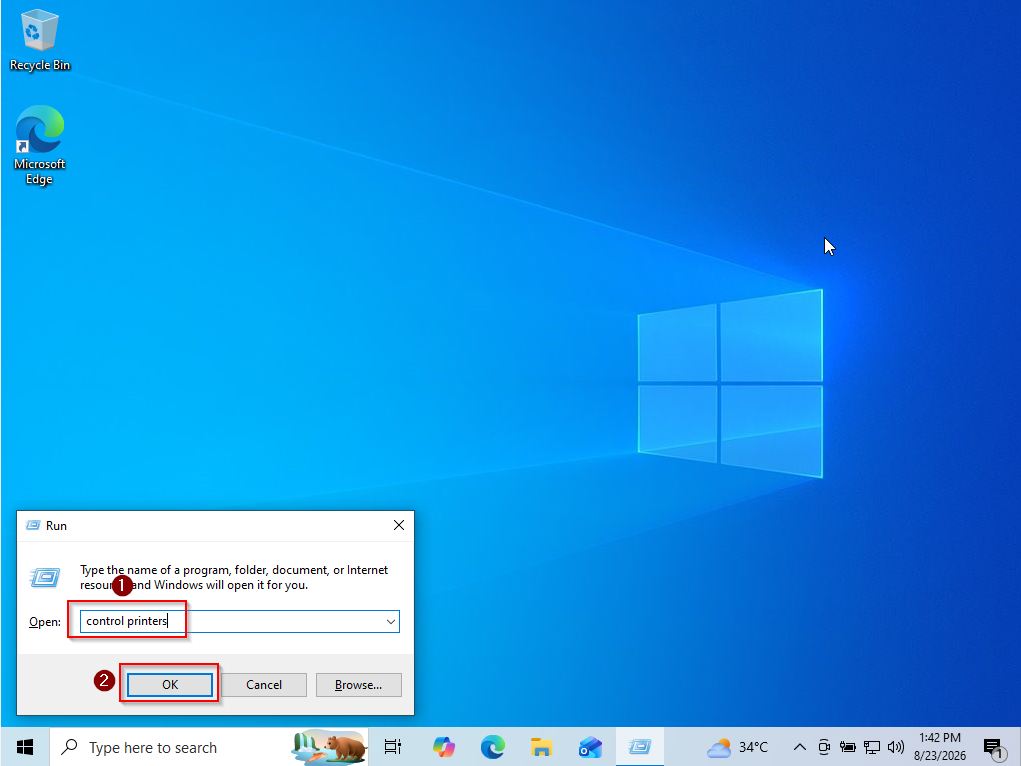
STEP 1 – Press [Win + R] on the keyboard, type [control printers] then select [OK] or press [Enter].
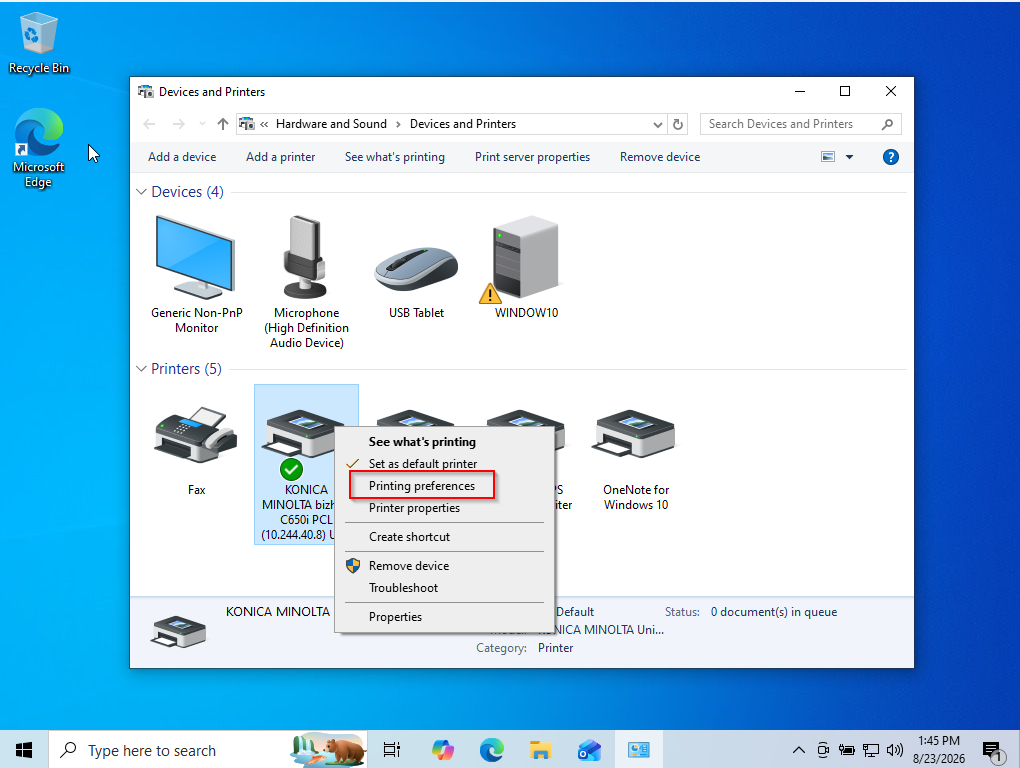
STEP 2 – Under Printers, select the printer you normally use. Right click of the printer and select [printing preferences].
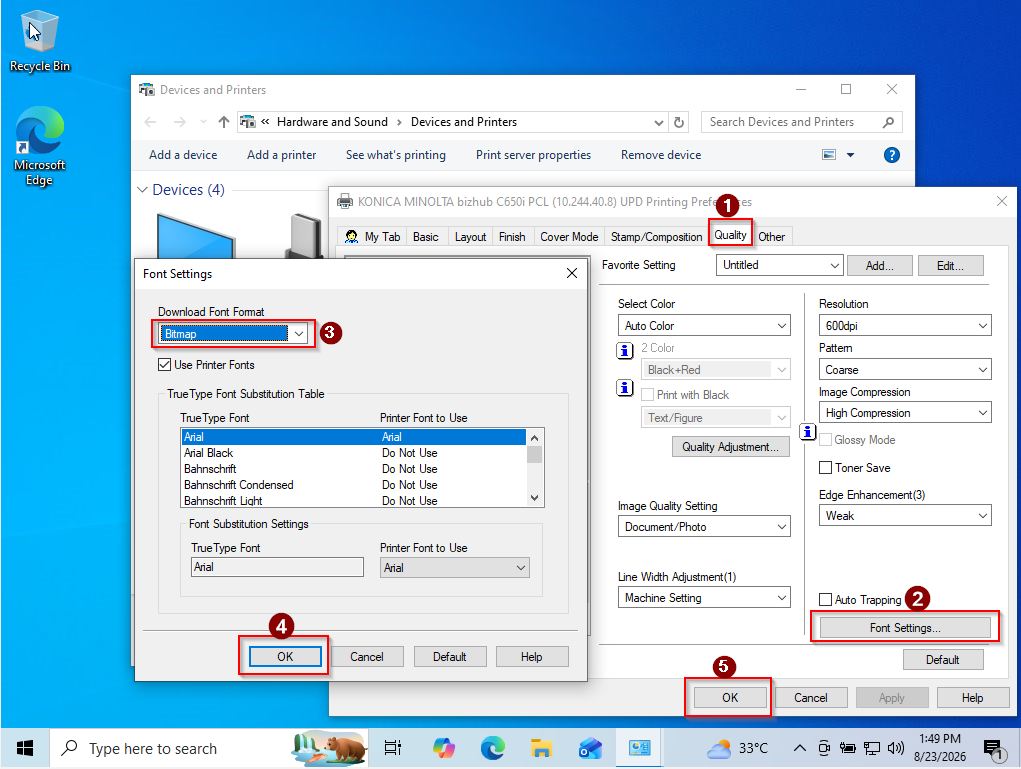
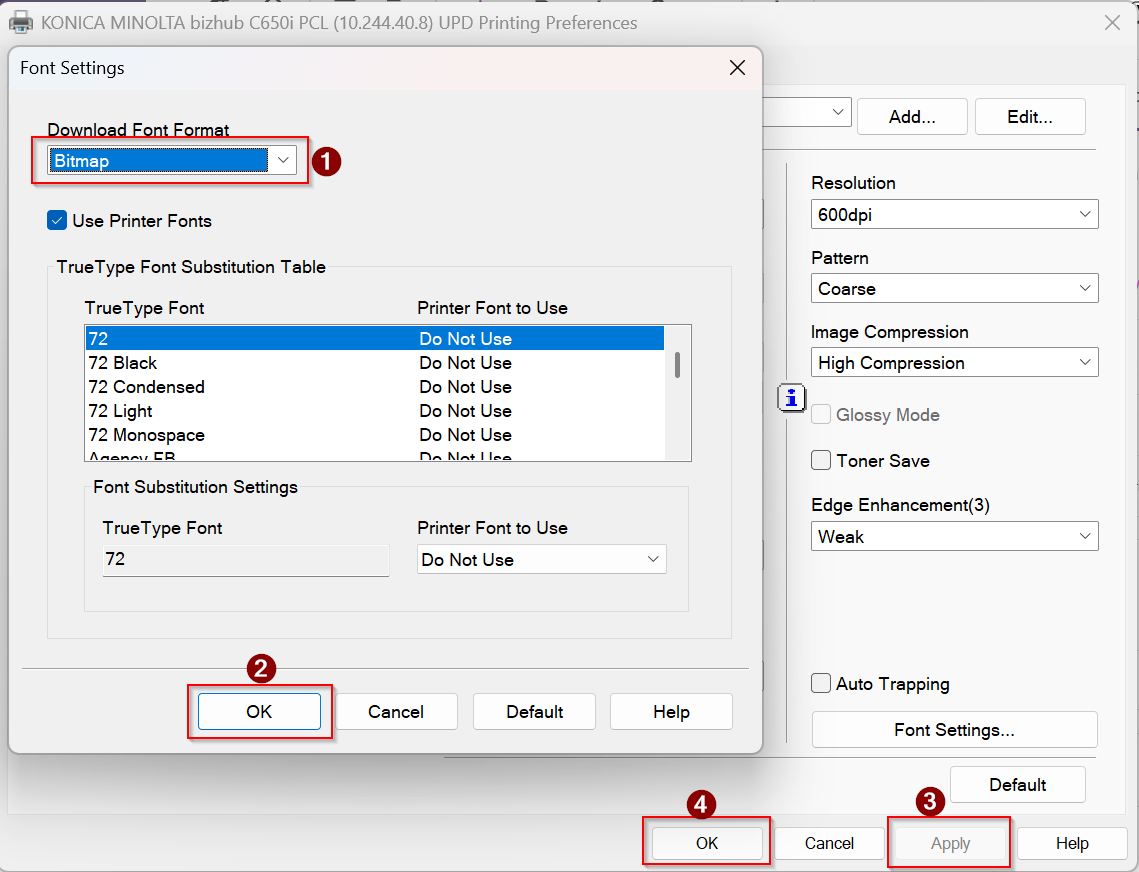
STEP 3 – Proceed to [Quality] tab then [Font Settings]. Under [Download Font Format], select [Bitmap]. Select [OK], then [Apply], and then [OK] again.
STEP 4 – After completing the settings, try printing the document again and verify whether the text is now printed correctly.
Window 11
Video Tutorial
The video tutorial below provides detailed instructions and a complete demonstration of the configuration steps.
STEP 1 – Press [Windows + I] to open [Settings].
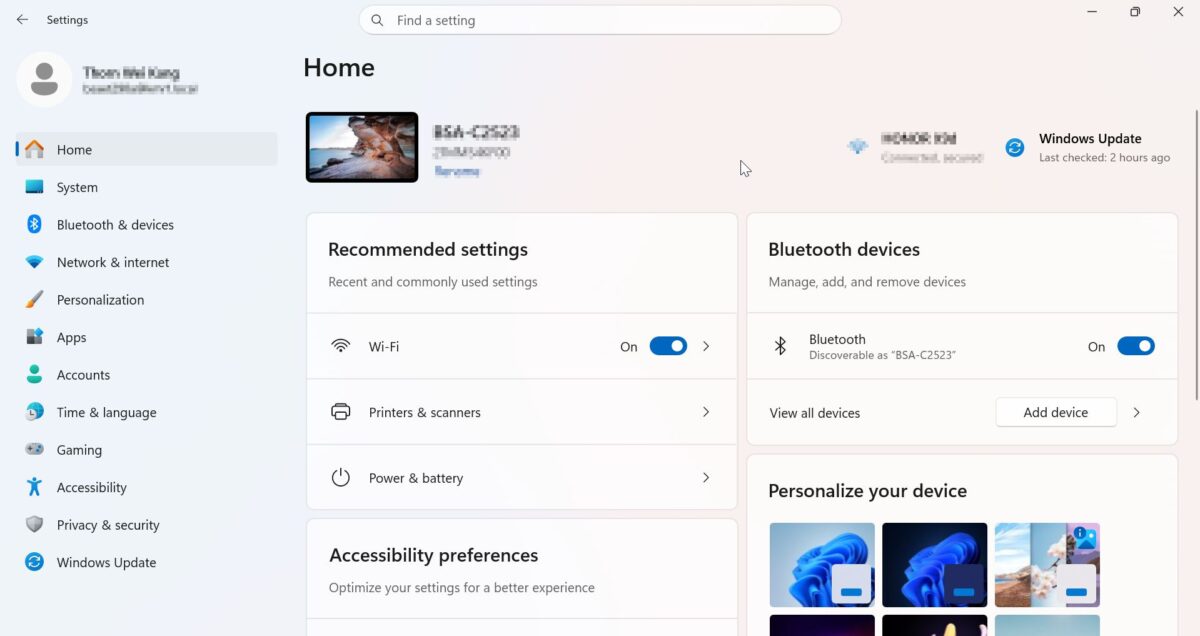
STEP 2 – Select [Bluetooth & devices], then select [Printers & scanners].
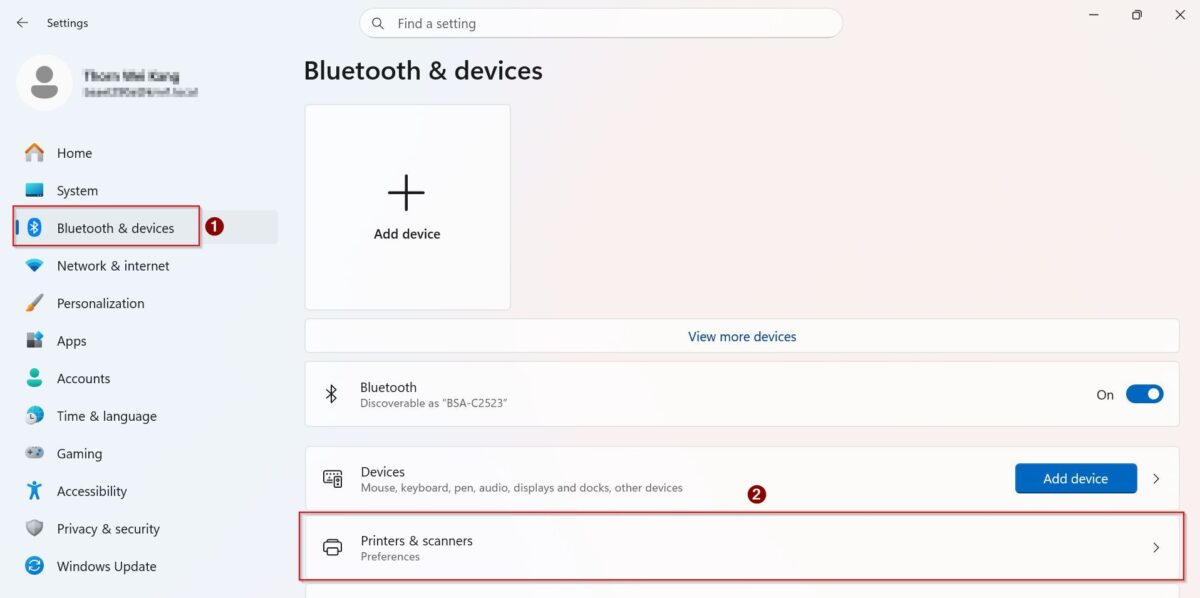
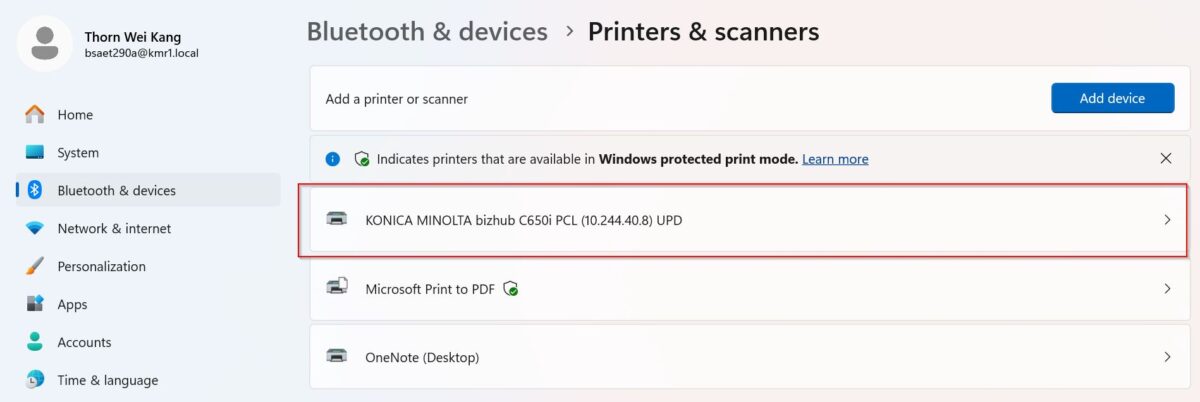
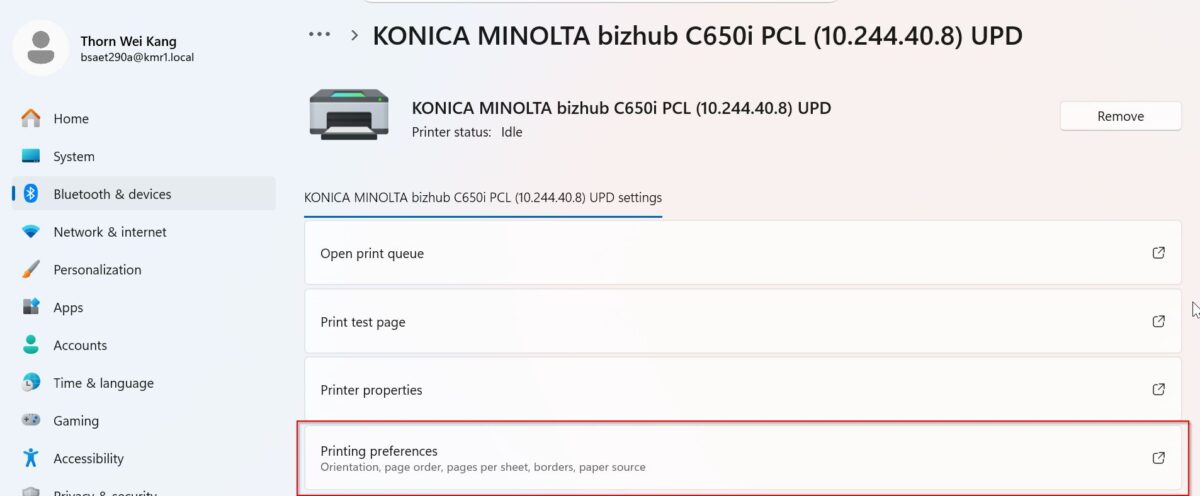
STEP 3 – Select the printer you normally use. Click on the printer and select [printing preferences].
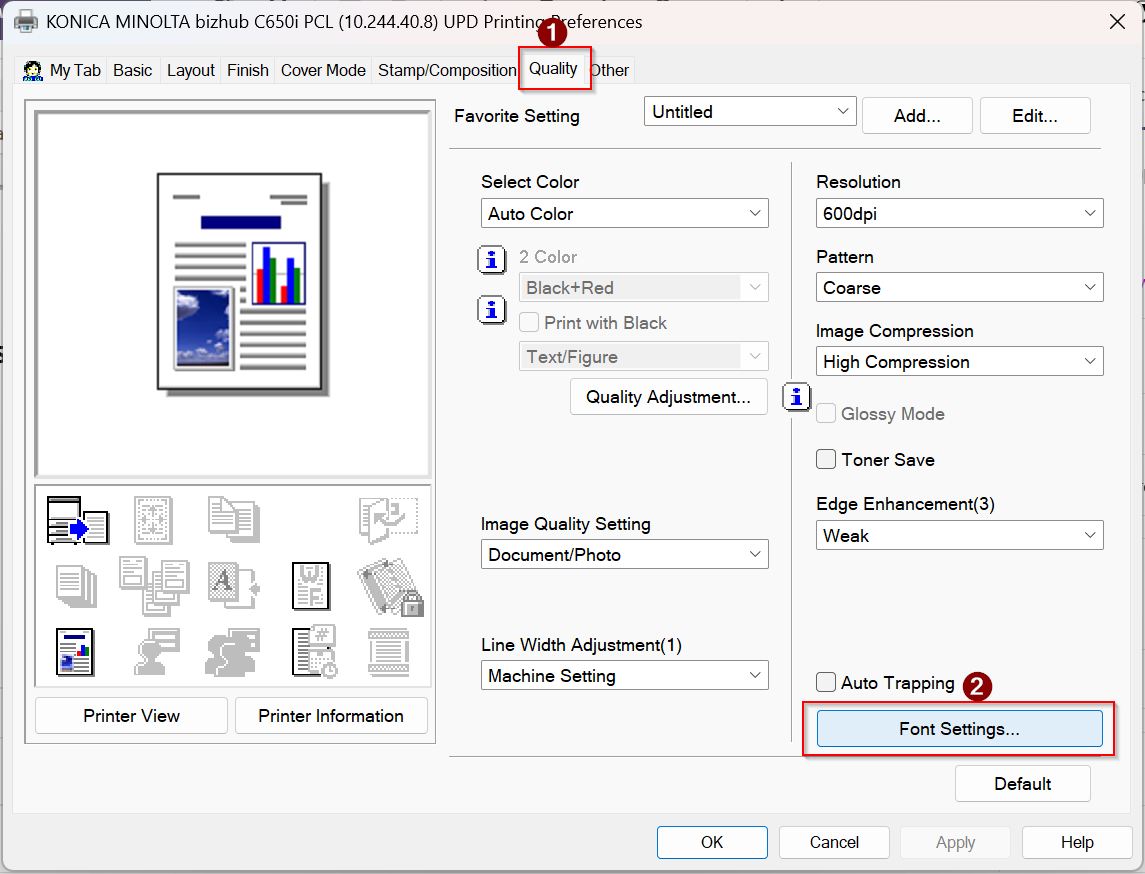
STEP 4 – Proceed to [Quality] tab then [Font Settings]. Under [Download Font Format], select [Bitmap]. Select [OK], then [Apply], and then [OK] again.
STEP 5 – After completing the settings, try printing the document again and verify whether the text is now printed correctly.
Note: The available printer settings may vary depending on the printer model and printer driver. If Quality, Font Settings, or Bitmap is not available, please contact your IT support team for assistance.