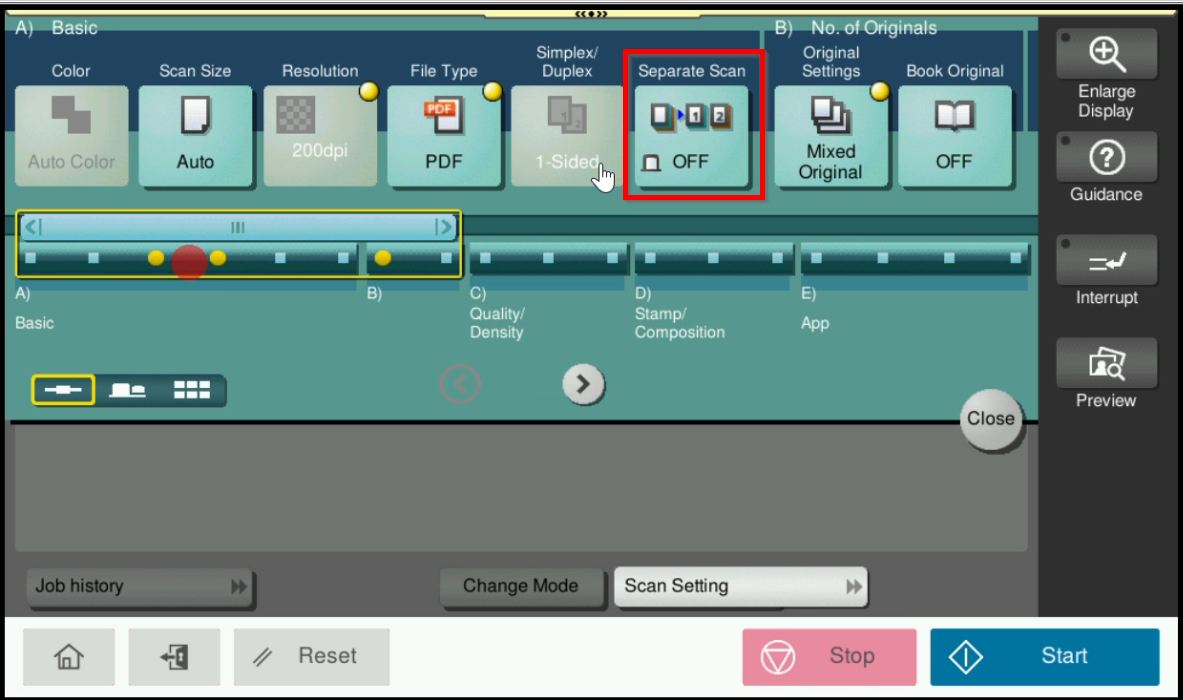
Guide on fix Separate Scan Not Working in a SafeQ Environment
When the machine is connected to a SafeQ environment, users may be unable to perform a separate scan directly from the printer. This issue may occur because the required scanning permission is restricted in the SafeQ Portal.
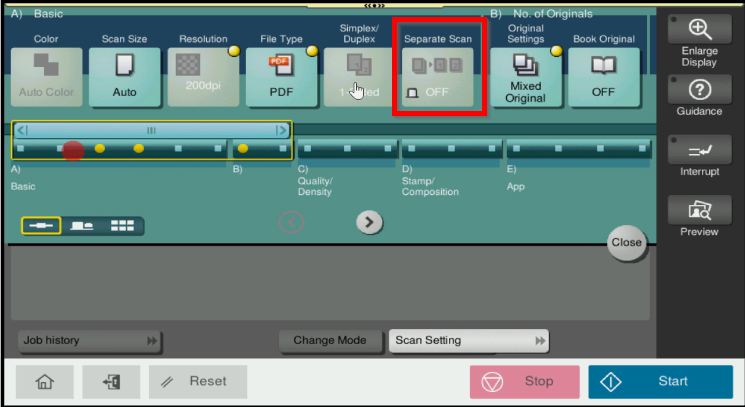
This guide explains how to resolve the issue by adjusting the required permissions in the SafeQ Portal.
Access to SafeQ Portal
Video Tutorial
The video tutorial below provides detailed instructions and a complete demonstration of the configuration steps.
STEP 1 – Access the SafeQ Portal by entering the SafeQ IP address in your web browser. Then, log in to the portal using the administrator username and password.
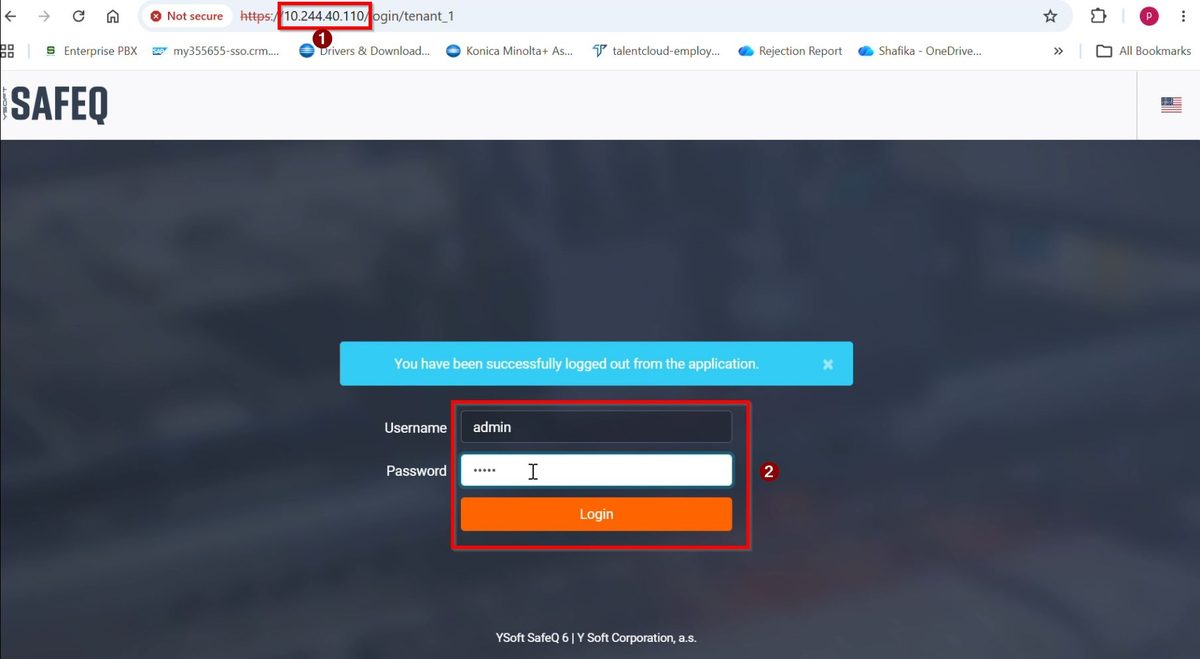
Note: The SafeQ IP address may vary depending on your environment. If you do not know the SafeQ server address or administrator credentials, please contact your local IT Support Team for assistance.
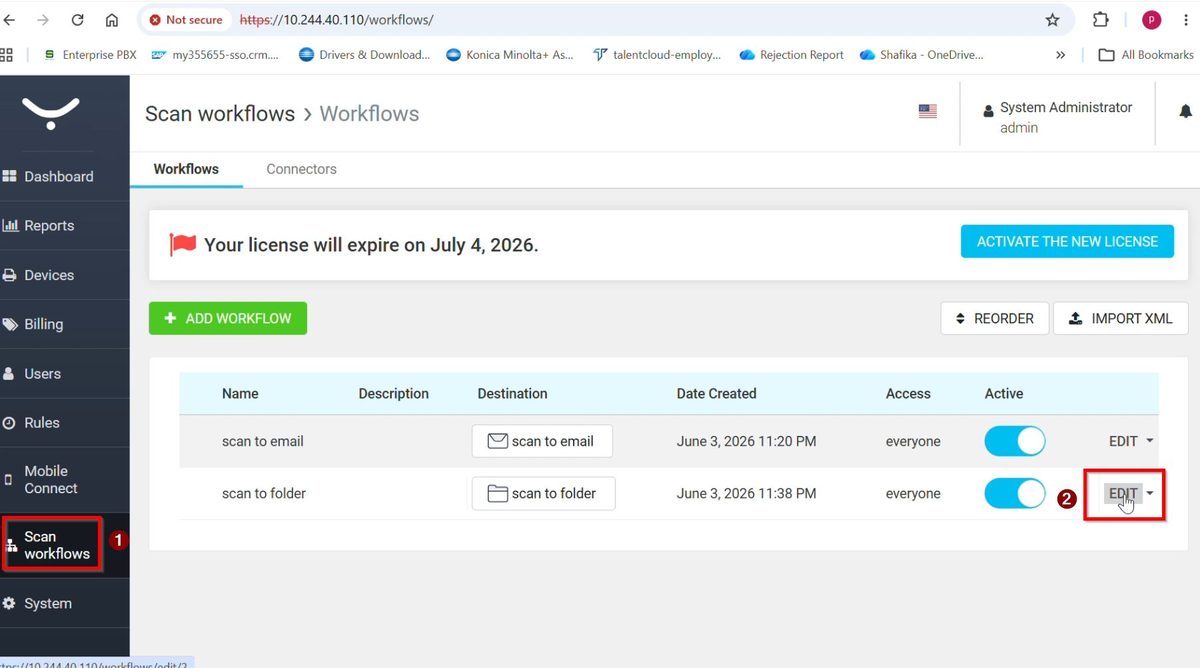
STEP 2 – Go to [Scan Workflow], then select [Edit] under Scan to Folder to adjust the settings.
STEP 3 – Scroll down and select [Can be modified by the user on the terminal] under the Merging Originals section. This allows users to select the Separate Scan function directly from the machine.
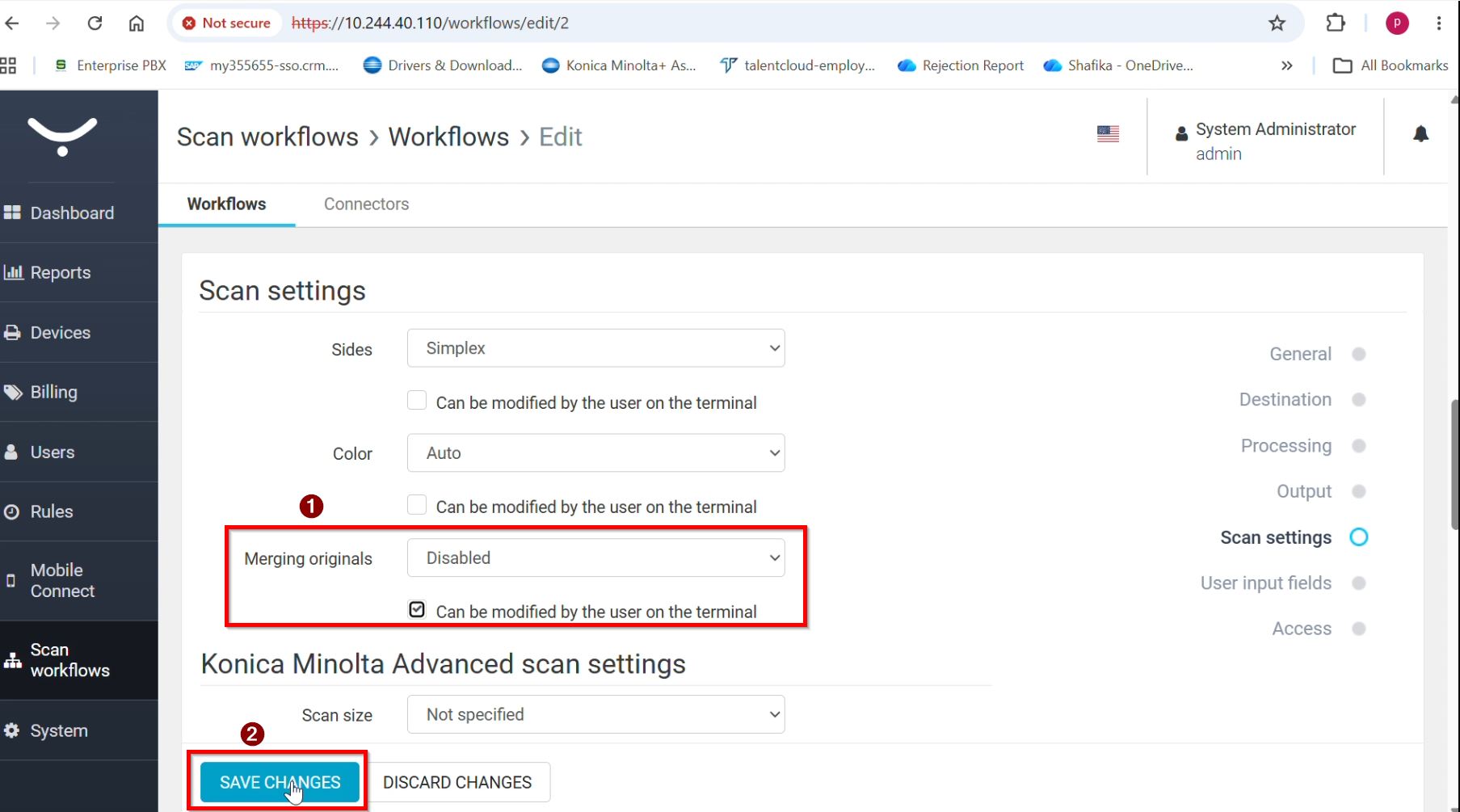
STEP 4 – After saving the changes, the [Separate Scan] option will become available for users to select after they log in to the machine.