
Guide to Copying Single-Sided and Double-Sided Documents on the Printer
This guide explains how to make single-sided or double-sided copies using the printer.
You can choose to:
- Copy a single-sided document onto single-sided pages.
- Copy single-sided documents onto both sides of the paper.
- Copy a double-sided document onto both sides of the paper.
- Copy a double-sided document onto separate single-sided pages.
For Older Machine series / Non I-Series Machine (Accessible via Screen Panel only)
Video Tutorial
The video tutorial below provides detailed instructions and a complete demonstration of the configuration steps.
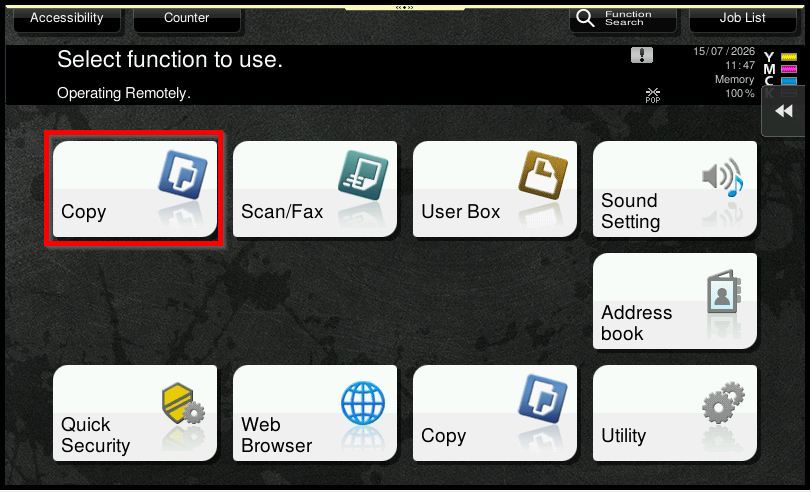
STEP 1 – Select [Copy].
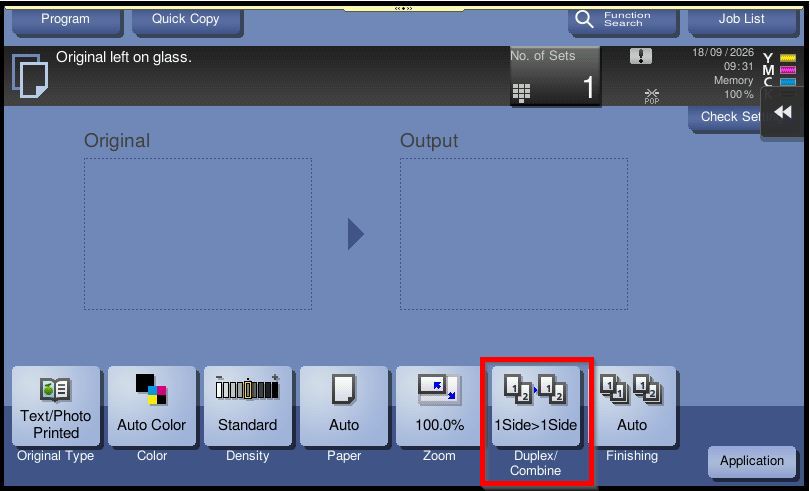
STEP 2 – Select [Duplex/Combine].
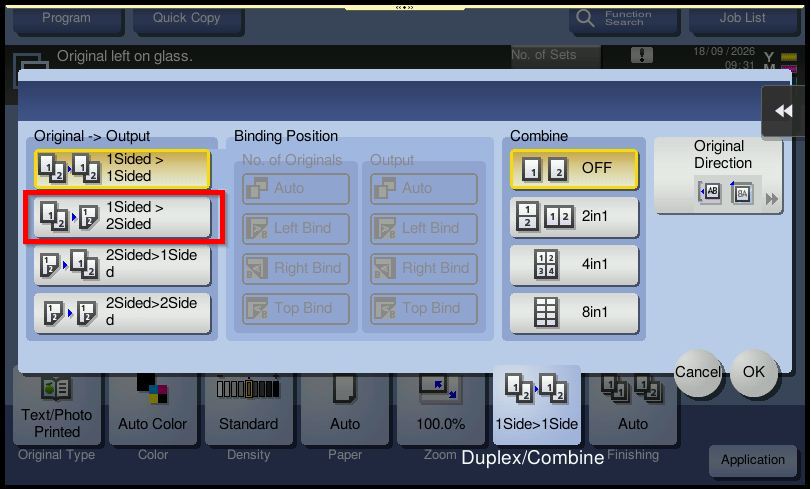
Step 3 – Choose this when the original pages have printing on one side, but want the copies printed on both sides of the paper. Select: [1-Sided > 2-Sided]. After selecting the required copy type, Select [OK]. Check the number of copies required and review the other copy settings if necessary. Press [Start] to begin copying.
For Newer Machine series / I-Series Machine (Accessible via Screen Panel Only)
Video Tutorial
The video tutorial below provides detailed instructions and a complete demonstration of the configuration steps.
STEP 1 – Select [Copy].
STEP 2 – Select [Duplex/Combine].
Step 3 – Choose this when the original pages have printing on one side, but want the copies printed on both sides of the paper. Select: [1-Sided > 2-Sided]. After selecting the required copy type, Select [OK]. Check the number of copies required and review the other copy settings if necessary. Press [Start] to begin copying.