Guide on encrypting a PDF scan document on the printer
This guide explains the use of password protection for scanned PDF documents on the printer to help prevent unauthorized users from opening the scanned file.
For Older Machine series / Non I-Series Machine (Accessible via Screen Panel only)
Video Tutorial
The video tutorial below provides detailed instructions and a complete demonstration of the configuration steps.
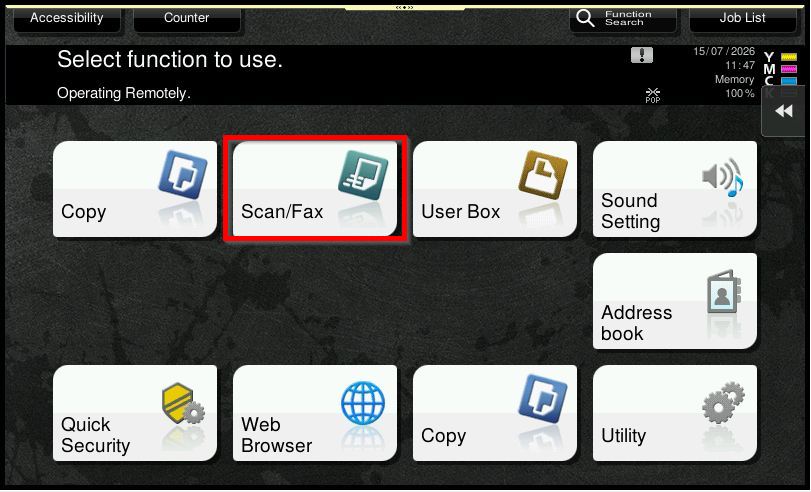
STEP 1 – Tap [Scan/Fax].
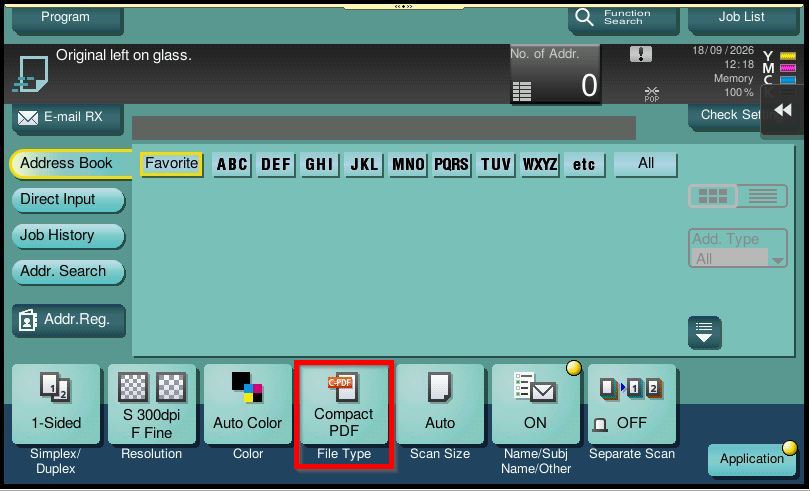
STEP 2 – Select [File Type].
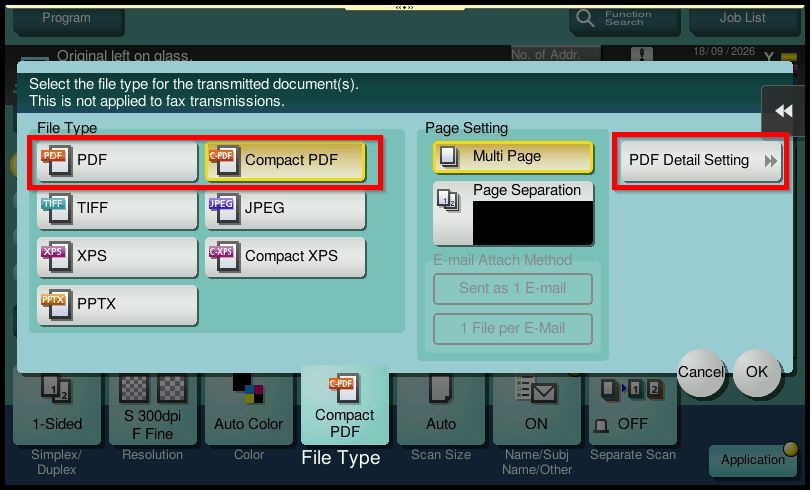
Step 3 – Choose [PDF] or [Compact PDF] as the File Type and select [PDF Detail Setting].
STEP 4 – Select [Encryption].
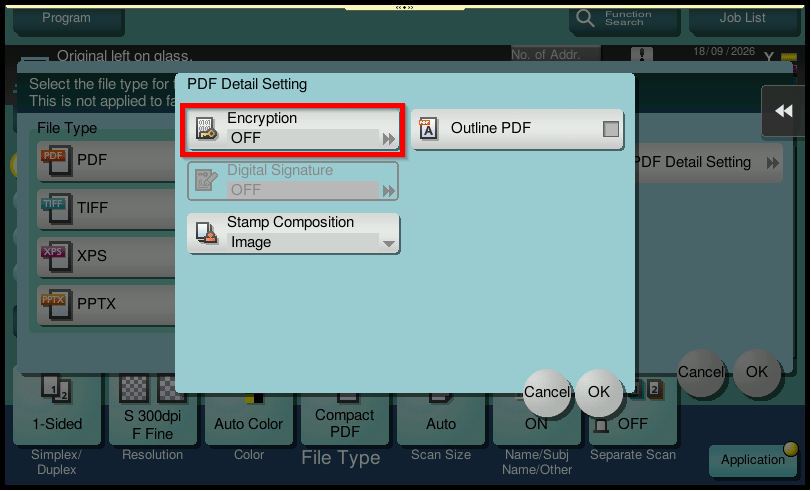
STEP 5 – Tap [ON] to enable PDF Encryption.
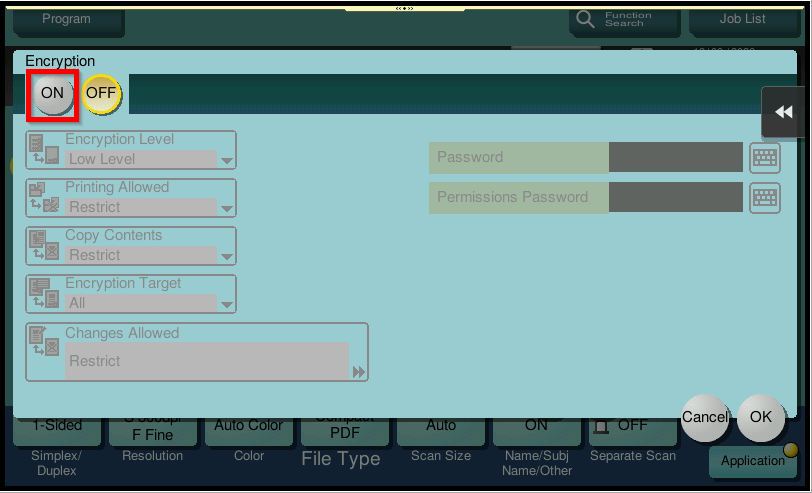
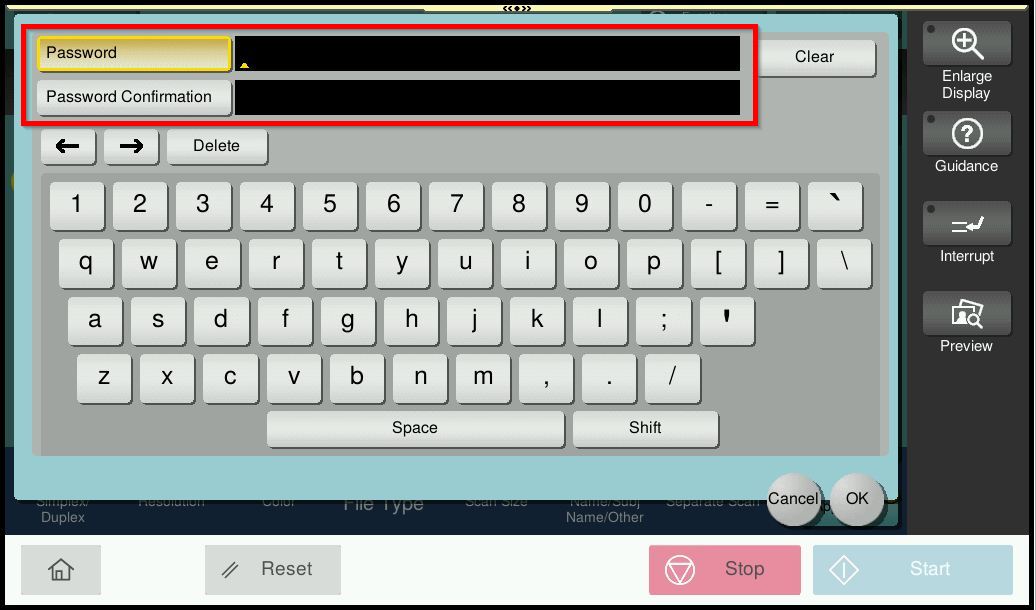
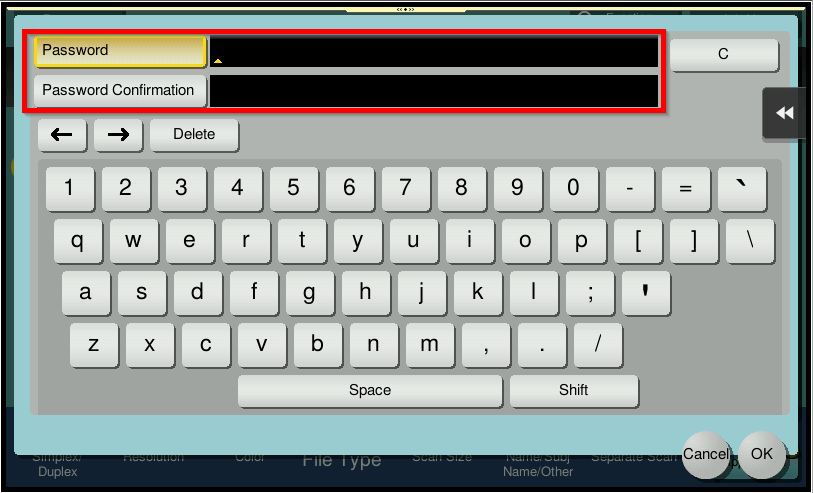
Step 6 – Enter the [Password] you would like to use to protect the PDF document, then select [OK] to save the setting.
Important: Kindly remember the password as the recipient will need the correct password to open the scanned PDF.
For Newer Machine series / I-Series Machine (Accessible via Screen Panel Only)
Video Tutorial
The video tutorial below provides detailed instructions and a complete demonstration of the configuration steps.
STEP 1 – Tap [Scan].
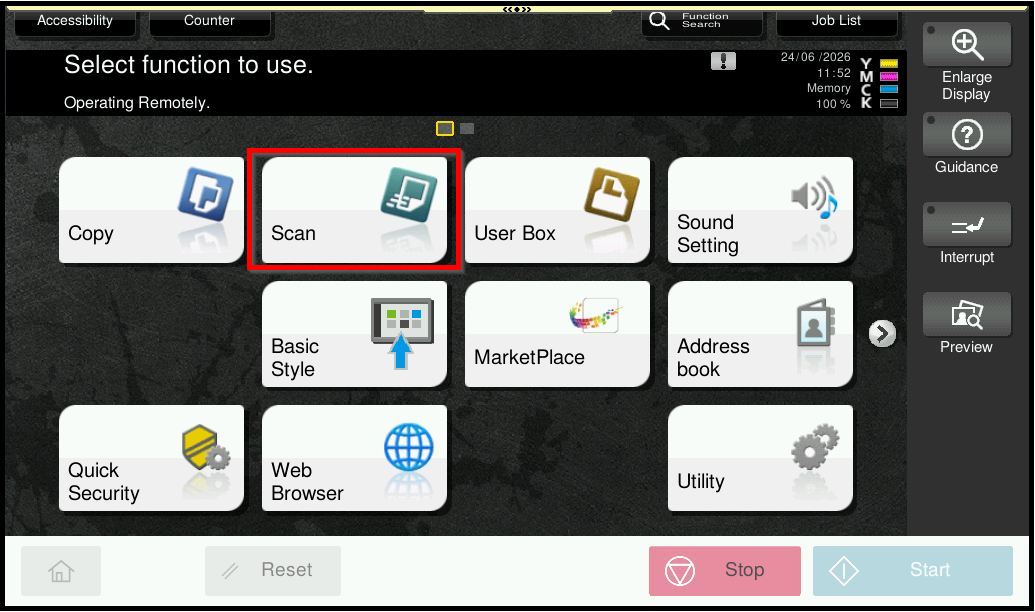
STEP 2 – Select [File Type].
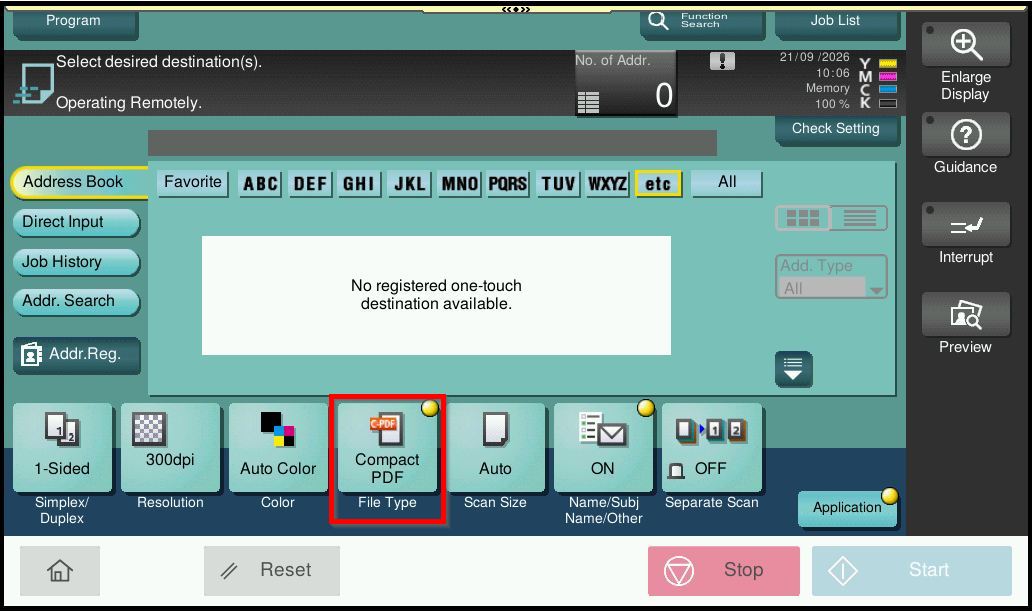
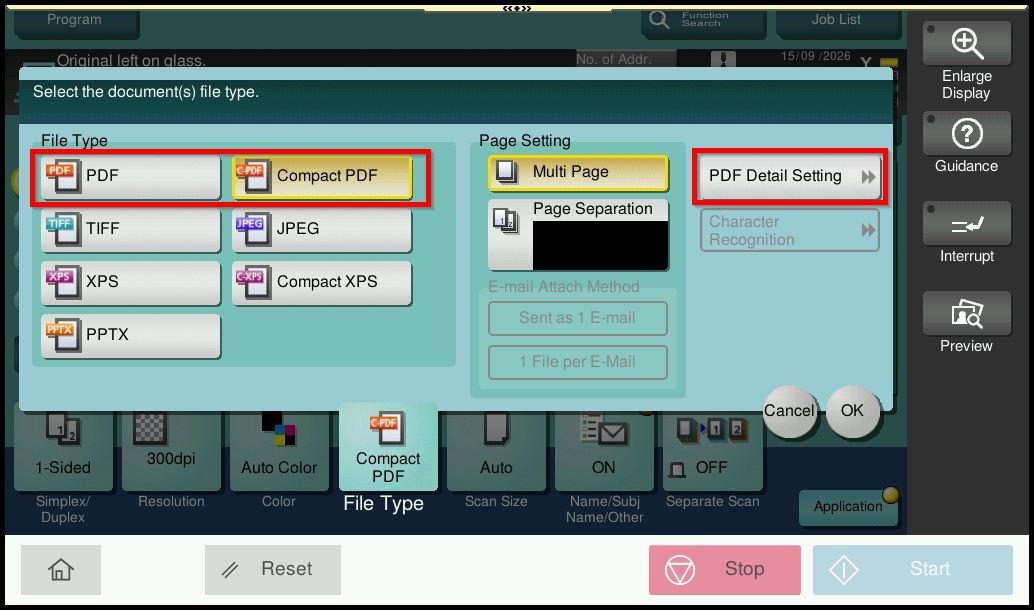
Step 3 – Choose [PDF] or [Compact PDF] as the File Type and select [PDF Detail Setting].
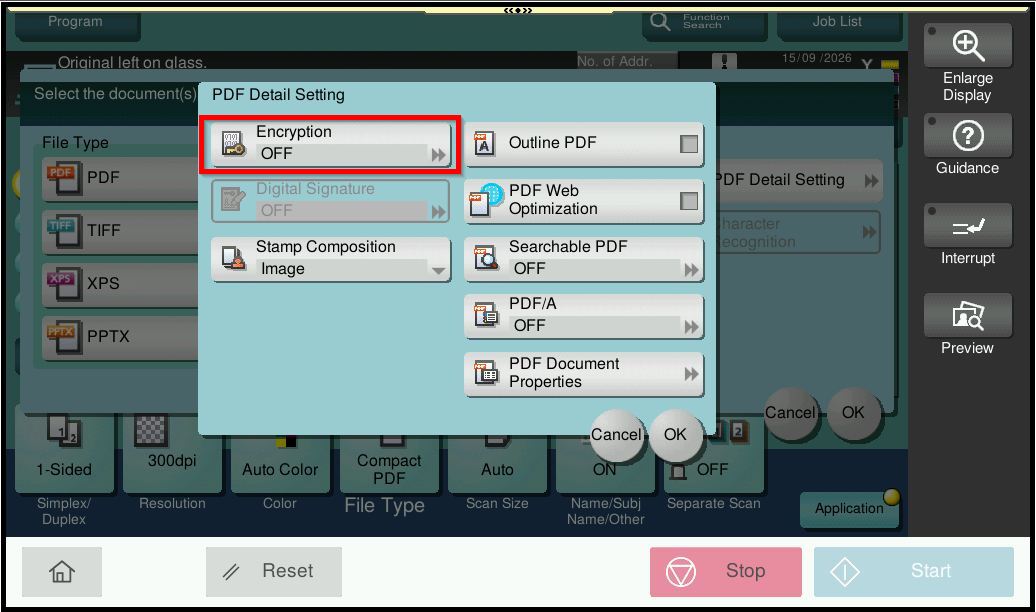
STEP 4 – Select [Encryption].
STEP 5 – Tap [ON] to enable PDF Encryption.
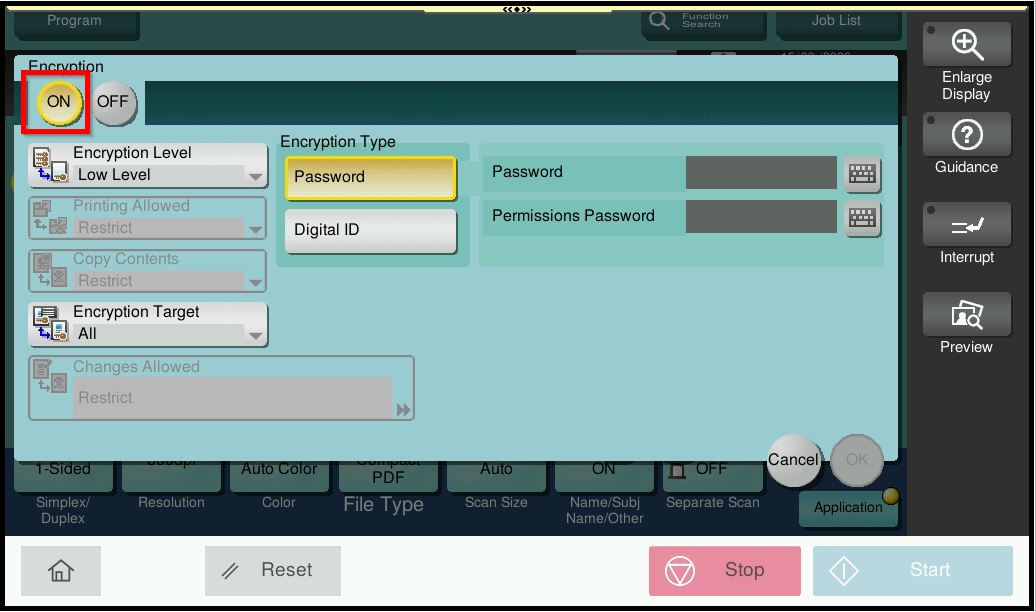
Step 6 – Enter the [Password] you would like to use to protect the PDF document, then select [OK] to save the setting.
Important: Kindly remember the password as the recipient will need the correct password to open the scanned PDF.