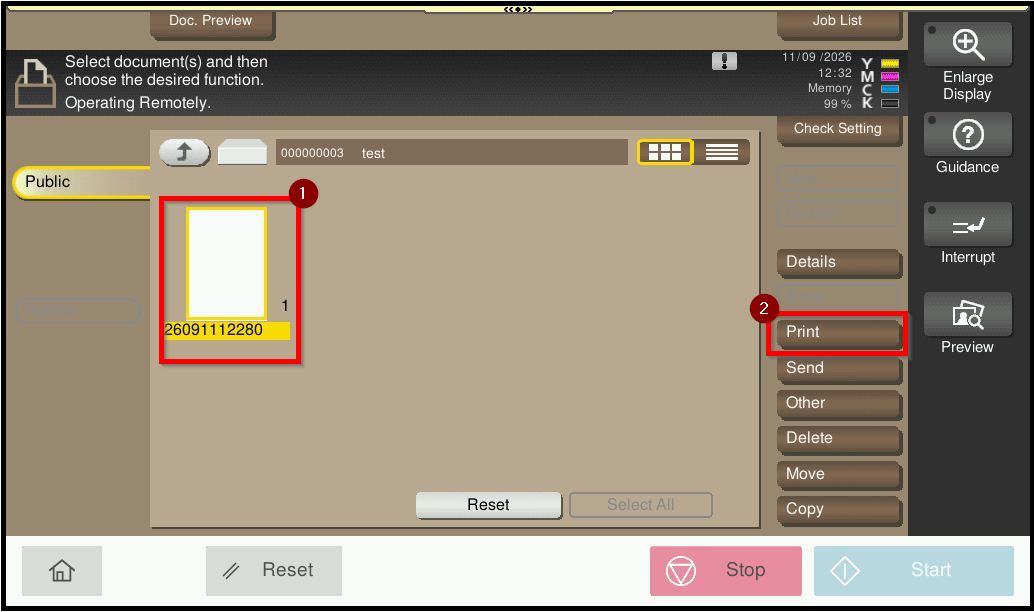
Guide on print documents from a user box on the printer
This guide explains how to print a document that has already been saved in a User Box on the printer.
Requirements:
- The printer has a Hard Disk Drive (HDD) or supported internal storage installed.
- A User Box has already been created on the printer.
- The document you want to print has already been saved in the User Box.
- If the User Box is password-protected, ensure you have the correct password.
Note: If the User Box option is unavailable, please contact your local IT Support Team to check whether the required storage is installed and the User Box feature is enabled.
For Older Machine series / Non I-Series Machine (Accessible via Screen Panel only)
Video Tutorial
The video tutorial below provides detailed instructions and a complete demonstration of the configuration steps.
STEP 1 – Tap [User Box].
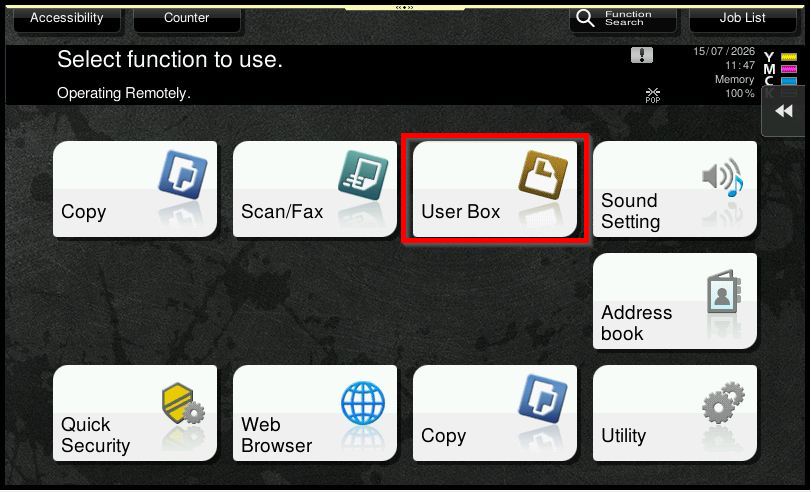
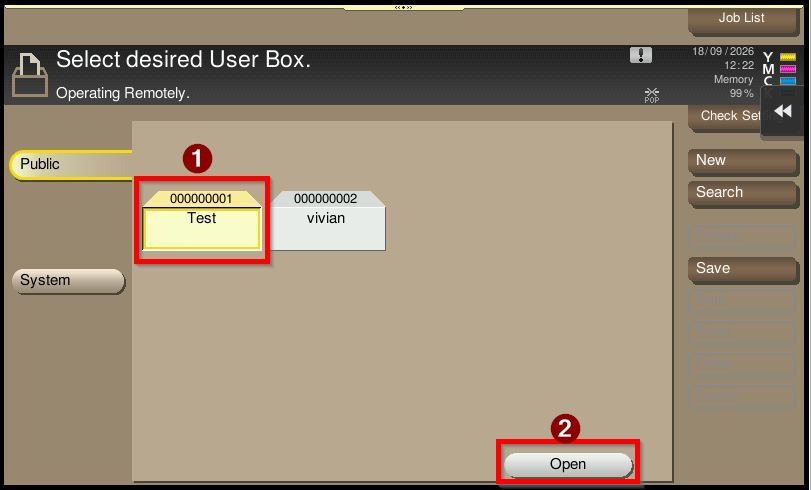
STEP 2 – Select the [User Box] where the document was saved, then click [Open] to open the folder.
Note: If the User Box is password-protected, enter the required password to continue
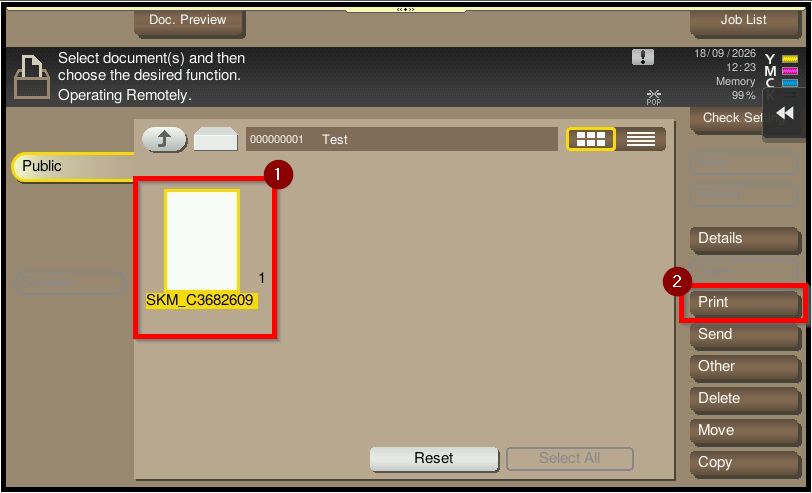
Step 3 – Locate and select the document you want to print, then select [Print]. After that, select [Start] to print the document.
For Newer Machine series / I-Series Machine (Accessible via Screen Panel Only)
Video Tutorial
The video tutorial below provides detailed instructions and a complete demonstration of the configuration steps.
STEP 1 – Tap [User Box].
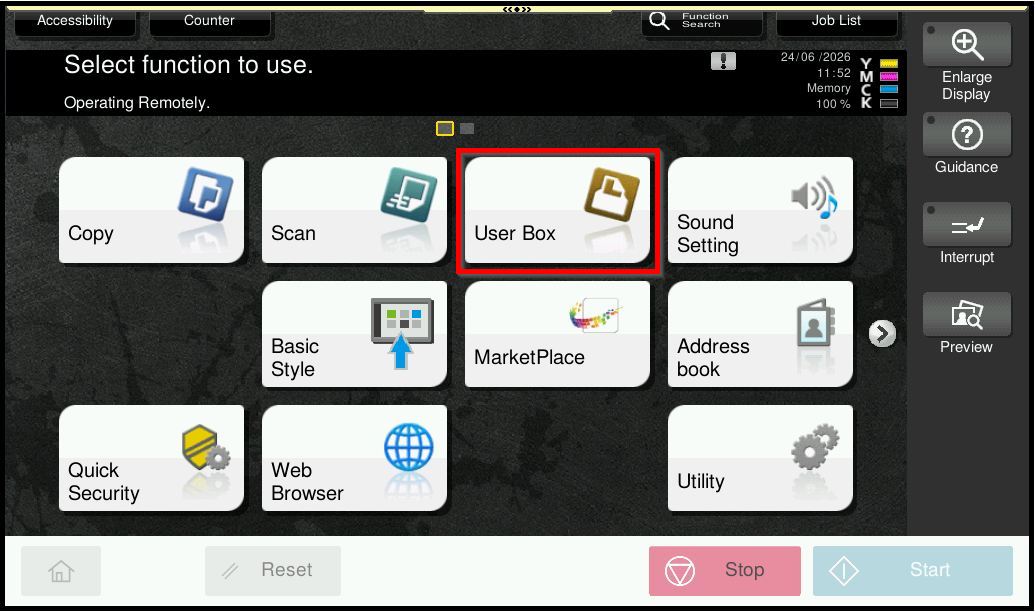
STEP 2 – Select the [User Box] where the document was saved, then click [Open] to open the folder.
Note: If the User Box is password-protected, enter the required password to continue
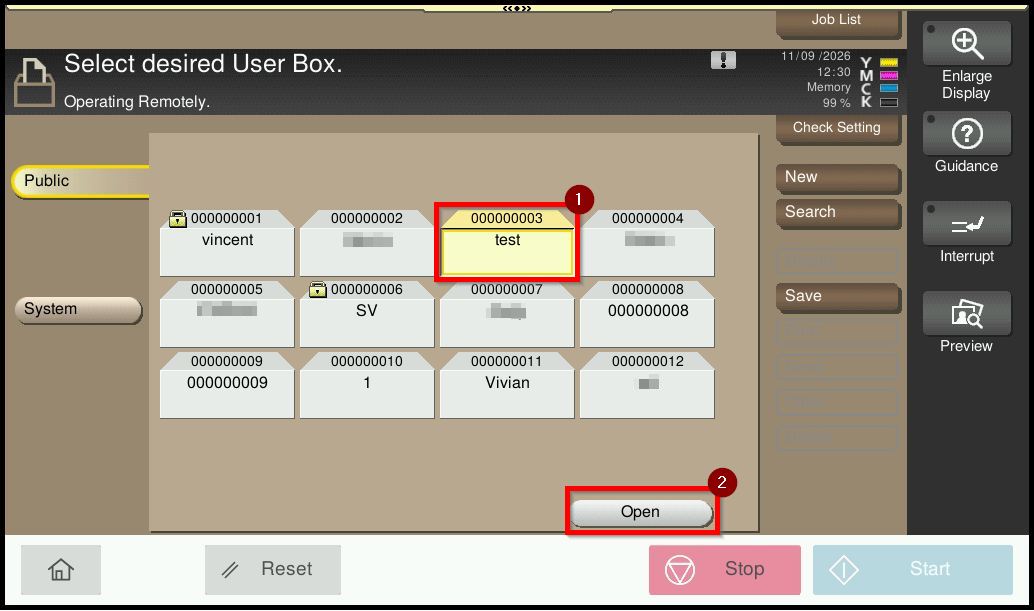
Step 3 – Locate and select the document you want to print, then select [Print]. After that, select [Start] to print the document.