Guide on uninstall printer from SafeQ Terminal
When disconnecting a printer from the YSoft SAFEQ Portal, it is important to properly uninstall the Embedded Terminal before removing the printer. This guide explains the steps to safely unlink and remove the printer from the SAFEQ Portal.
Access to SafeQ Portal
Video Tutorial
The video tutorial below provides detailed instructions and a complete demonstration of the configuration steps.
STEP 1 – Access the SafeQ Portal by entering the SafeQ IP address in your web browser. Then, log in to the portal using the administrator username and password.
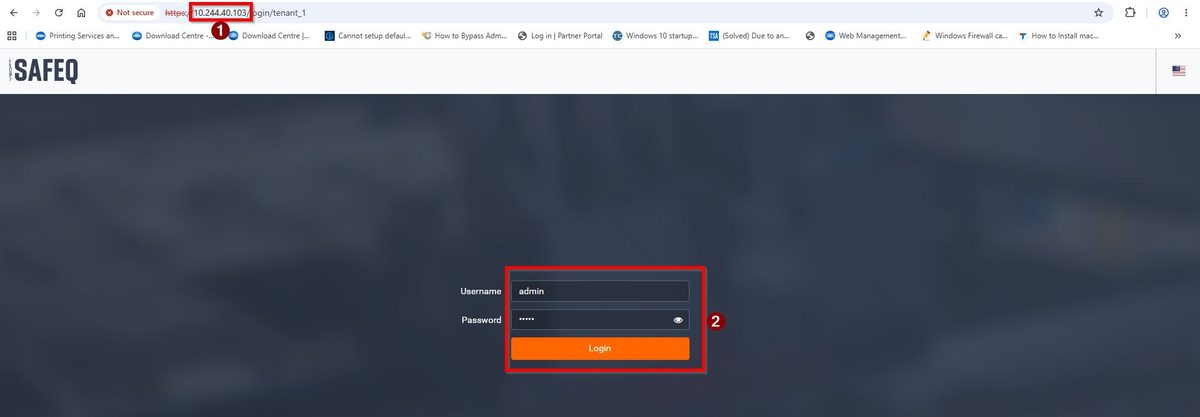
Note: The SafeQ IP address may vary depending on your environment. If you do not know the SafeQ server address or administrator credentials, please contact your local IT Support Team for assistance.
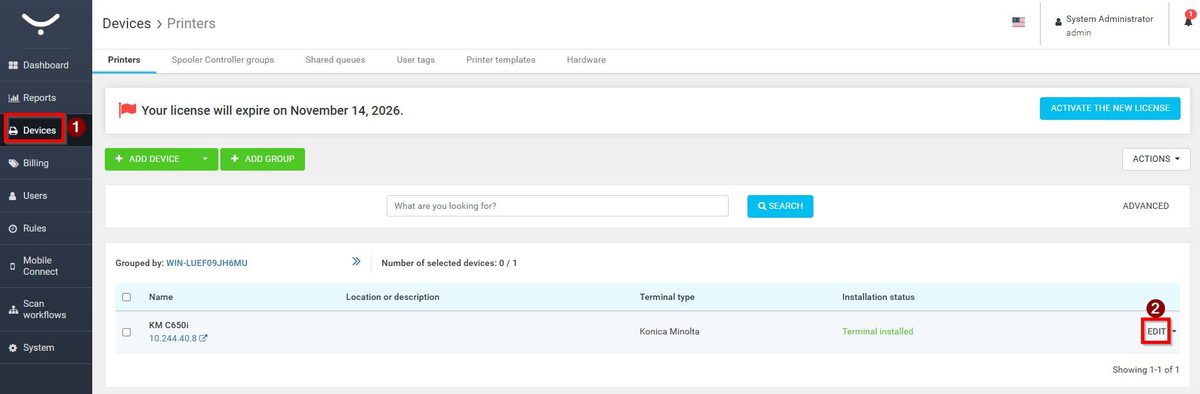
STEP 2 – Go to [Devices], select the printer that want to disconnect, then select [Edit].
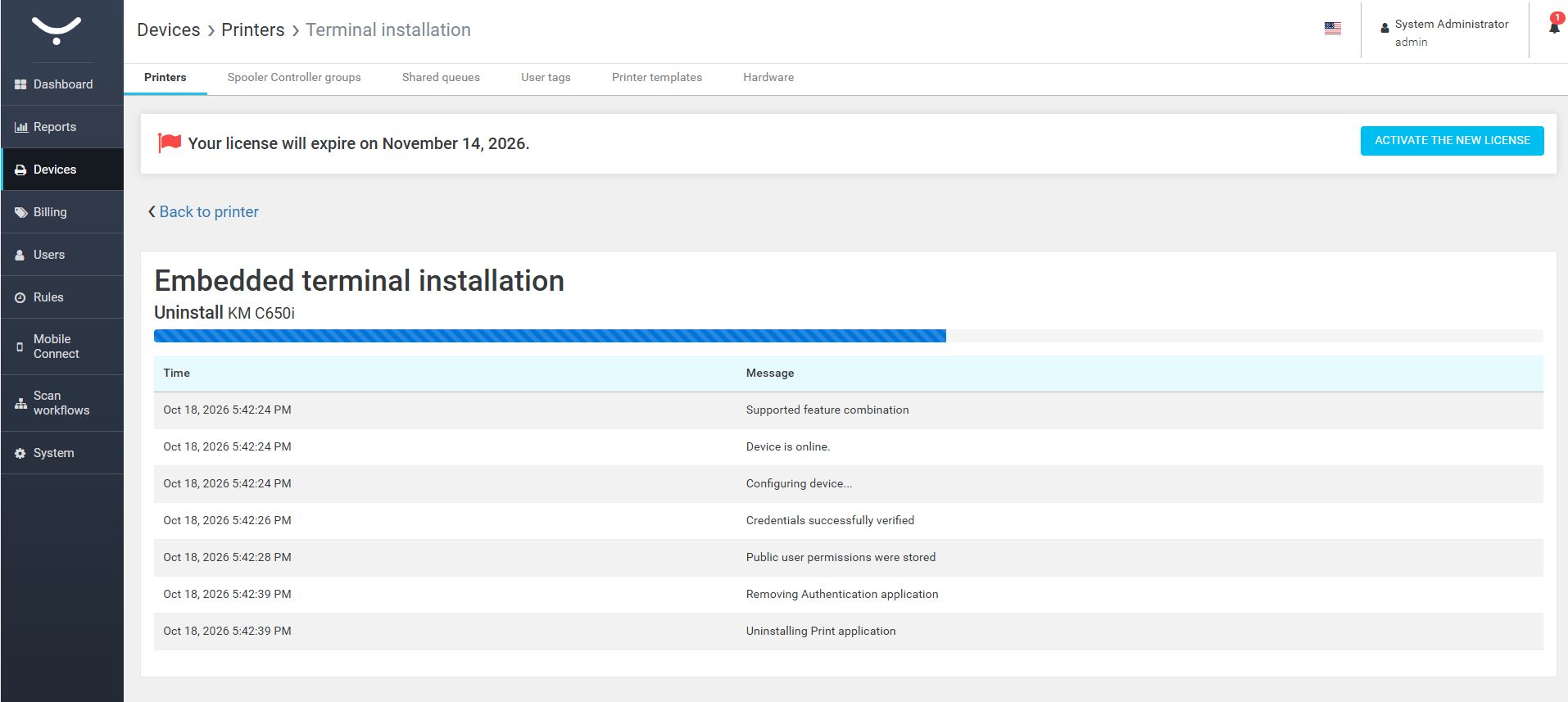
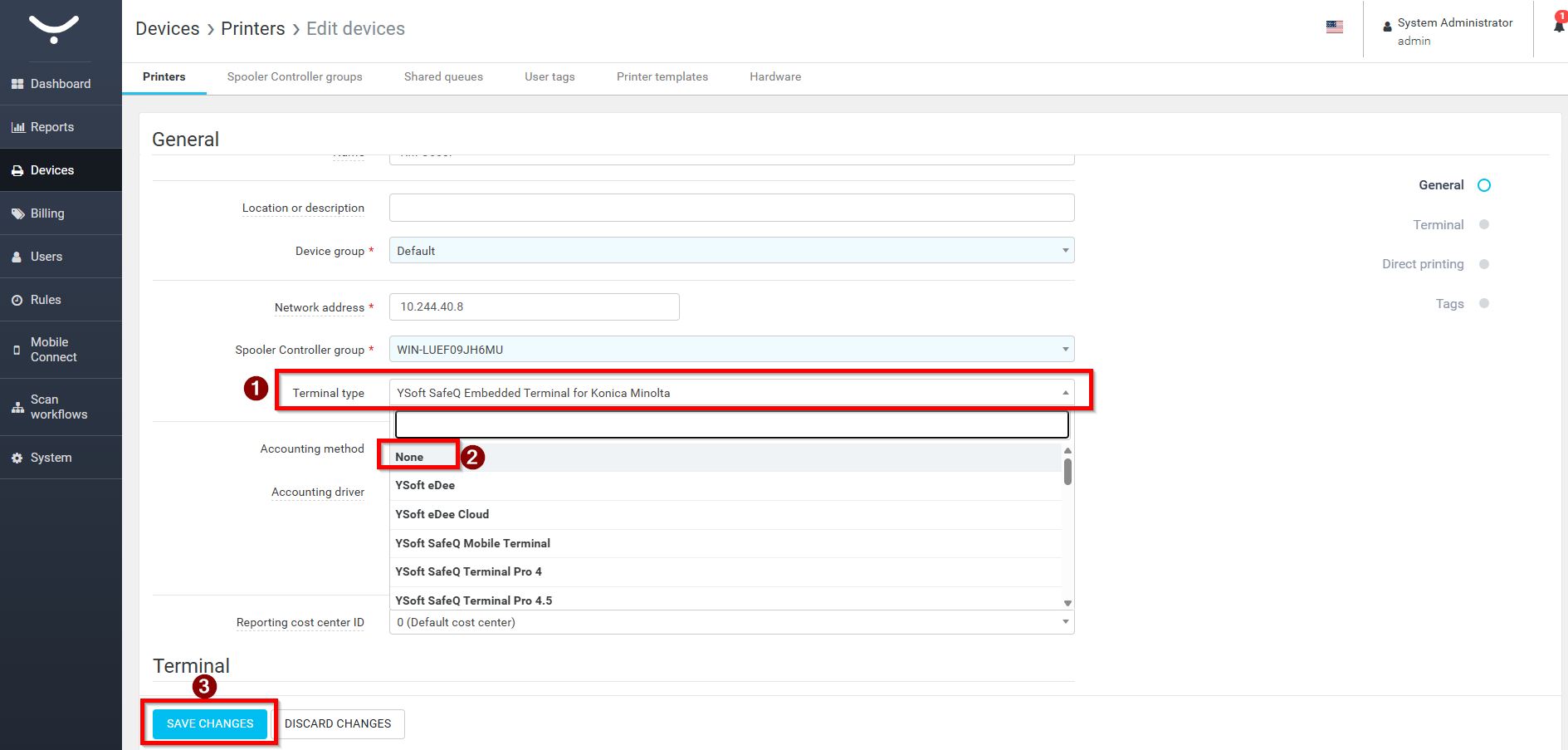
STEP 3 – Scroll down to the [Terminal type] section and change [YSoft SafeQ Embedded Terminal for Konica Minolta] to [None] to safely remove the Embedded Terminal from the printer, then click [Save Changes] to apply the changes.
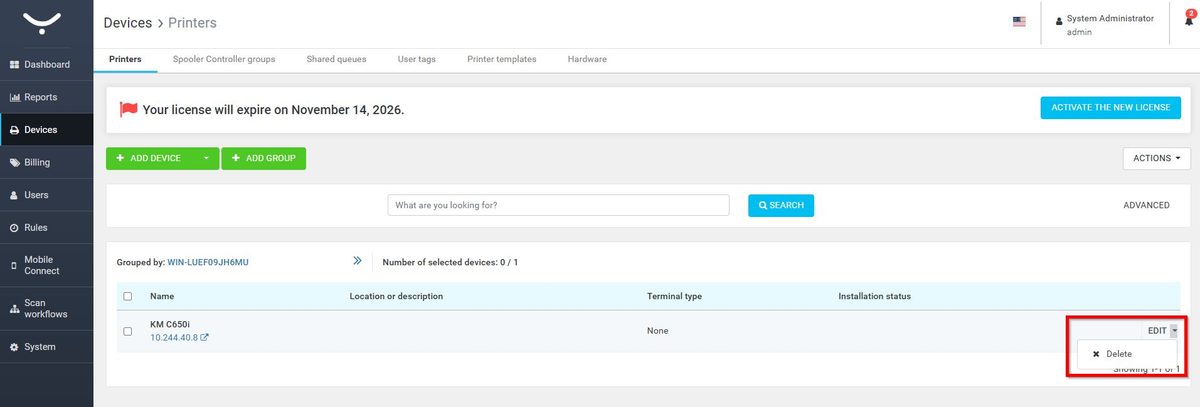
STEP 4 – Once the Embedded Terminal installation process is completed, the system will return to the [Devices] page. Locate the printer, then select [Edit] > [Delete] to remove it from the printer list.