
Guide On Allow SMB In ESET Antivirus For Scanning
This guide explains how to allow SMB (Server Message Block) communication in ESET Endpoint Security to enable printer scan to folder functionality.
When SMB traffic is blocked by ESET, multifunction printers (MFP) may not be able to send scanned documents to shared folders on a user’s computer.
Note: If ESET requires an administrator password to modify the setting, please contact your local IT Support Team for assistance, as the ESET configuration may be managed by your organization’s security policy.
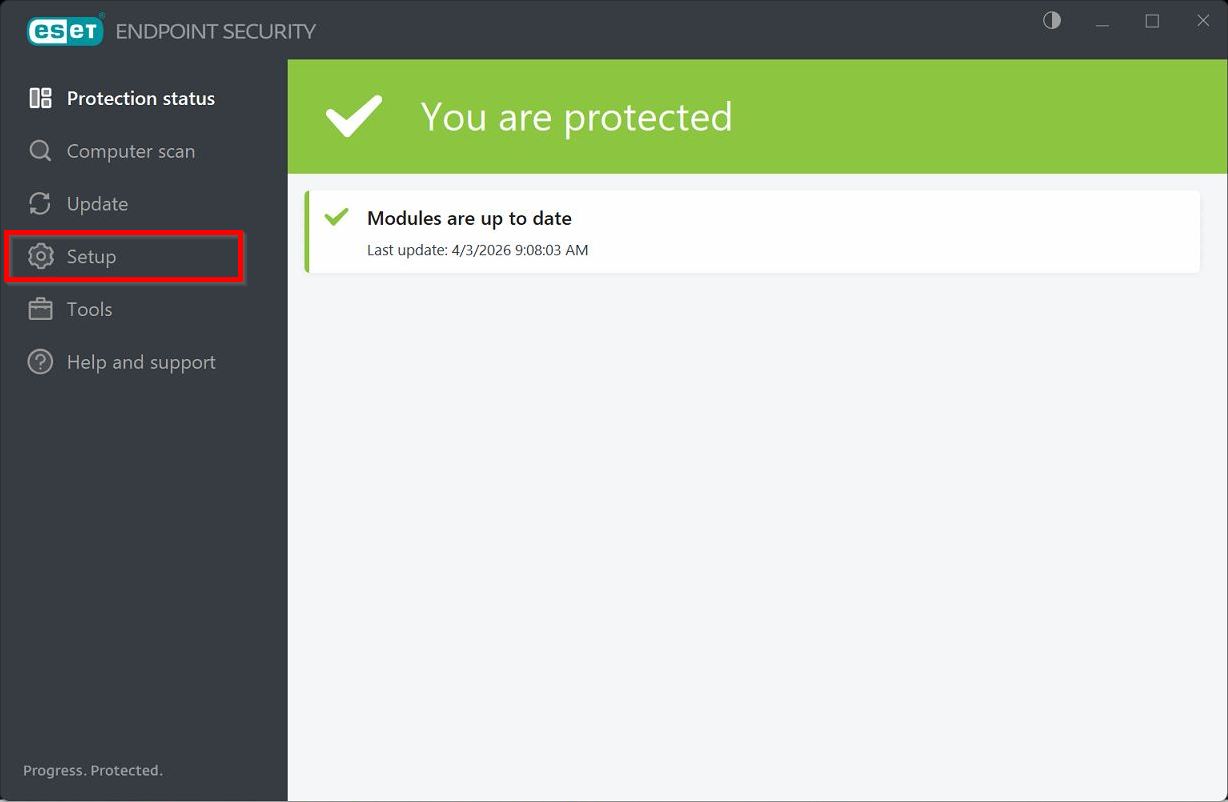
STEP 1 – Open the [ESET Antivirus], find the [Setup] icon.
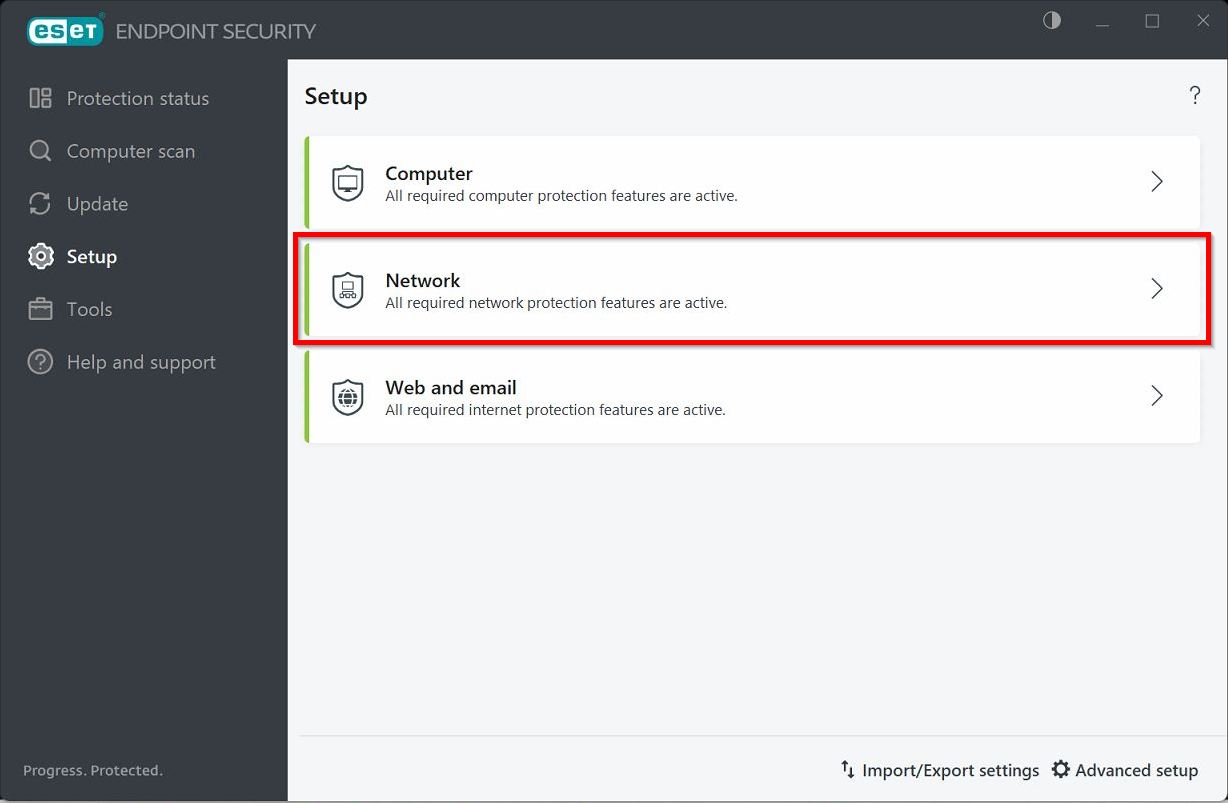
STEP 2 – Click on [Network].
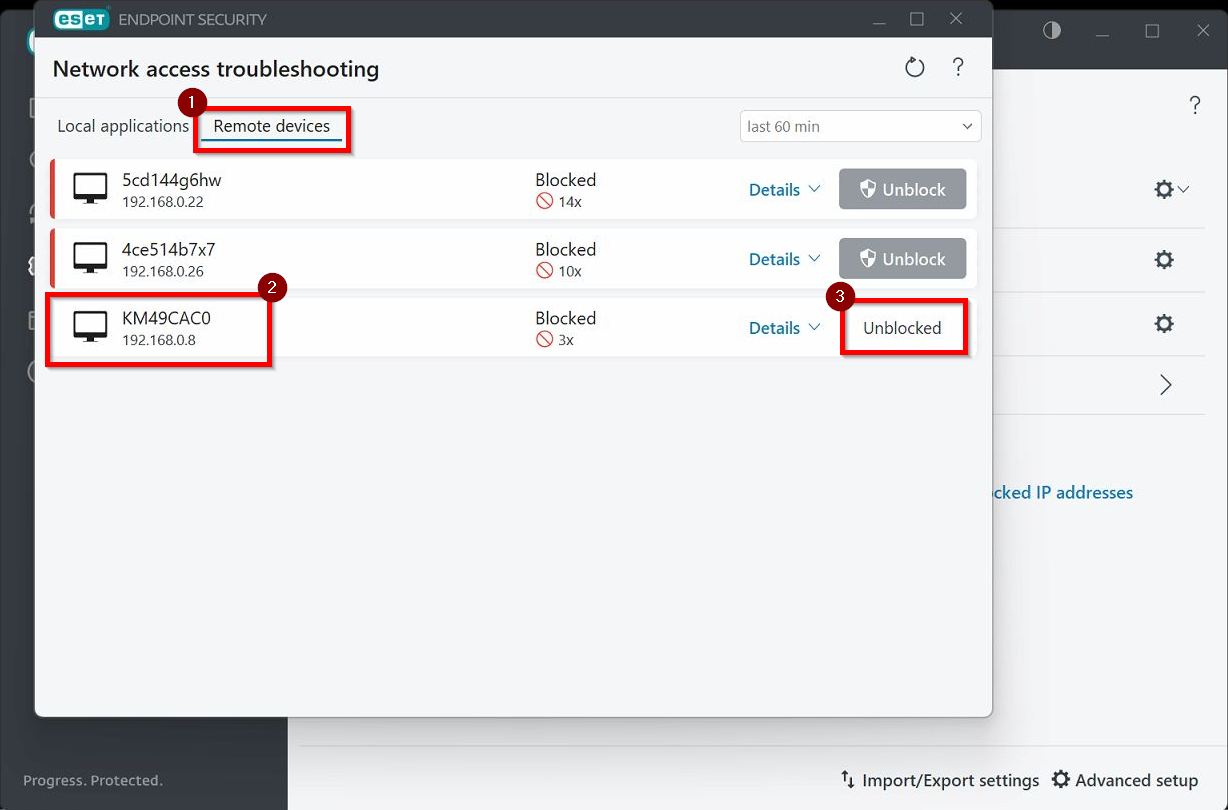
STEP 3 – Go to [Remote Devices]. Check for the [Printer IP Address] in the list of blocked devices. If the printer IP address is found and its status is Blocked, select [Unblock].
Click on the link for How to Get the IP Address from the Printer Machine.