Guide on Change the Scan Original Type to Dot Matrix or Photo Paper
For the Older Machine series / Non I-Series Machine
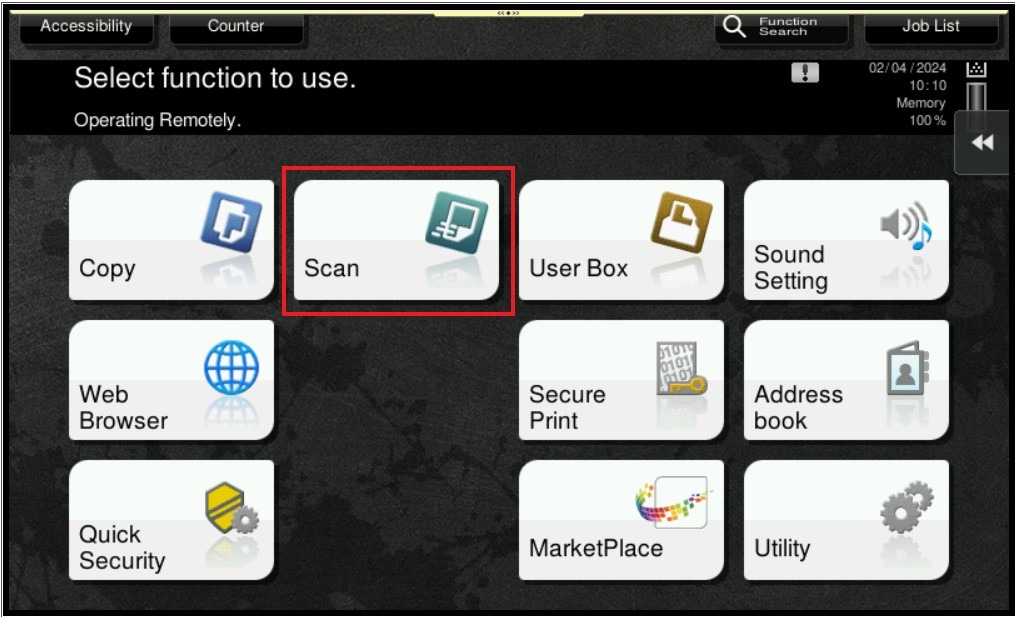
STEP 1 – On the Main Menu Screen, select [Scan].
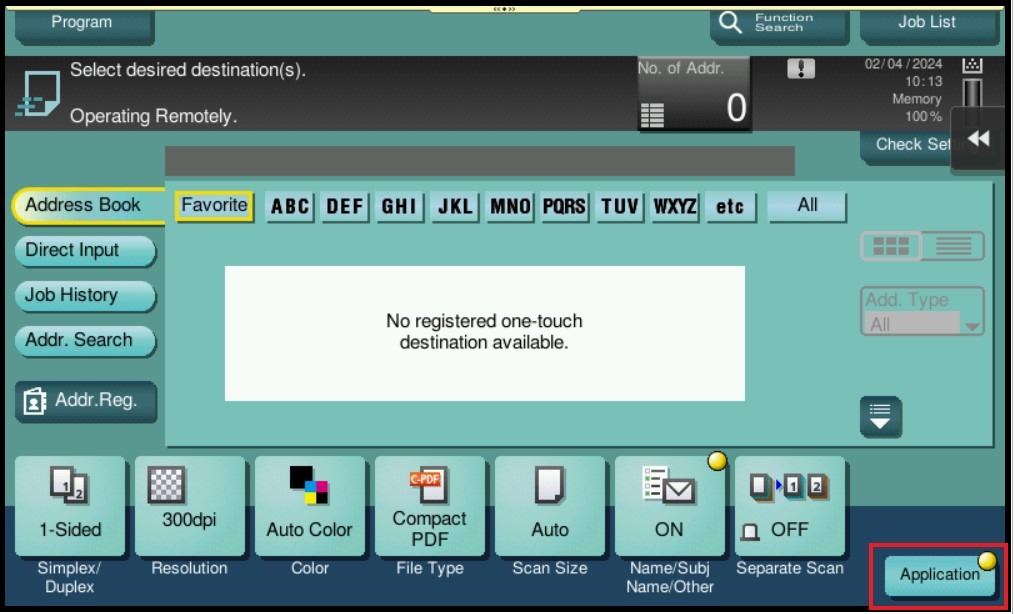
STEP 2 – Select [Application].
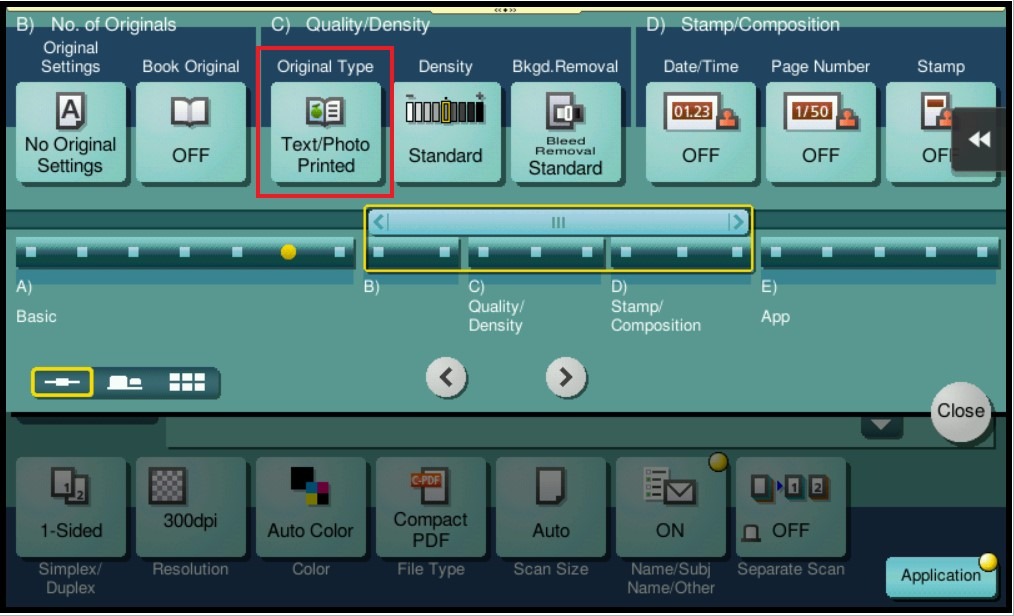
STEP 3 – Select [Original Type].
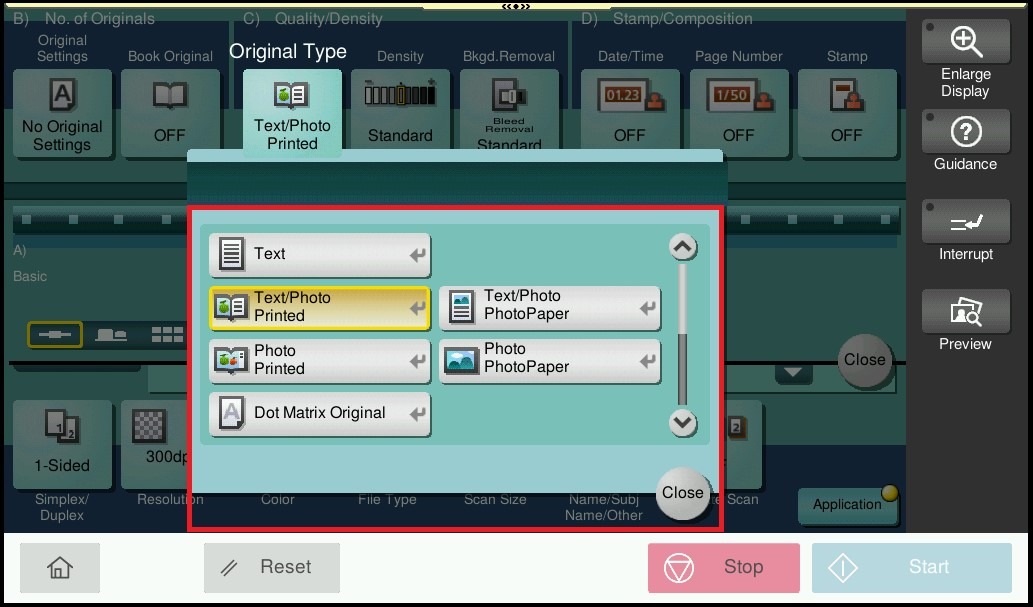
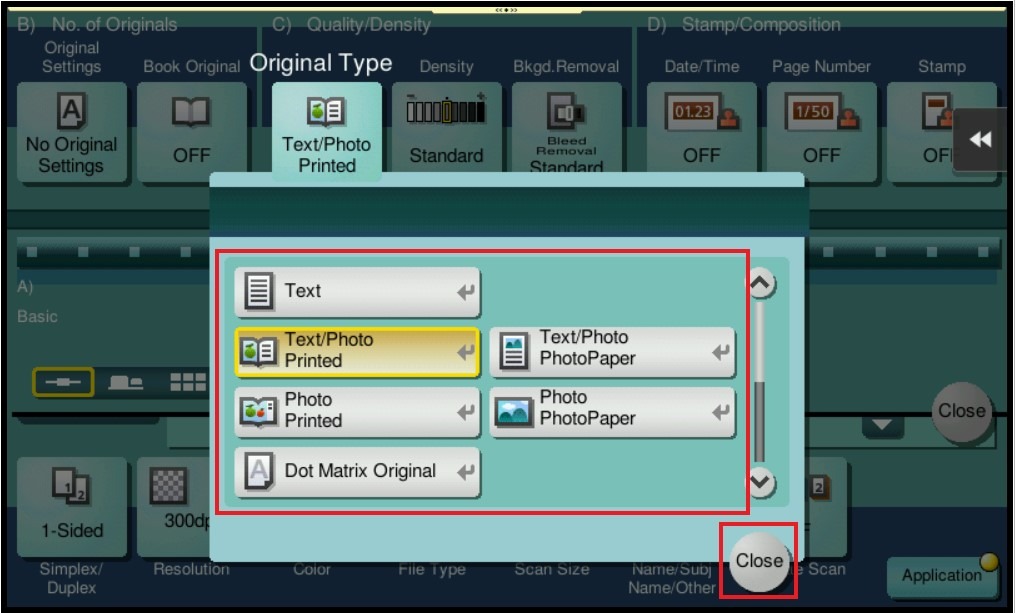
STEP 4 – You may change the original type either on [Dot Matrix Original] or [Photo Paper], then click [Close] to save the setting.
For the Newer Machine series / I-Series Machine
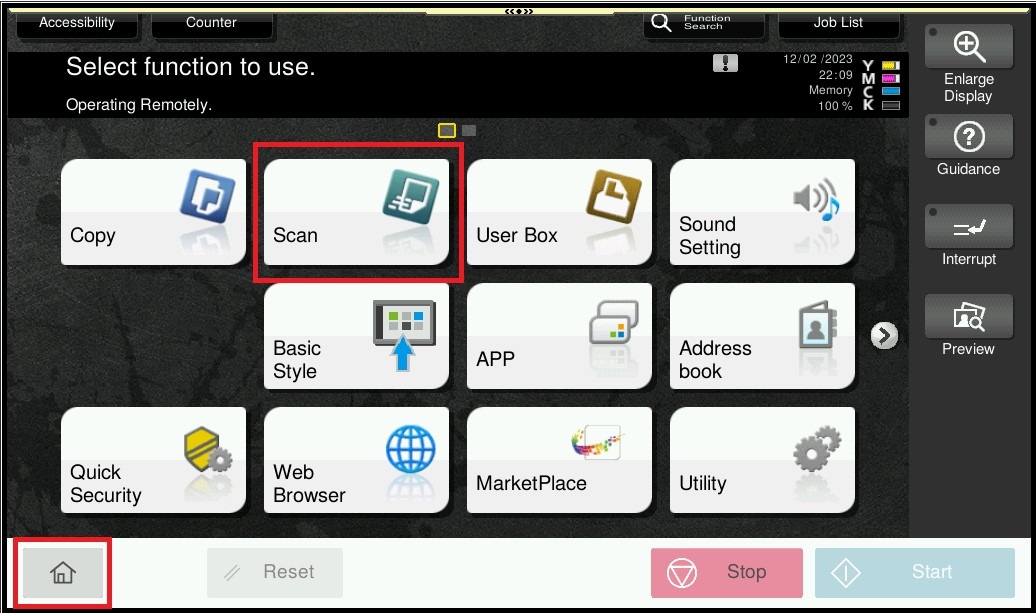
STEP 1 – On the Main Menu Screen, select [Home] – [Scan].
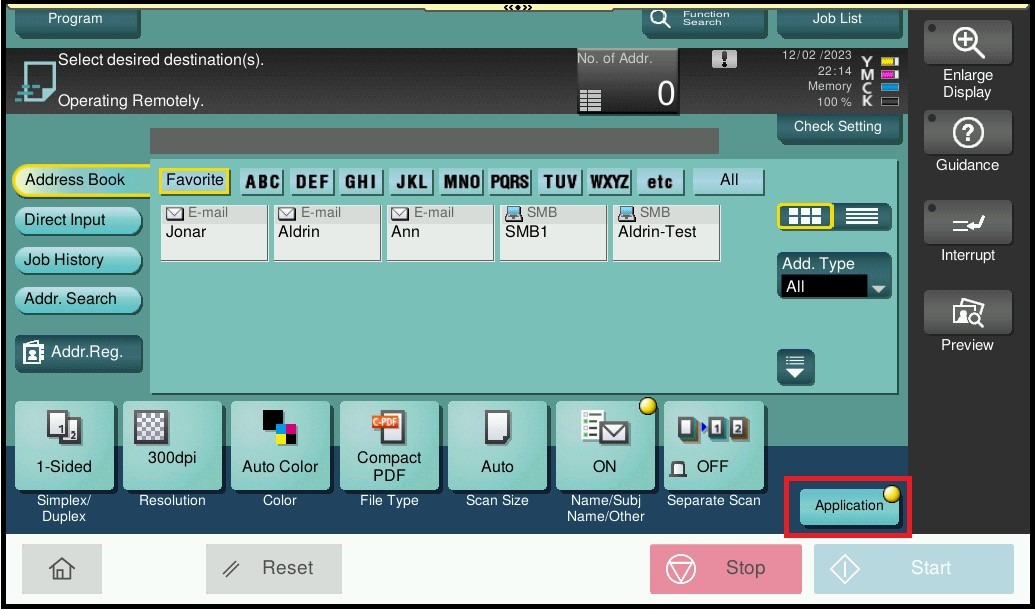
STEP 2 – Select [Application].
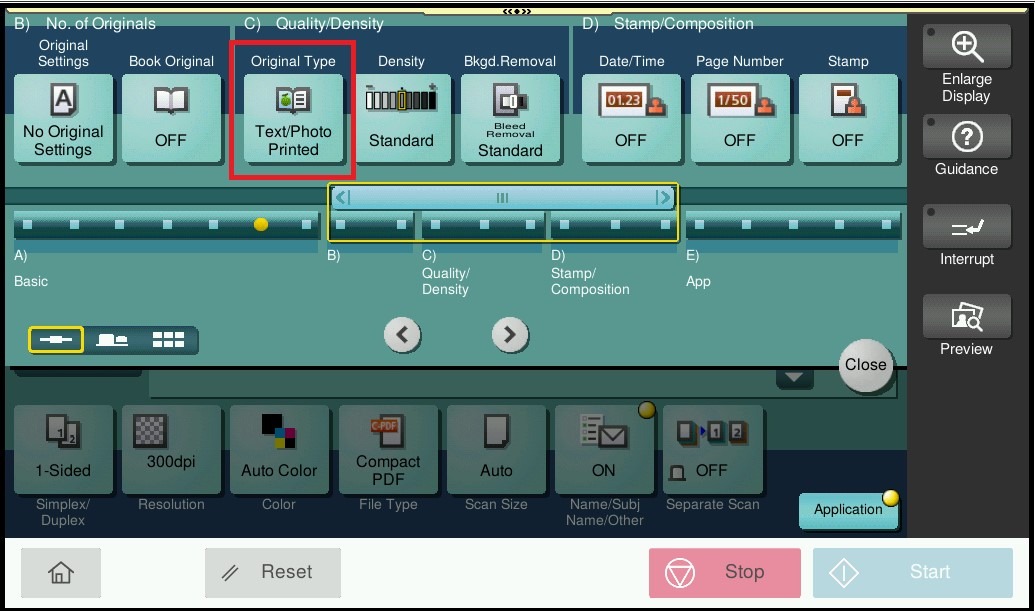
STEP 3 – Select [Original Type].
STEP 4 – You may change the file type either on [Dot Matrix Original] or [Photo Paper], then click [Close] to save the setting.