Guide on check the Printer Firmware Version
This guide explains how to check the current firmware version directly from the printer control panel. Firmware version information is useful for troubleshooting, maintenance and confirming whether the machine is running the latest version.
For Older Machine series / Non I-Series Machine (From Machine Control Panel)
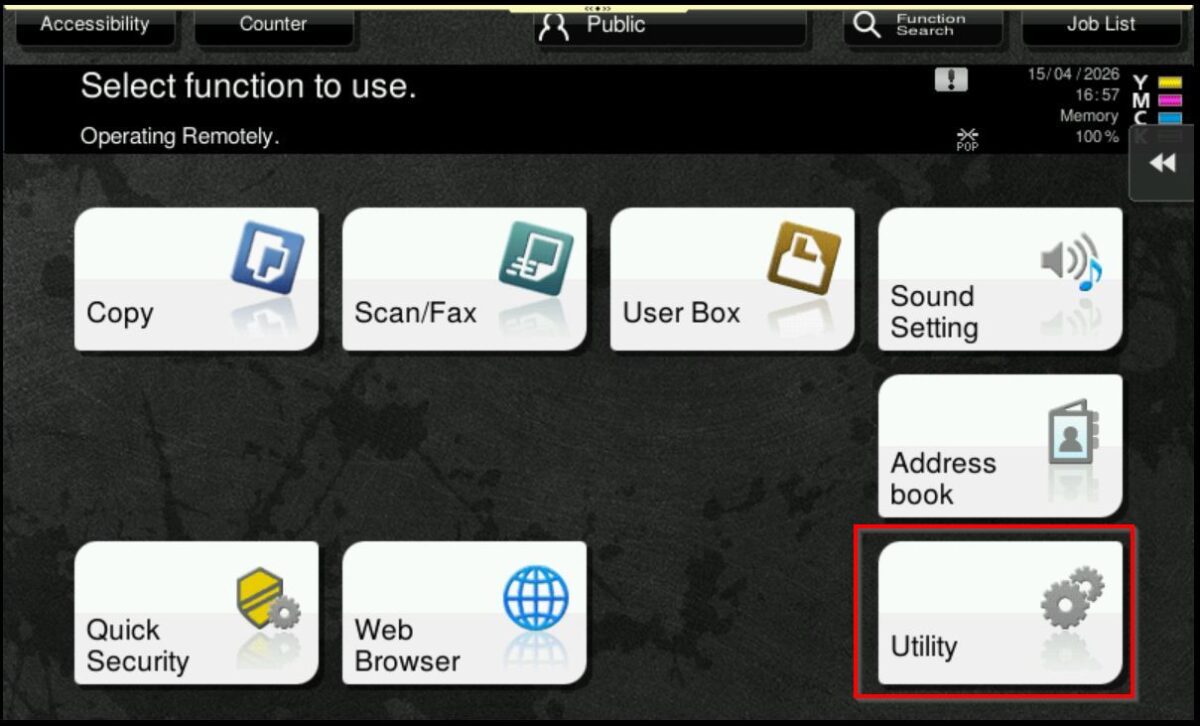
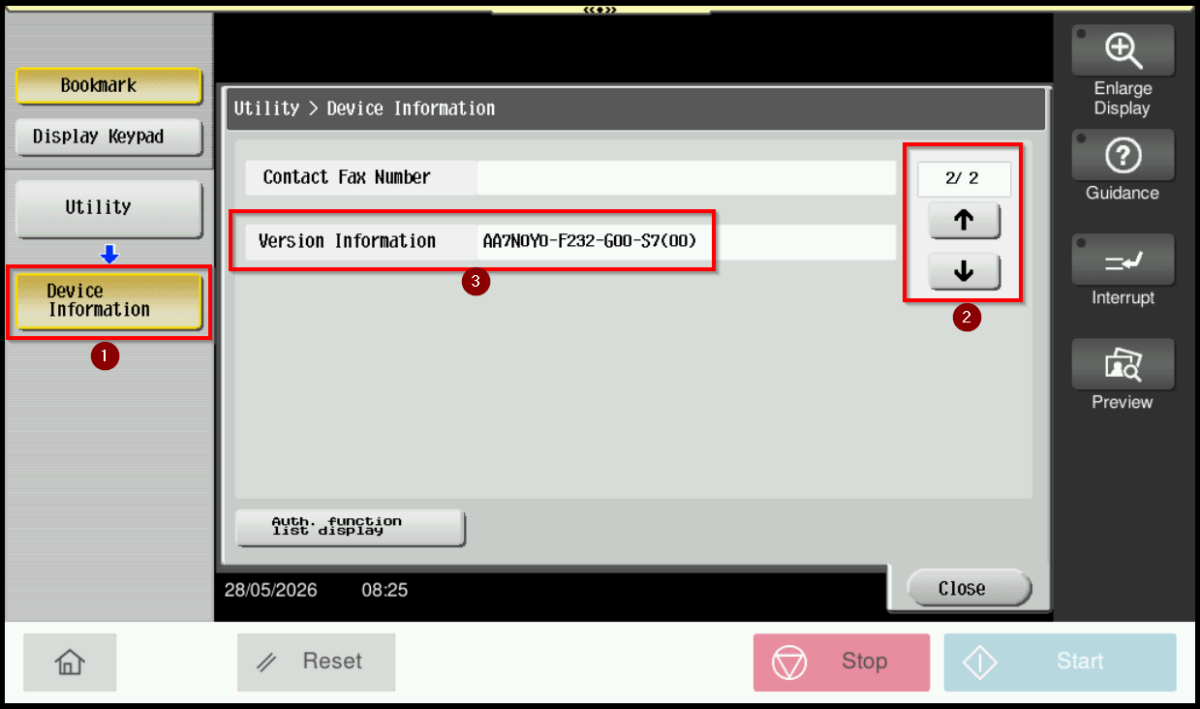
STEP 1 – On the machine Control Panel, click [Menu] button – [Utility] – [Device Information].
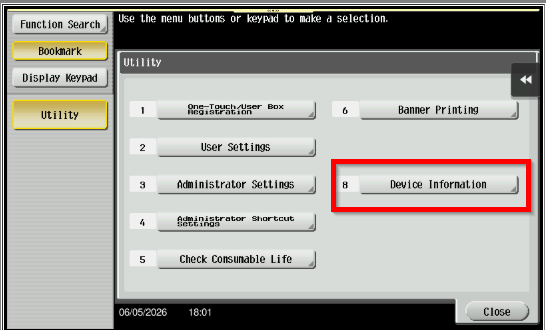
STEP 2 – Select the [down arrow] to navigate to the second page. The printer firmware version can be viewed under [Version Information].
For Older Machine series / Non I-Series Machine (From Web Connection)
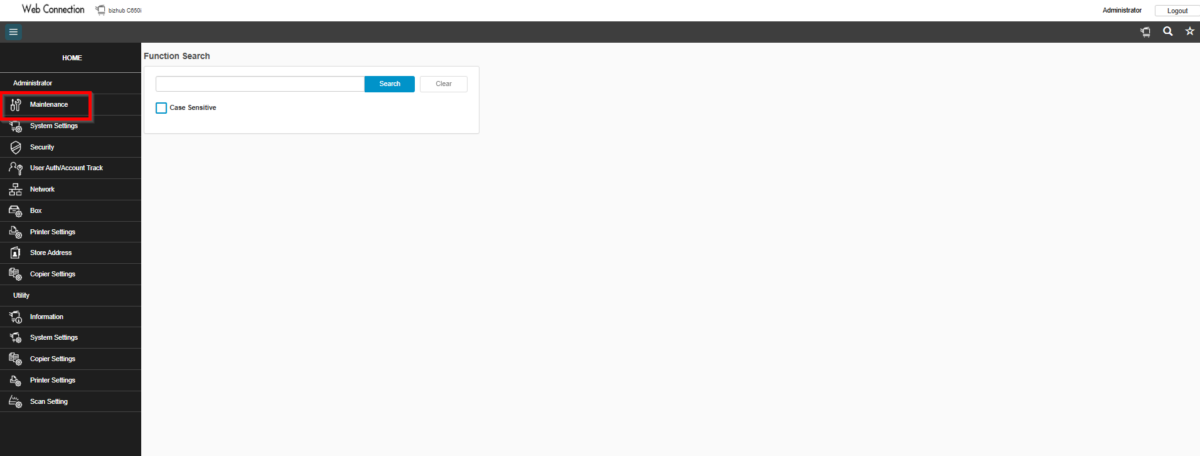
STEP 1 – Access the machine Web Connection. Click this LINK to check on how to get the IP Address from the Konica Minolta machine.
STEP 2 – Access the machine Web Connection from the PC browser. Click this LINK on how to access Web Connection from the browser.
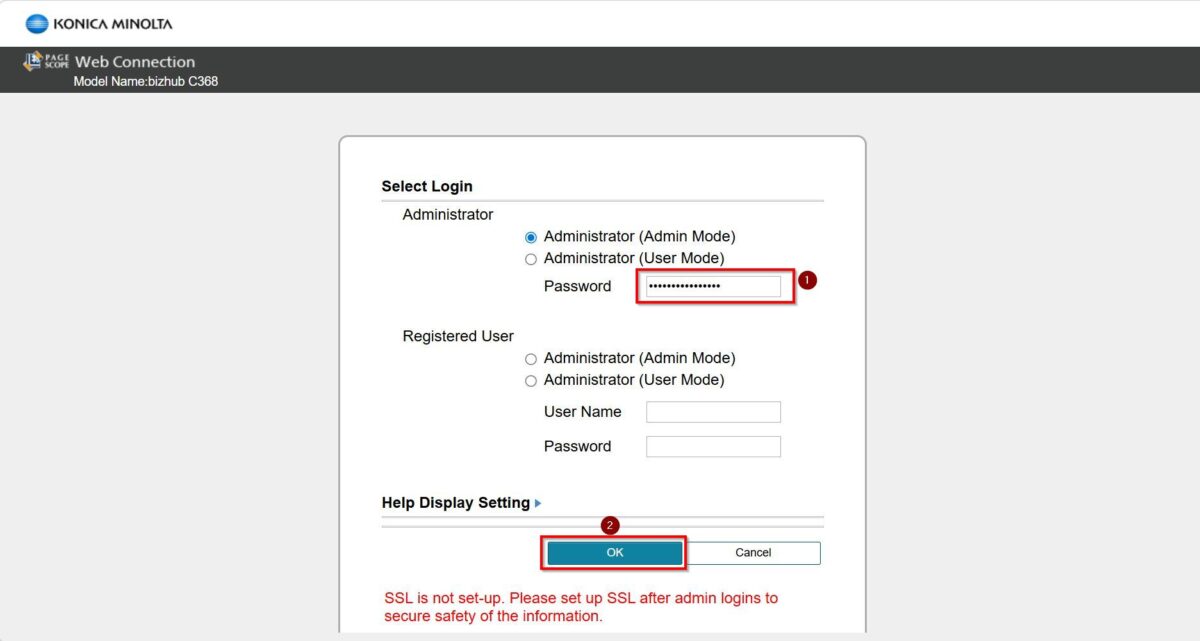
STEP 3 – Logout from public then login as Administrator, default administrator password: [7801261178012611] or [1234567812345678] or [12345678] or [12341234].
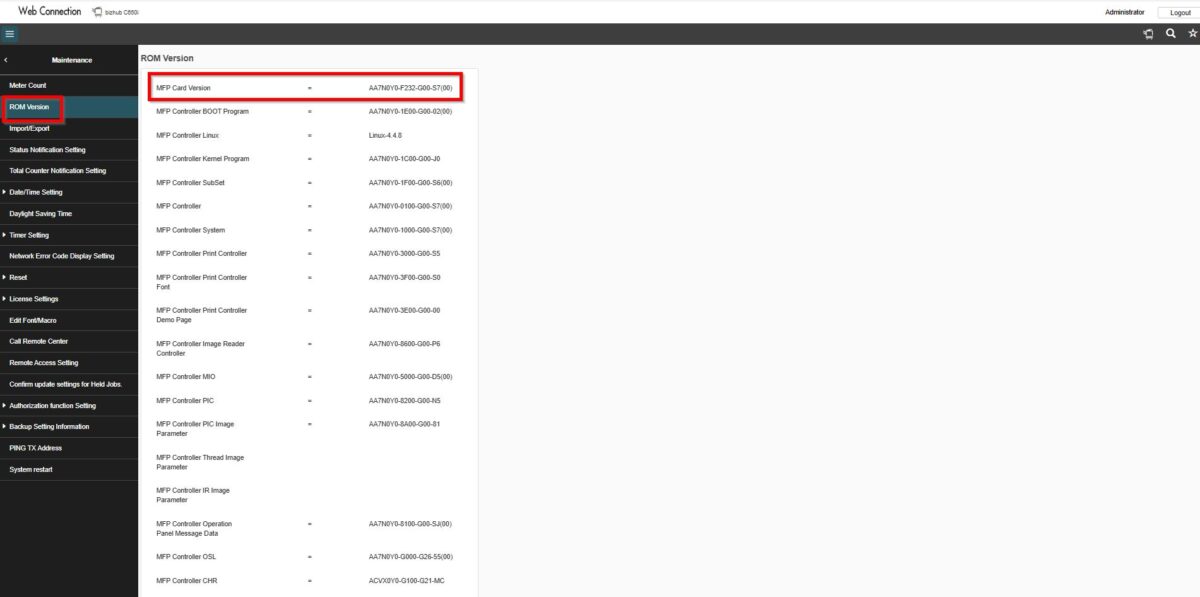
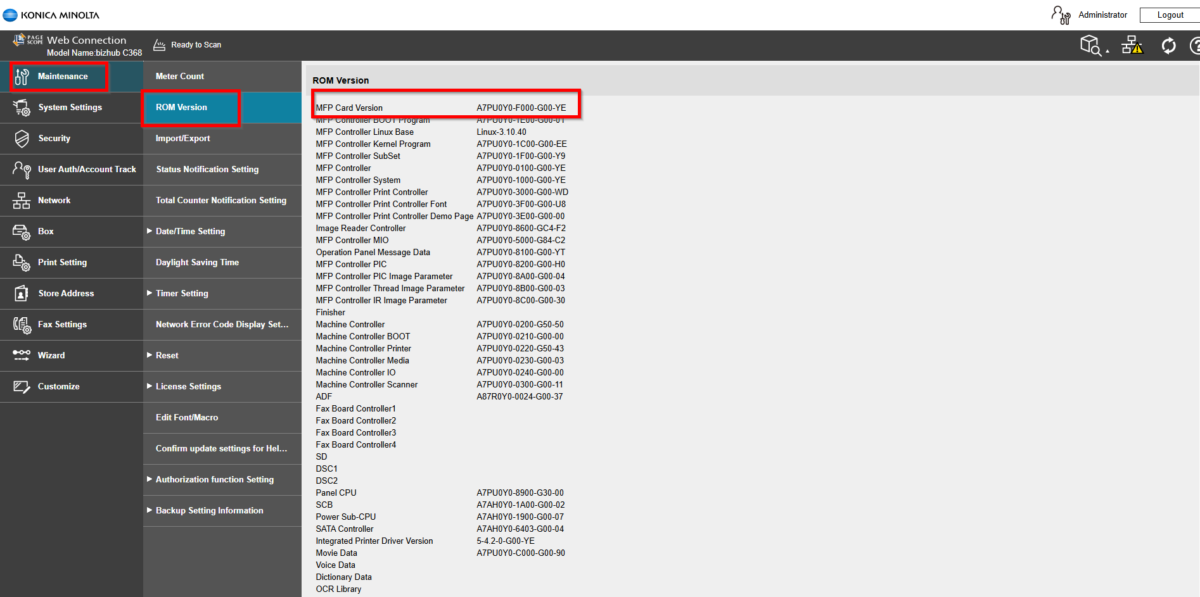
STEP 4 – Select [Maintenance] – [ROM Version] and the printer firmware version can be viewed under [MFP Card Version].
For Newer Machine series / I-Series Machine (From Machine Control Panel)
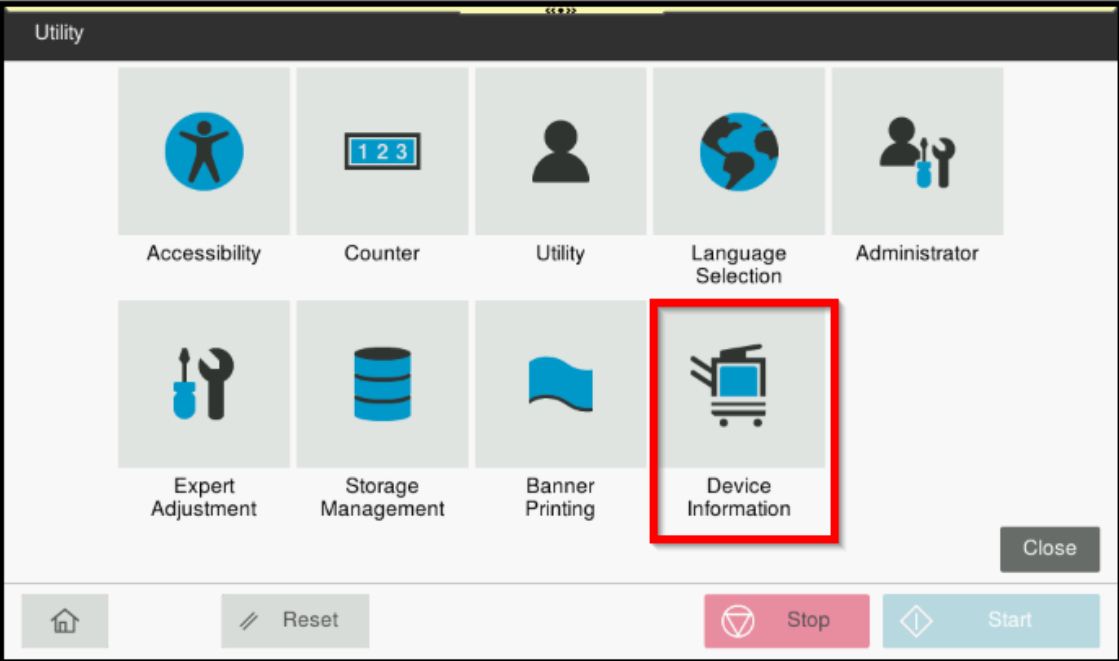
STEP 1 – On the machine Control Panel, click [Home] – [Menu] button – [Utility] – [Device Information].

STEP 2 – Select the [down arrow] to navigate to the second page. The printer firmware version can be viewed under [Version Information].
For Newer Machine series / I-Series Machine (From Web Connection)
STEP 1 – Access the machine Web Connection. Click this LINK to check on how to get the IP Address from the Konica Minolta machine.
STEP 2 – Access the machine Web Connection from the PC browser. Click this LINK on how to access Web Connection from the browser.
STEP 3 – Logout from public then login as Administrator, default administrator password: [7801261178012611] or [1234567812345678] or [12345678] or [12341234].
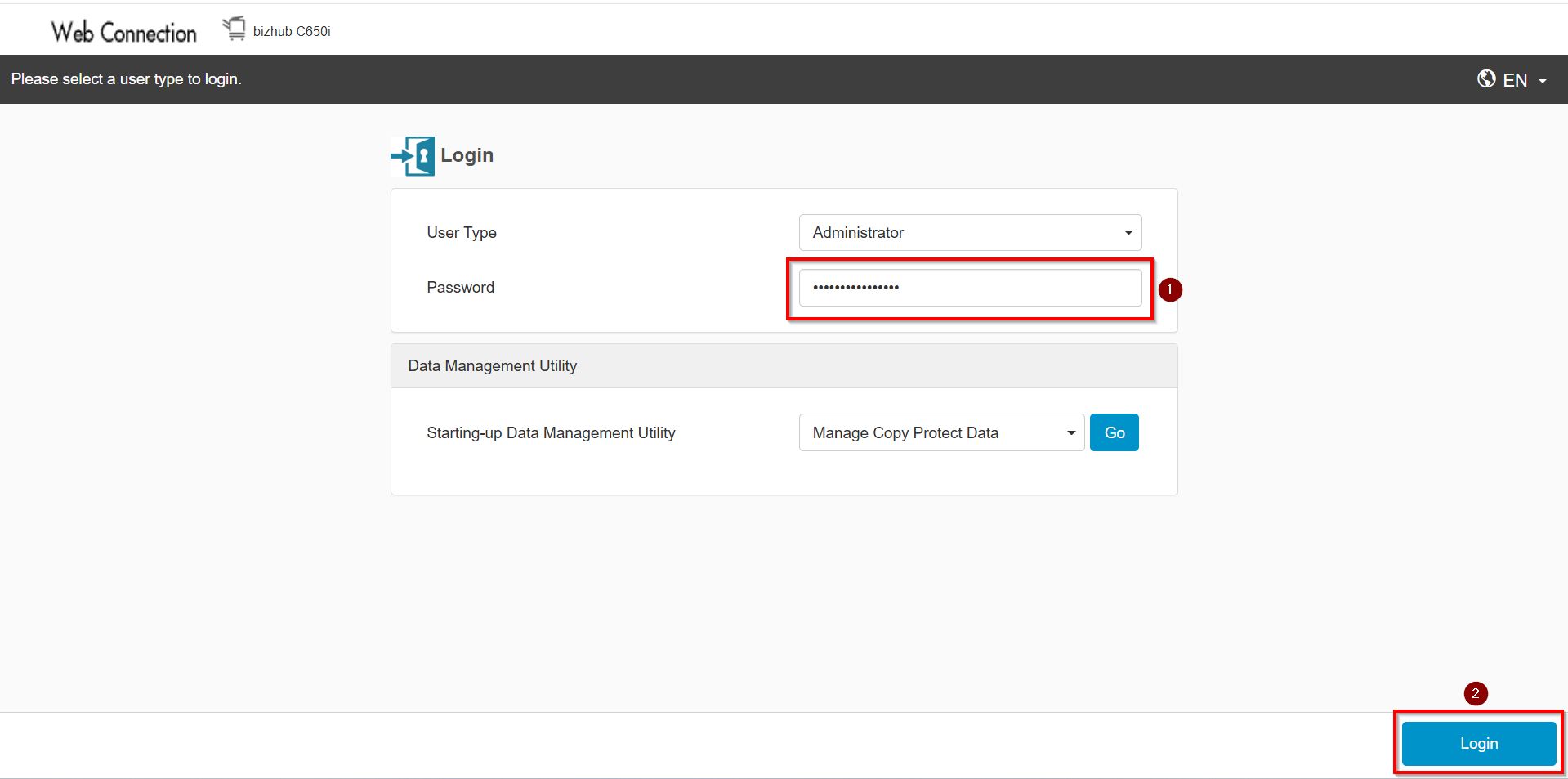
STEP 4 – Select [Maintenance] – [ROM Version] and the printer firmware version can be viewed under [MFP Card Version].