
Guide on edit or Delete an Account Track Account on Printer
When to edit or delete account for Account Track on the Printer
When the user wants to edit or delete a account in Account Track on the Machine, it can be done via Web Connection or Machine panel directly, this is useful when required updating account information or removing account who are no longer required access.
For Older Machine series / Non I-Series Machine (From Machine Control Panel)
STEP 1 – On the machine Control Panel, click [Menu] button – [Utility] – [Administrator Settings].
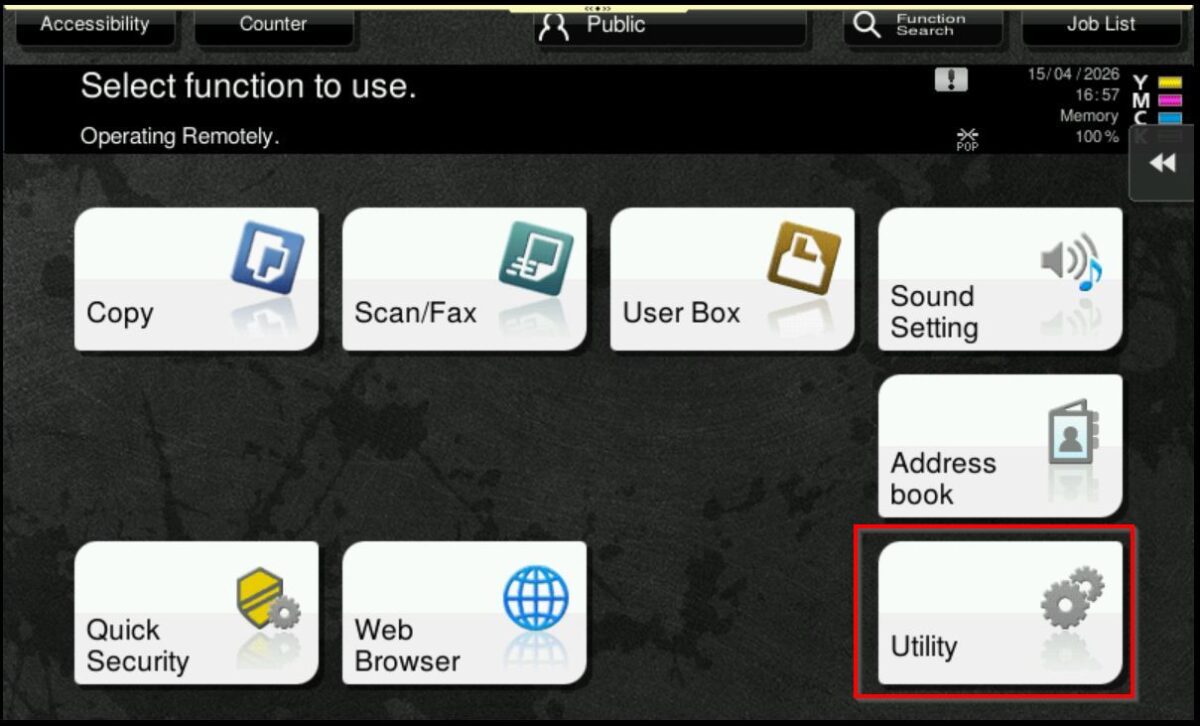
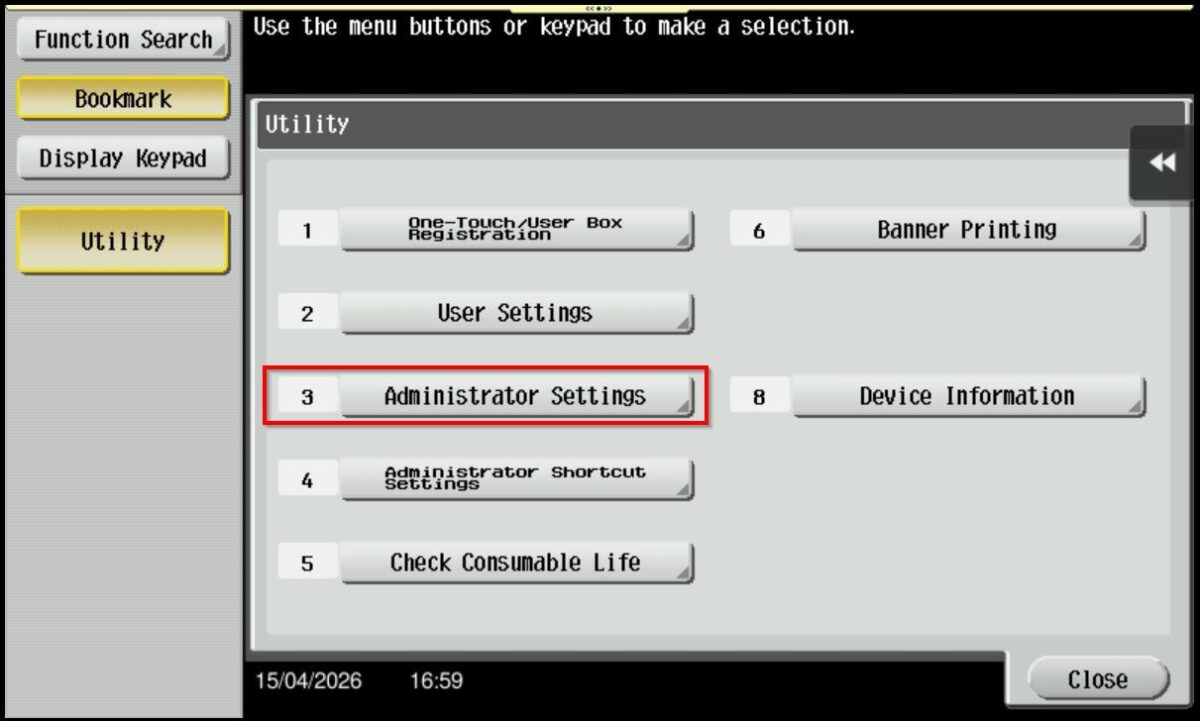
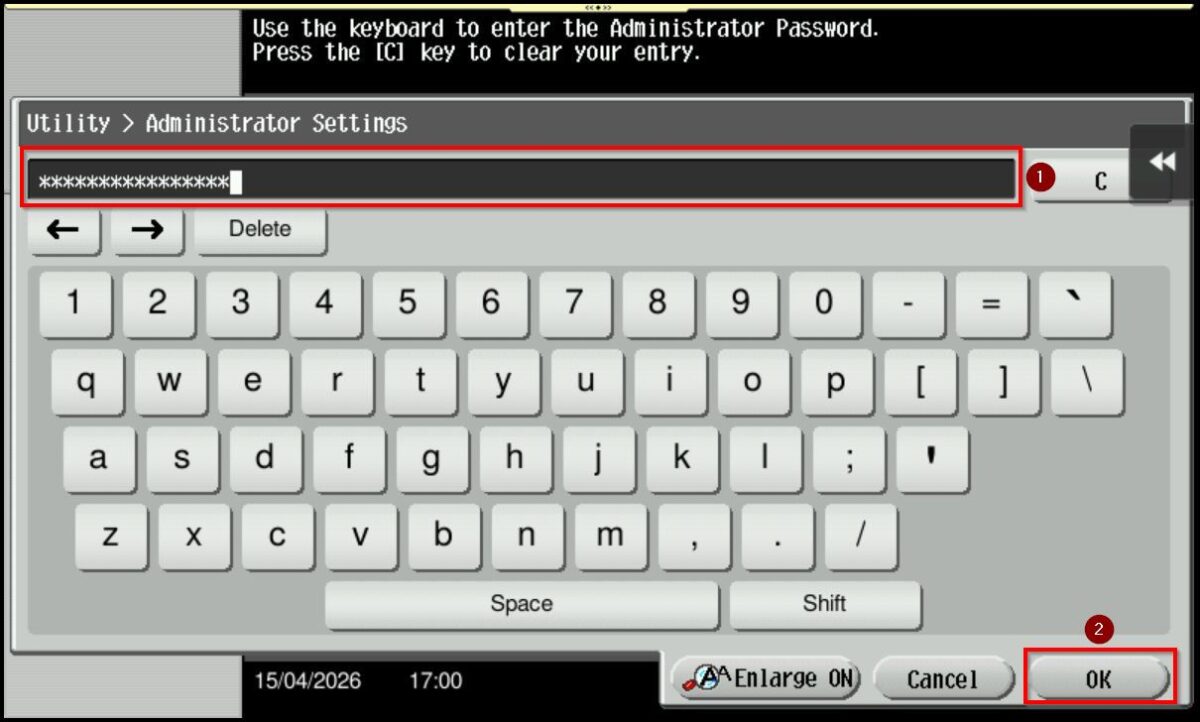
STEP 2 – Key in administrator password then proceed to select [OK], default administrator password: [7801261178012611] or [1234567812345678] or [12345678] or [12341234].
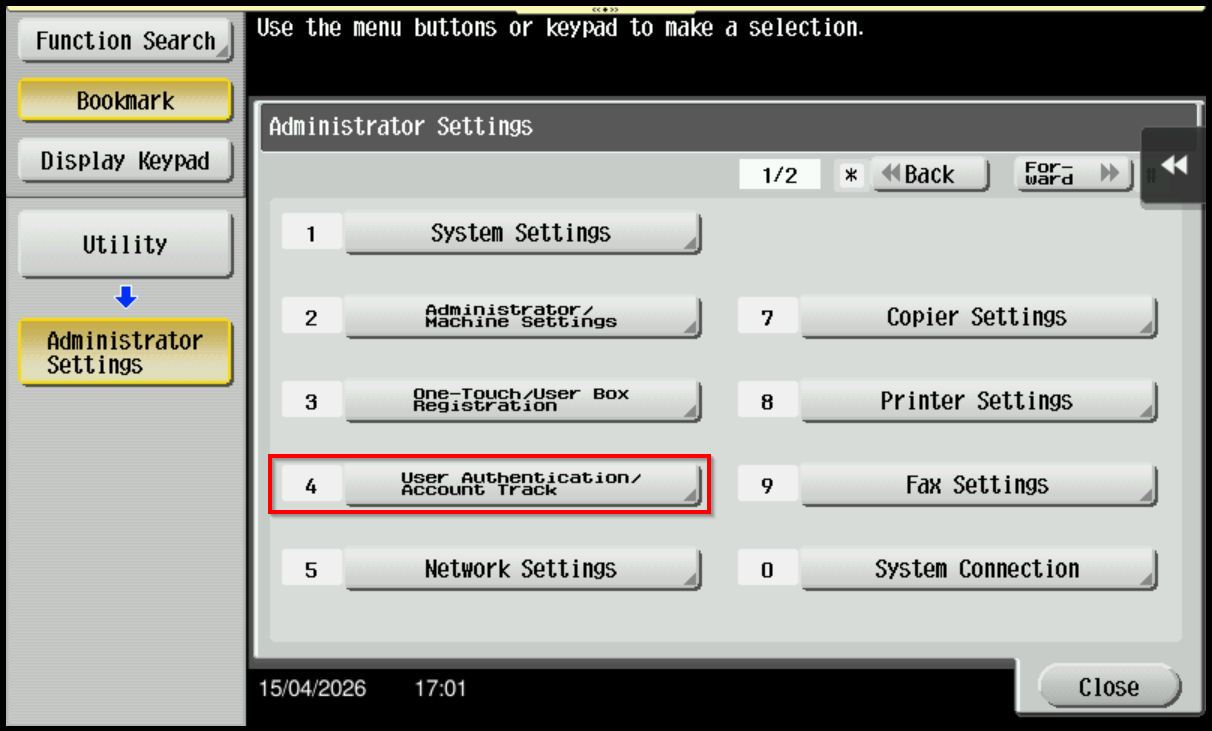
STEP 3 – Select [User Authentication/Account Track] – [Account Track Settings].
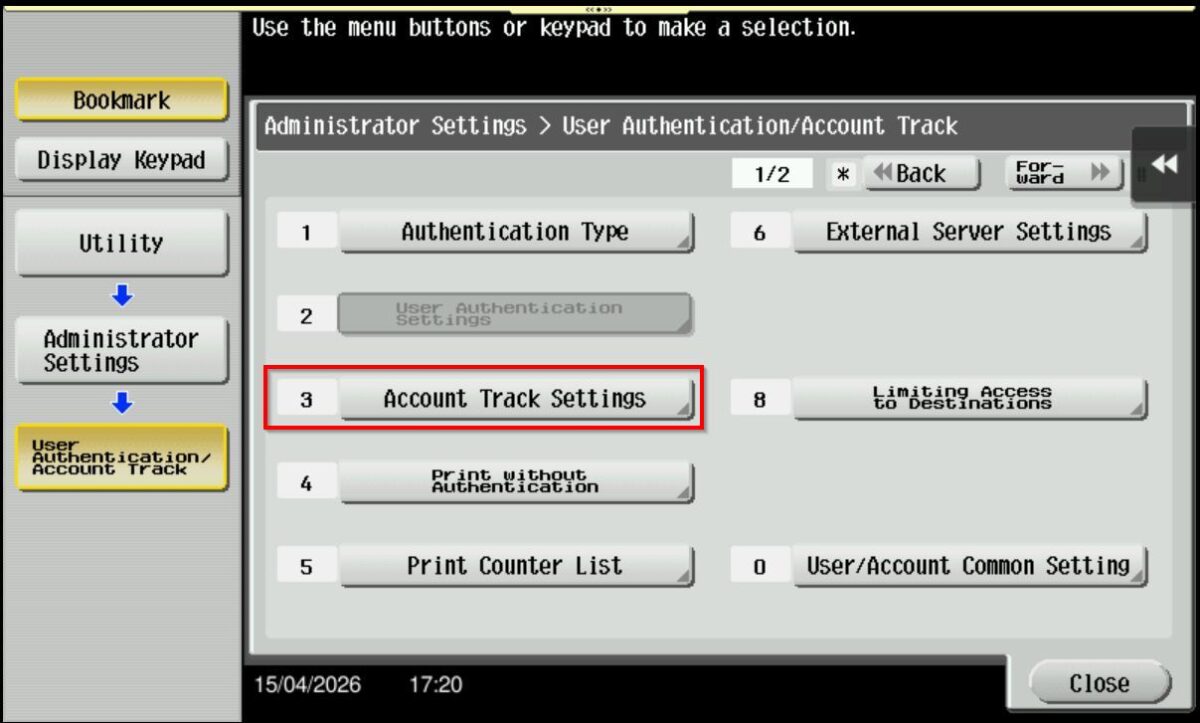
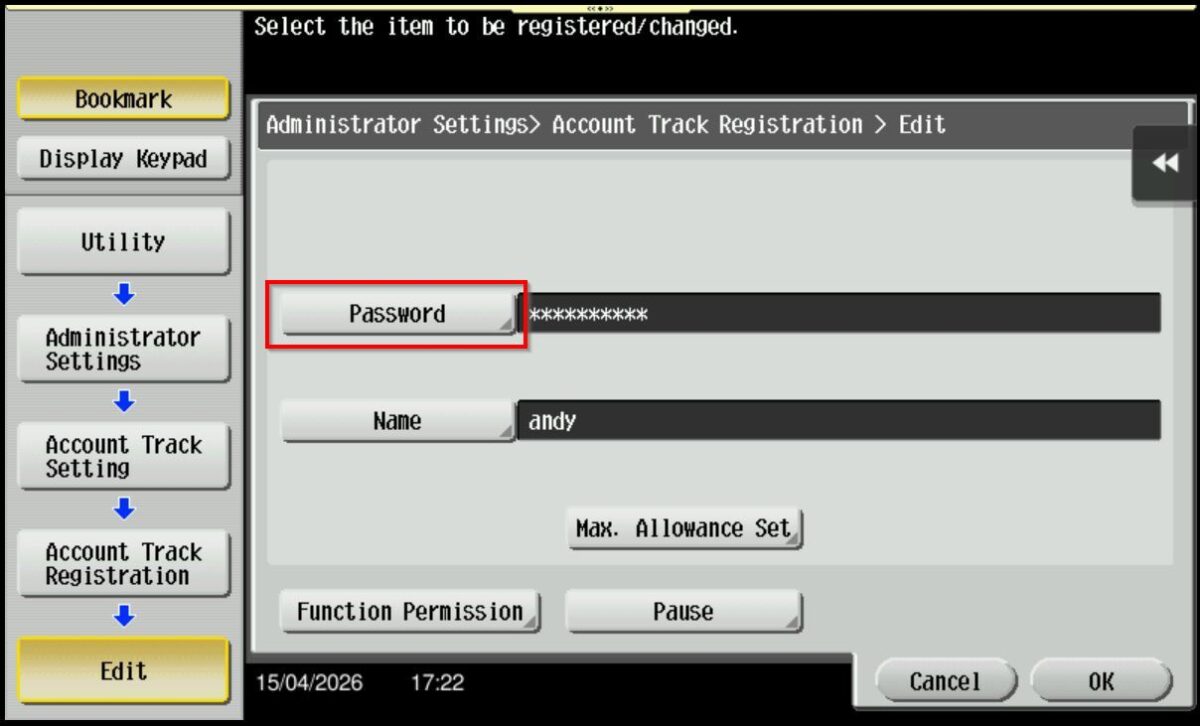
STEP 4 – Select [Account Track Registration], choose the registered user that want to change password and click on [Edit].
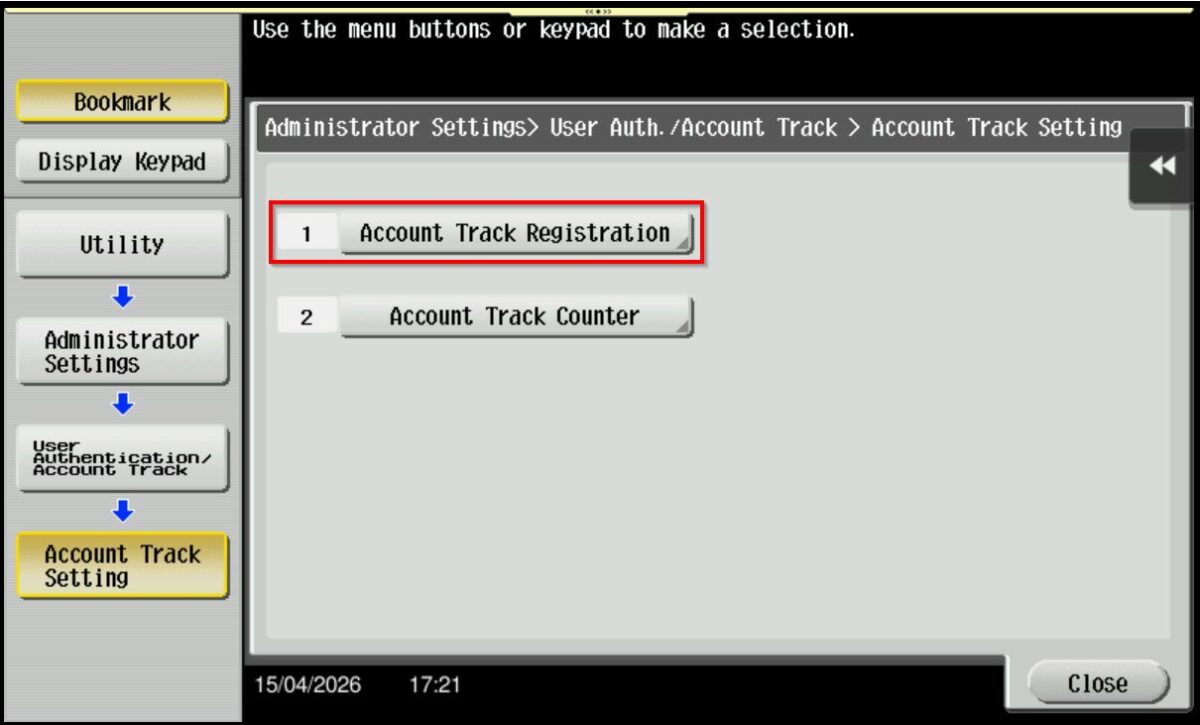
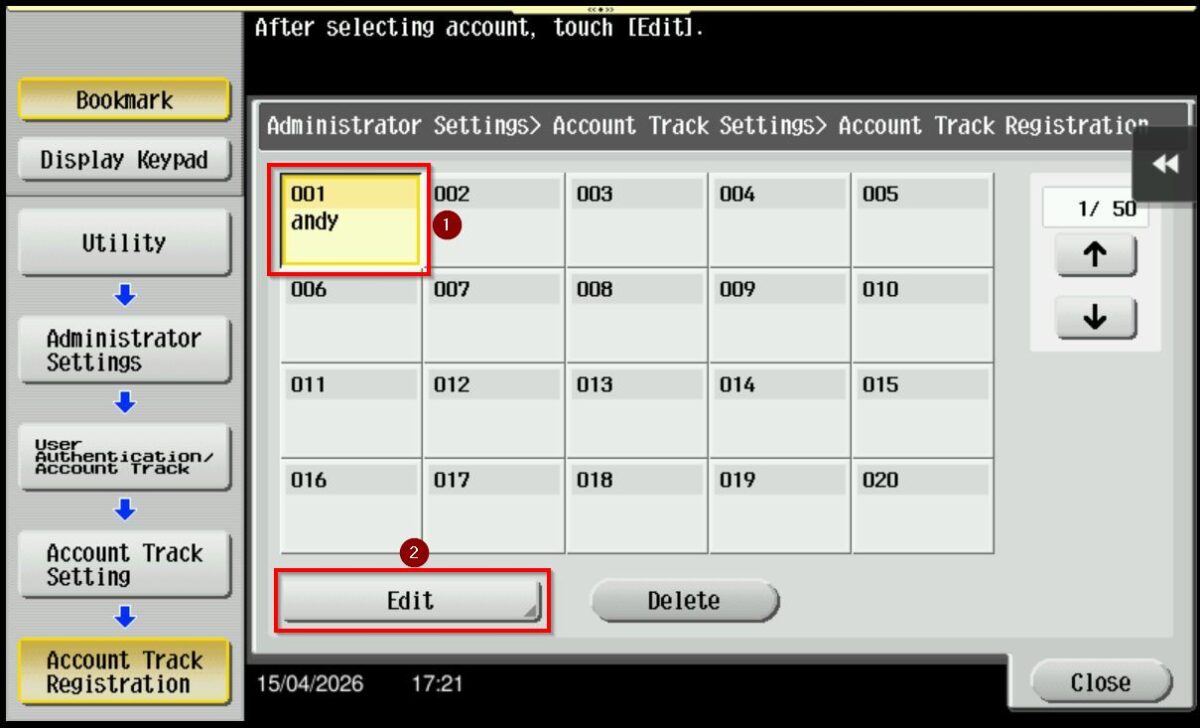
*To change the password for registered account
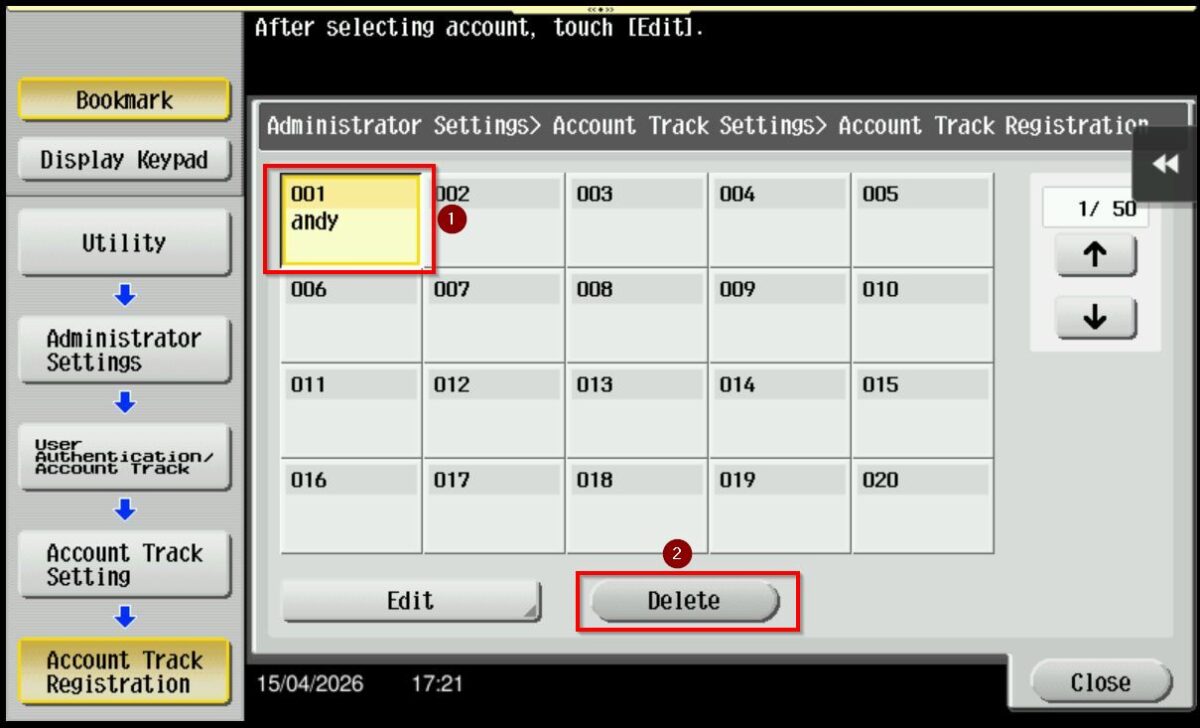
*To delete registered account
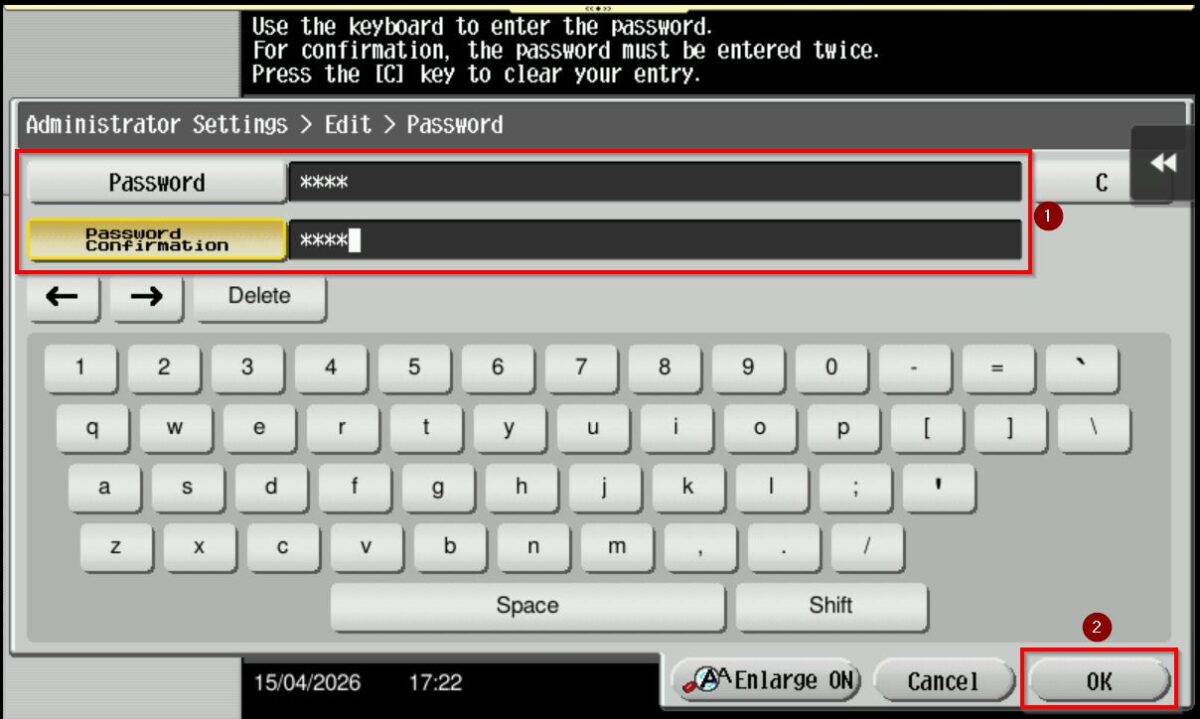
STEP 5 – Click on the [Password], update the new password that is desired, then click on [OK] twice to save the setting.
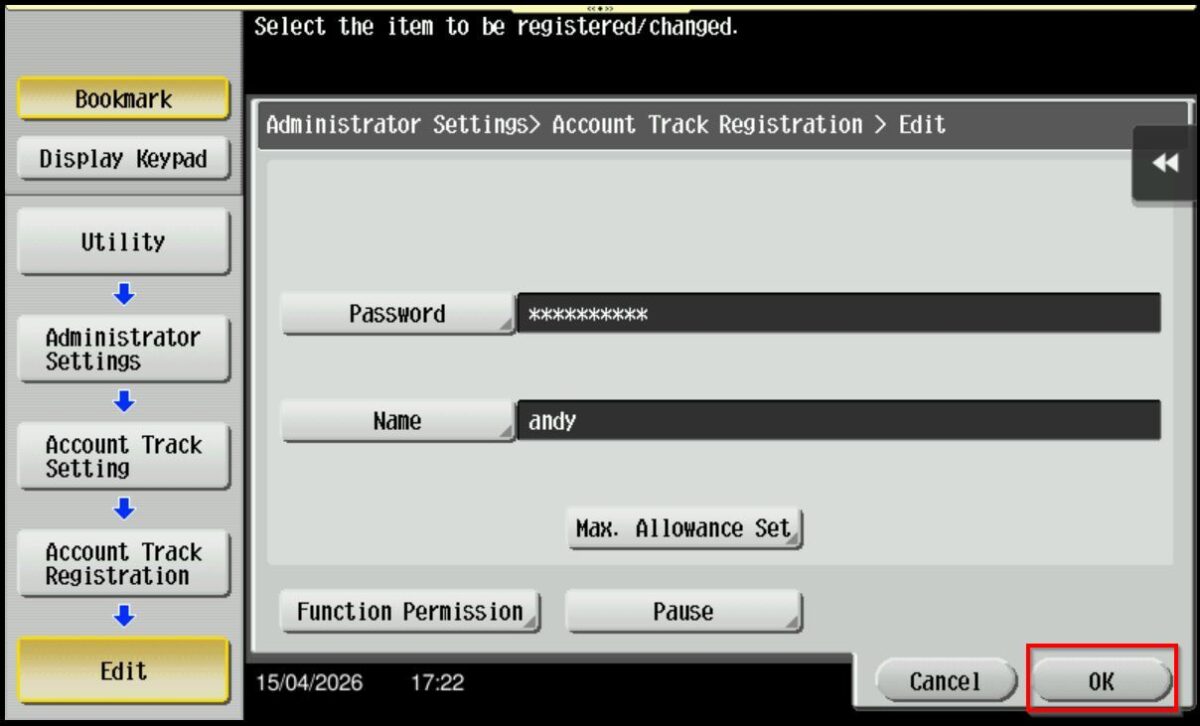
STEP 6 – Once password has been updated, users should be able to use the username and new password to access the machine. Please refer to this LINK on how to update the username and password on the printer driver for Windows OS or this LINK for MAC OS.
For Older Machine series / Non I-Series Machine (From Web Connection)
STEP 1 – Access the machine Web Connection. Click this LINK to check on how to get the IP Address from the Konica Minolta machine.
STEP 2 – Access the machine Web Connection from the PC browser. Click this LINK on how to access Web Connection from the browser.
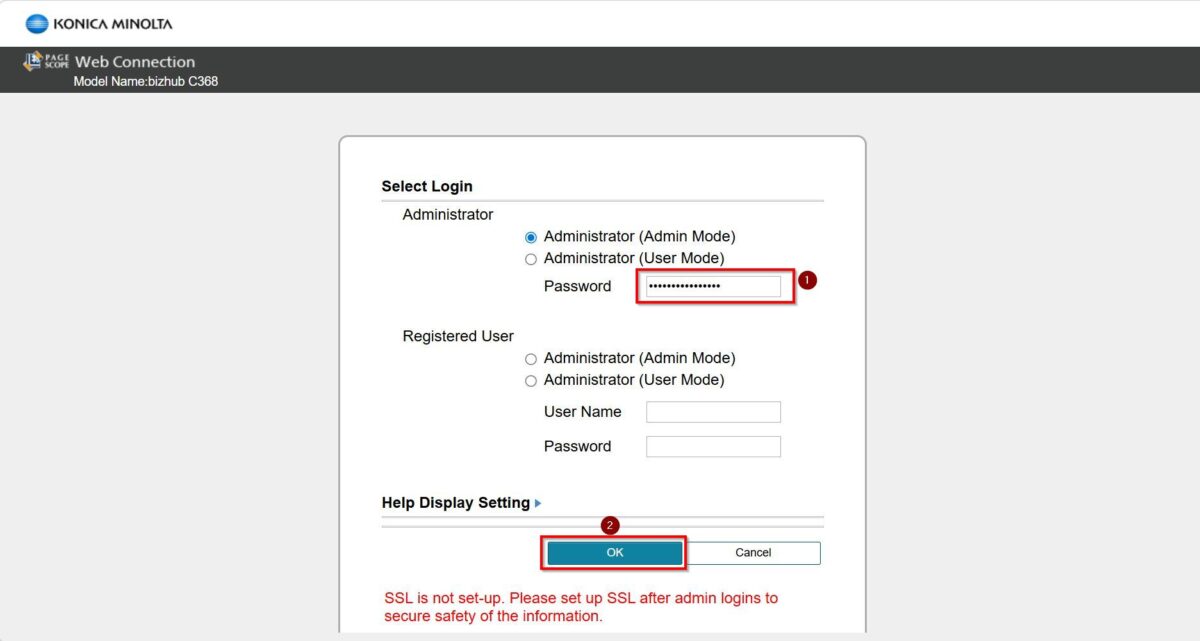
STEP 3 – Logout from public then login as Administrator, default administrator password: [7801261178012611] or [1234567812345678] or [12345678] or [12341234].
STEP 4 – Go to [User Auth/Account Track] – [Account Track Settings], select the registered account that you want to edit. If want to edit the account or account password, click on [Edit]. Select [Delete] if you want to delete a registered account that no longer need access.
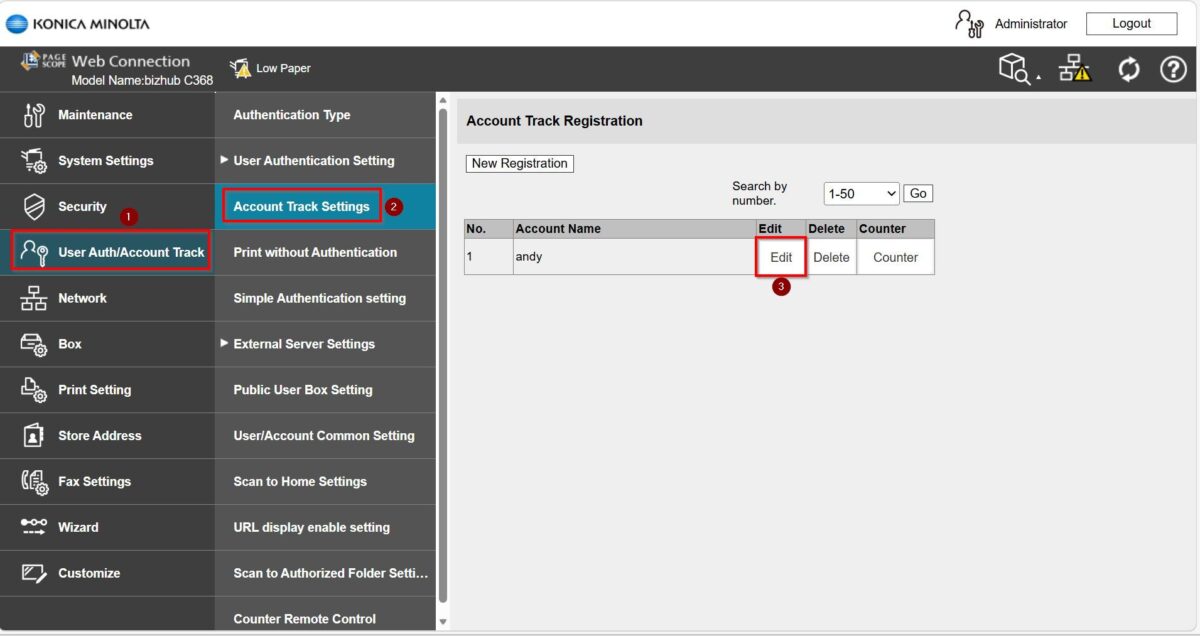
*Edit a registered account
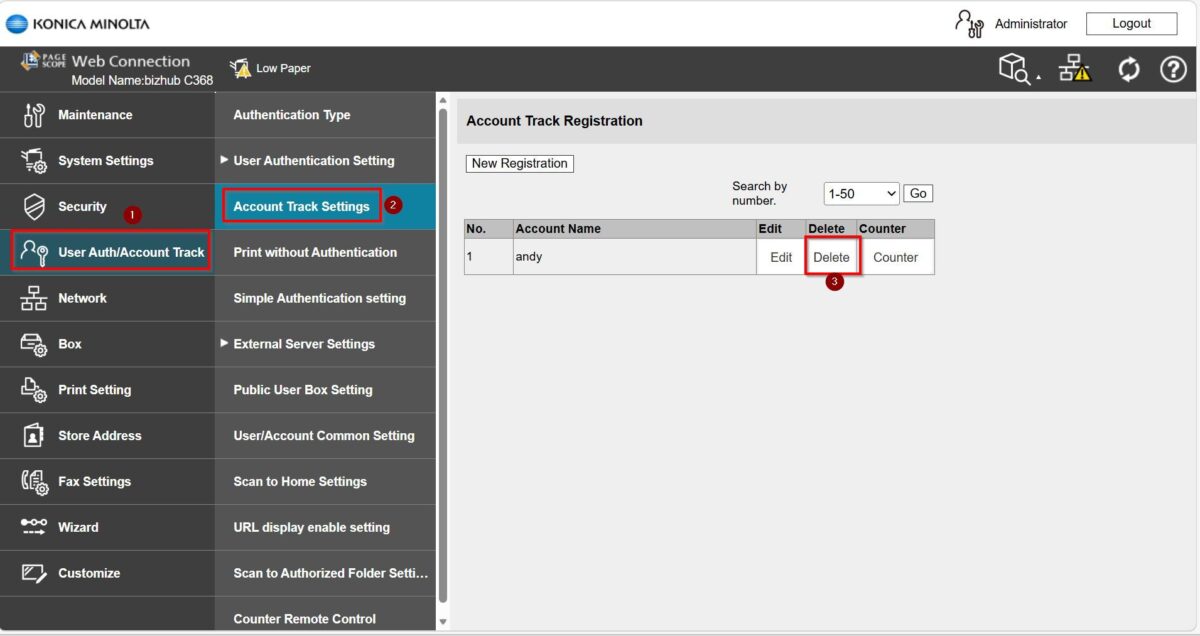
*Delete a registered account
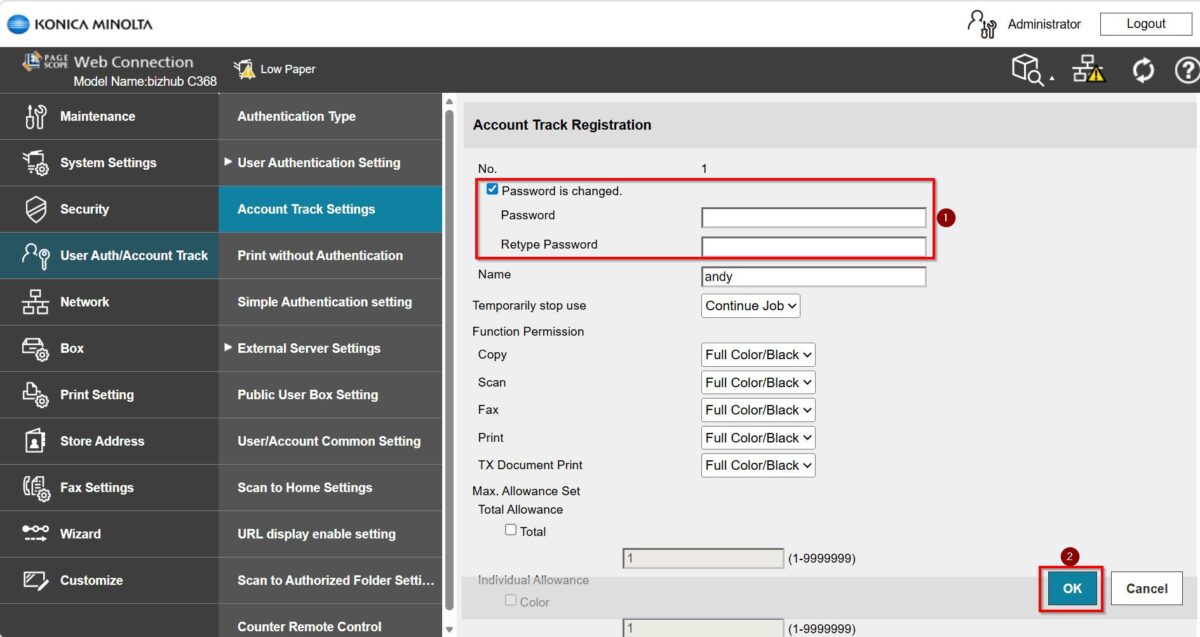
STEP 5 – Set the new password by tick [Password is changed], and key in new password under [Password] & [Retype User Password], then click on [OK] to save the changes.
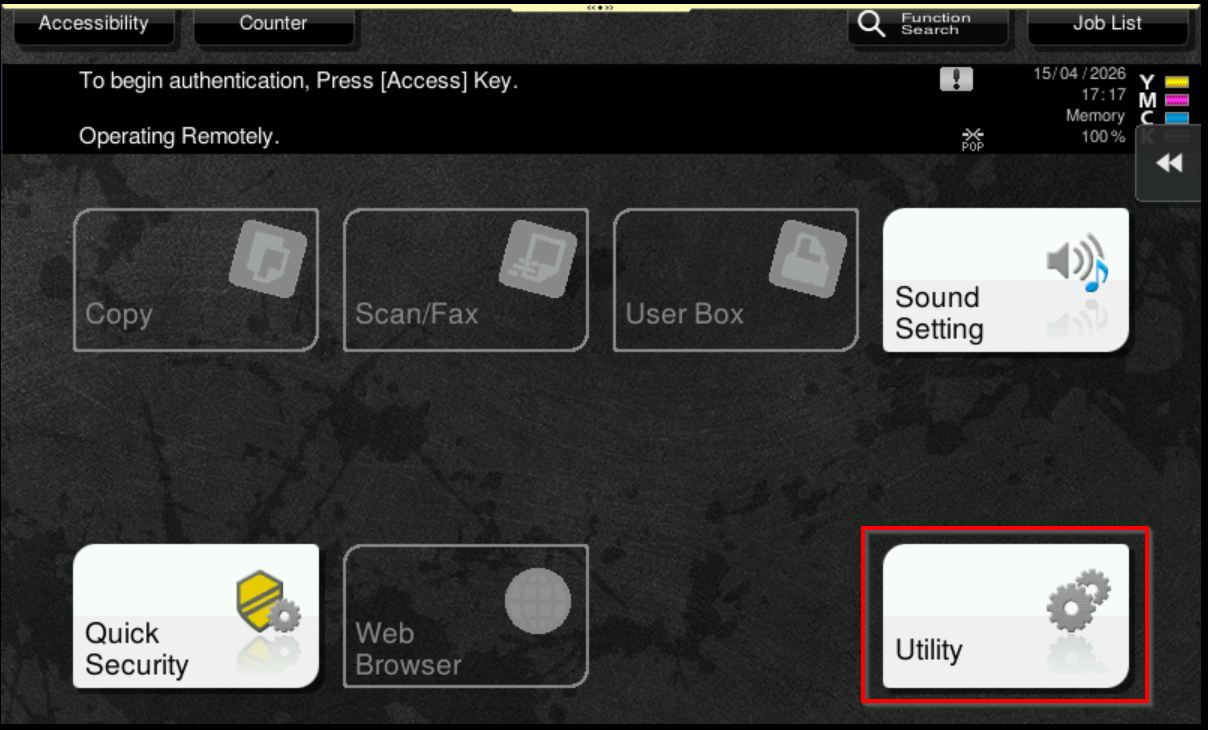
For Newer Machine series / I-Series Machine (From Machine Control Panel)
STEP 1 – Select [Home] – [Utility].
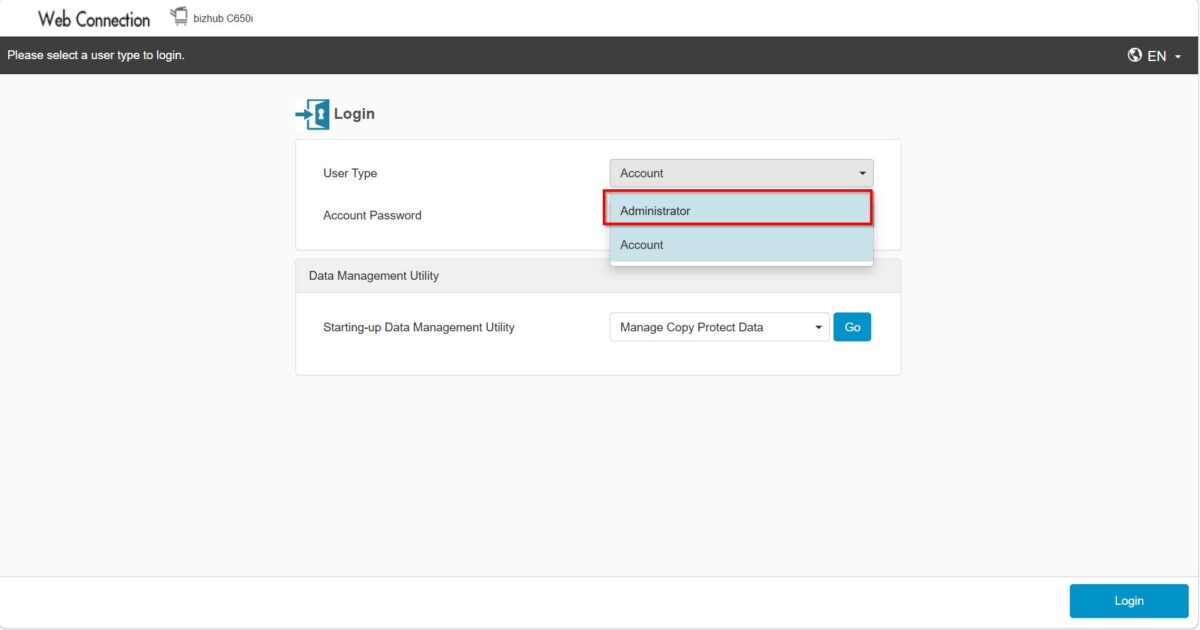
**You may access to web connection via machine IP Address. Click on this to check how to get the IP Address from machine, then key in Konica Minolta Machine IP Address at web browser and log in as admin the Web Connection.
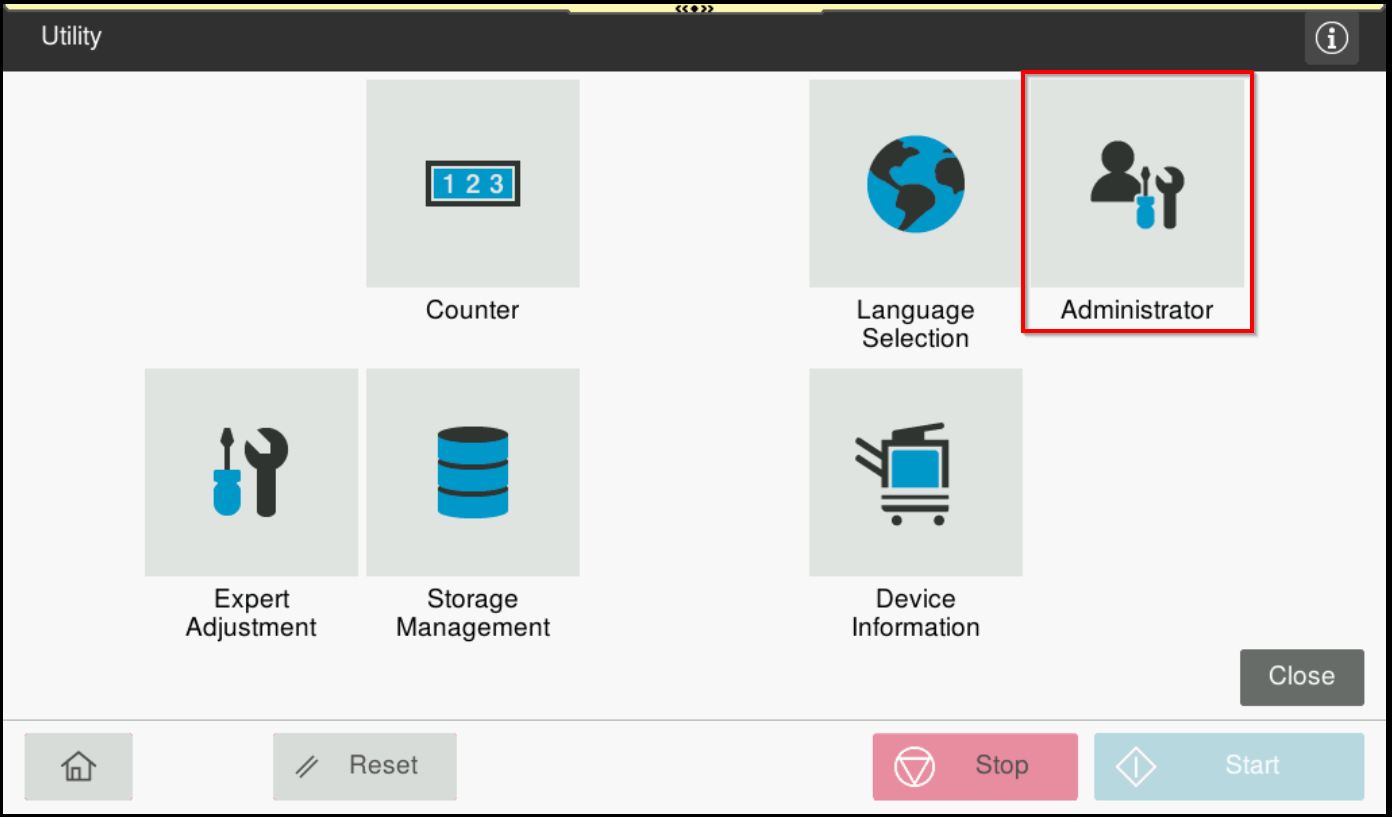
STEP 2 – Select [Administrator].
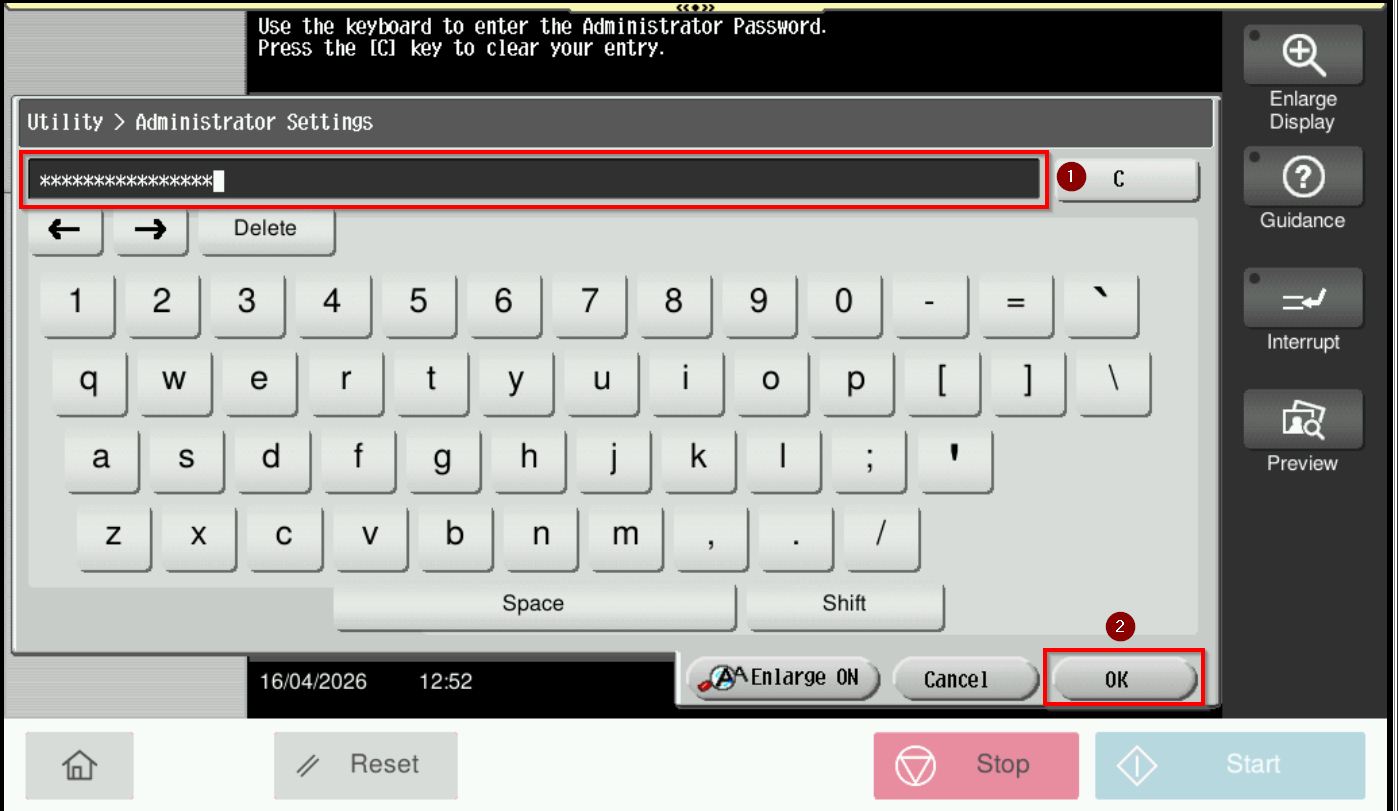
STEP 3 – Key in the default administrator password and click [OK] button.
Default administrator password: [7801261178012611] or [1234567812345678] or [12345678] or [12341234].
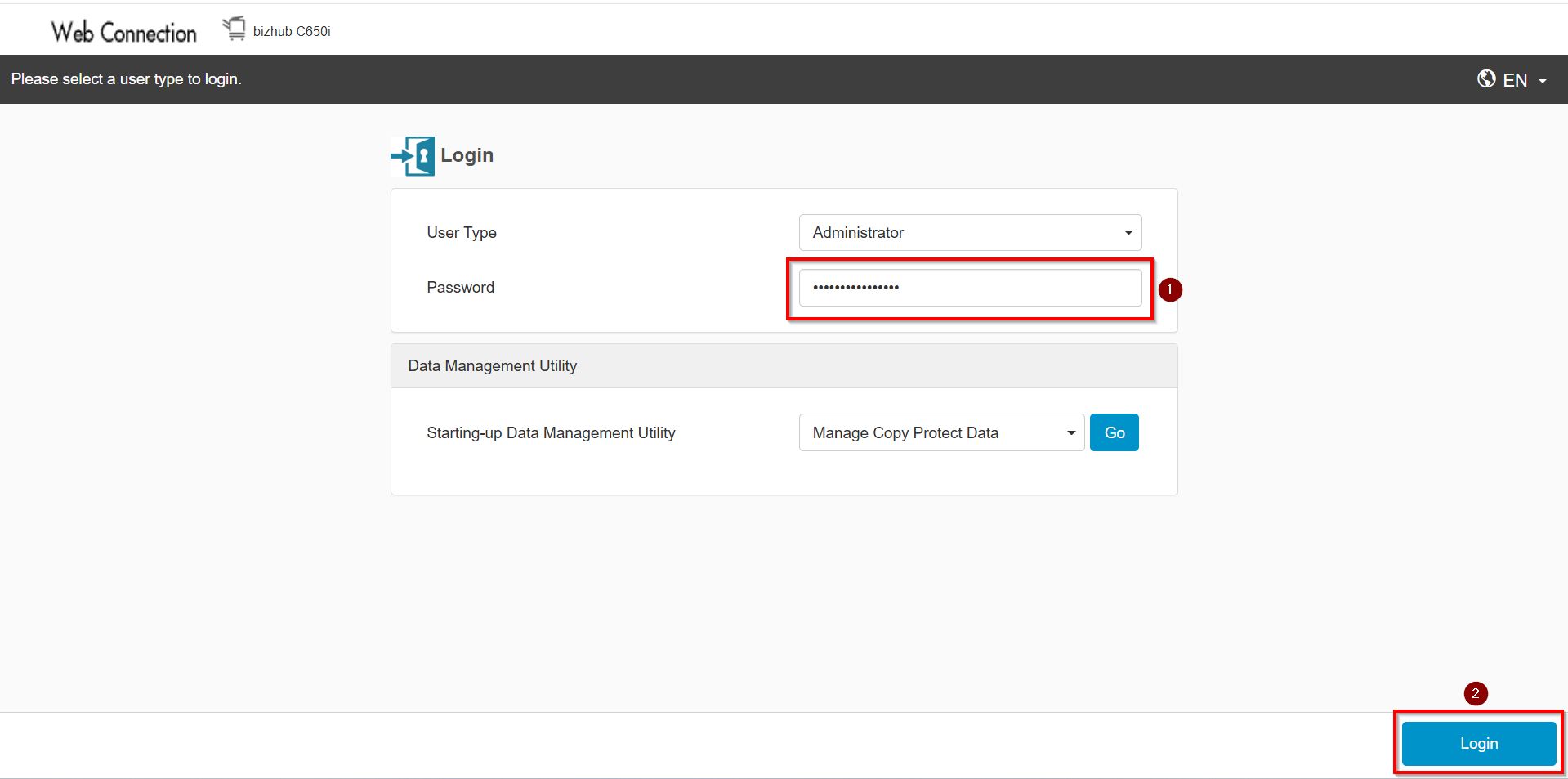
**On Web Connection, log in as administrator by entering the administrator password. The next steps are the same as the guidelines below for changing the administrator password.
STEP 4 – Go to [User Auth/Account Track] – [Account Track Setting].
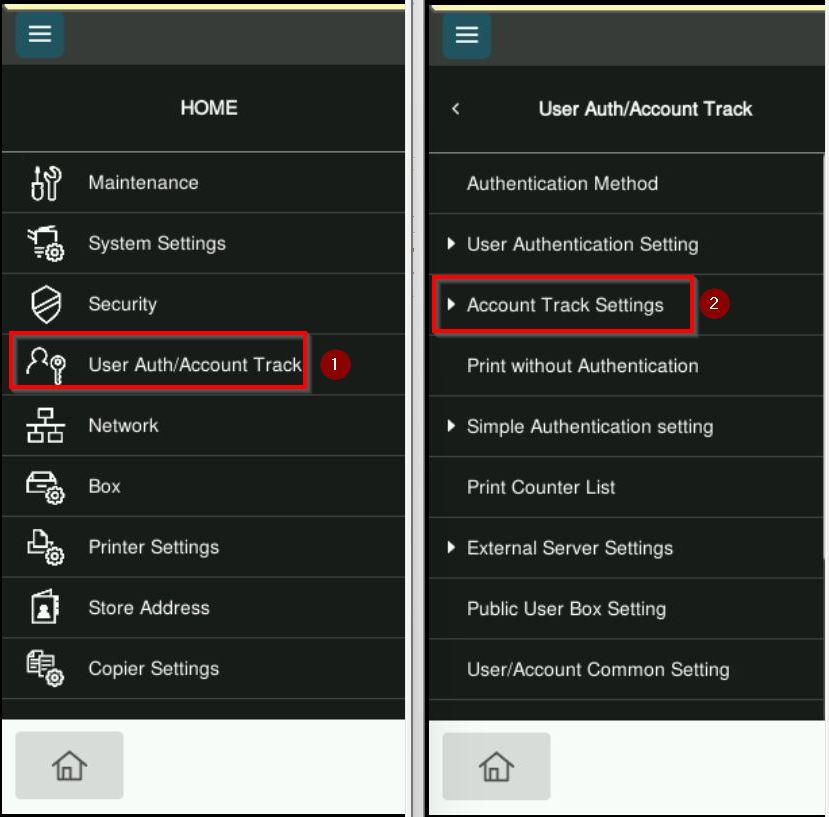
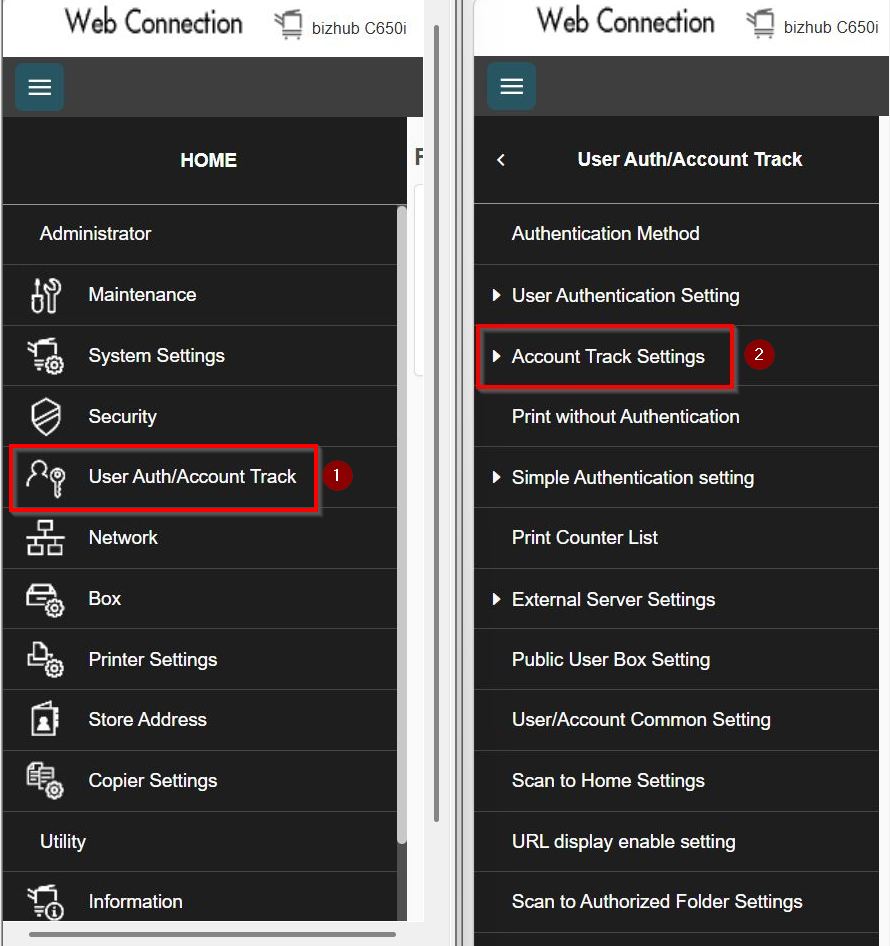
STEP 5 – Select [Account Track Registration] – highlight the account that want to edit – [Edit].
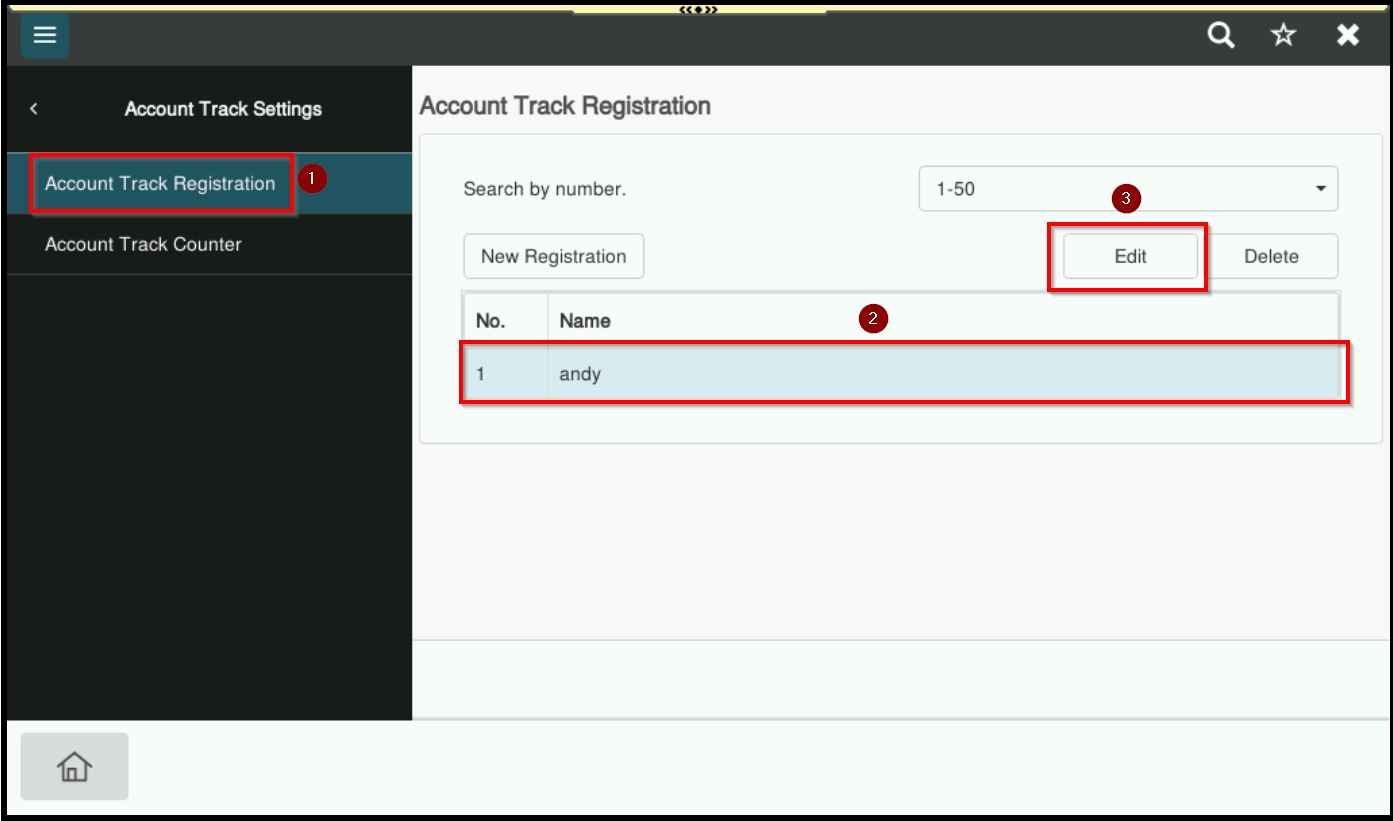
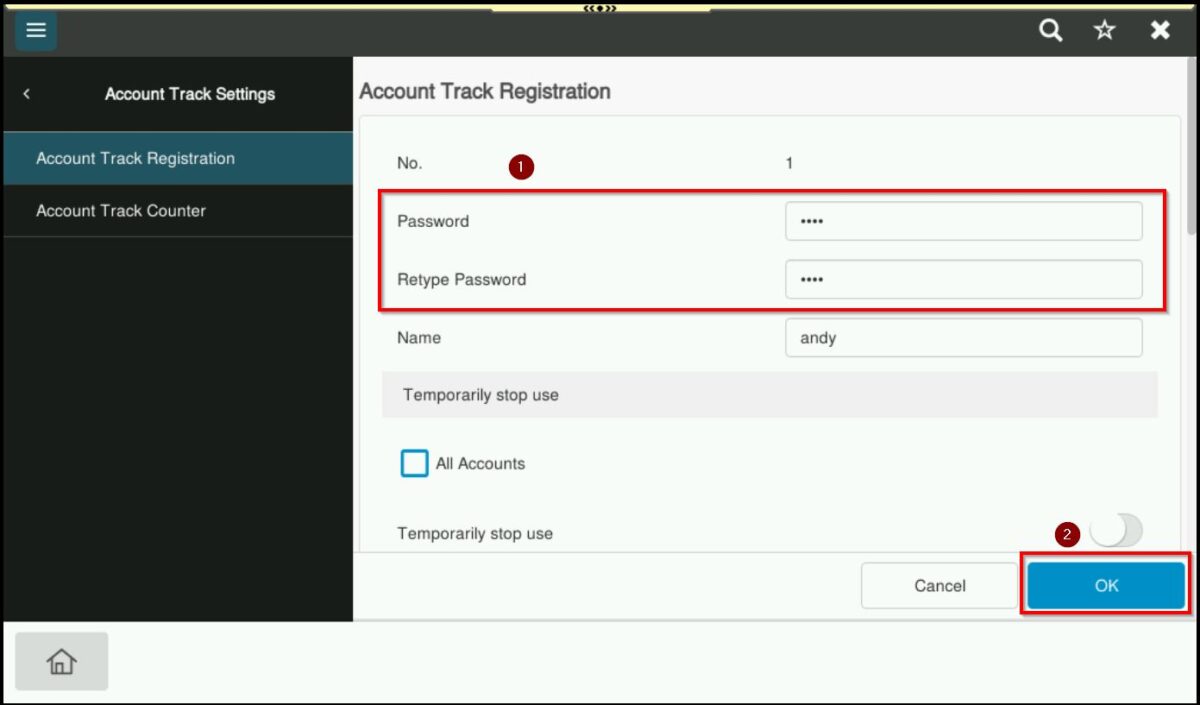
*On the Machine Panel when editing account
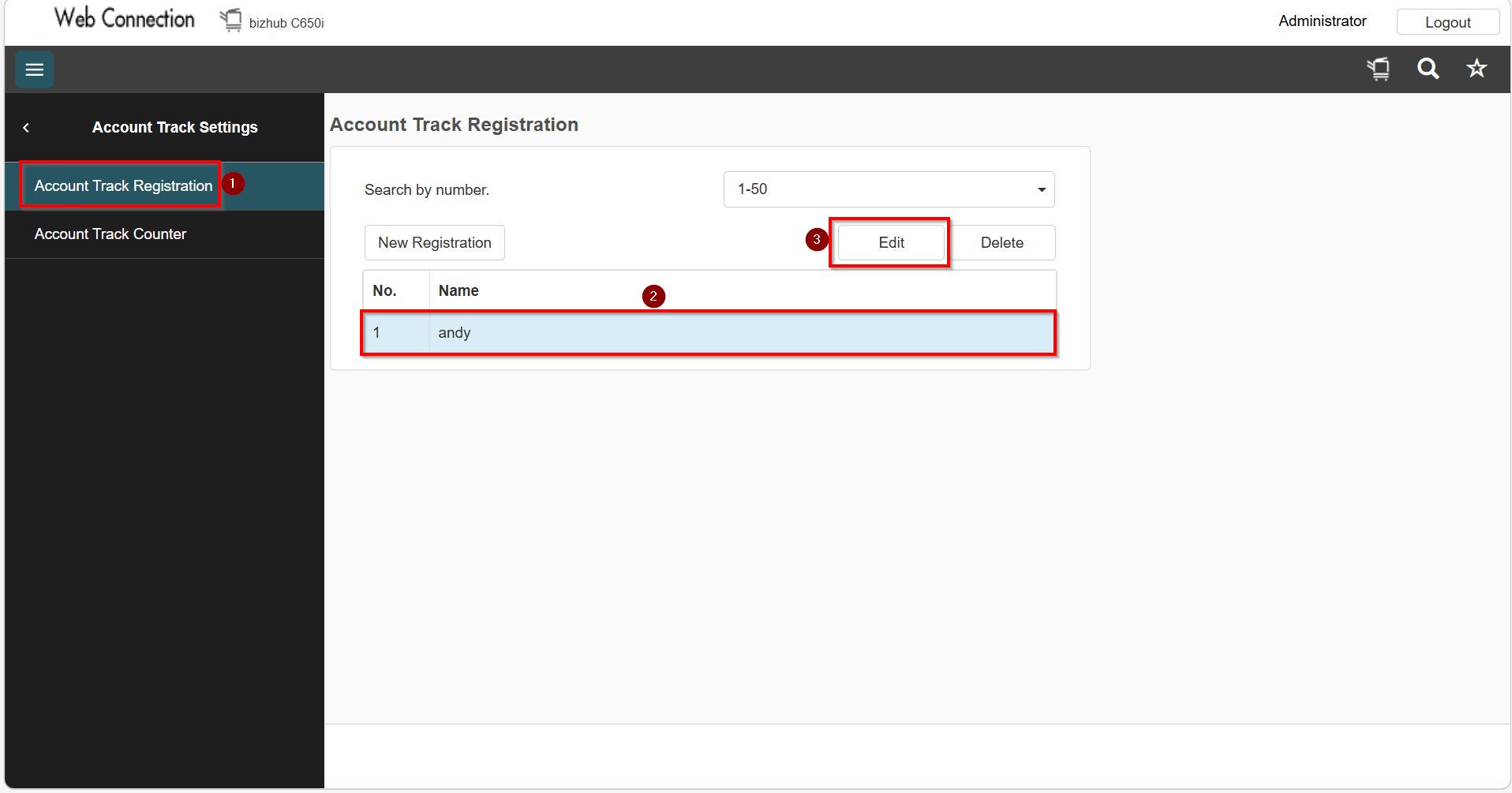
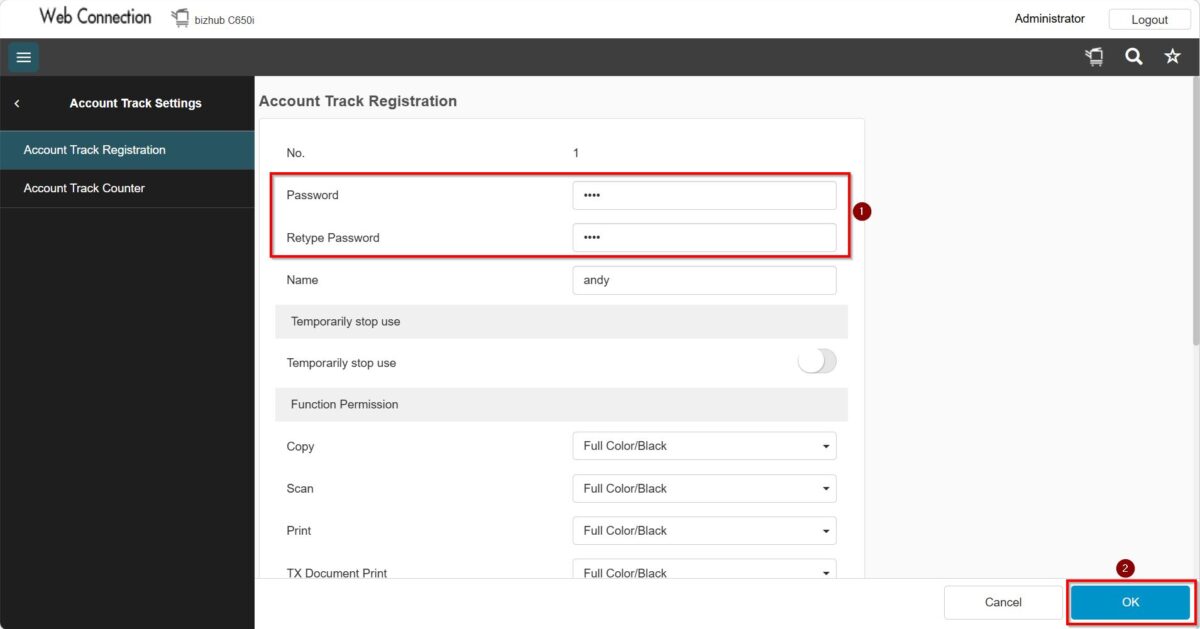
*On the Web Connection when editing account
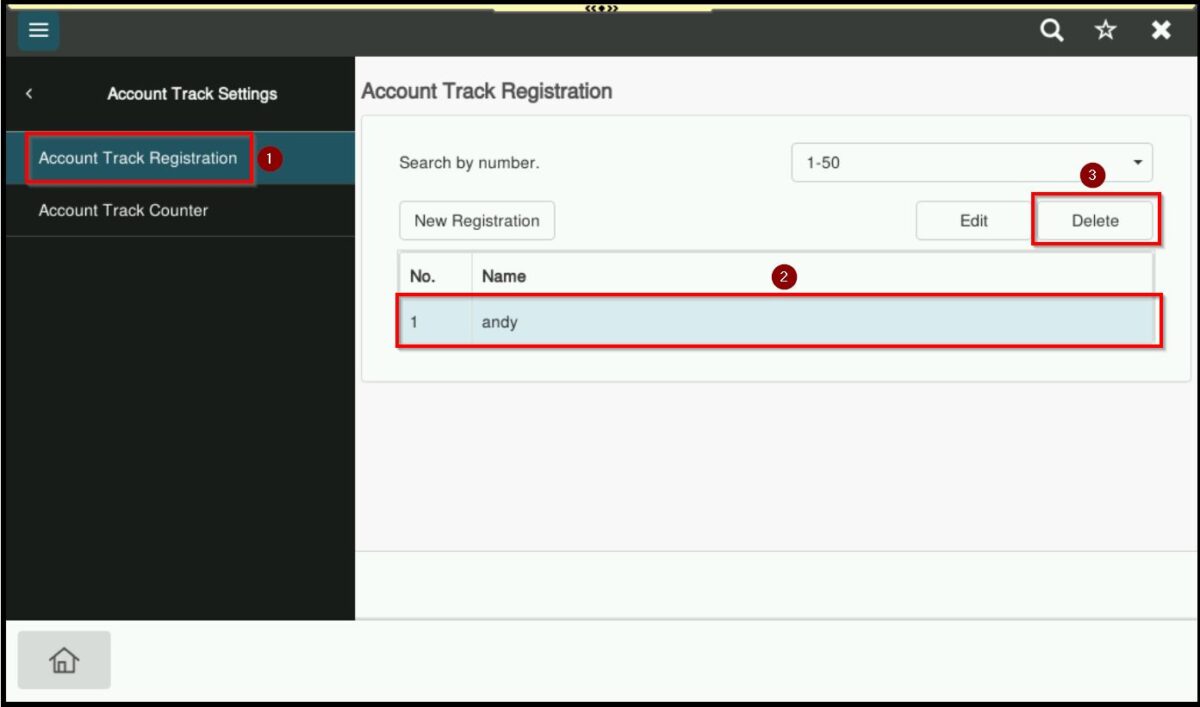
*On the Machine Panel when delete account
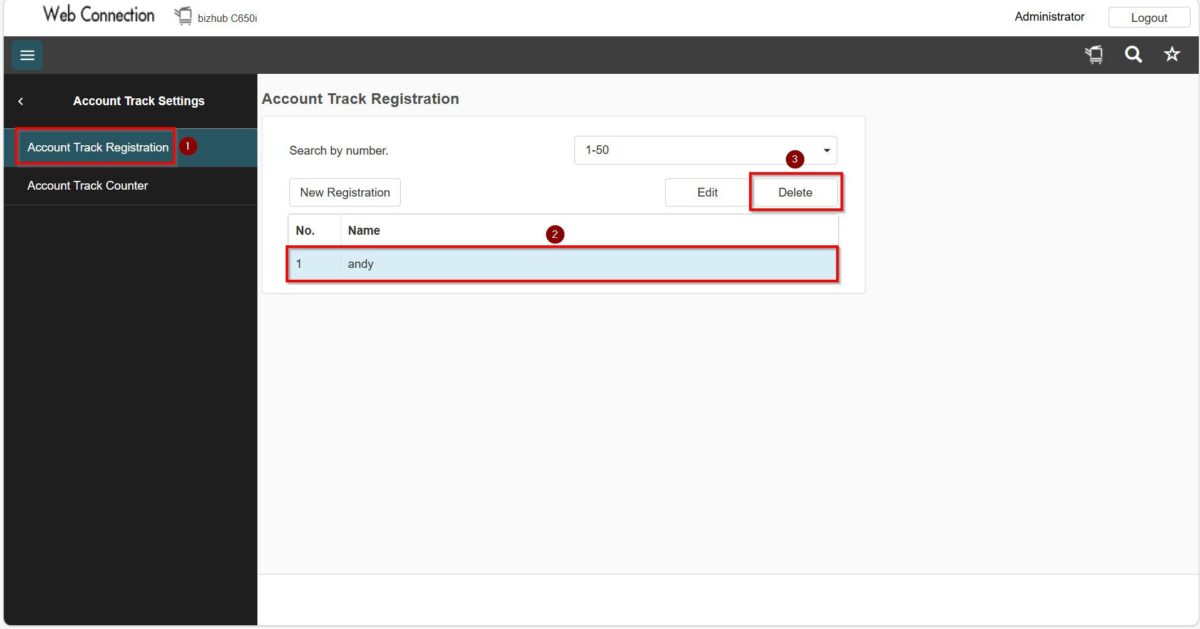
*On the Web Connection when delete account
STEP 6 – Key in new password under [Password] & [Retype Password], then proceed to select [OK] to save the setting.
STEP 7 – Once registered, users should be able to use the username and new password to access the machine. Please refer to this LINK on how to update the username and password on the printer driver for Windows OS or this LINK for MAC OS.