
Guide on how to properly install a printer driver for Safeq on a Windows PC.
REQUIREMENTS:
- SafeQ IP Address – Get the IP Address from the IT Customer before proceeding to do the installation.
- Downloaded Printer Driver (Windows 8 & onward)– click Here for the guide on how to download the Universal Printer Driver from the Download Centre website
Before the installation begins, make sure to extract the ZIP file for the INF file to be visible when installing the printer driver.

For Window 10 Installation
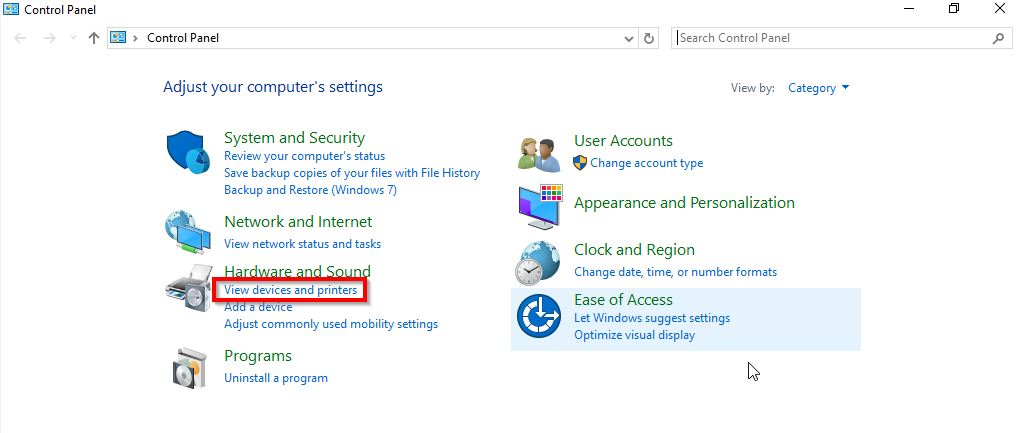
STEP 1 – Go to computer [Control Panel] and select [View Devices and Printers].
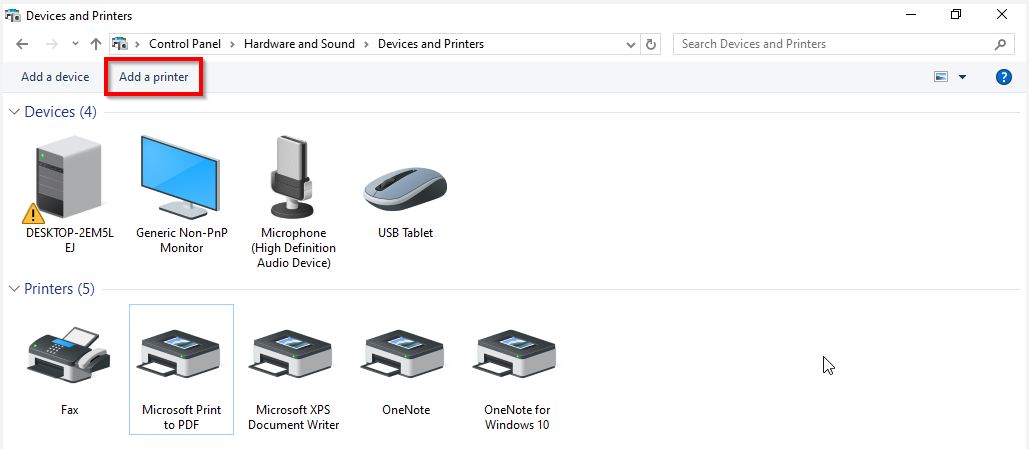
STEP 2 – Select [Add a printer].
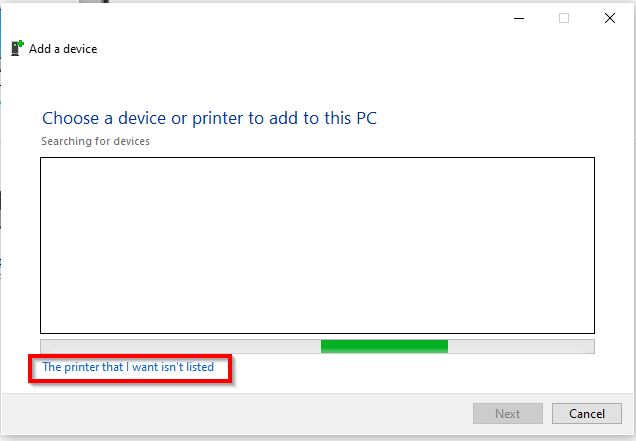
STEP 3 – Select [The printer that I want isn’t listed].
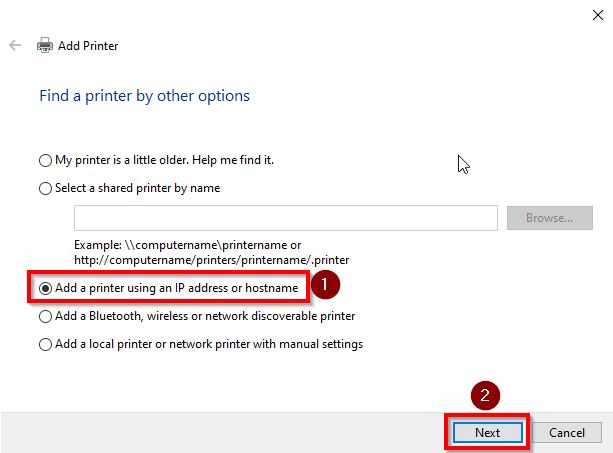
STEP 4 – Choose [Add a printer using TCP/IP address or Hostname] then click [Next].
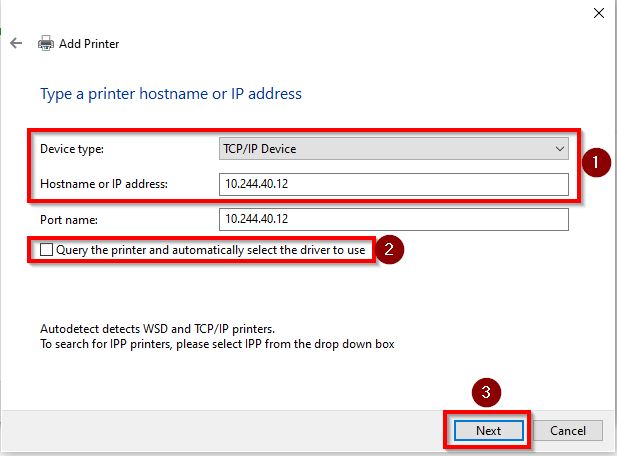
STEP 5 – Change the Device Type to [TCP/IP Device] and type in the [SafeQ IP Address] and [untick] the option “Query the printer and automatically select the driver to use” then [click] Next.
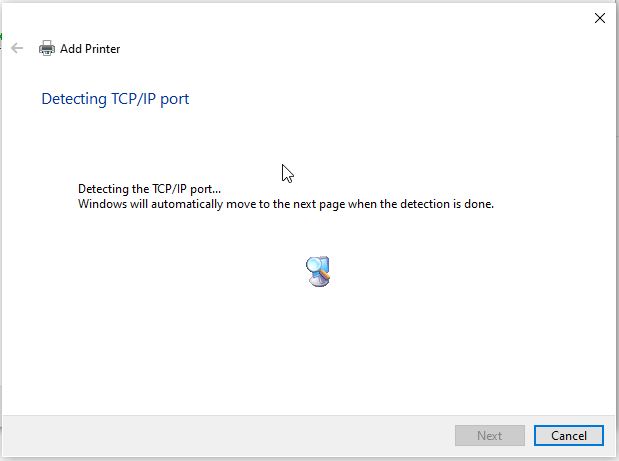
STEP 6 – This may take a few moments to load.
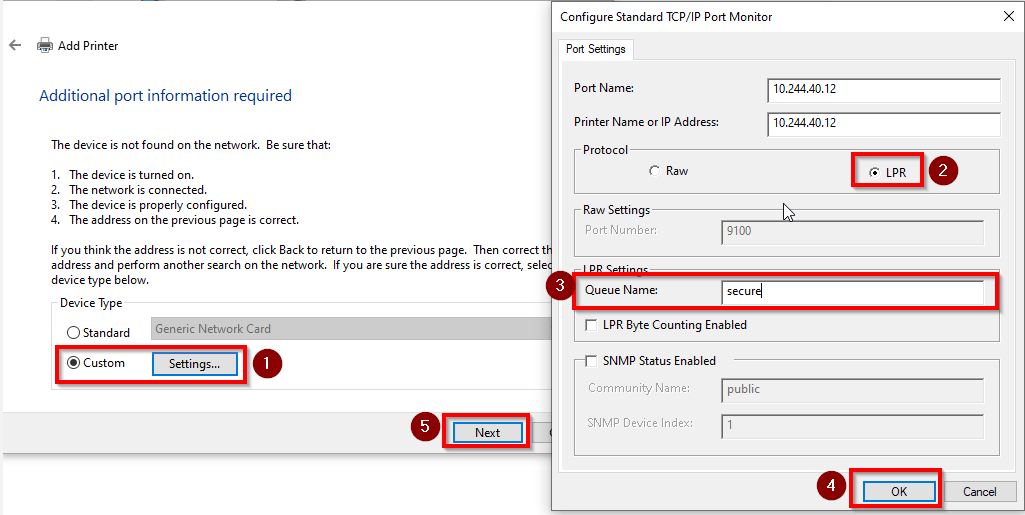
STEP 7 – Select [Custom] – [Settings], change the protocol to [LPR], key in Queue Name as [secure], then proceed to click on [OK] – [Next].
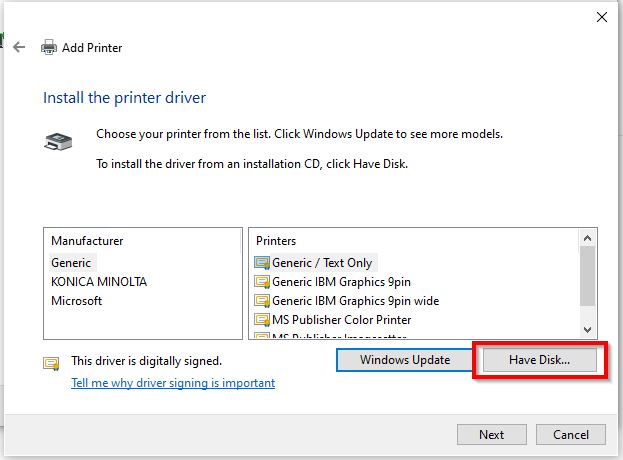
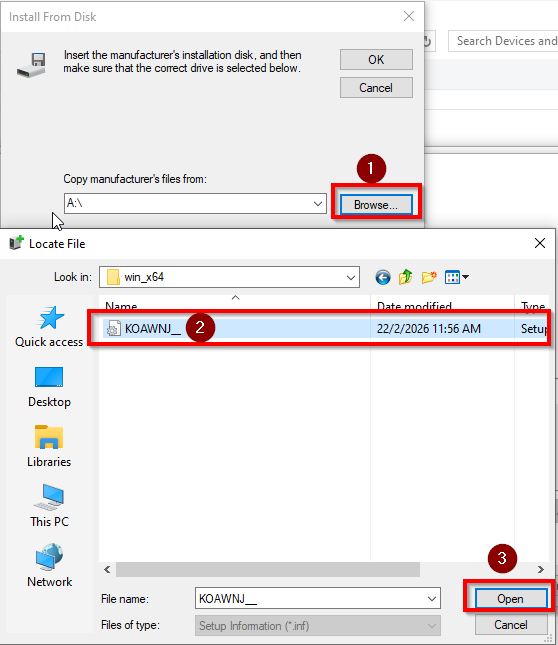
STEP 8 – Click on [Have Disk], select [Browse] and look for the Printer Driver folder that you extracted previously under [UPDPCL6Win_3912030MU\driver\win_x64\KOAWNJ_].
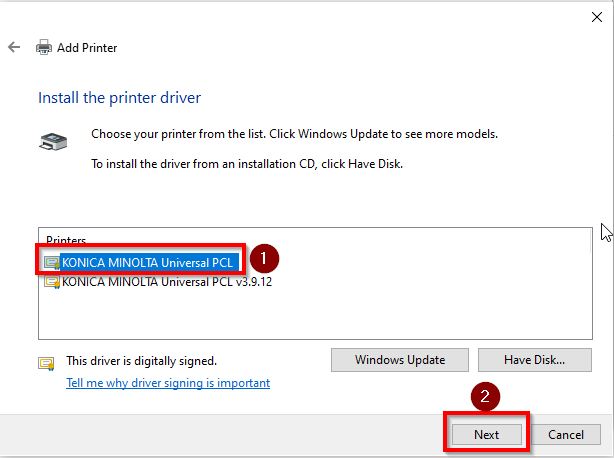
STEP 9 – Select the [Konica Minolta Universal PCL] and click [Next] to install Printer Driver.
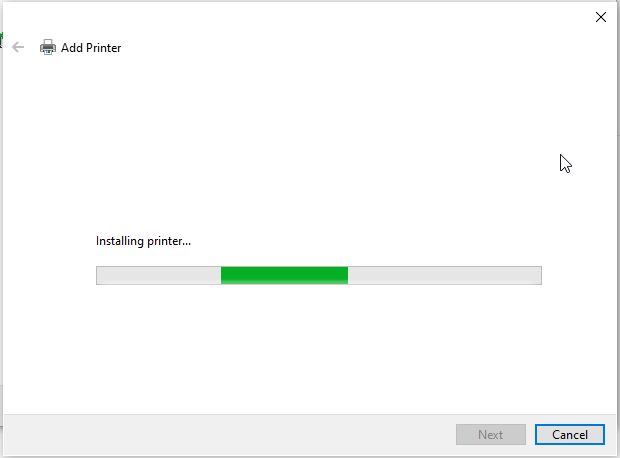
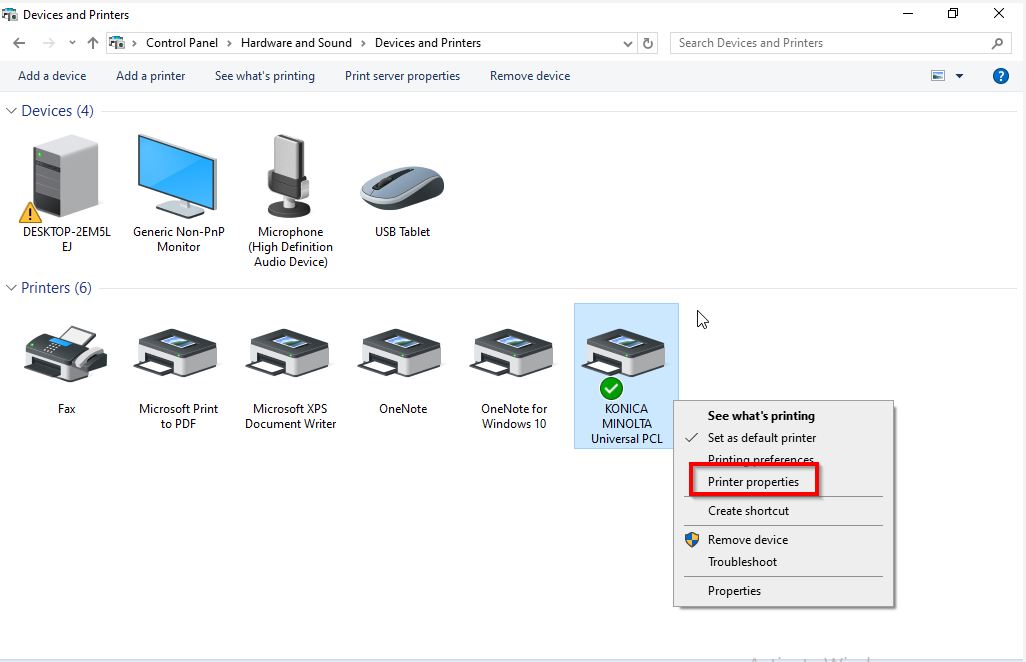
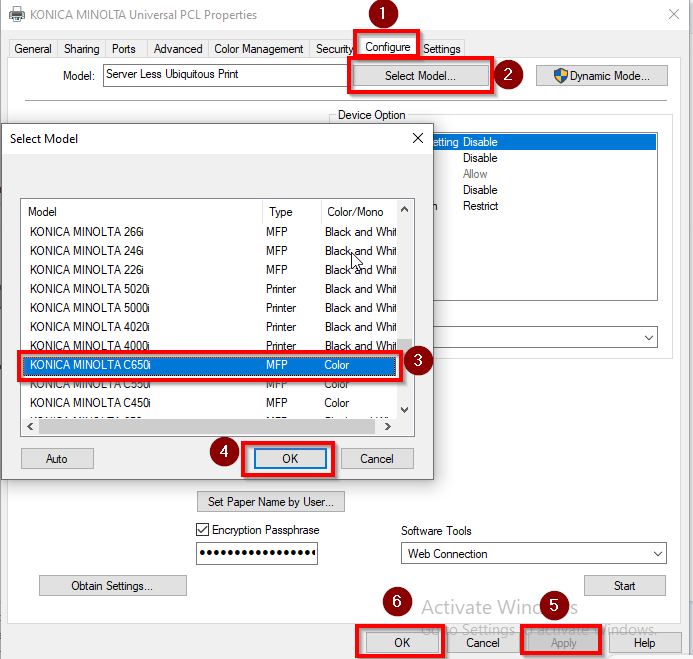
STEP 10 – After installation, the printer driver will appear on the printer list. Right click of the printer and select [Printer Properties] – [Configure] tab – [Select Model] as we need to manually specific correct machine model before printing, as below example is for the Printer Model C650i. Once the correct printer model has been selected, proceed to click on [OK] – [Apply] – [OK] to save the setting.
STEP 11 – Perform a print test page.
*If the test page didn’t print out after user tag a card, it might be the print job not yet assigned to the user, kindly login to the SafeQ portal and follow this guideline from step 5 onward on how to manually assign the print job to specific user.
For Window 11 Installation
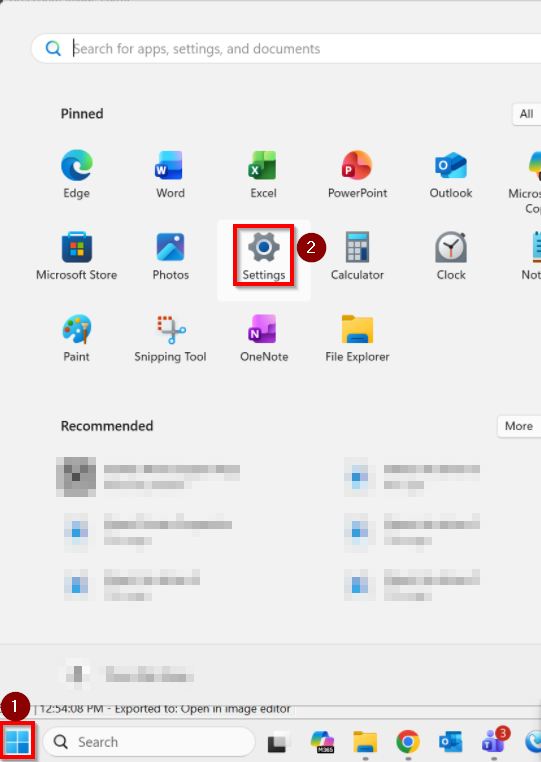
STEP 1 – Click on the [Start] – [Settings] button on the taskbar as shown below.
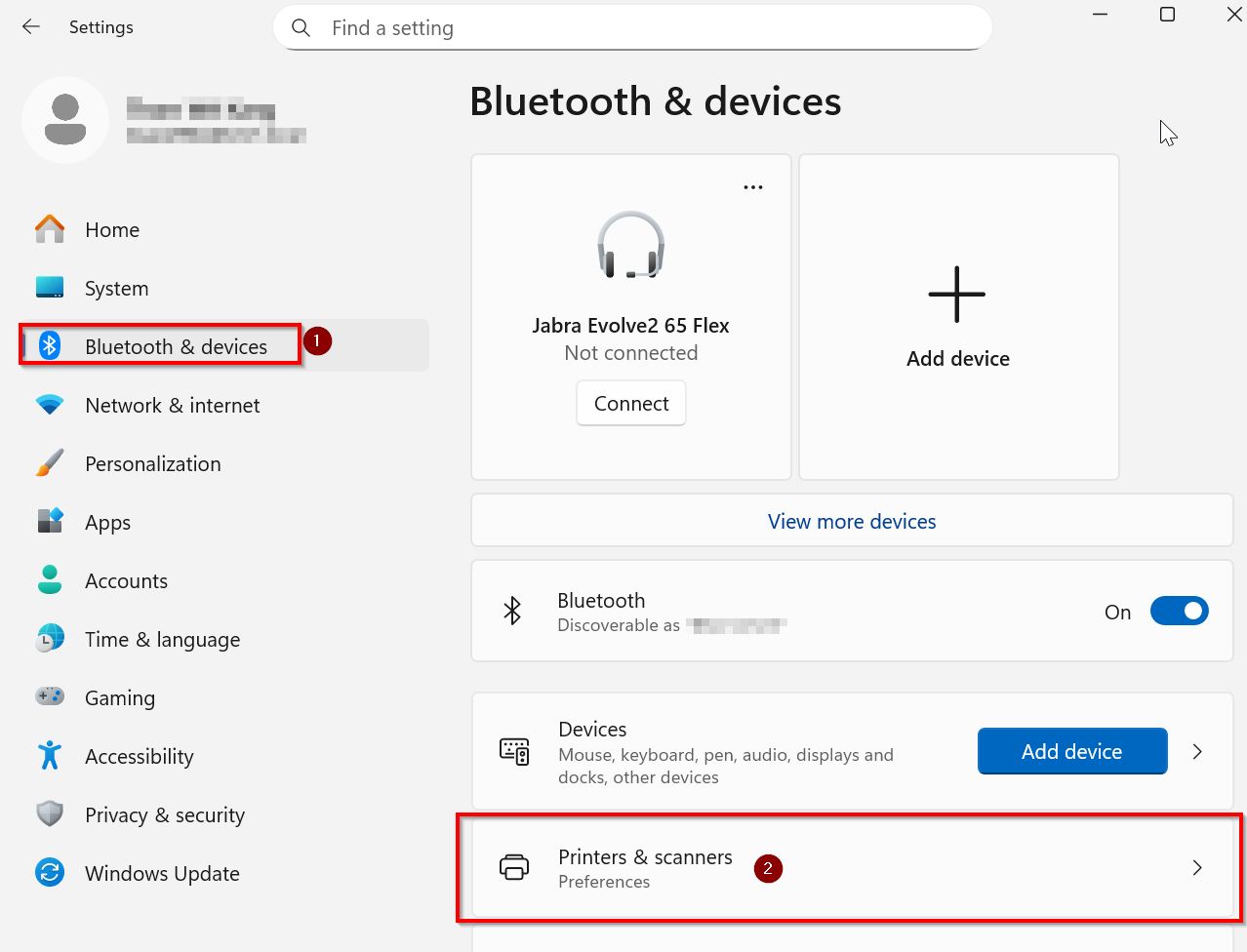
STEP 2 – Select [Bluetooth & devices] – [Printers & scanners].
STEP 3 – Click the [Add device] button.
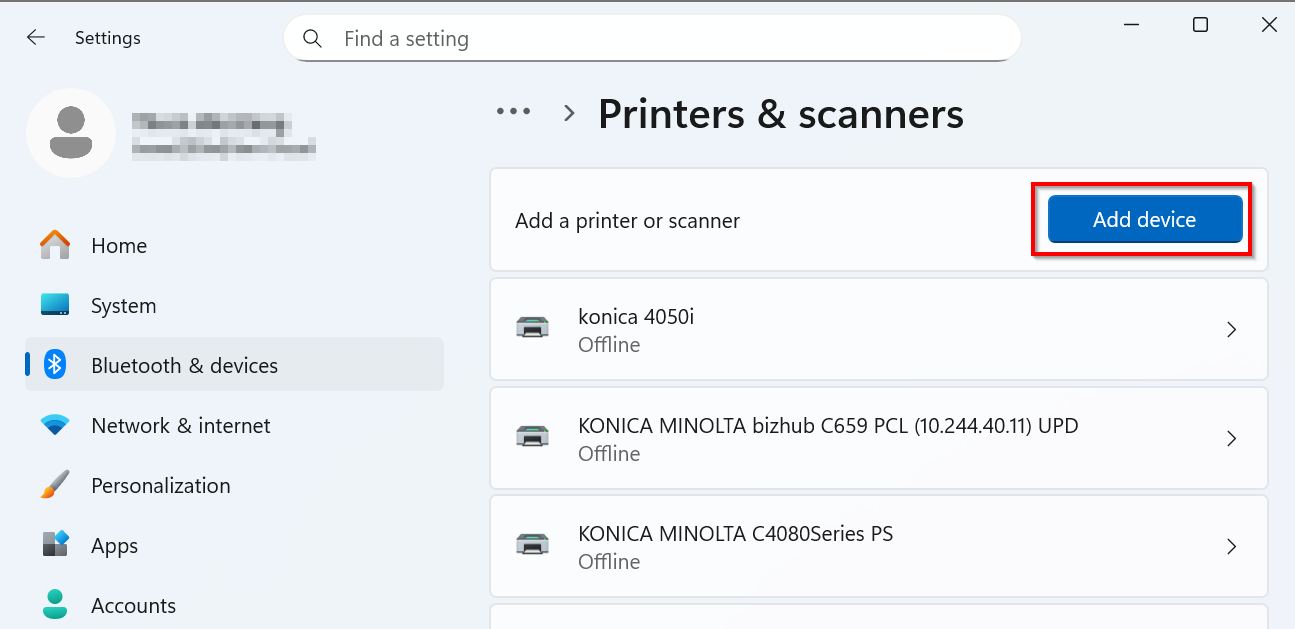
STEP 4 – Then click the [Add a new device manually] link to bring up the wizard.
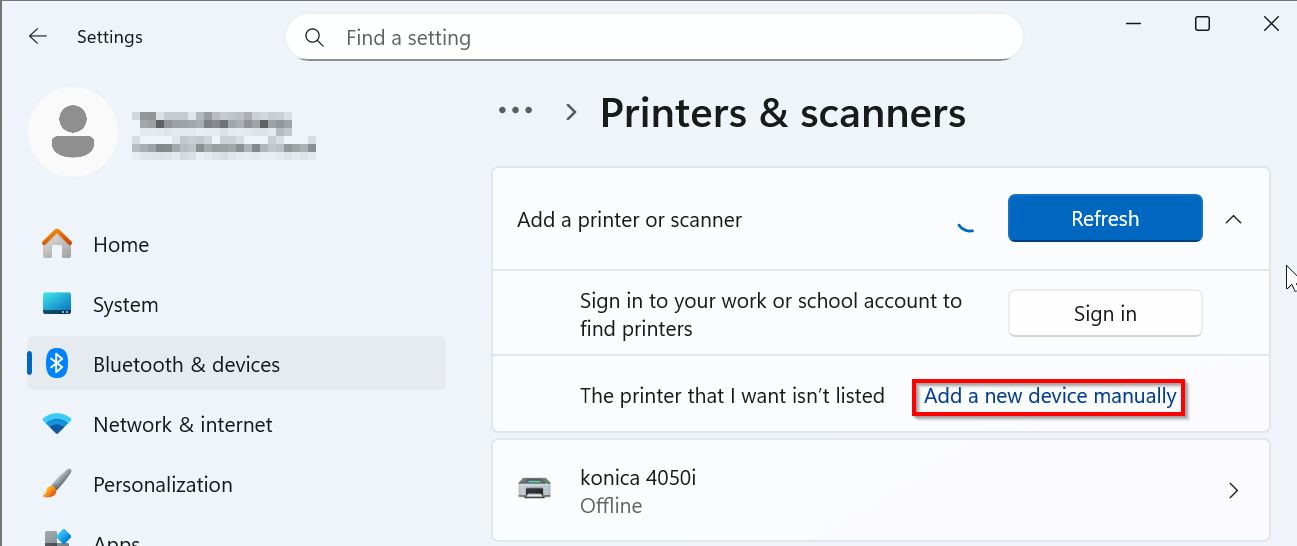
STEP 5 – Select [The printer that I want isn’t listed].
STEP 6 – Choose [Add a printer using TCP/IP address or Hostname] then click [Next].
STEP 7 – Change the Device Type to [TCP/IP Device] and type in the [SafeQ IP Address] and [untick] the option “Query the printer and automatically select the driver to use” then click [Next].
STEP 8 – This may take a few moments to load.
STEP 9 – Select [Custom] – [Settings], change the protocol to [LPR], key in Queue Name as [secure], then proceed to click on [OK] – [Next].
STEP 10 – Click on [Have Disk], select [Browse] and look for the Printer Driver folder that you extracted previously under [UPDPCL6Win_3912030MU\driver\win_x64\KOAWNJ_].
STEP 11 – Select the [Konica Minolta Universal PCL] and click [Next] to install Printer Driver.
STEP 12 – After installation, the printer driver will appear on the printer list. Right click of the printer and select [Printer Properties] – [Configure] tab – [Select Model] as we need to manually specific correct machine model before printing, as below example is for the Printer Model C650i. Once the correct printer model has been selected, proceed to click on [OK] – [Apply] – [OK] to save the setting.
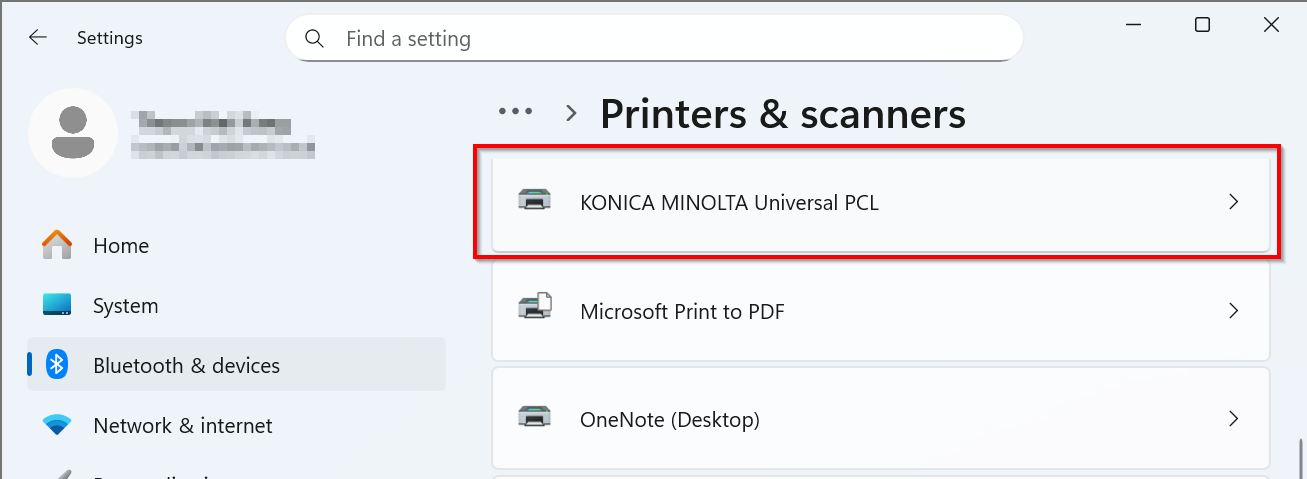
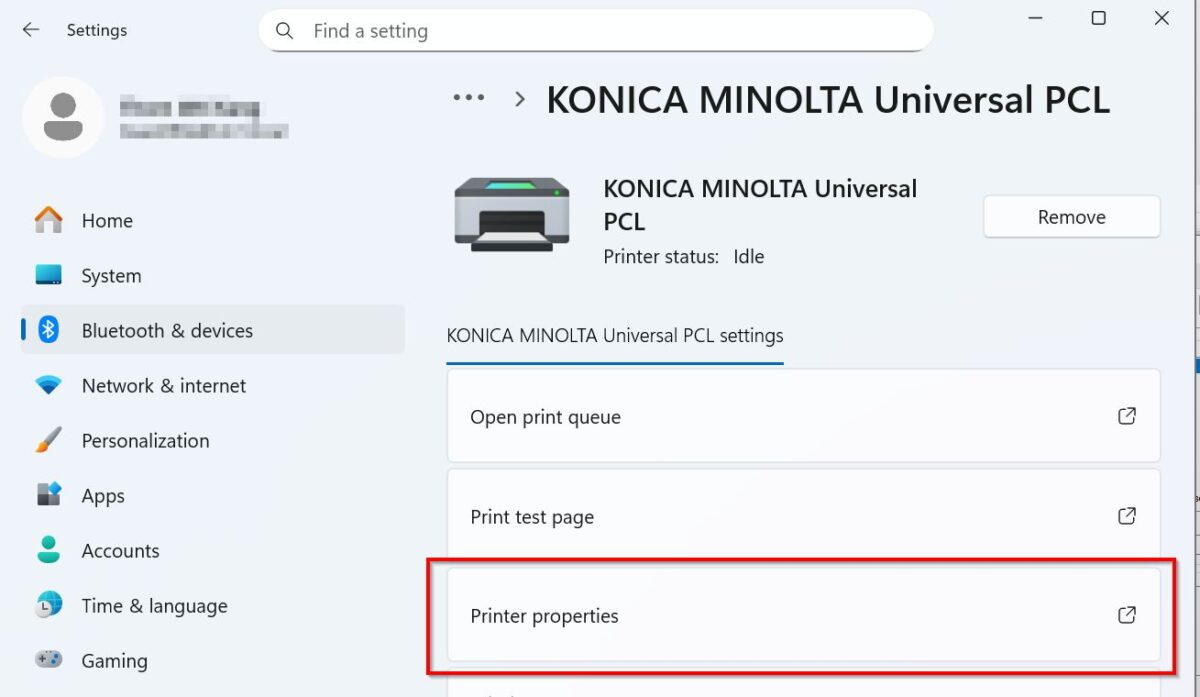
STEP 13 – Perform a print test page.
*If the test page didn’t print out after user tag a card, it might be the print job not yet assigned to the user, kindly login to the SafeQ portal and follow this guideline from step 5 onward on how to manually assign the print job to specific user.