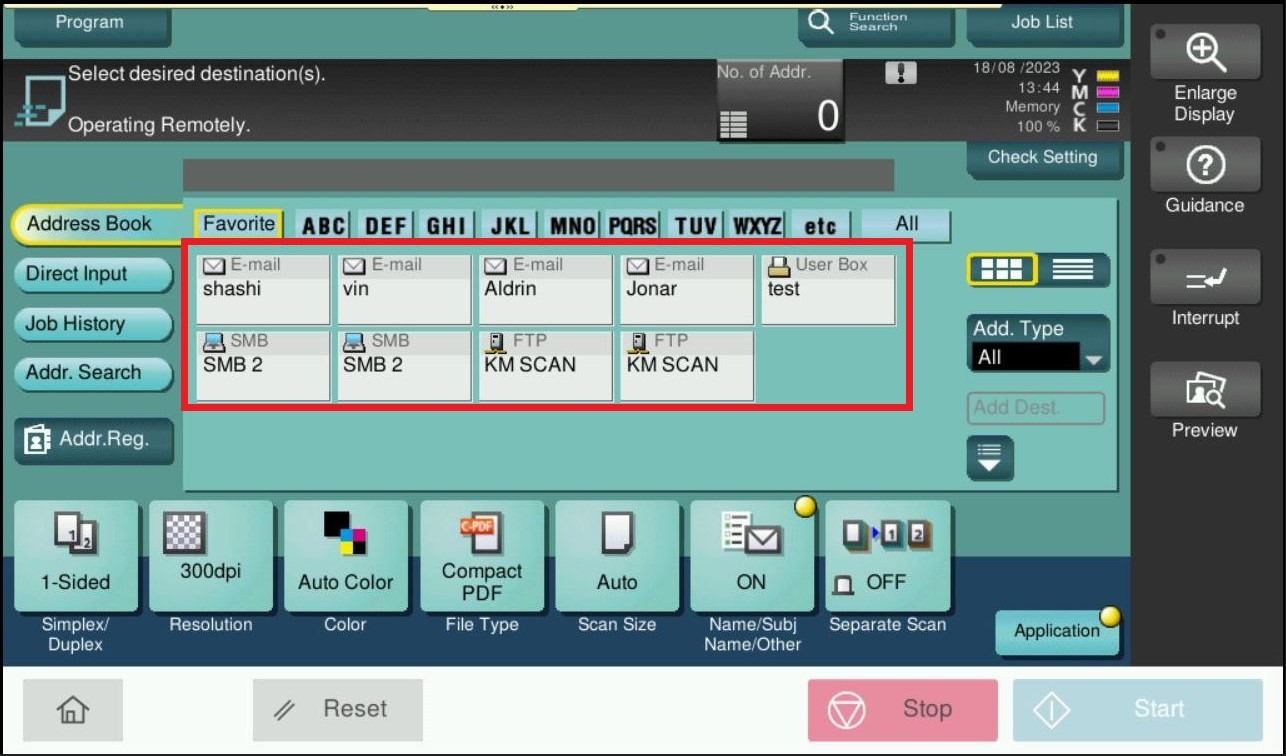
Guide on Set the Default Address Book Sort Mode for Scanning
On the main screen of the scan mode, it have 2 mode that would be able to selected between registration number and registration name.
If you Select the registration name, destinations are sorted according to Sort Character specified for the destinations.
[Number Order] is specified by default.
For The Older Machine Series / Non I-Series Machine
STEP 1 – Press on [Menu] button, then select [Utility].
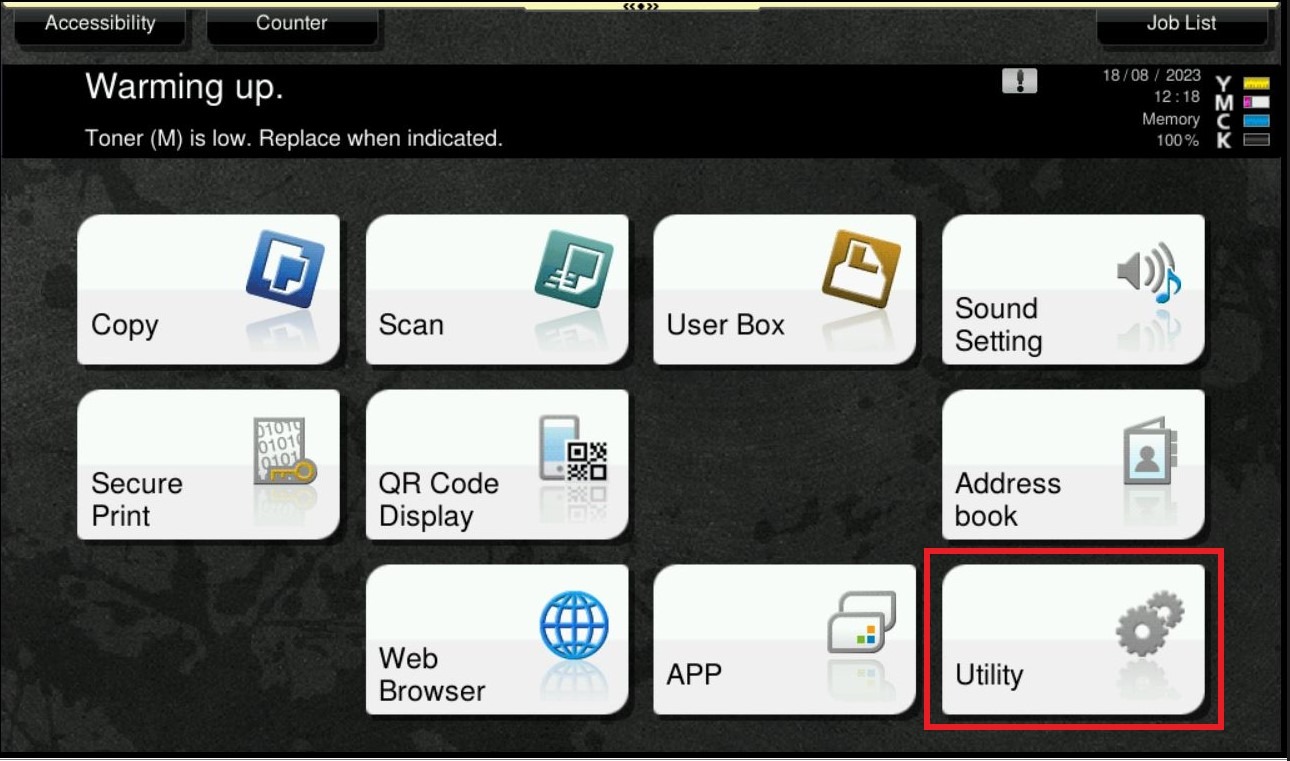
STEP 2 – Select [User Settings].
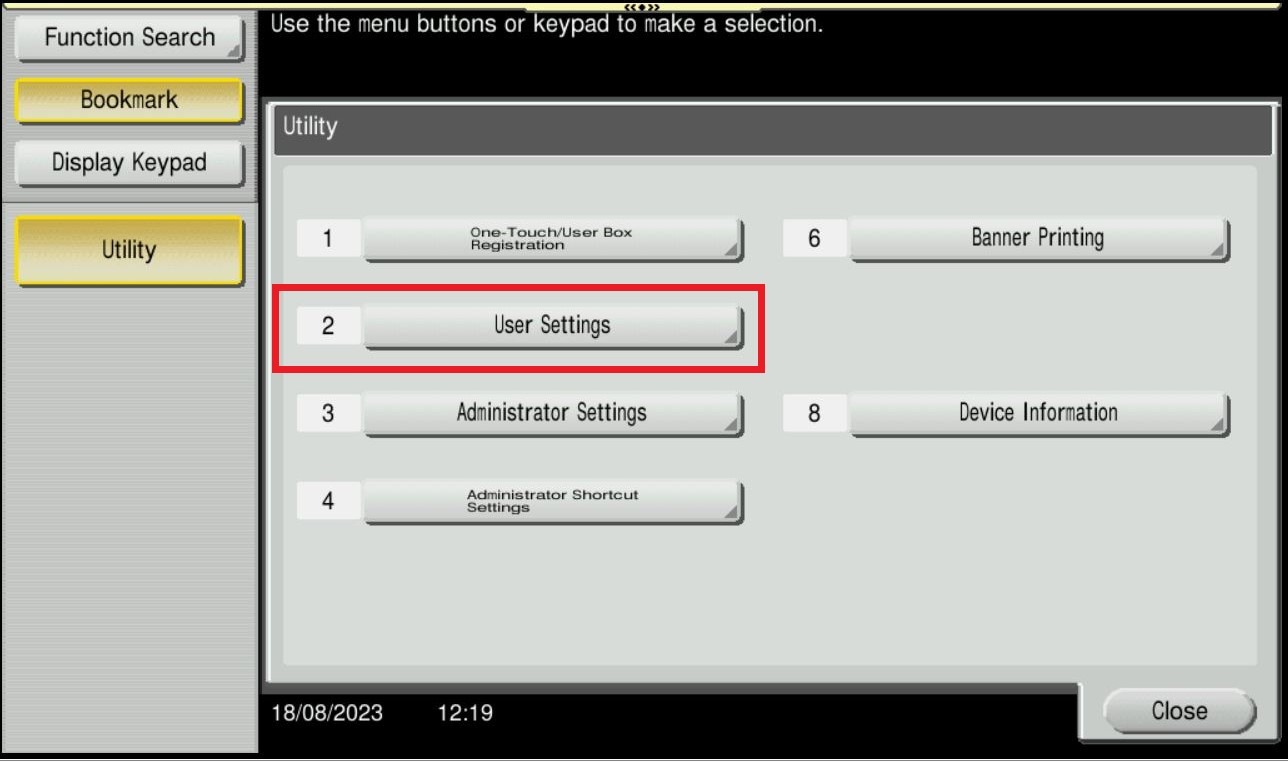
STEP 3 – Click on [Custom Display Settings].
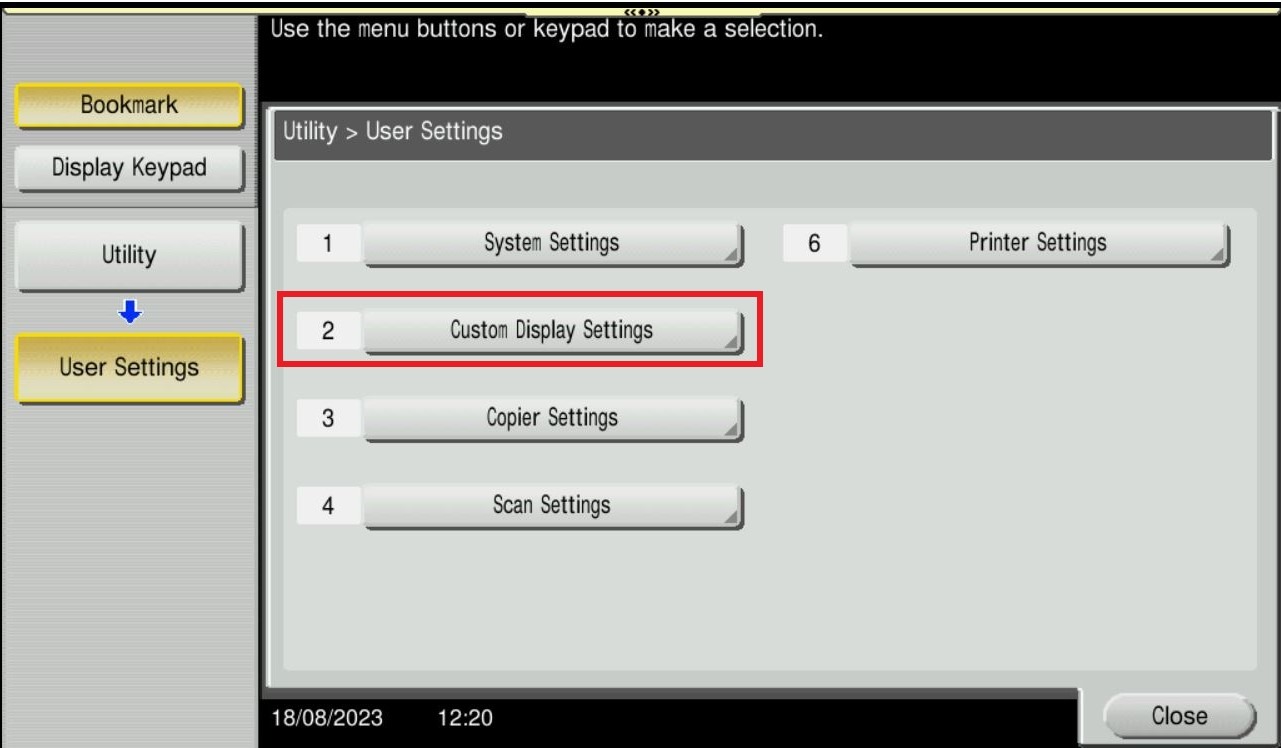
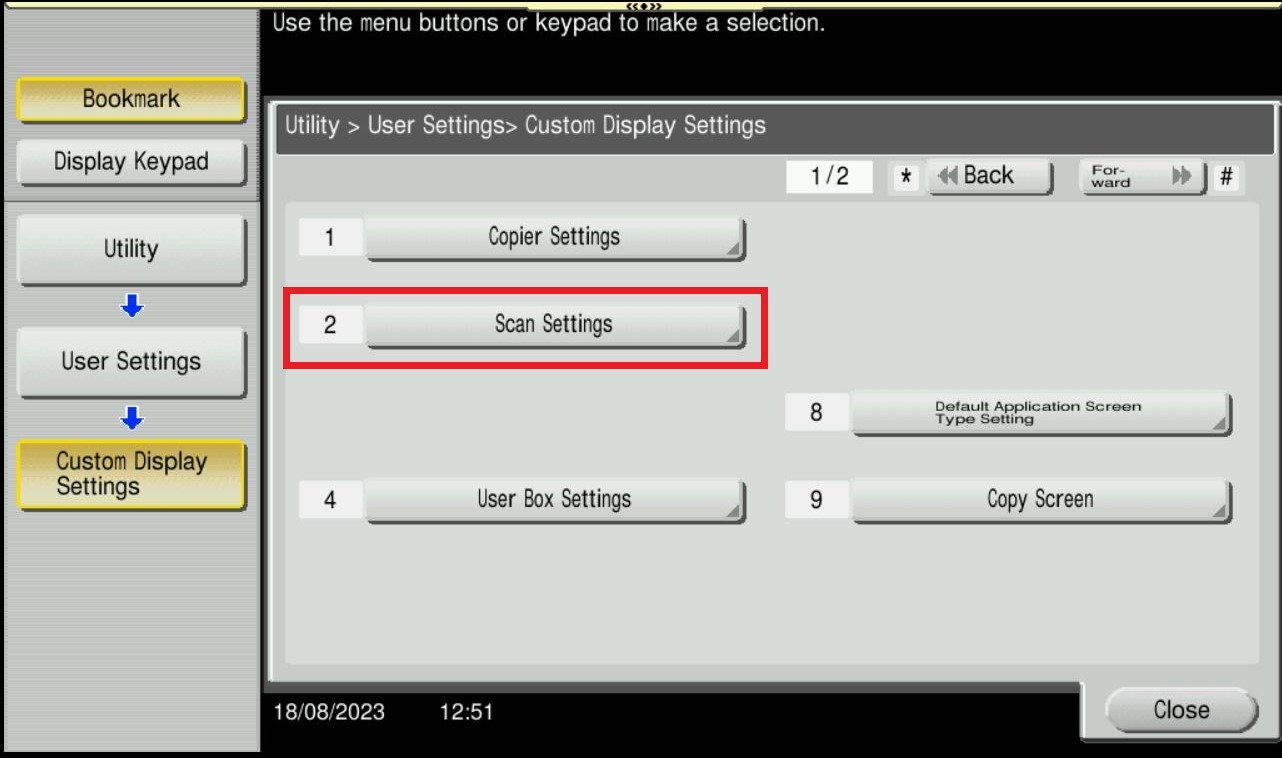
STEP 4 – Select on [Scan Settings].
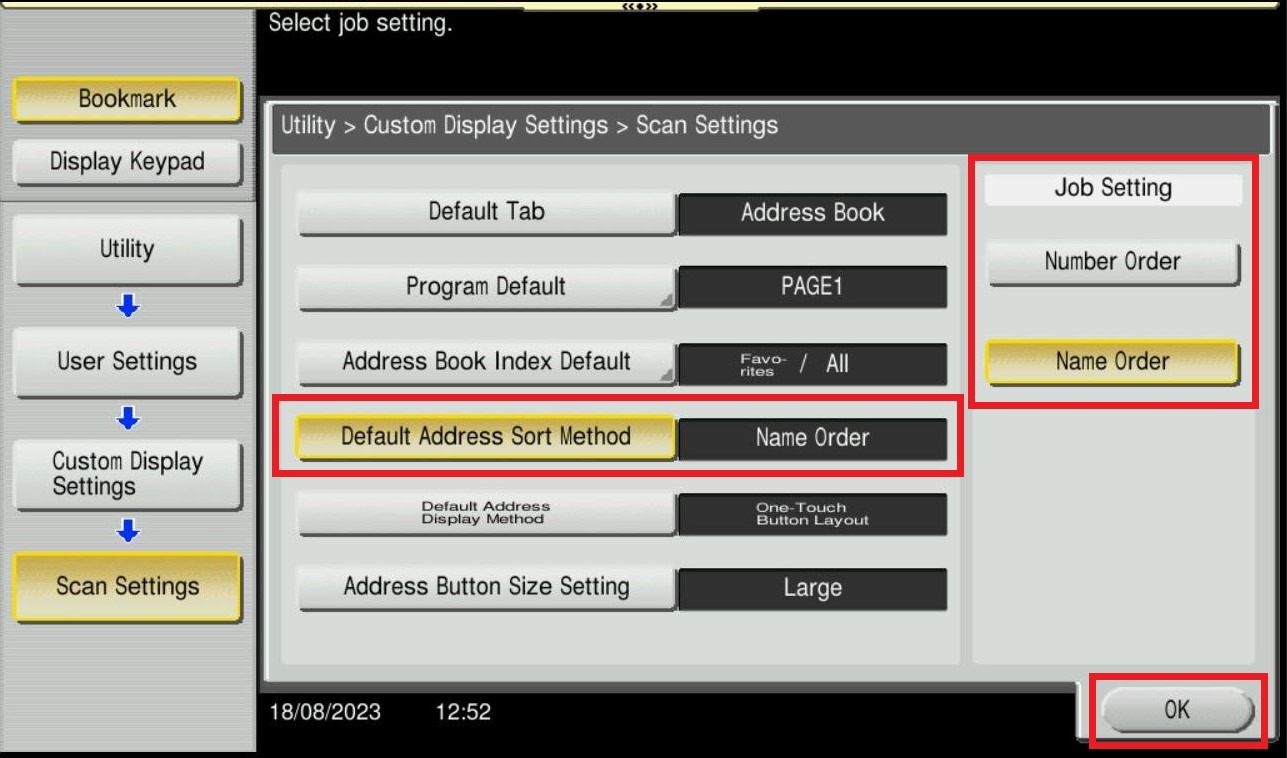
STEP 5 – Choose [Default Address Sort Method] then select either [Number Order] or [Name Order]. Click [OK] button to save the setting once selected and exit to the main screen.
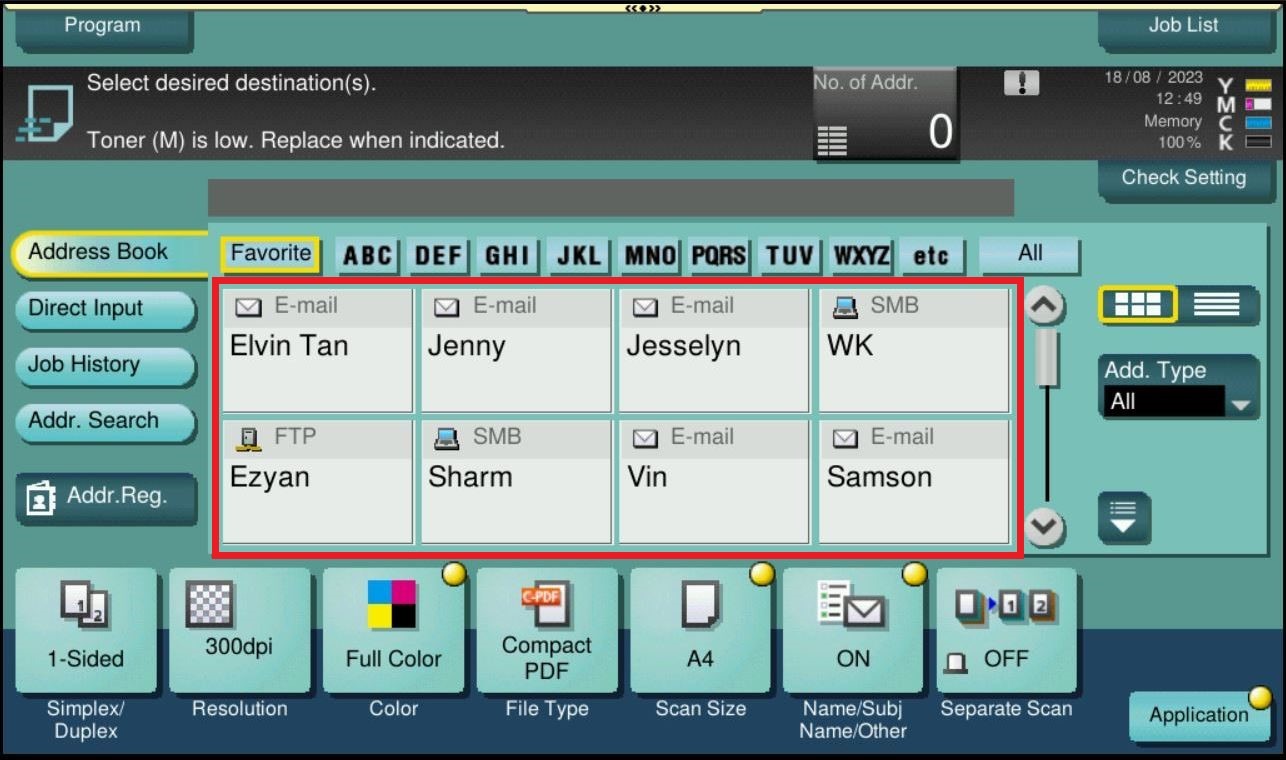
- Number Order: Display the address book name follow by the Registration number.
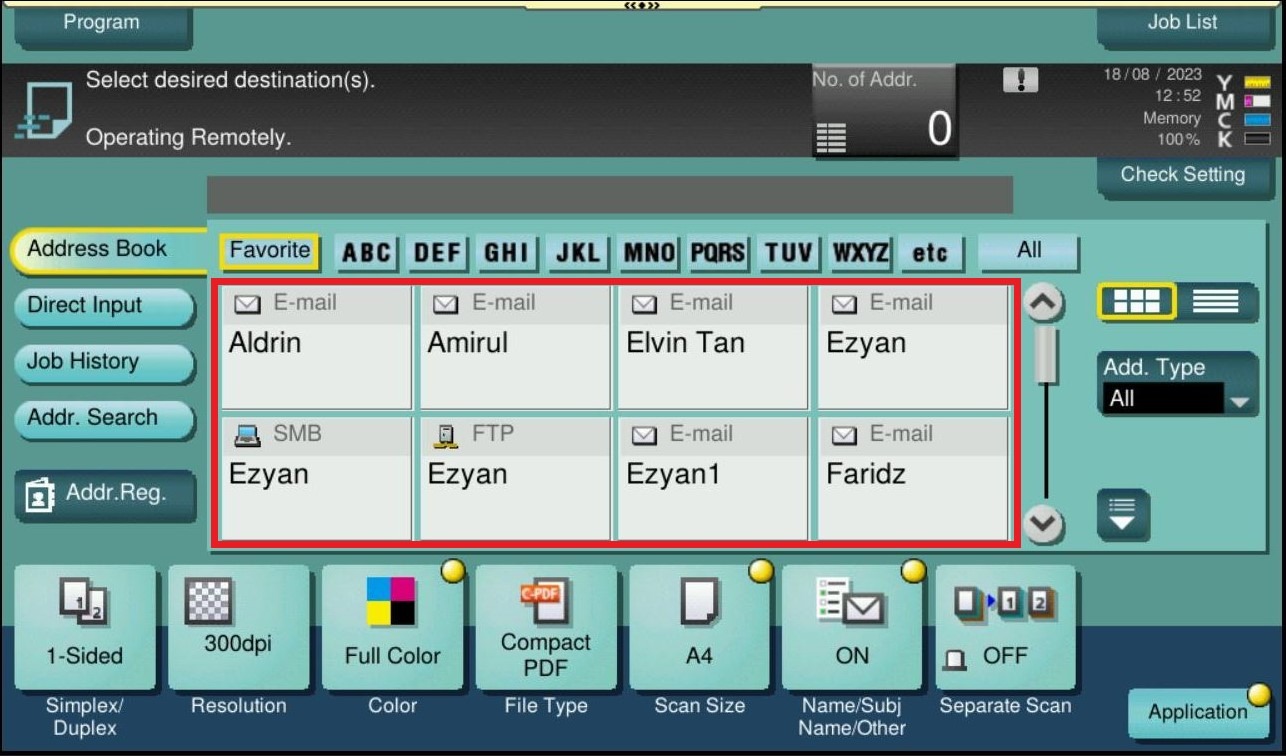
- Name Order: Display the address book name follow by the Name in ascending order.
For The Newer Machine Series / I-Series Machine
STEP 1 – Press on [Home] icon, then select [Utility].
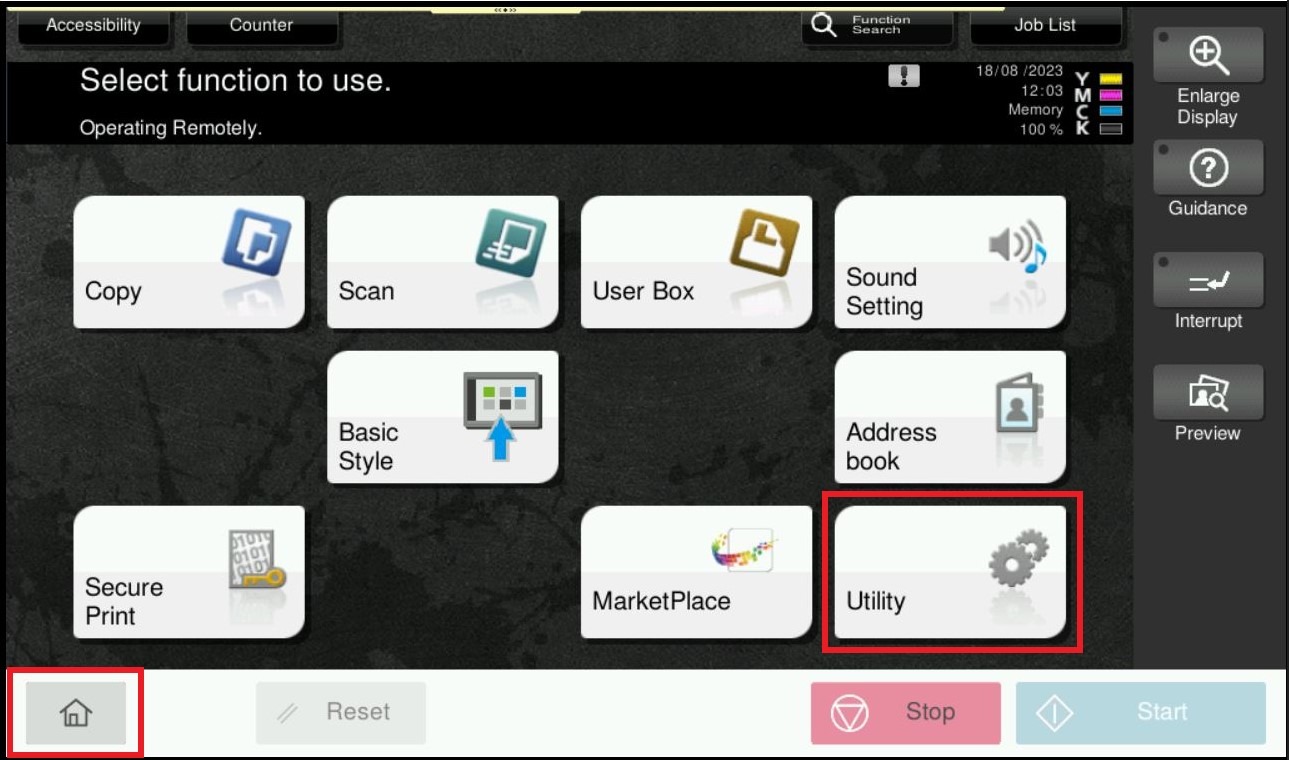
STEP 2 – Select [Utility].
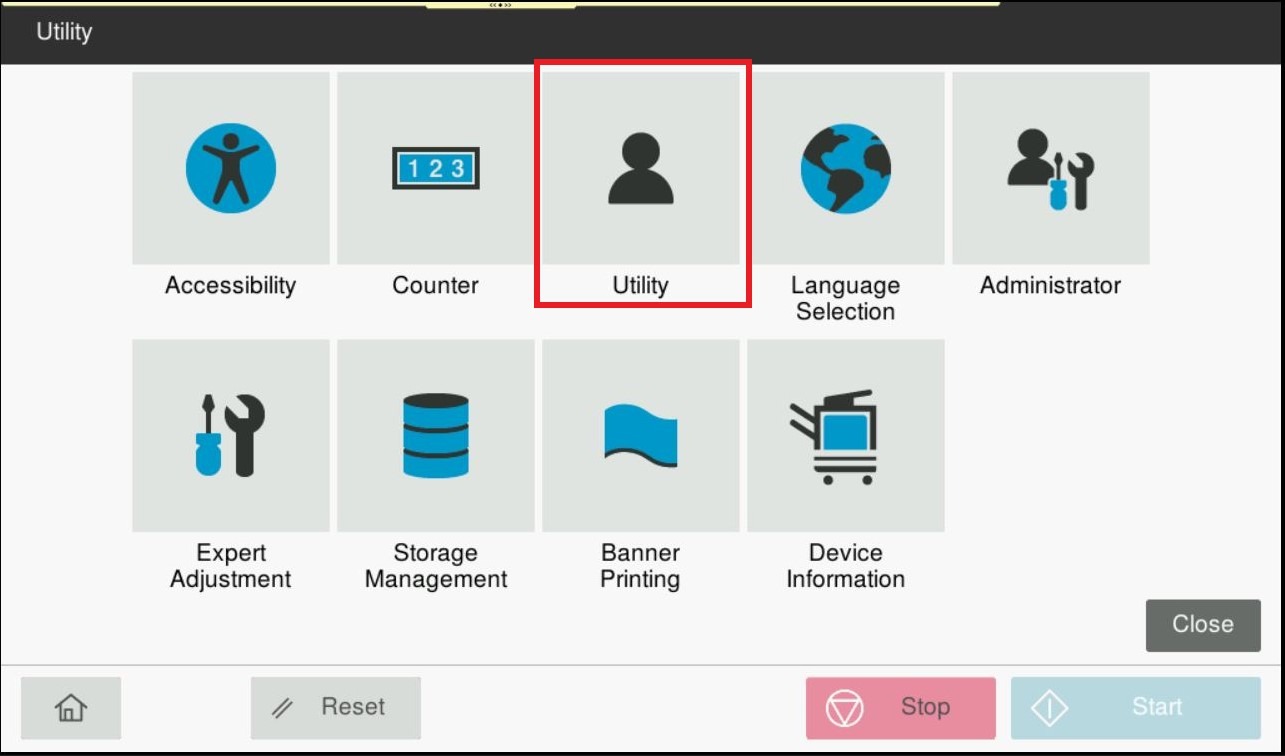
STEP 3 – Click on [Customize].
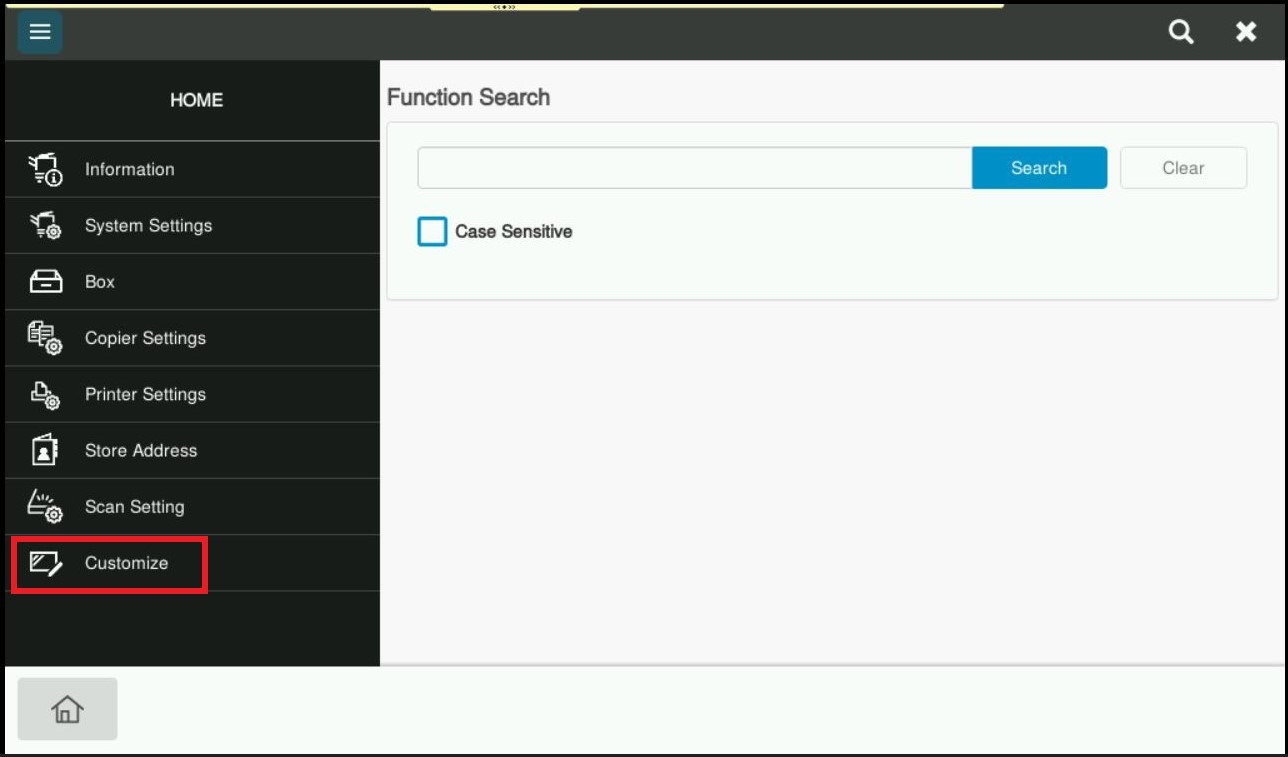
STEP 4 – Select on [Scan Settings].
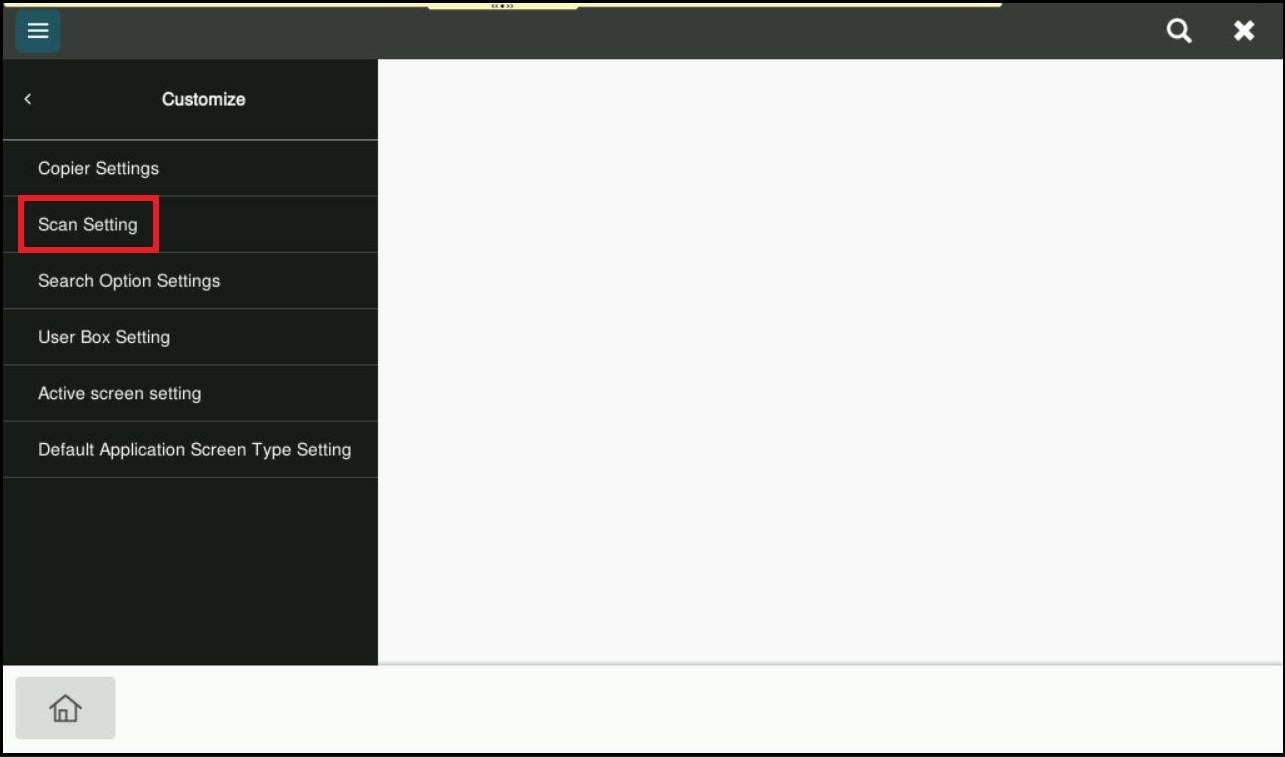
STEP 5 – Click on [Default Address Sort Method] then select either [Registered No.] or [Name]. Click [Home] icon to save the setting once selected and exit to the main screen.
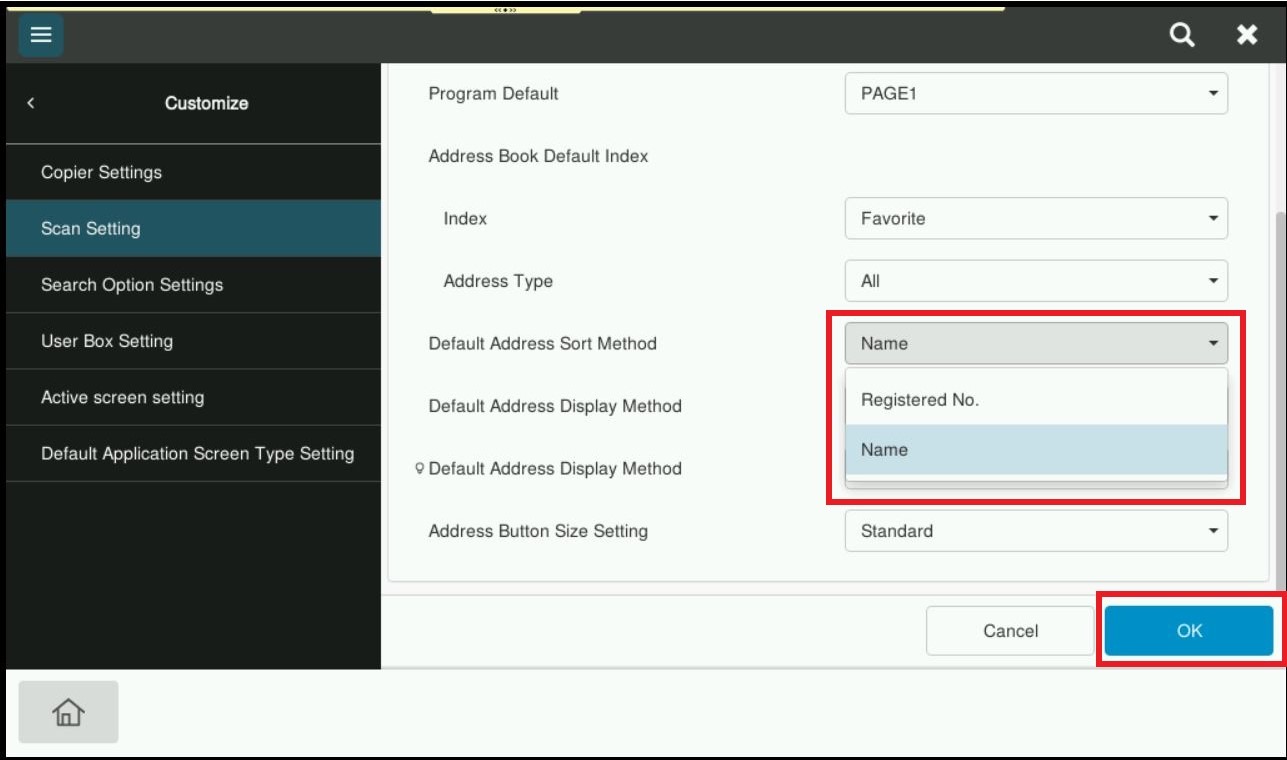
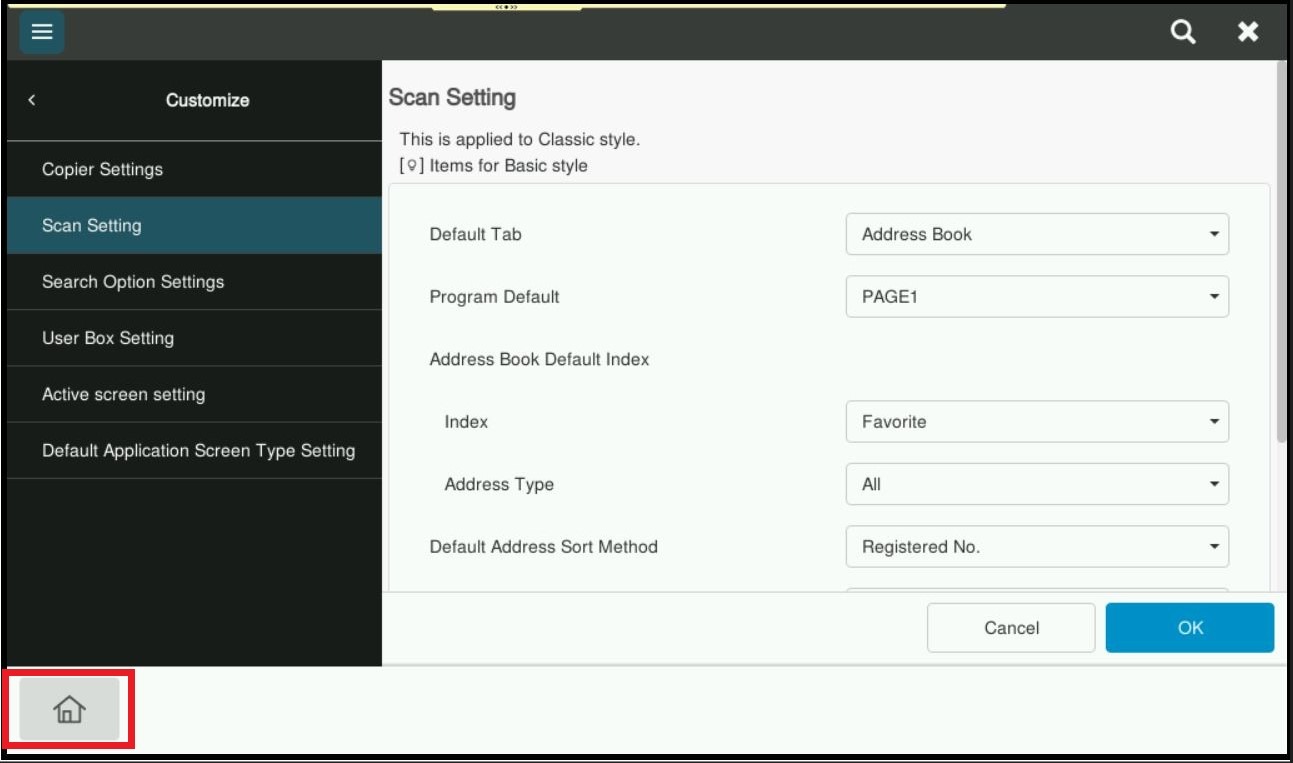
- Registration No: Display the address book name follow by the Registration number.
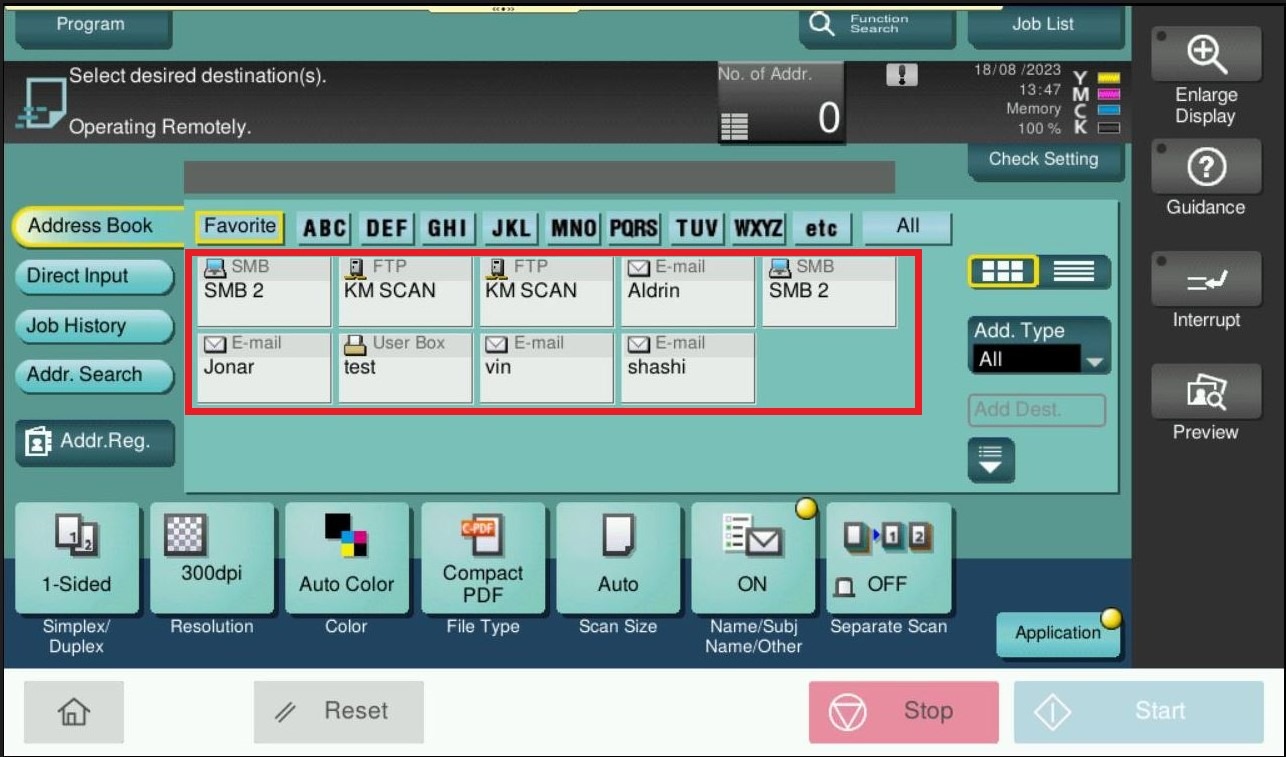
- Name: Display the address book name follow by the Name in ascending order.