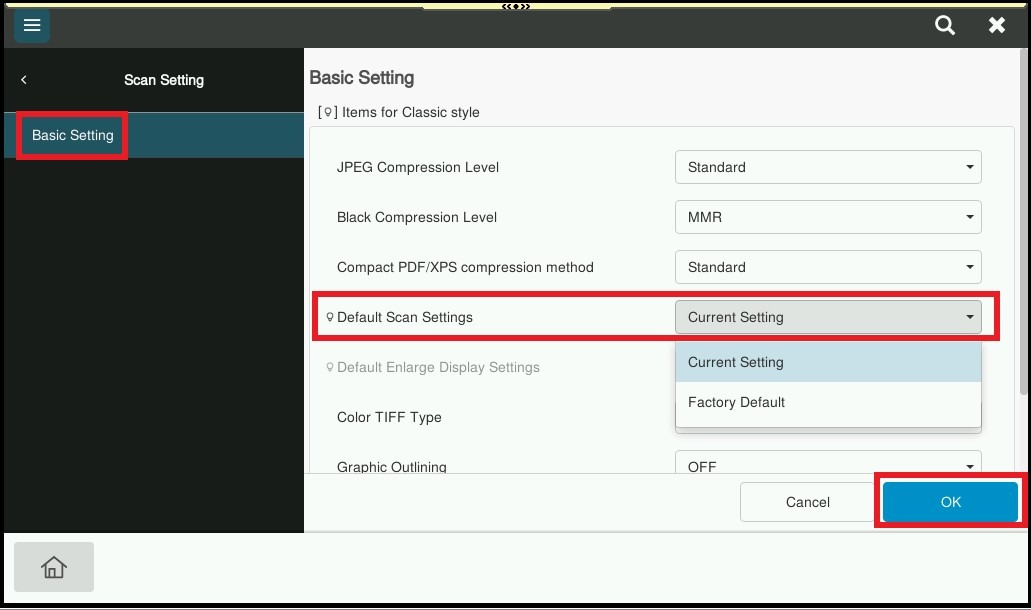
Guide on set the Default Scan Settings. This will set any settings that you change as the default settings when you scan from the machine.
For the Older Machine series / Non I-Series Machine
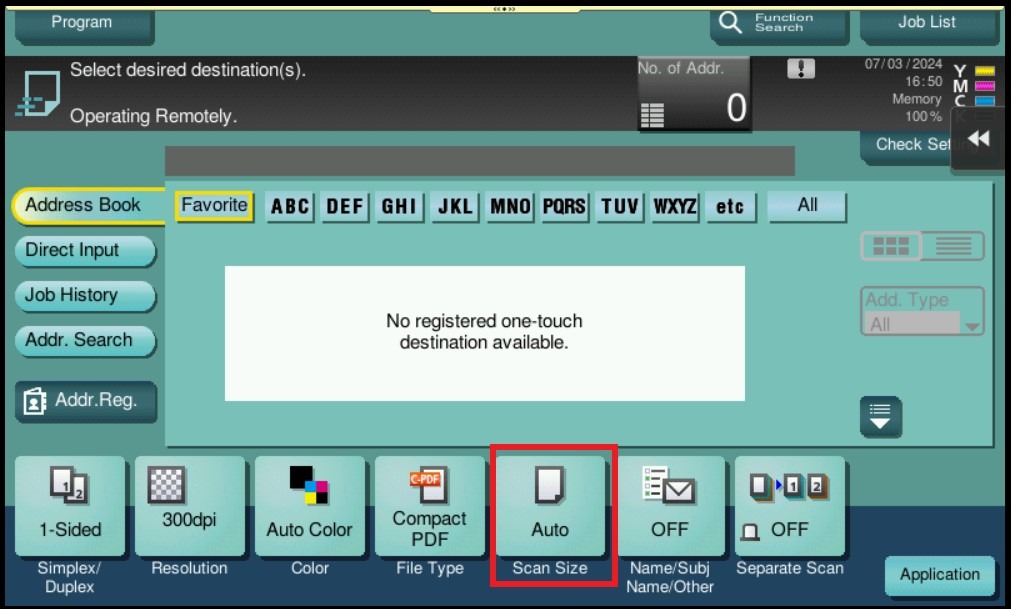
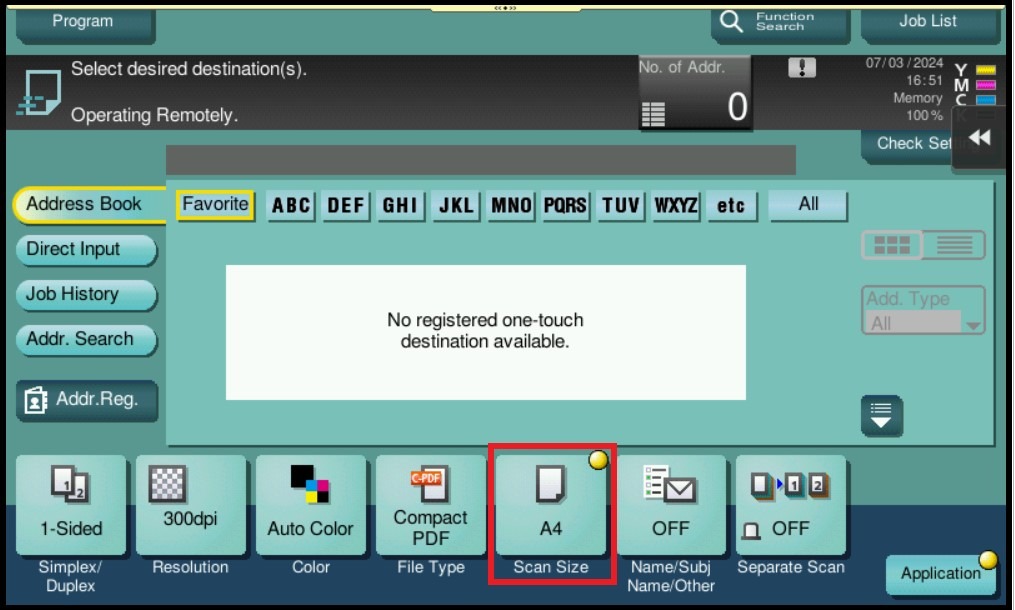
STEP 1 – On the [Scan] option screen, change any settings that you preferred to be the default settings when scanning. For this example, the Scan Size is set from [Auto] to [A4].
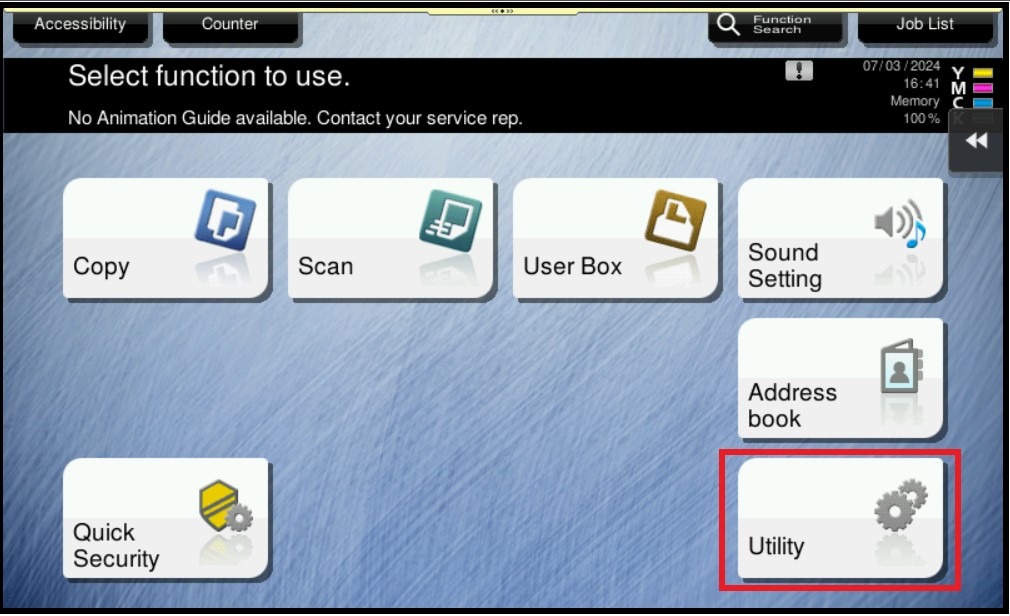
STEP 2 – Select [Utility].
STEP 3 – Select [User Settings].
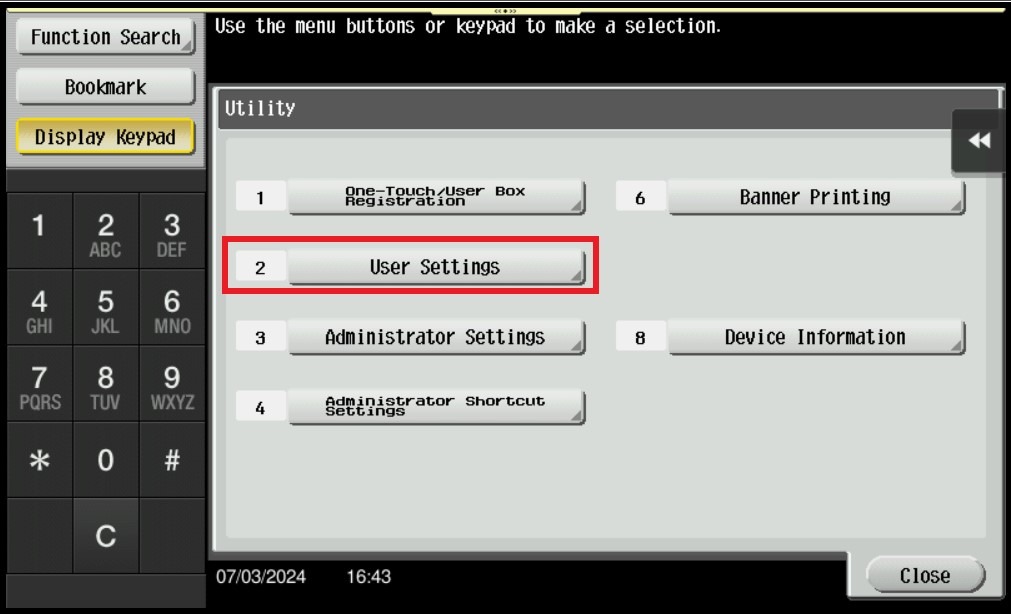
STEP 4 – Select [Scan Settings].
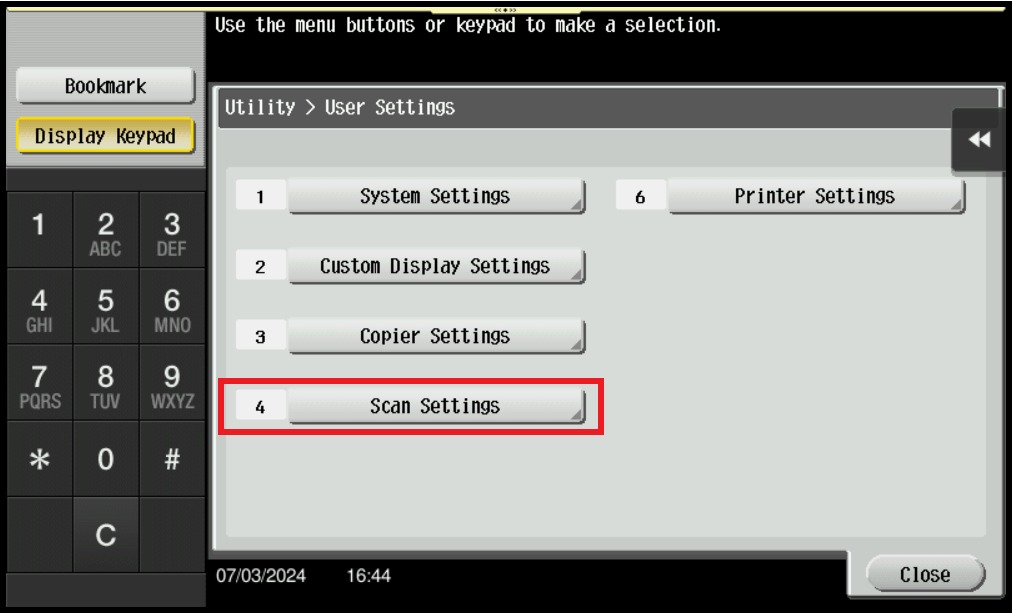
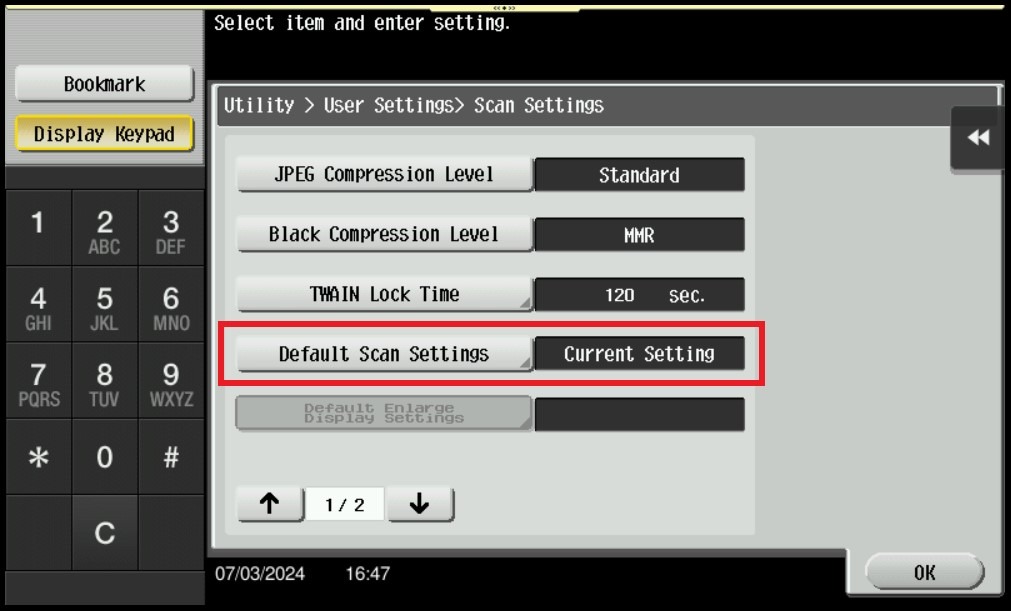
STEP 5 – Select [Default Scan Settings].
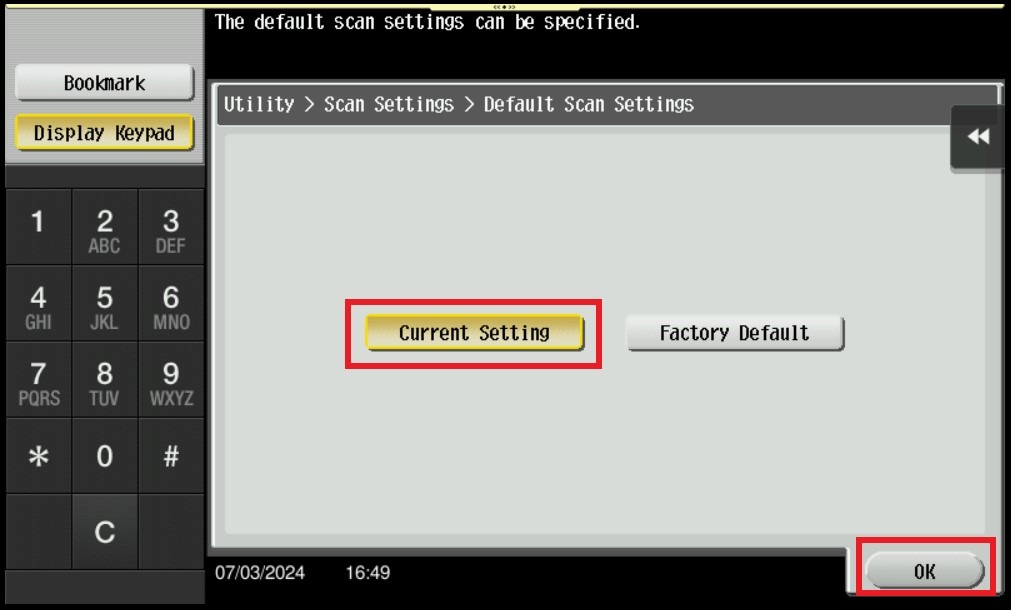
STEP 6 – Select [Current Setting], and click [OK] to save setting.
For the Newer Machine series / I-Series Machine
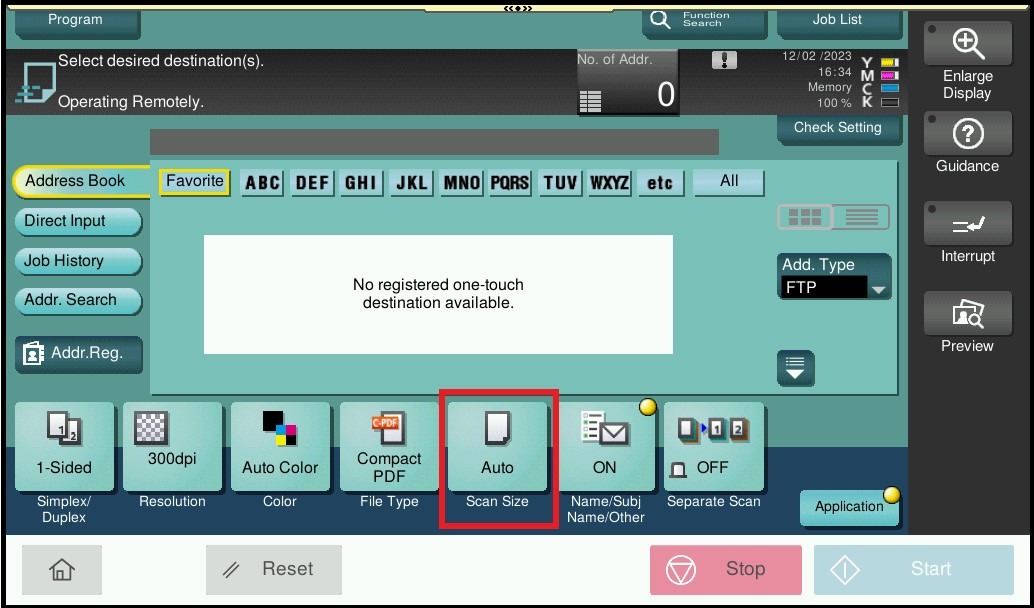
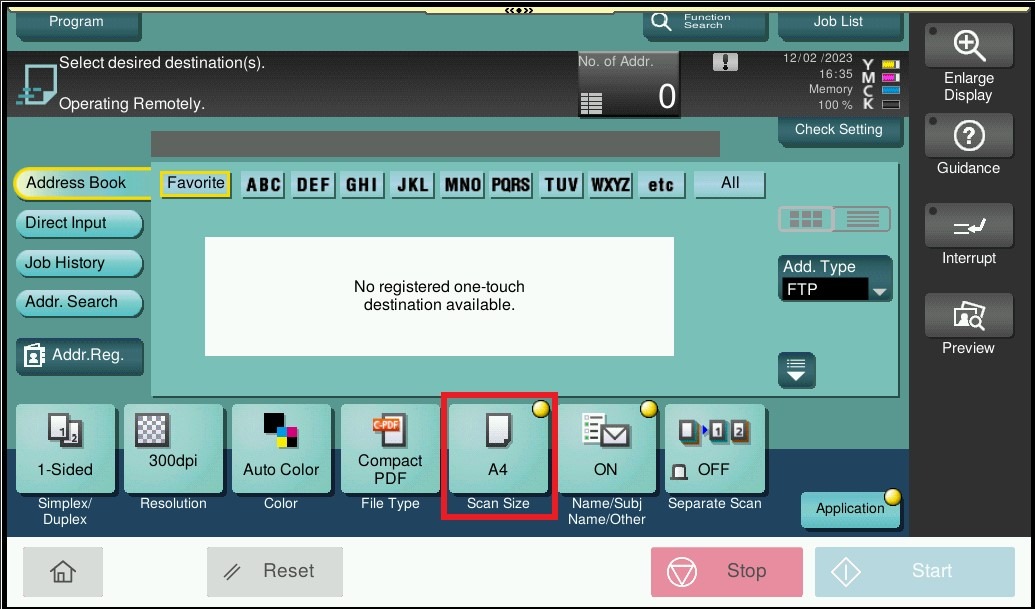
STEP 1 – On the [Scan] option screen, change any settings that you preferred to be the default settings when scanning. For this example, the Scan Size is set from [Auto] to [A4].
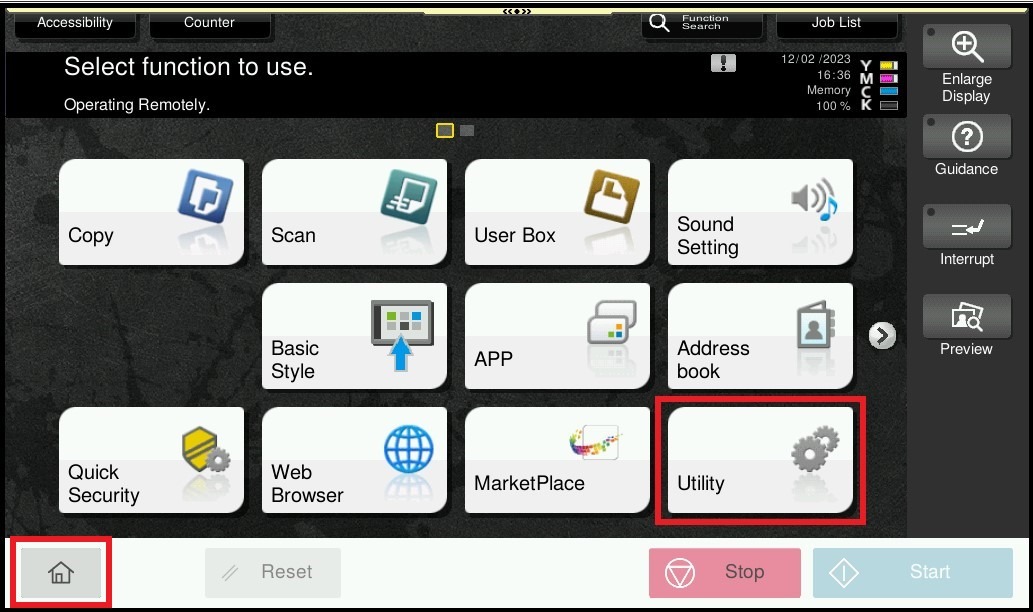
STEP 2 – Select [Home] – [Utility].– [Utility].
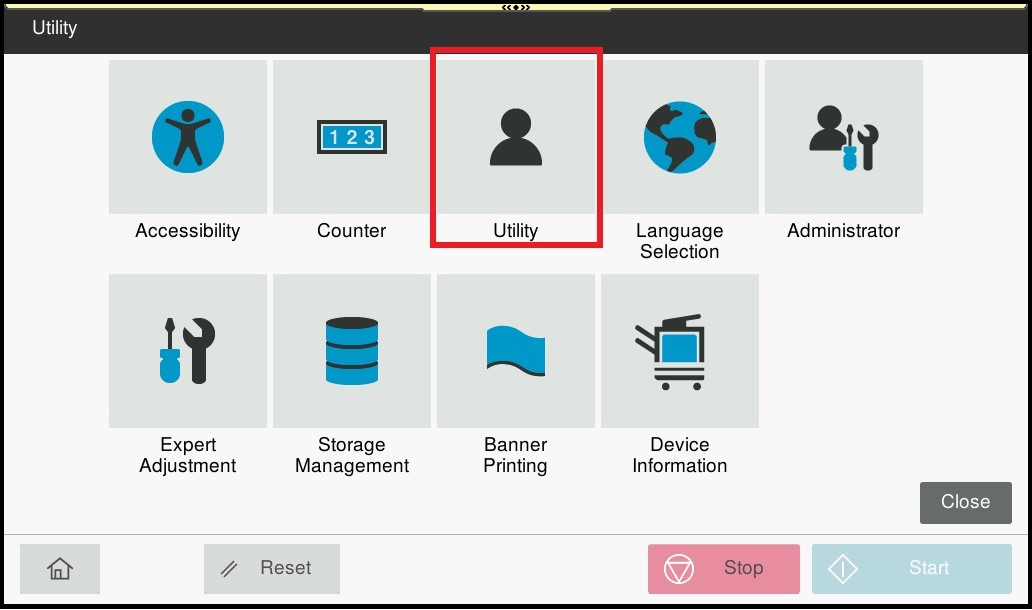
STEP 3 – Select [Scan Settings].
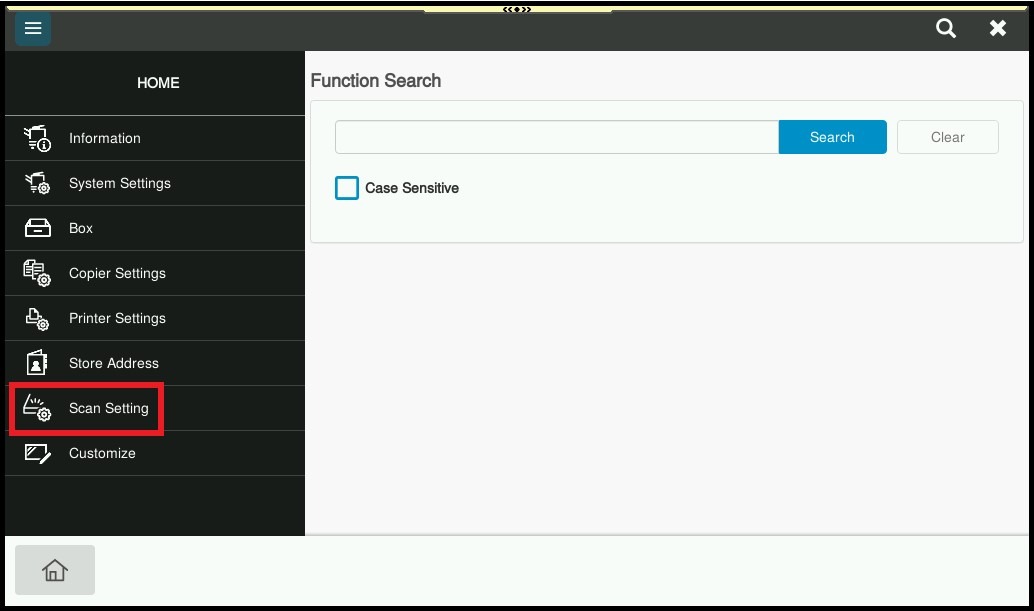
STEP 4 – Select [Basic Setting], change the Default Scan Settings to [Current Setting] then click OK to save the setting.