Guide on how to resolve the issue where the username cannot be changed in SafeQ
When printing from a computer to the photocopier via SafeQ, the SafeQ username is linked to the computer’s hostname.
When the computer is assigned to a different user and the username needs to be changed. In some cases, SafeQ will still recognize the computer under the previous username. In such situations, it is necessary to remove the existing aliases and register new aliases through the SafeQ Portal.
Please follow the steps below to clear the previous username and register a new username in the SafeQ Portal.
Requirements:
- Administrator login to SafeQ Portal.
- Accessible to SafeQ Server to restart SafeQ Services.
How to update to new username from SafeQ Portal
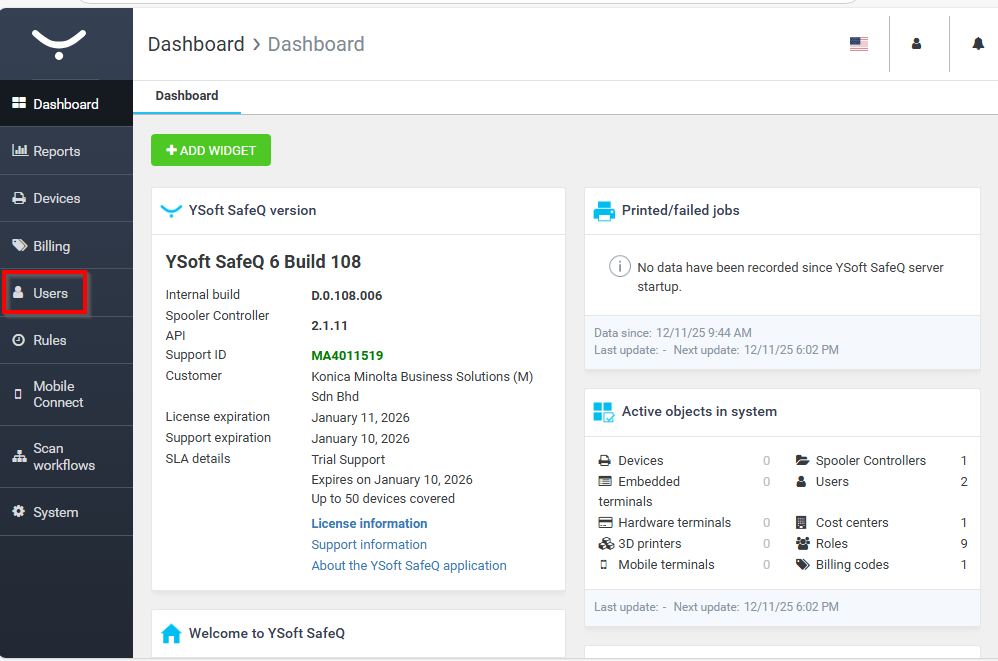
STEP 1 – Sign in to the SafeQ Portal with an admin account. Navigate to [Users] and select the [Edit] option for the user whose previously stored alias you wish to modify.
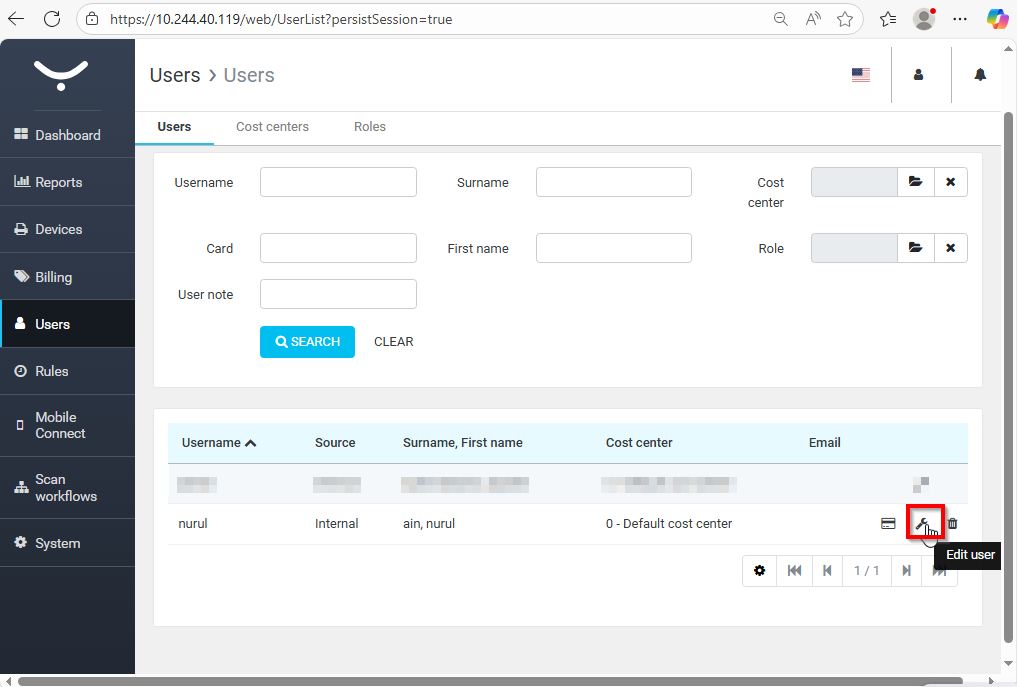
STEP 2 – Navigate to the [Aliases] settings and select the [Rubbish Bin] icon to remove the alias assigned to the user.
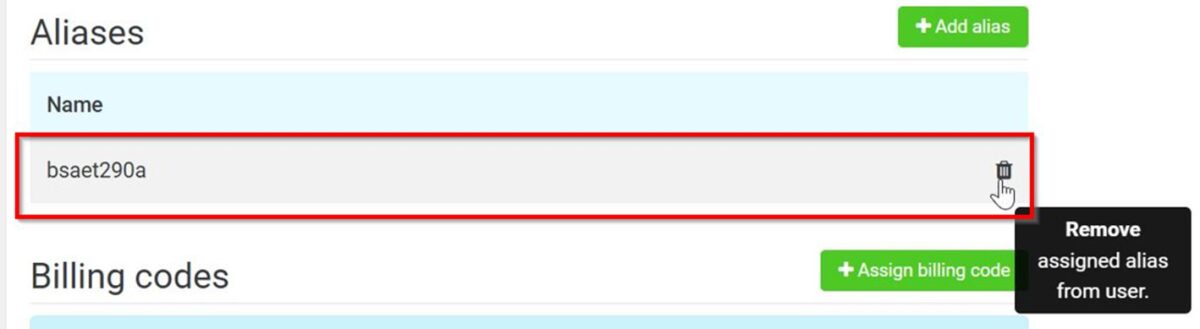
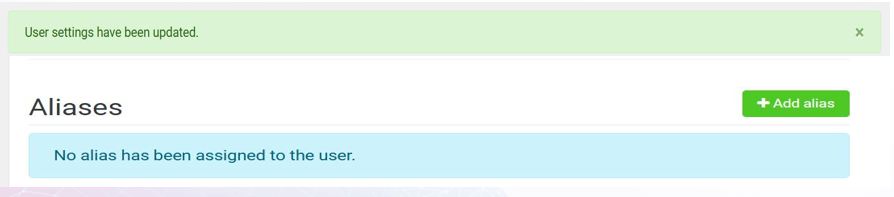
STEP 3 – The user settings will be updated and any aliases linked to the computer’s hostname will be removed from the Aliases configuration.
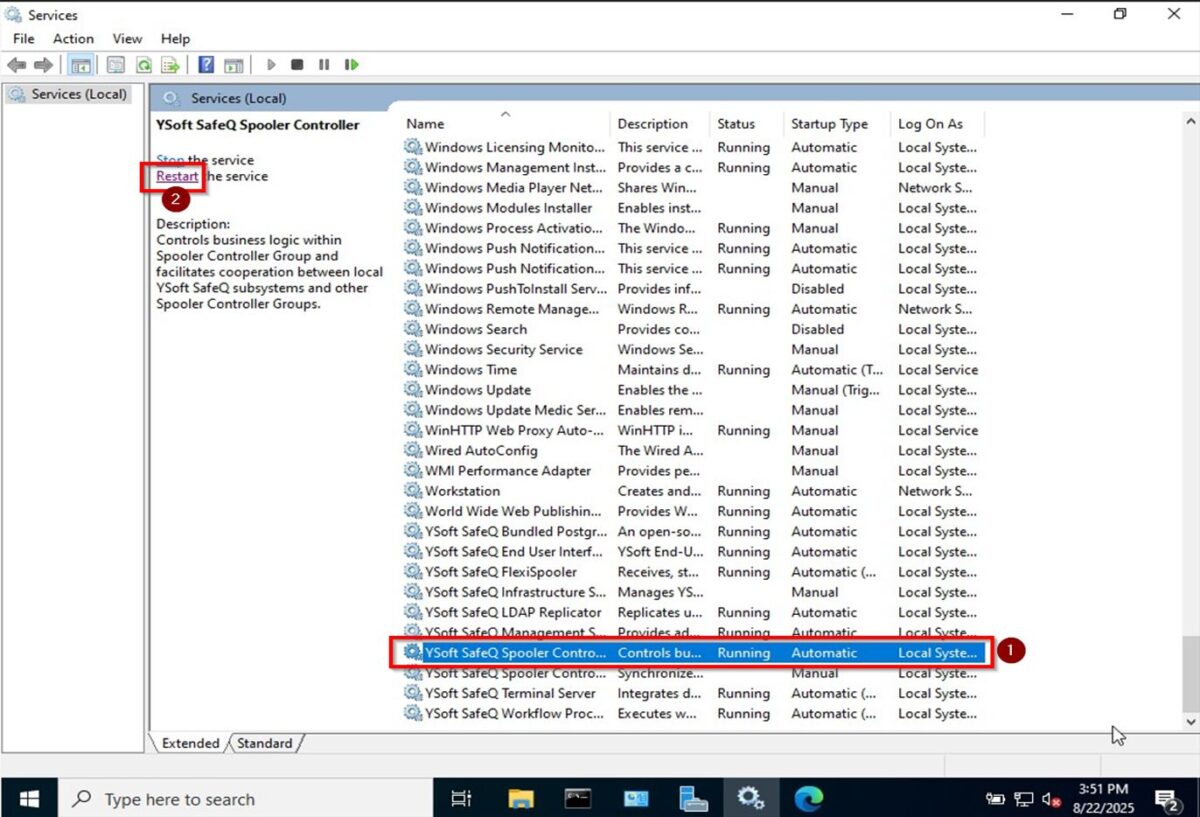
STEP 4 – Once the name has been removed, remotely to the SafeQ Server. Navigate to [Services] – [Ysoft SafeQ Spooler Controller], then click [Restart] to apply the changes to the user settings in the SafeQ Portal.
STEP 5 – Wait for few minutes, then try printing again from the computer. Login back to SafeQ Portal, go to [Reports], look for any job that is coming from specific computer, click on [Human Icon] to [Assign] unidentified jobs by this sender.
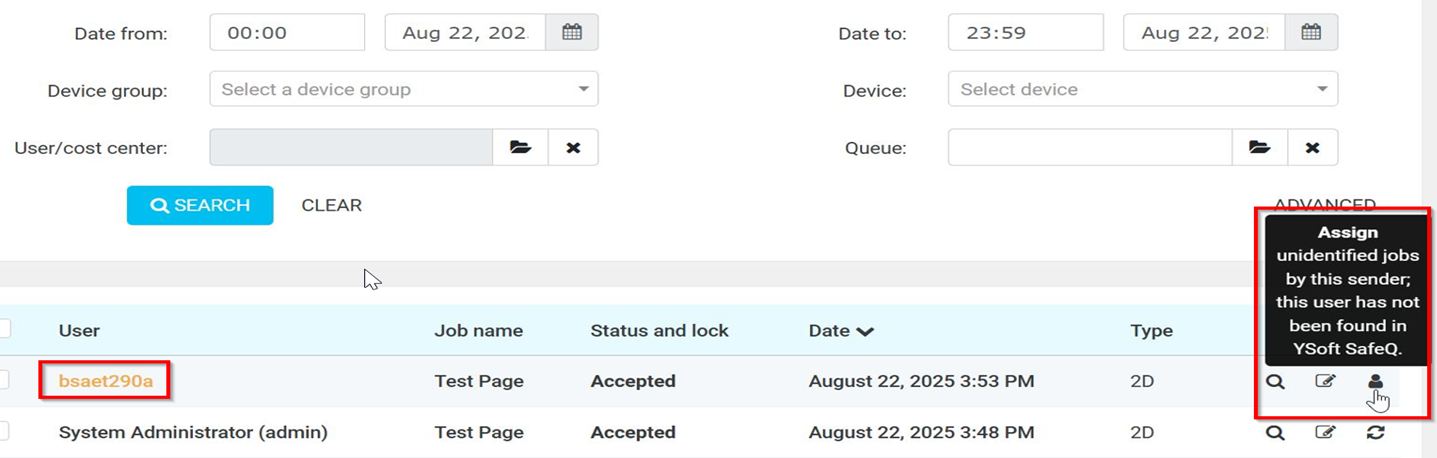
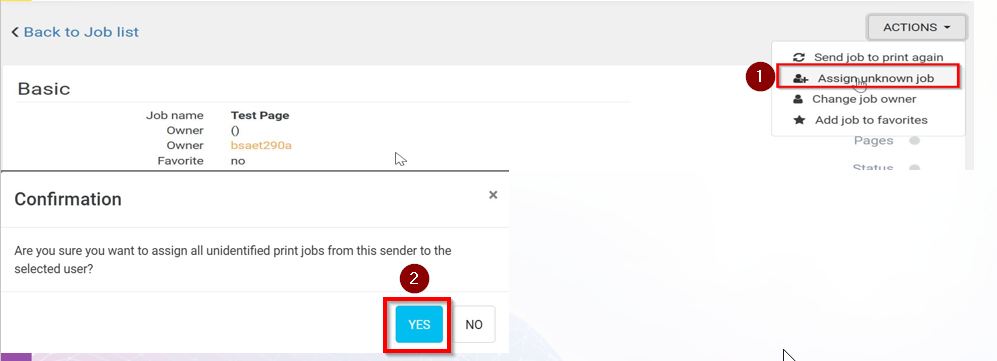
STEP 6 – Once the username has been found, kindly select [Actions] – [Assign unknown job], select [YES] to confirm assigning the printing jobs to this user.