
Guide on Fix Scanned Documents Received as Outlook (.msg) Attachments in Office 365
When performing [Scan to Email], the scanned document may appear as an [Outlook (.msg) attachment] instead of being attached directly as a [PDF file].
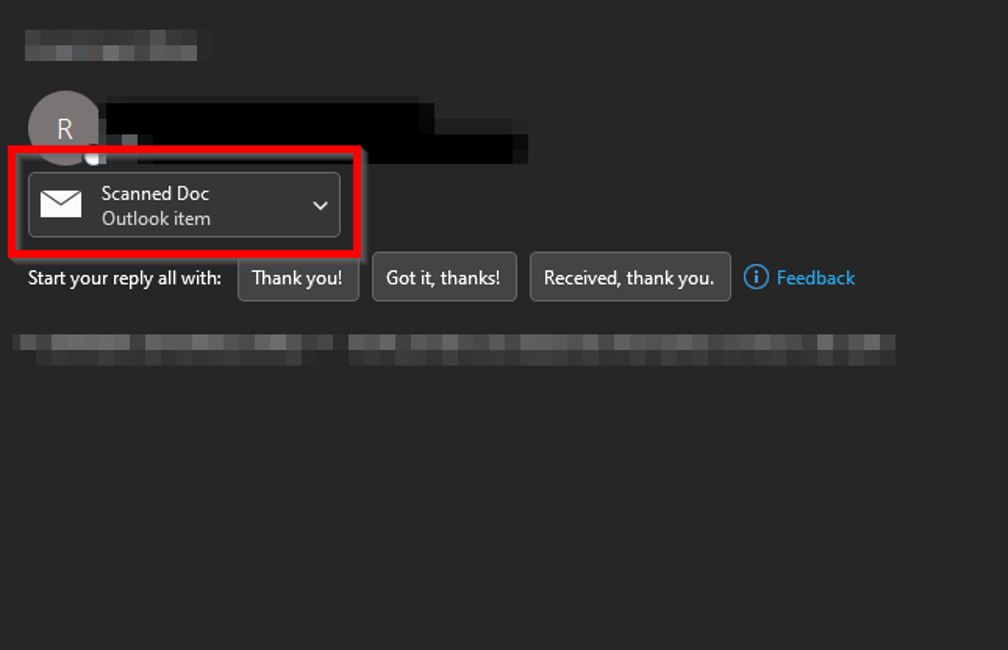
This guide explains how to resolve the issue by entering a subject name on the machine before sending the scanned document.
For Older Machine series / Non I-Series Machine
Video Tutorial
The video tutorial below provides detailed instructions and a complete demonstration of the configuration steps.
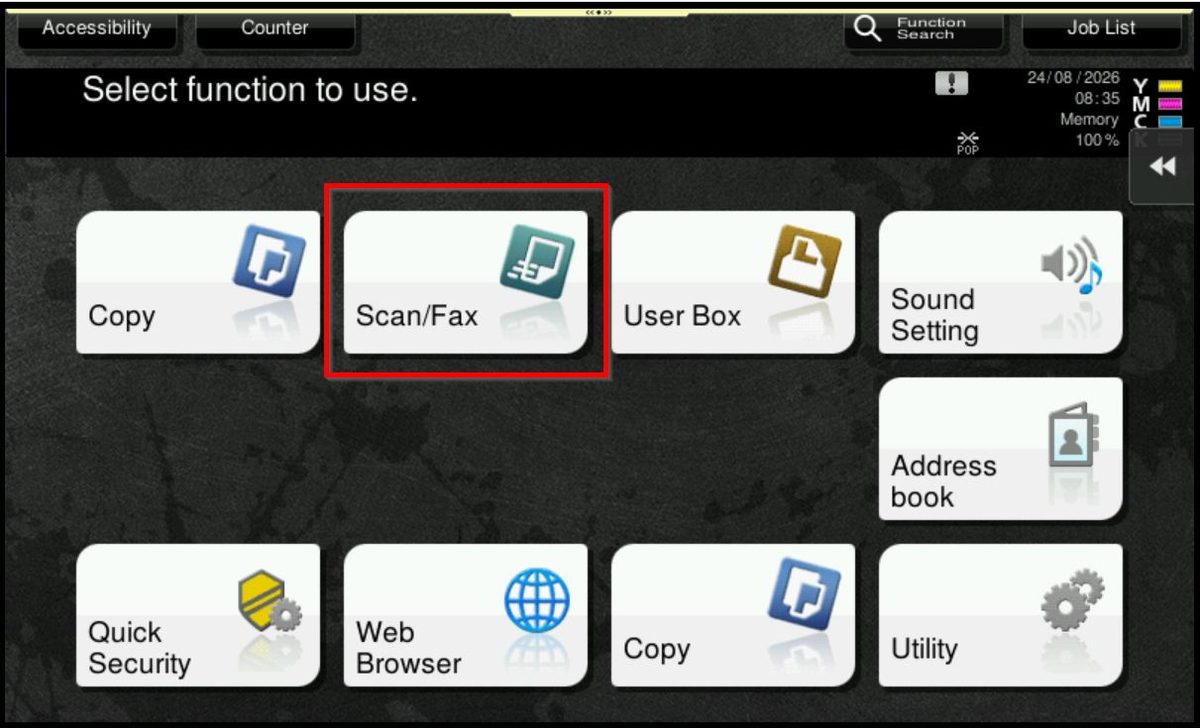
STEP 1 – Press on [Menu] button, then select [Scan].
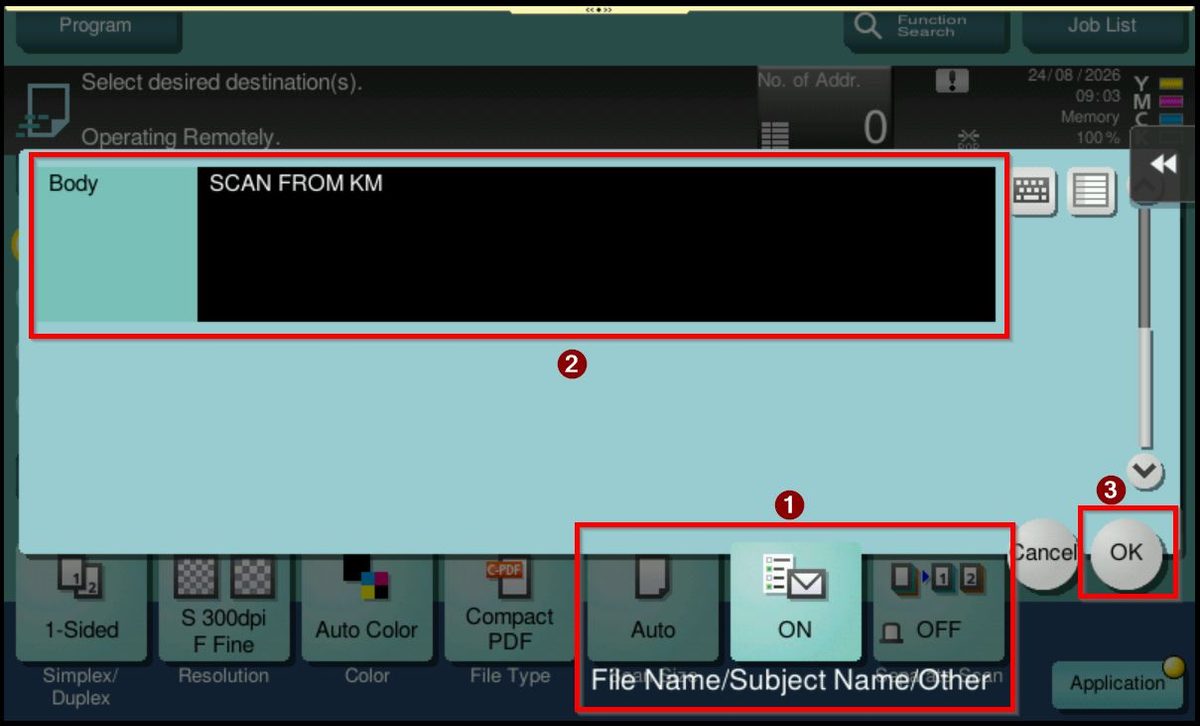
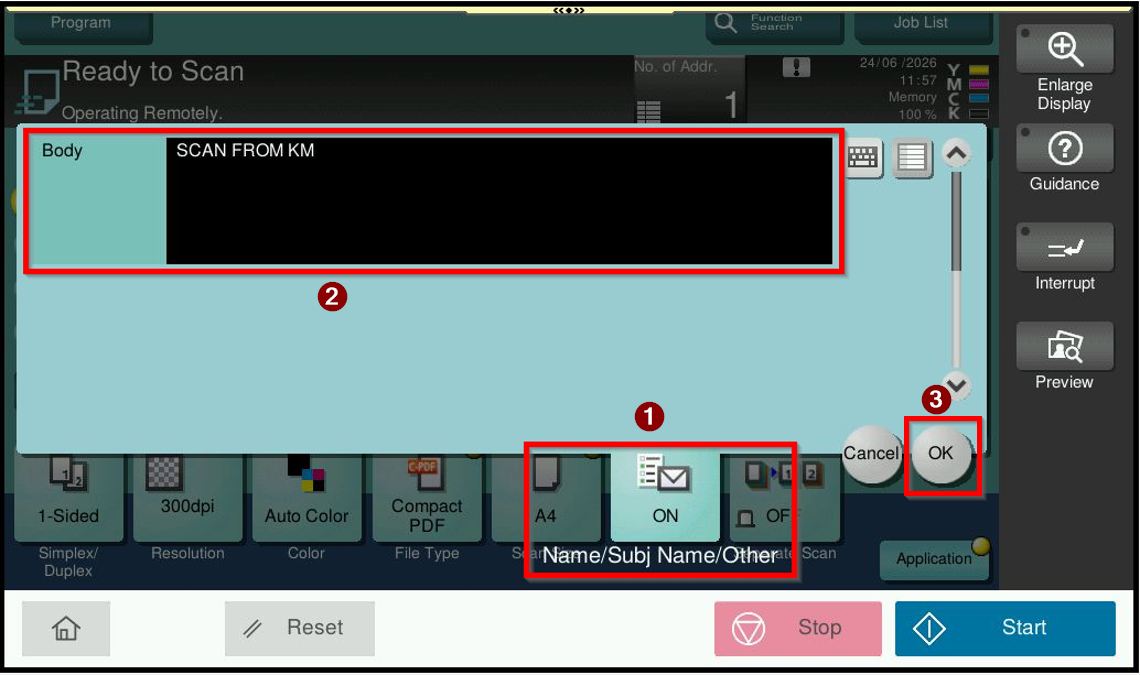
STEP 2 – Select [Name/Subj Name/Other], scroll to the bottom and enter the preferred message in the [Body] field. Click on [OK] to save setting and continue proceed for scanning.
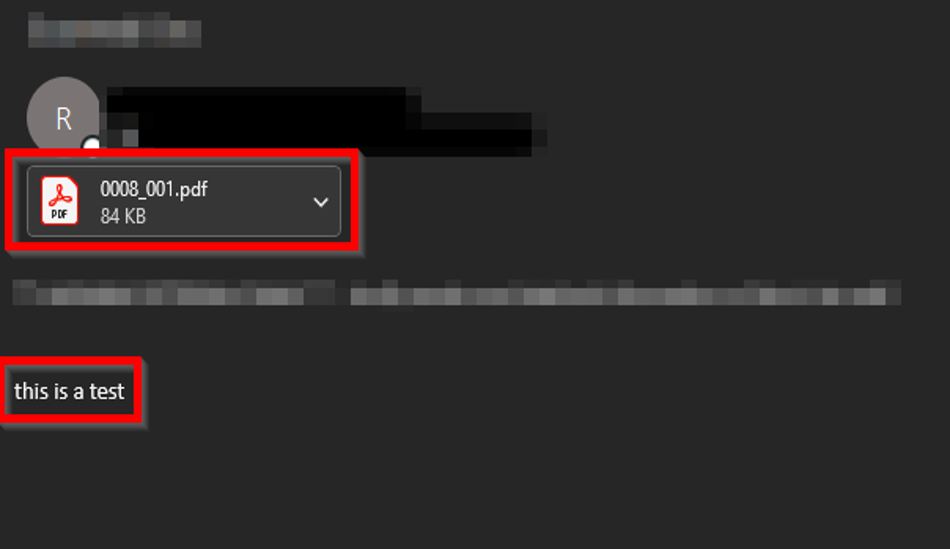
STEP 3 – After perform scan to email, no outlook item (.msg) attachment was generated and user could open the PDF immediately without additional steps.
For Newer Machine series / I-Series Machine
Video Tutorial
The video tutorial below provides detailed instructions and a complete demonstration of the configuration steps.
STEP 1 – Press on [Home] icon, then select [Scan].
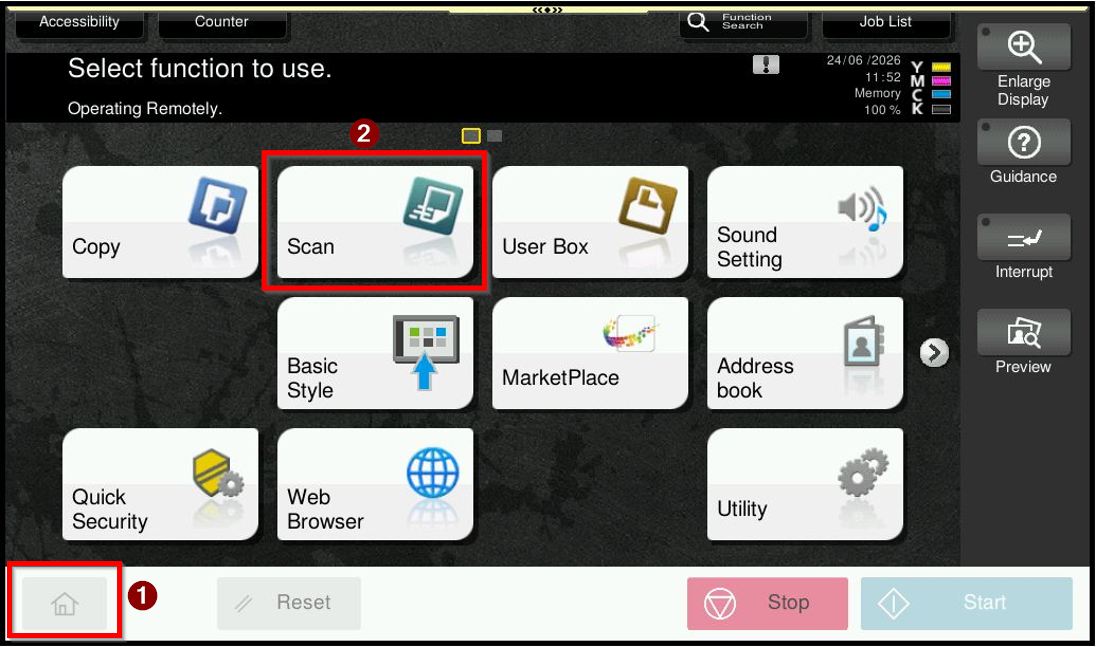
STEP 2 – Select [Name/Subj Name/Other], scroll to the bottom and enter the preferred message in the [Body] field. Click on [OK] to save setting and continue proceed for scanning.
STEP 3 – After perform scan to email, no outlook item (.msg) attachment was generated and user could open the PDF immediately without additional steps.