
Guide on fix Unable to Scan and Save to External Memory
When the thumb drive is plugged in to the machine, the Save a document to External Memory is not visible. In this case, the function is not enable on machine, kindly proceed for next step.
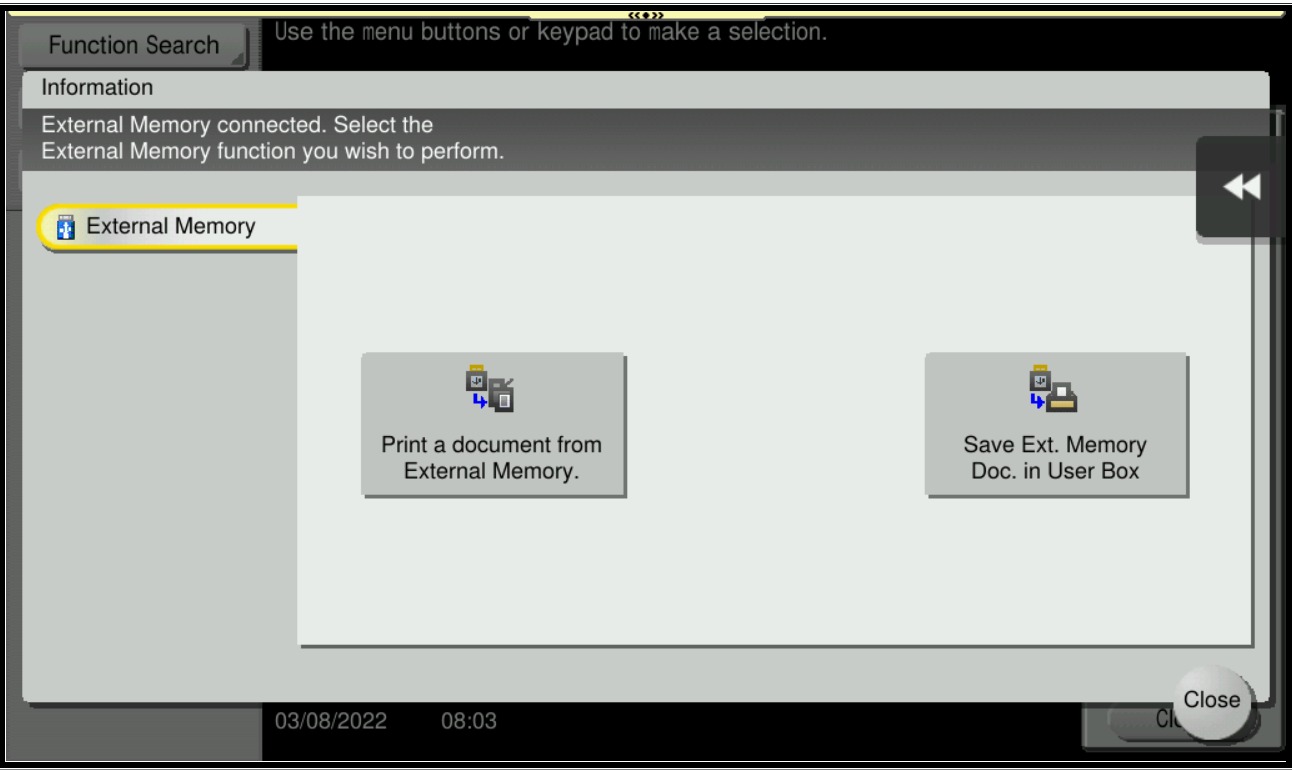
For the Older Machine series / Non I-Series Machine
STEP 1 – Select [Utility].
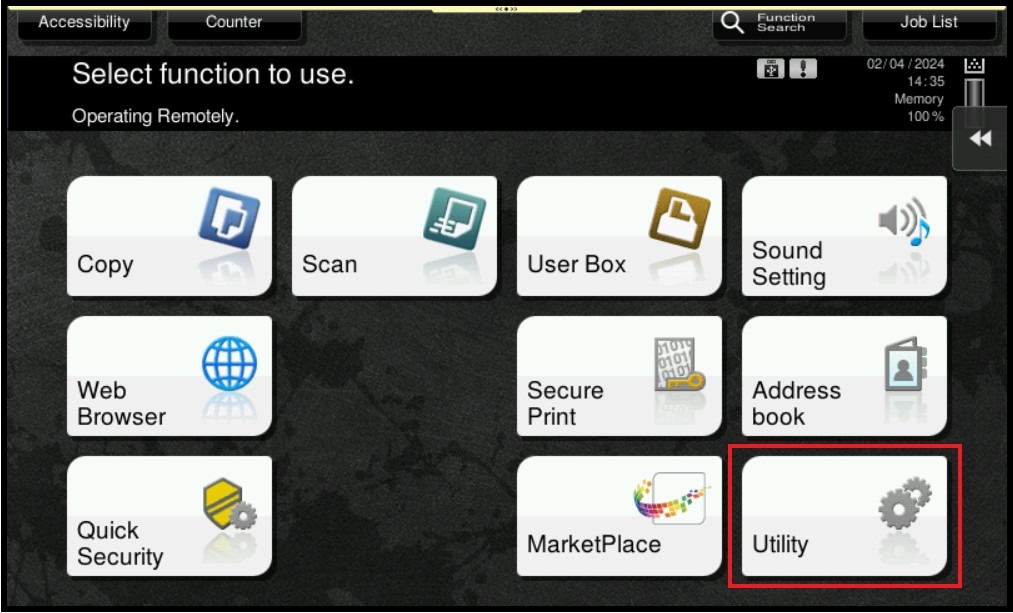
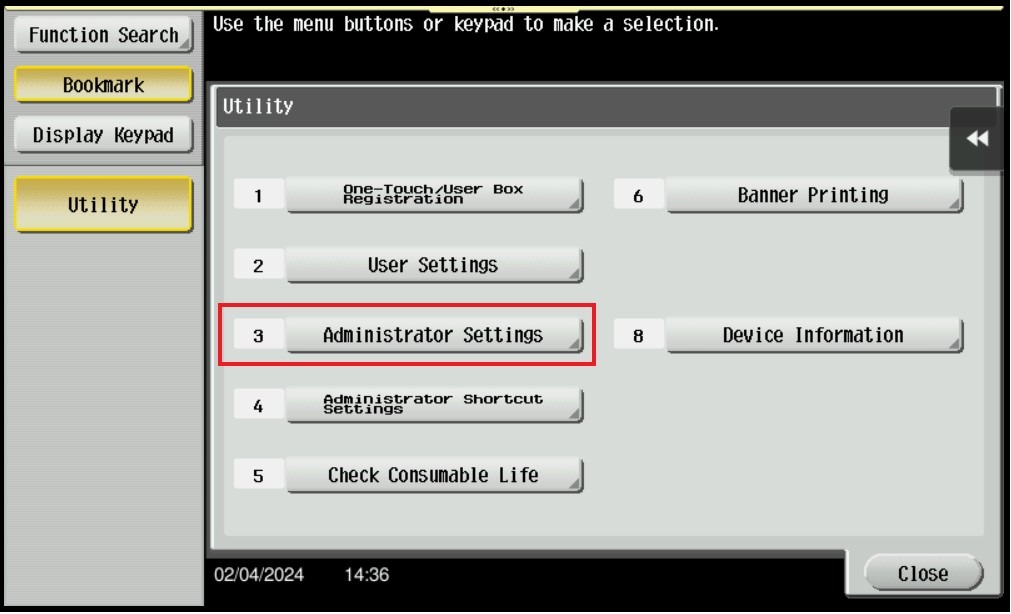
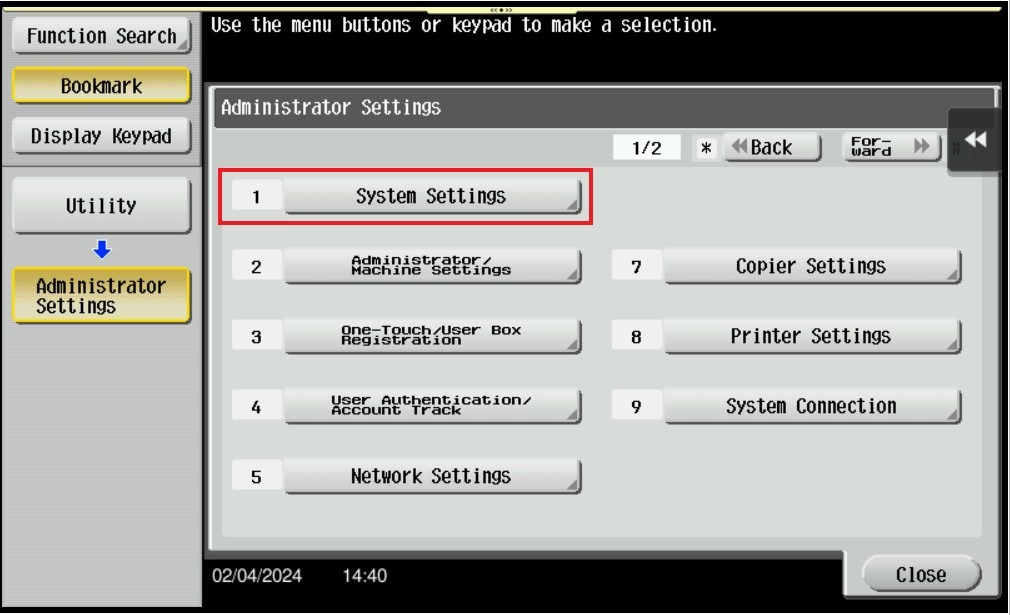
STEP 2 – Select [Administrator Settings].
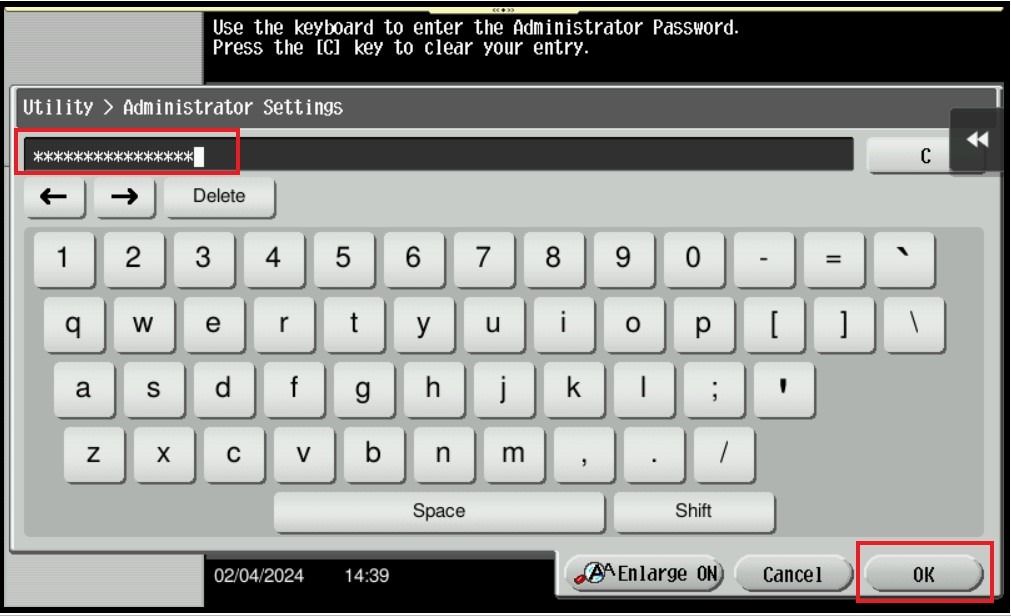
STEP 3 – Key in admin password and click ok to login.
STEP 4 – Select [System Settings].
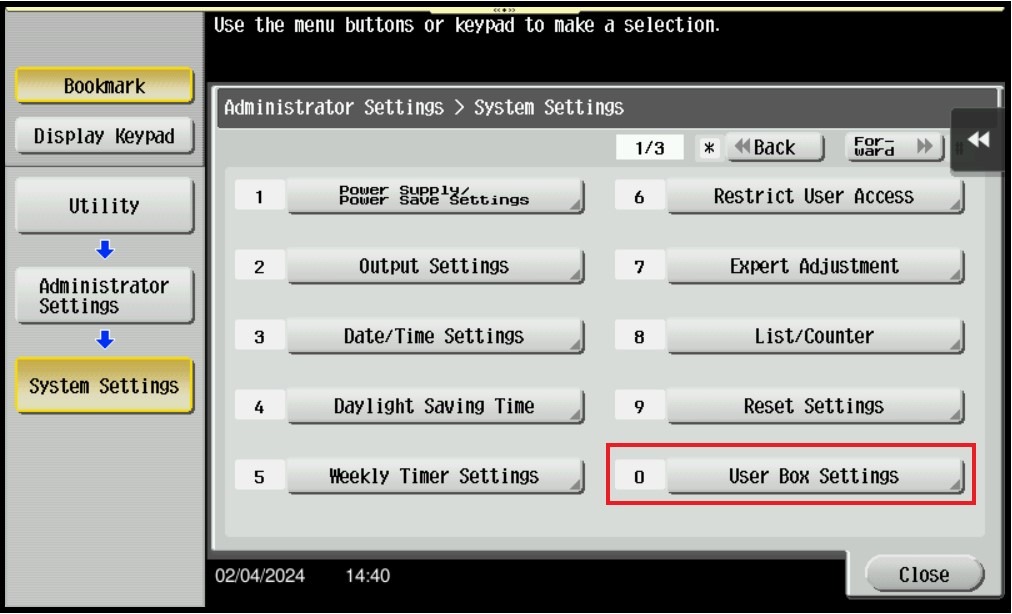
STEP 5 – Select [User Box Settings].
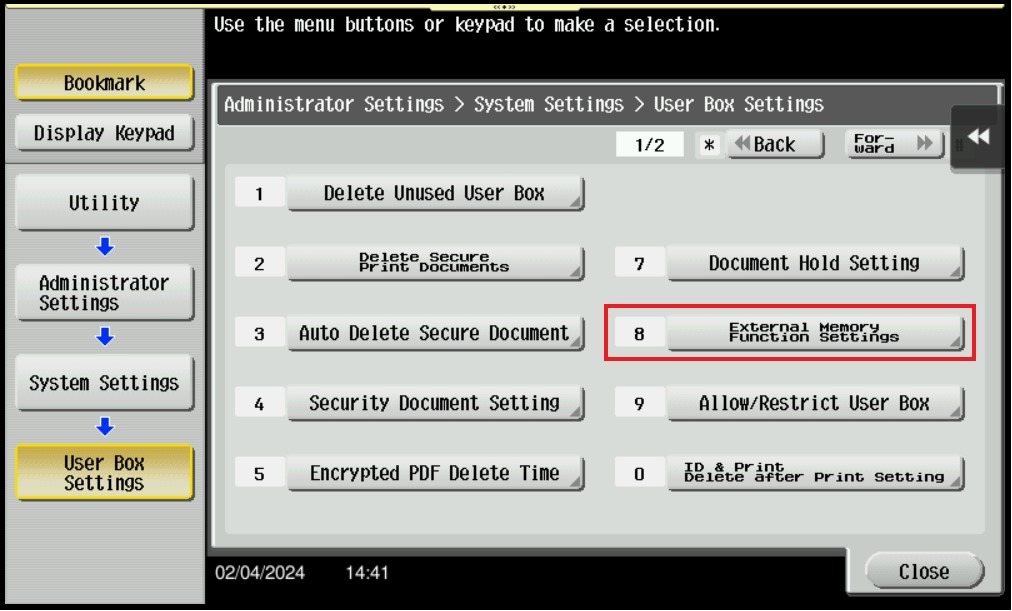
STEP 6 – Select [External Memory Function Settings].
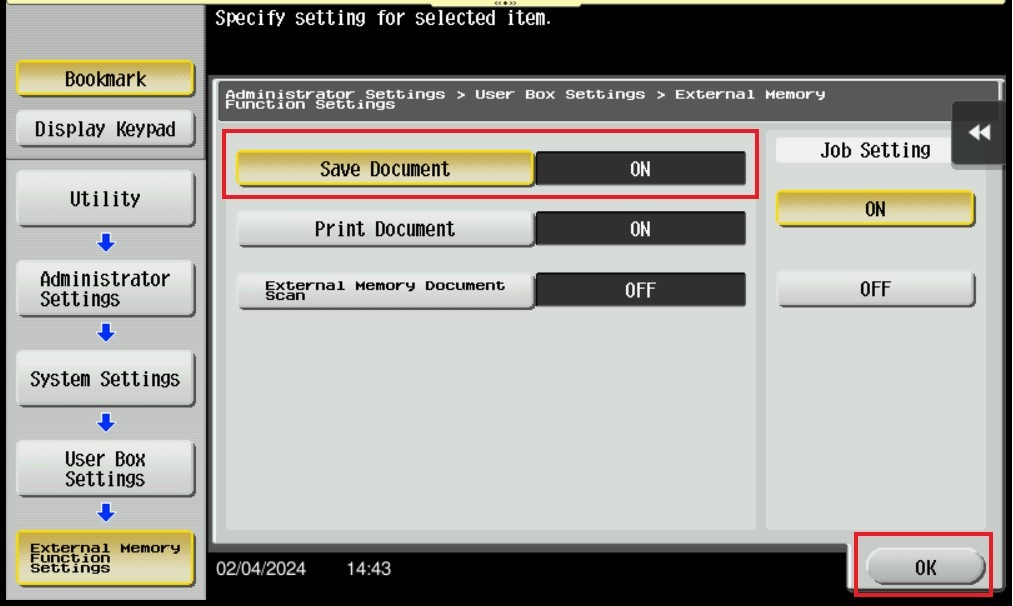
STEP 7 – Select Save Document is ON then click OK to save it, this will enable the option to Save Document to External Memory when a thumb drive is plugged in on the machine. Important Note: Only thumb drives with file type FAT32 is accepted on the machine. NTFS file type and encrypted thumb drives will not work on the machine.
For the Newer Machine series / I-Series Machine
STEP 1 – Select [Home] – [Utility].
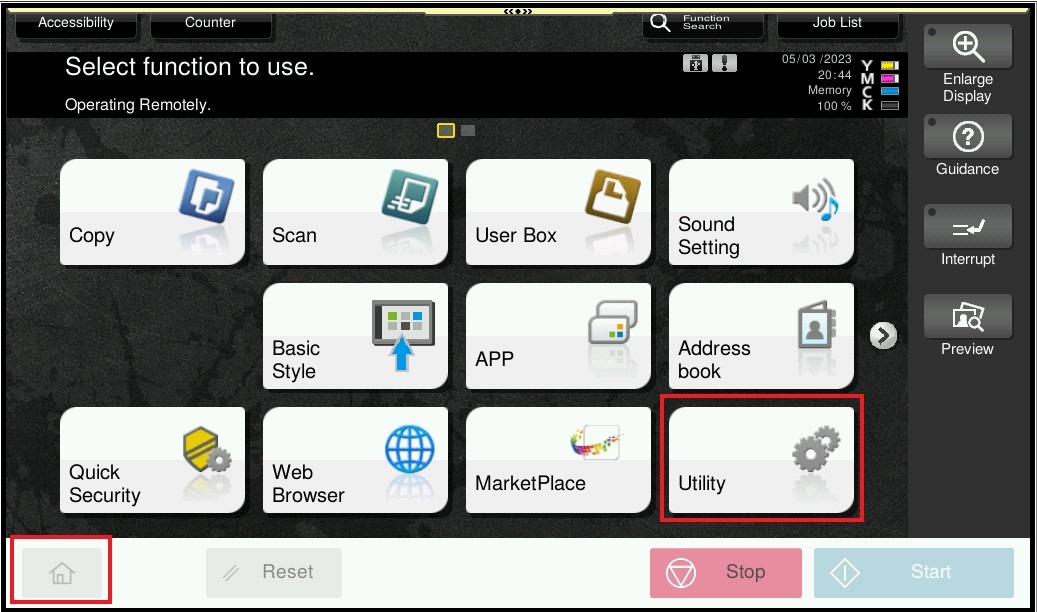
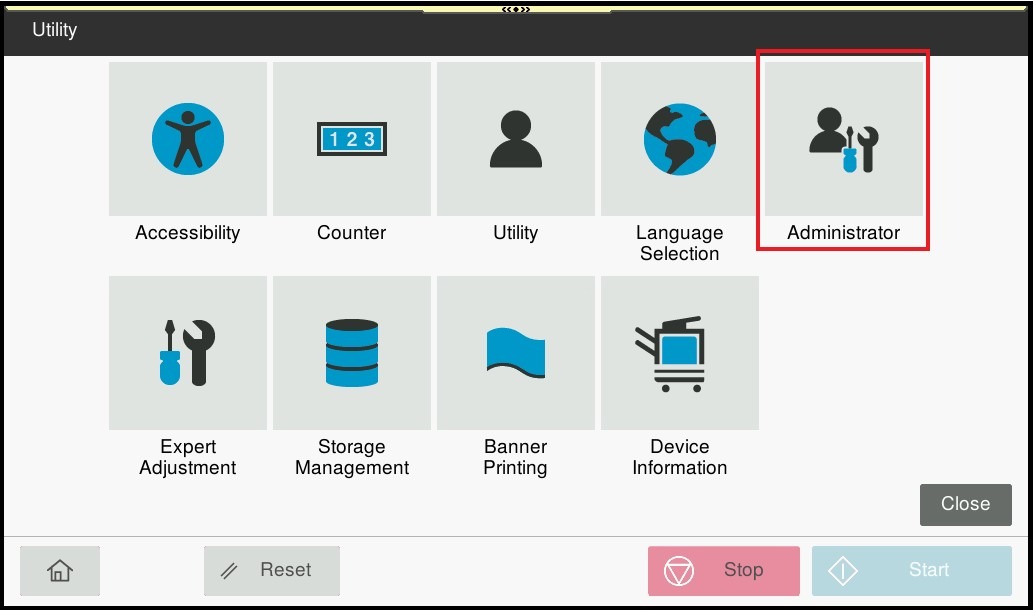
STEP 2 – Select [Administrator].
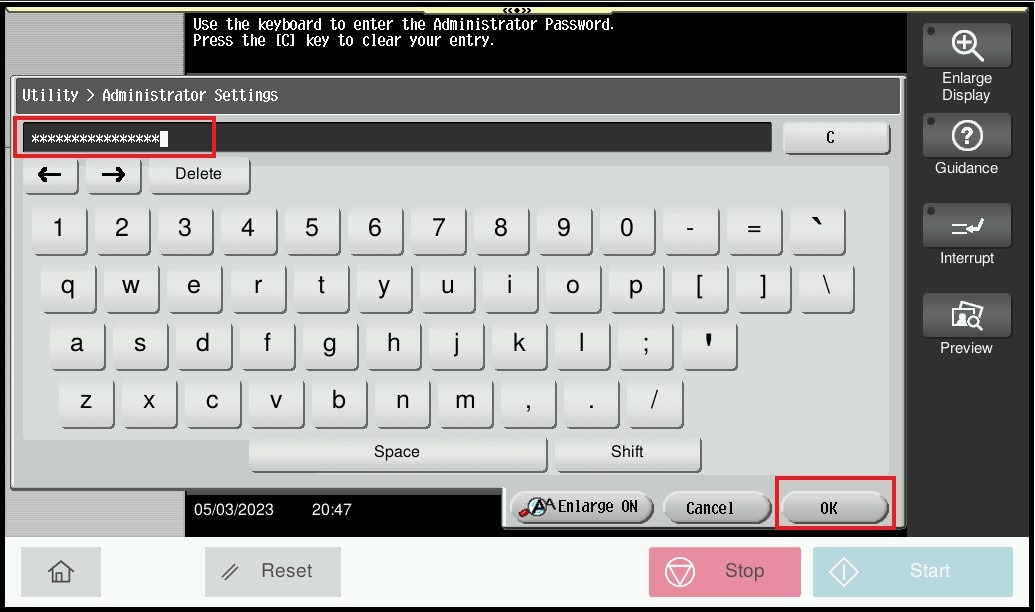
STEP 3 – Key in admin password and click ok to login.
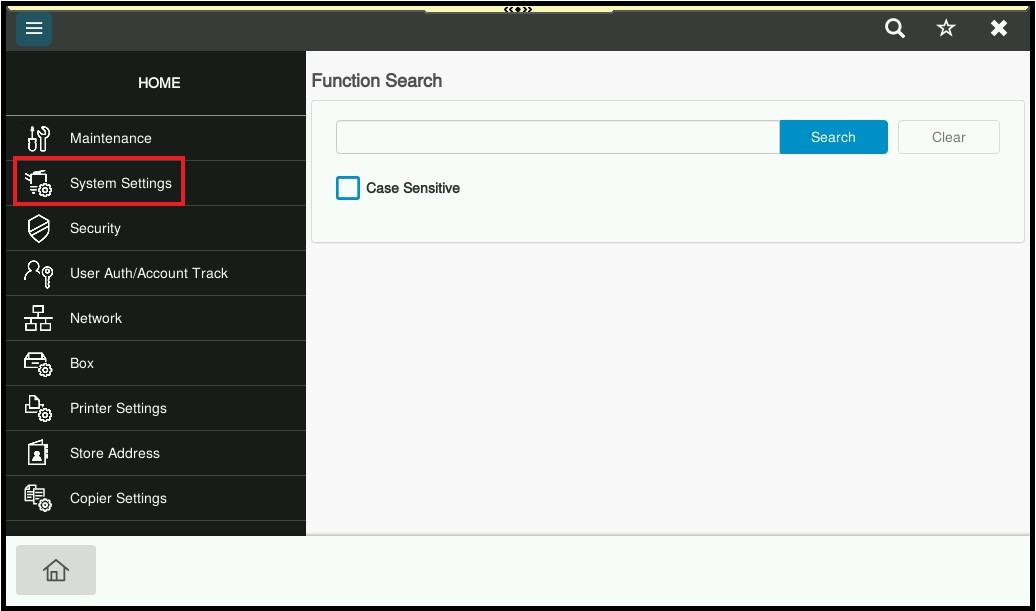
STEP 4 – Select [System Settings].
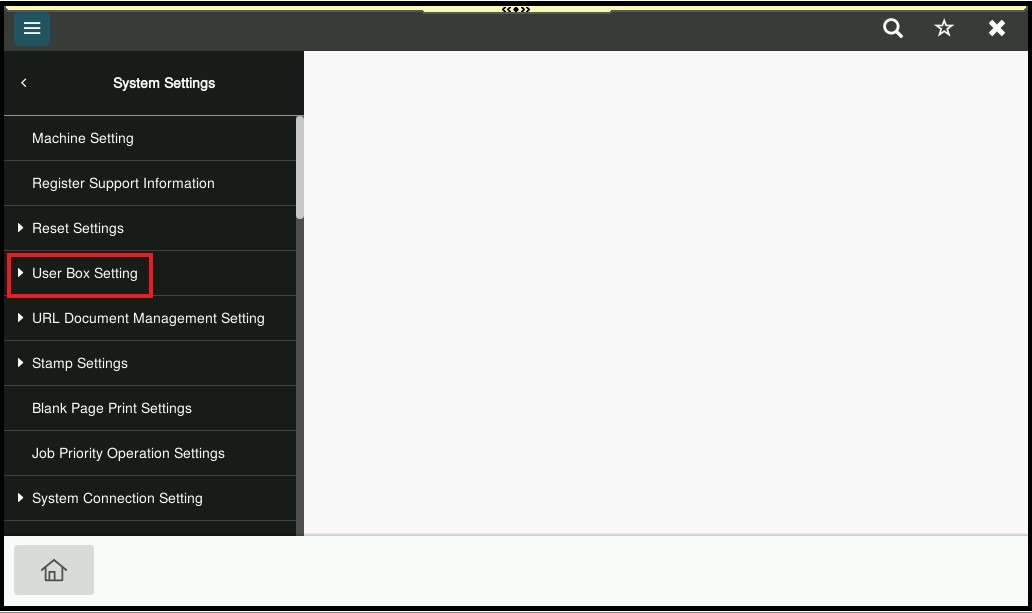
STEP 5 – Select [User Box Settings].
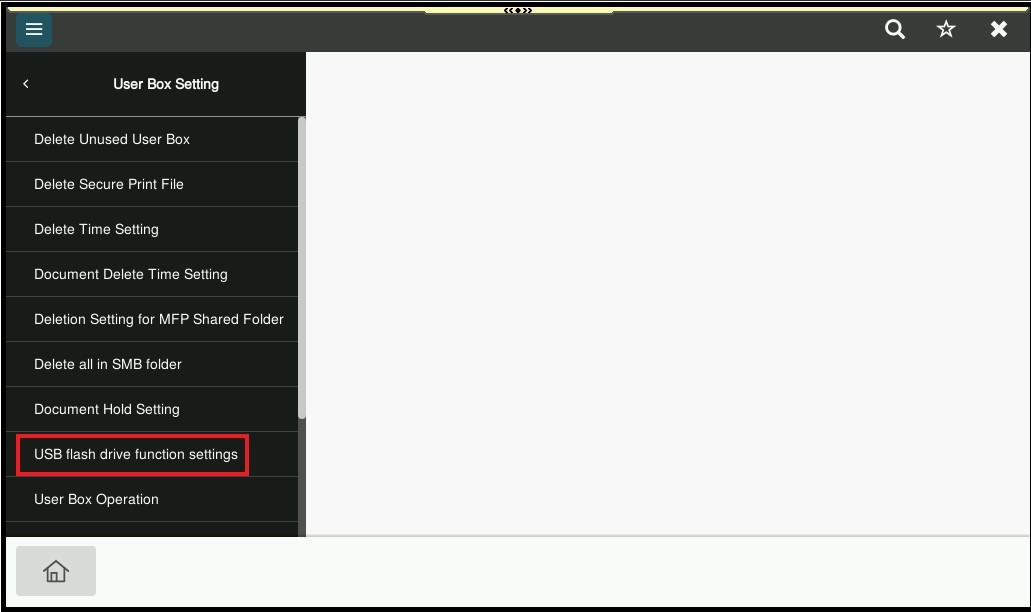
STEP 6 – Select [USB flash drive function settings].
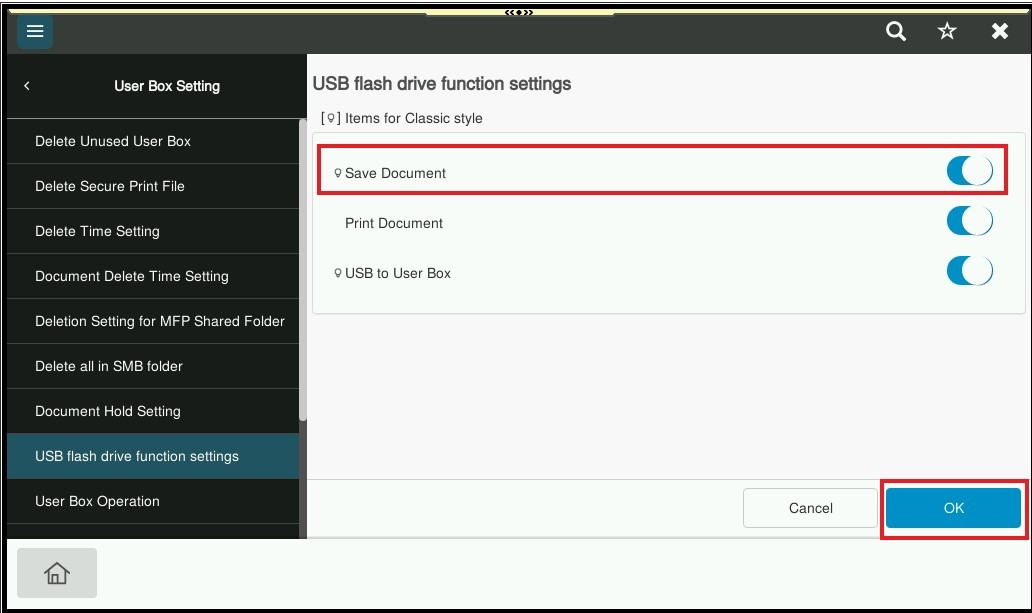
STEP 7 – Select Save Document is ON then click OK to save it, this will enable the option to Save Document to External Memory when a thumb drive is plugged in on the machine. Important Note: Only thumb drives with file type FAT32 is accepted on the machine. NTFS file type and encrypted thumb drives will not work on the machine.
Additional Note: If still unable to detect option after try above step and machine have user authentication applied, click here for the guide on how to configure the settings to use a external memory for each registered user under user authentication settings.